> For the complete documentation index, see [llms.txt](https://help.verkada.com/llms.txt). Markdown versions of documentation pages are available by appending `.md` to page URLs; this page is available as [Markdown](https://help.verkada.com/verkada-cameras/ja/mentenansutotoraburushtingu/troubleshooting/troubleshooting-guide-for-ptz-cameras.md).
# PTZカメラのトラブルシューティングガイド
WebRTCでPTZカメラをトラブルシューティングする
PTZカメラはWebリアルタイム通信([WebRTC](https://webrtc.org/))を使用して、世界中のどこからでも、ストリーミング機能とカメラ操作の両方で超低遅延を実現します。カメラがWebRTC接続を正常に確立している場合、想定される遅延は約0.5秒です。ただし、ネットワークの問題やファイアウォールの設定が原因で、WebRTC接続が失敗する場合があります。
この記事では、WebRTCを使用してPTZカメラで最高のパフォーマンスと最小の遅延を実現する方法を学べます。
***
## よくある質問
### WebRTCが動作していないかどうかは、どうすれば分かりますか?
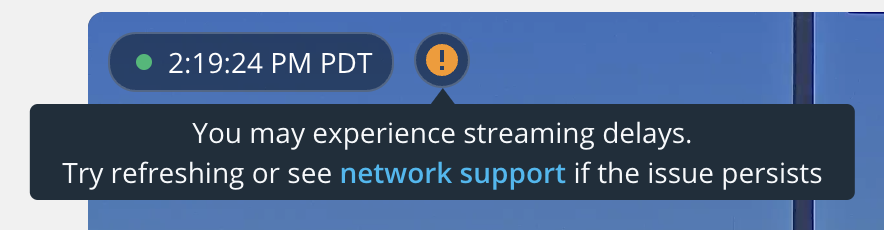
約2秒の遅延が発生している場合、WebRTCはおそらく失敗しています。CommandのビデオフィードのレイオーバーUIを見ることで、簡単に判断できます。カメラのビデオフィードの上部にオレンジ色の感嘆符(下の画像を参照)が表示されている場合、カメラがWebRTC接続を確立できなかったことを示しています。
### 推奨されるドメインは何ですか?
Verkadaデバイスがフル機能の体験を提供するには、特定のドメインと通信できる必要があります。WebRTC接続を確立するために、カメラから次のドメインへアクセスできる必要があります:
```
*.control.verkada.com - TCP+UDP/443
*.verkada.com - TCP+UDP/443
time.control.verkada.com - UDP/123
*:4100 - LAN上のTCP/UDP(ローカルストリーミング機能にのみ必要)
*.kinesisvideo.us-west-2.amazonaws.com - TCP/443
*.kinesisvideo.us-west-2.amazonaws.com - UDP/443
```
{% hint style="warning" %}
参照 [カメラのネットワーク設定](/verkada-cameras/ja/she-ding/camera-network-settings.md) 詳細情報は
{% endhint %}
#### ビデオ解像度
| | | |
| ------------------------------------------------------------------------------ | ----------------- | ---------------------------------------------------------------------------------------------------------------------------------------------- |
| **モデル** | **センサー解像度** | **ストリーミング機能設定** |
| [CP52-E](https://docs.verkada.com/docs/video-security-ptz-series-overview.pdf) | 5MP (2688 x 1944) | 固定PTZ: 600~2500 Kbps
ユーザー制御PTZ: 2000~4500 Kbps
Sentryモード: 1500~4000 Kbps
|
| [CP63-E](https://docs.verkada.com/docs/video-security-cp63-e-datasheet.pdf) | 4K (3840 x 2160) | 固定PTZ: 600~3000 Kbps
ユーザー制御PTZ: 2500~5000 Kbps
Sentryモード: 1500~5000 Kbps
|
### それでも低遅延のWebRTC接続を確立できない場合は?
上記の手順に従ってネットワークが正しく設定されているにもかかわらず、低遅延のWebRTC接続を確立できない場合は、
{% stepper %}
{% step %}
**お問い合わせ** [**Verkadaサポート**](https://www.verkada.com/support/)**.**
{% endstep %}
{% step %}
**次の** [**ネットワークトラブルシューティング - インターネット共有ガイド**](/verkada-cameras/ja/mentenansutotoraburushtingu/troubleshooting/network-troubleshooting-internet-sharing.md) **を使用してチームにパケット撮影データを提供し、問題を最善の方法で解決できるようにしてください。**
{% endstep %}
{% endstepper %}
---
# Agent Instructions
This documentation is published with GitBook. GitBook is the documentation platform designed so that both humans and AI agents can read, navigate, and reason over technical content effectively. Learn more at gitbook.com.
## Querying This Documentation
If you need additional information that is not directly available in this page, you can query the documentation by asking a question.
Perform an HTTP GET request on the following URL with the `ask` and `goal` query parameters:
```
GET https://help.verkada.com/verkada-cameras/ja/mentenansutotoraburushtingu/troubleshooting/troubleshooting-guide-for-ptz-cameras.md?ask=&goal=
```
`ask` is the immediate question: it should be specific, self-contained, and written in natural language.
`goal` is what the user is ultimately trying to achieve, the reason they need the answer. Sharing it helps GitBook give you a better, more relevant answer. A goal is most helpful when it describes the outcome the user wants rather than restating the question. For example, with `ask=how do I create an API token`, a goal like `automate deployments from our CI pipeline` lets GitBook tailor the answer to that use case.
The response will contain a direct answer to the question and relevant excerpts and sources from the documentation.
Use this mechanism when the answer is not explicitly present in the current page, you need clarification or additional context, or you want to retrieve related documentation sections.