Okta
Configure SSO and user provisioning with Okta
Integrate Verkada Command with Okta for Single Sign-On (SSO) and automated user provisioning.
OIDC SSO
Yes
SAML SSO
Yes
SCIM Provisioning
Yes
ECE Support
Yes
OIDC Single Sign-On
Verkada Command supports Single Sign-On (SSO) through OpenID Connect (OIDC) with Okta. This integration allows users to seamlessly and securely authenticate using their existing Okta credentials.
OIDC is not supported on the Pass app or Desk Station apps.
Okta configuration
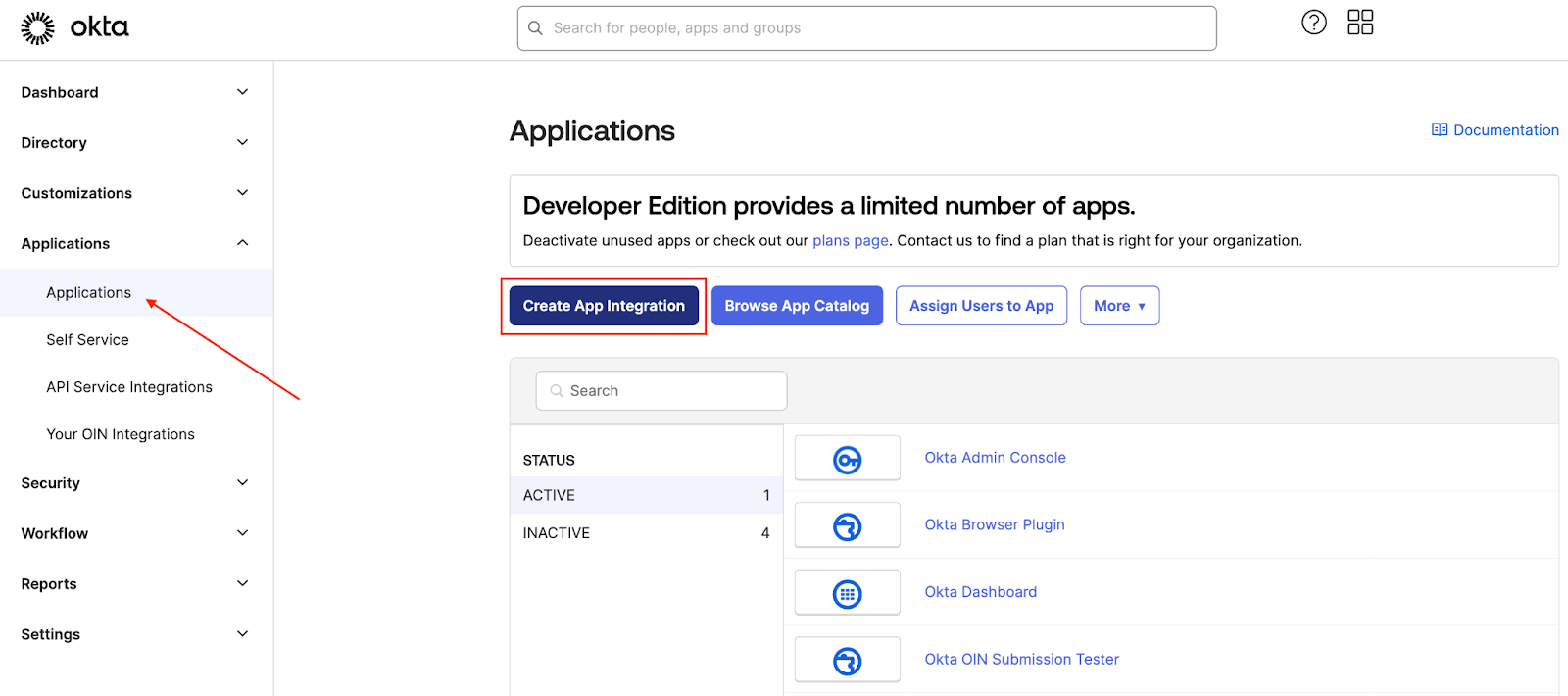
Navigate to your Okta instance to create a new application. Click Applications from the sidebar and click Create App Integration.

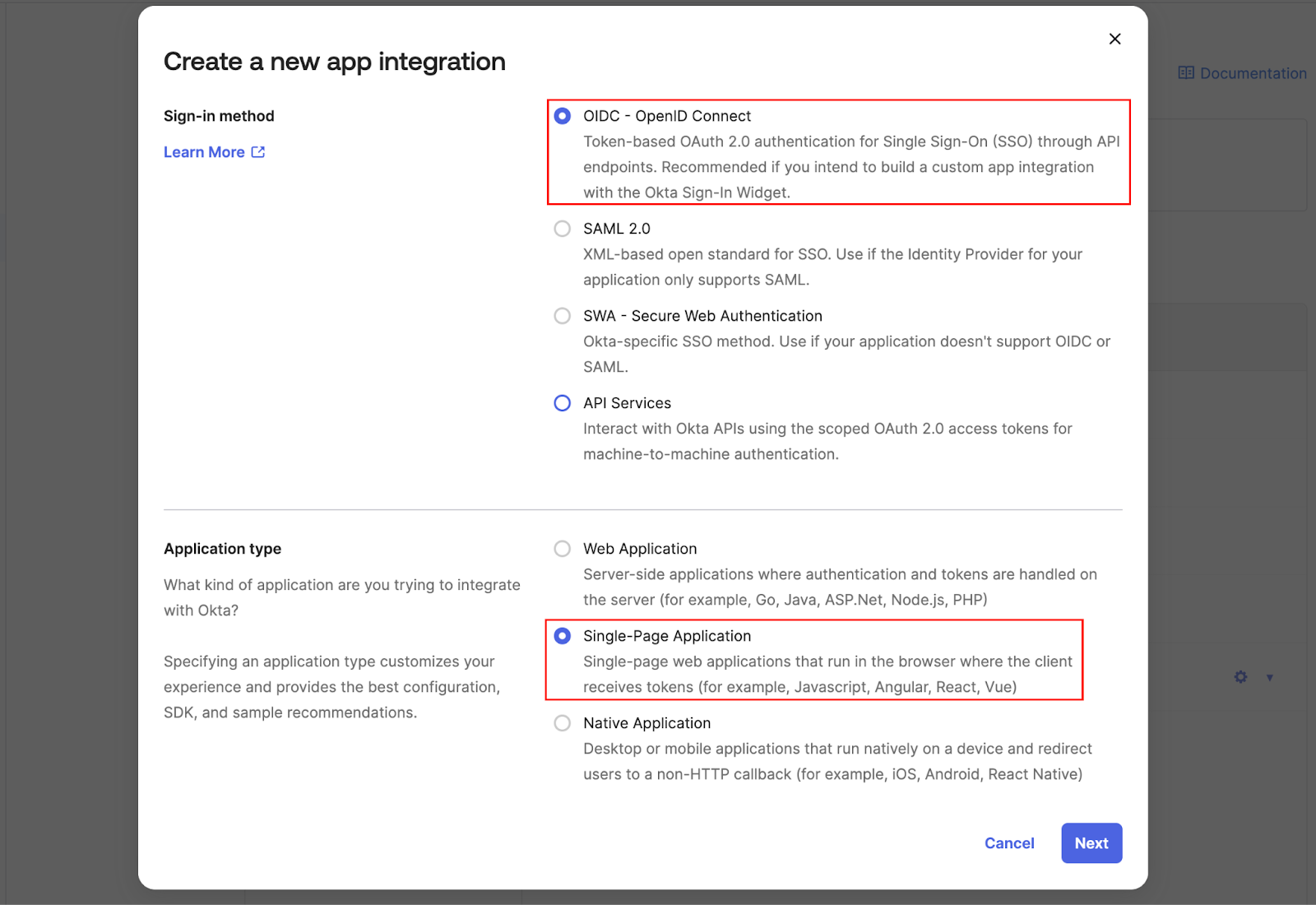
Under Create a new app integration, select OIDC - OpenID Connect as your Sign-in method and Single-Page Application as your Application type.

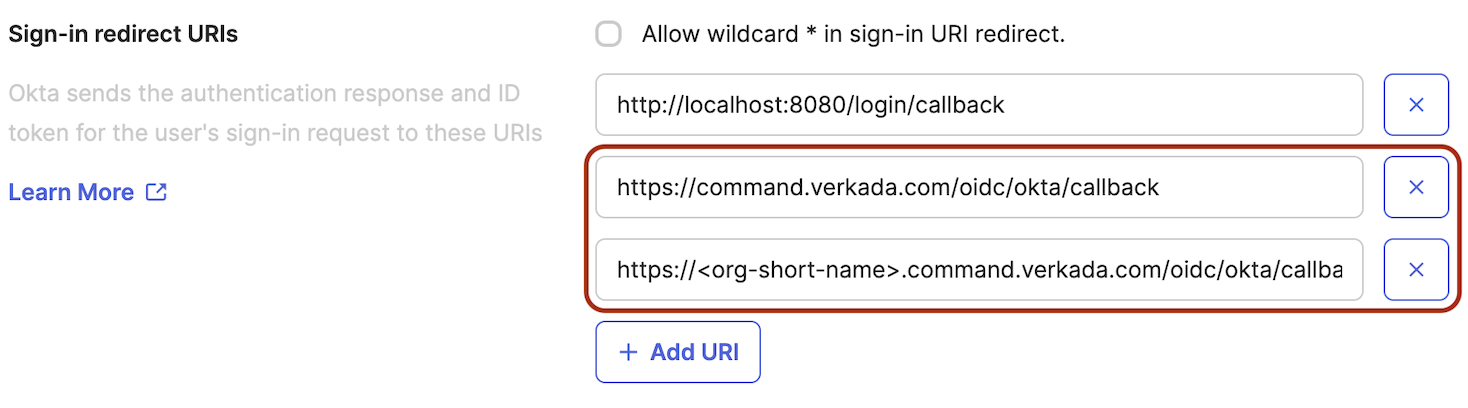
Give your application an identifiable name and add the following Sign-in redirect URIs:
a. https://command.verkada.com/oidc/okta/callback
b. https://<org-short-name>.command.verkada.com/oidc/okta/callback (replace with your Command organization's short-name)

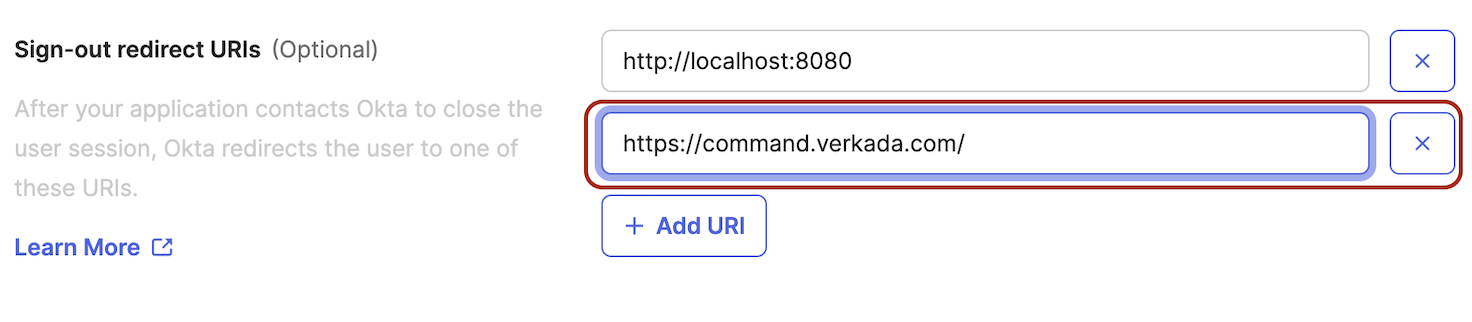
(Optional) Under Sign-out redirect URIs add https://command.verkada.com/.

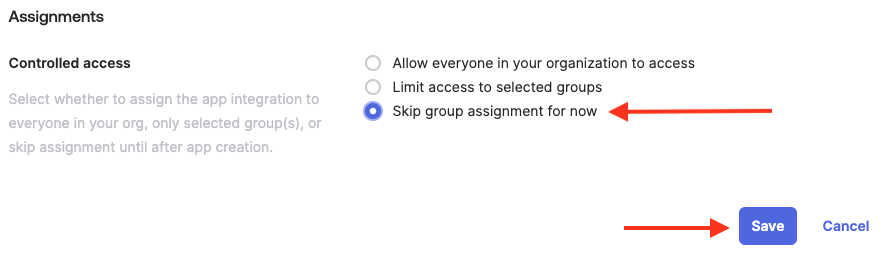
Under Assignments, select Skip Group Assignment for now and click Save.

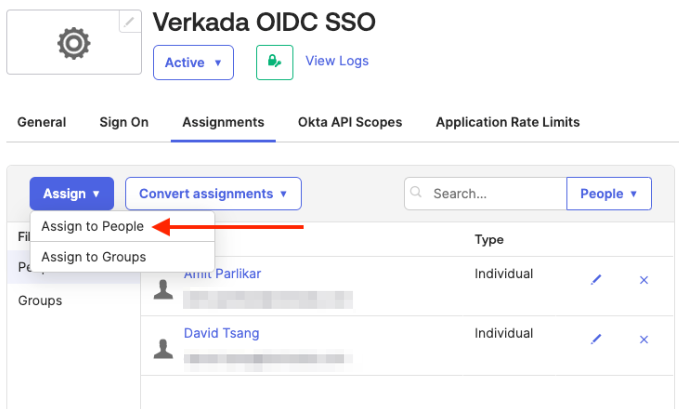
Under Assignments, click the Assign dropdown to assign this application to your user profiles.

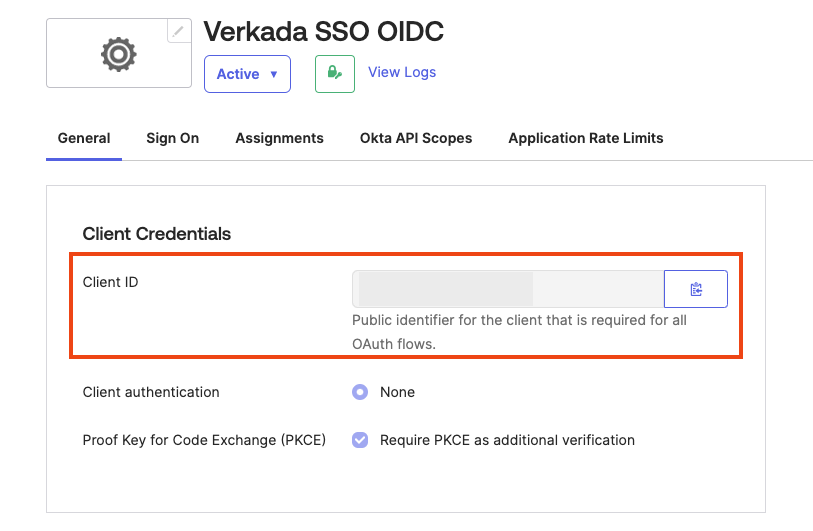
Under General, copy the Client ID displayed under Client Credentials.

Command configuration
In Verkada Command, go to All Products > Admin.
In the left navigation, select Login & Access.
Select Single Sign-On Configuration.
Under OIDC Configuration, click Add New.
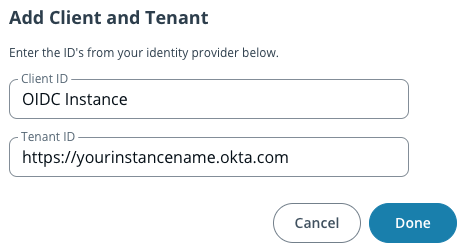
a. Toggle on Enable. b. (Optional) Toggle on Require OIDC SSO. c. Under Select Provider, select Okta. d. Under Add Client and Tenant, click :plus:.
In the Client ID field, paste the Client ID you copied from Okta.
In the Tenant ID field, enter the first part of your Okta instance's URL (e.g.,
https://yourinstancename.okta.com).Click Done.

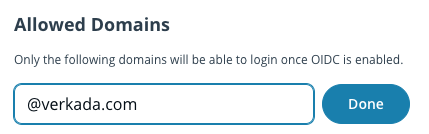
e. Under Email Domains, click :plus:.
Enter your domain name (e.g., @verkada.com).
Click Done.

Under Login Test, click Run Login Test.
A successful login test should redirect to the OIDC configuration page. Once logged in, add the domain to whitelist.
Once your domain is added, run the login test again. SSO will not be enabled until this second login test successfully completes.
Once your domain is verified, you should see it successfully validated.
SAML Single Sign-On
Verkada Command integrates with Okta using Security Assertion Markup Language (SAML) for authentication. SAML allows Okta to manage access to Command like any other SaaS application.
Before you begin
For a successful integration, choose the best path for your region:
US orgs: Use the existing Verkada gallery application
EU and AUS orgs: Configure a new app integration in Okta
Configuration
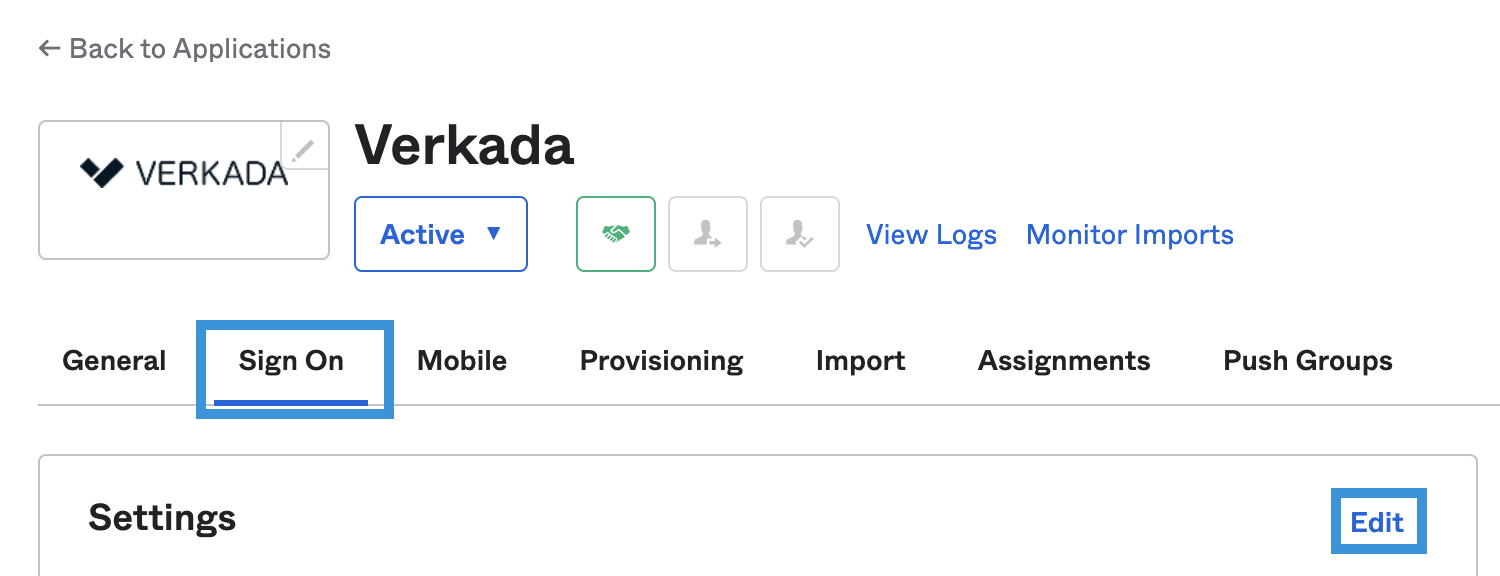
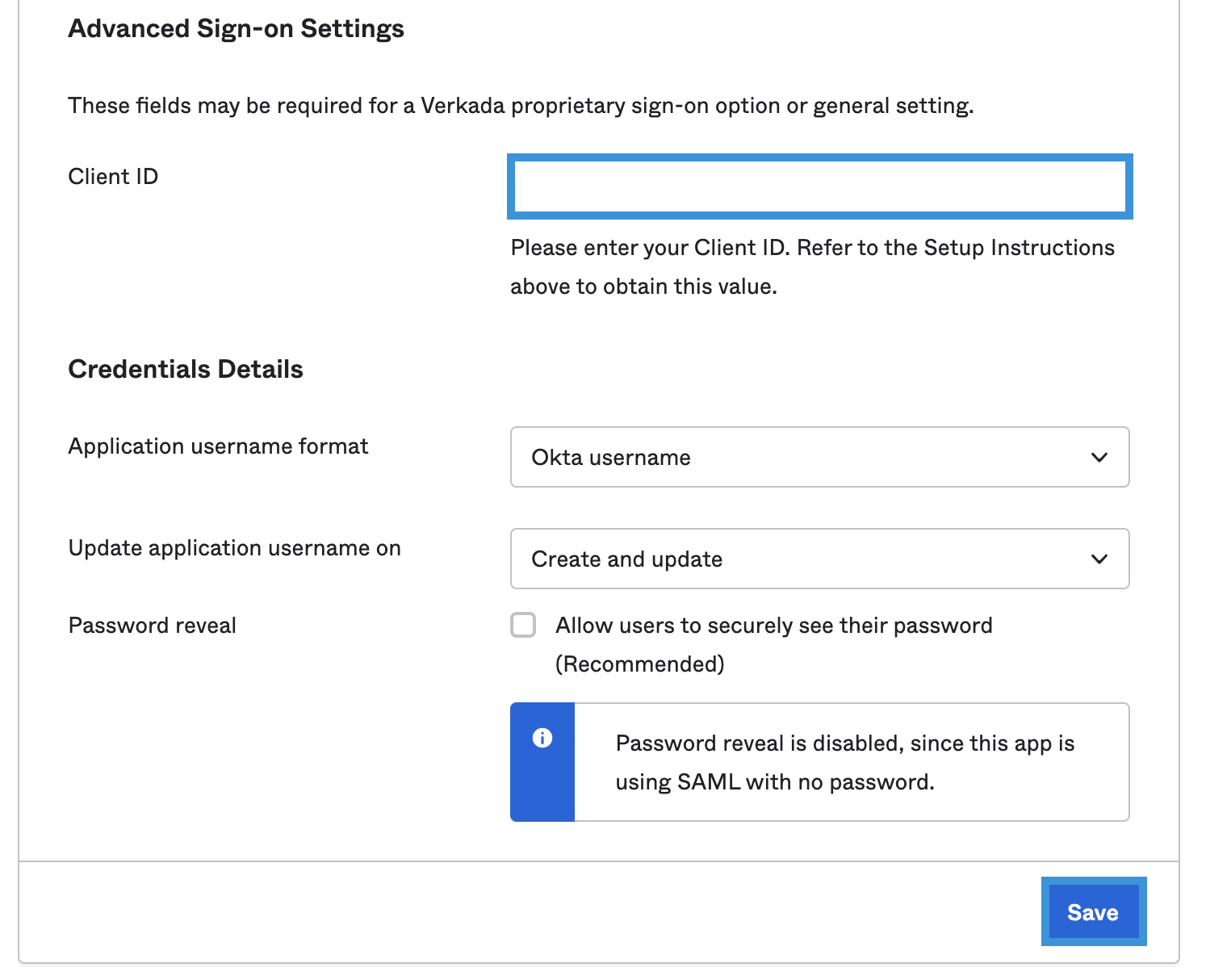
In Okta, select the Sign On tab for the Verkada app, and click Edit.

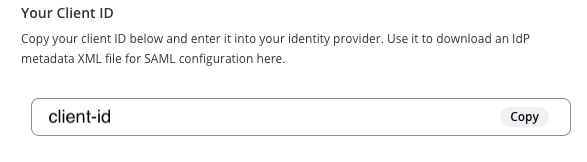
Scroll down to Advanced Sign-On Settings and enter the Client ID from your Command account.

Click Save.

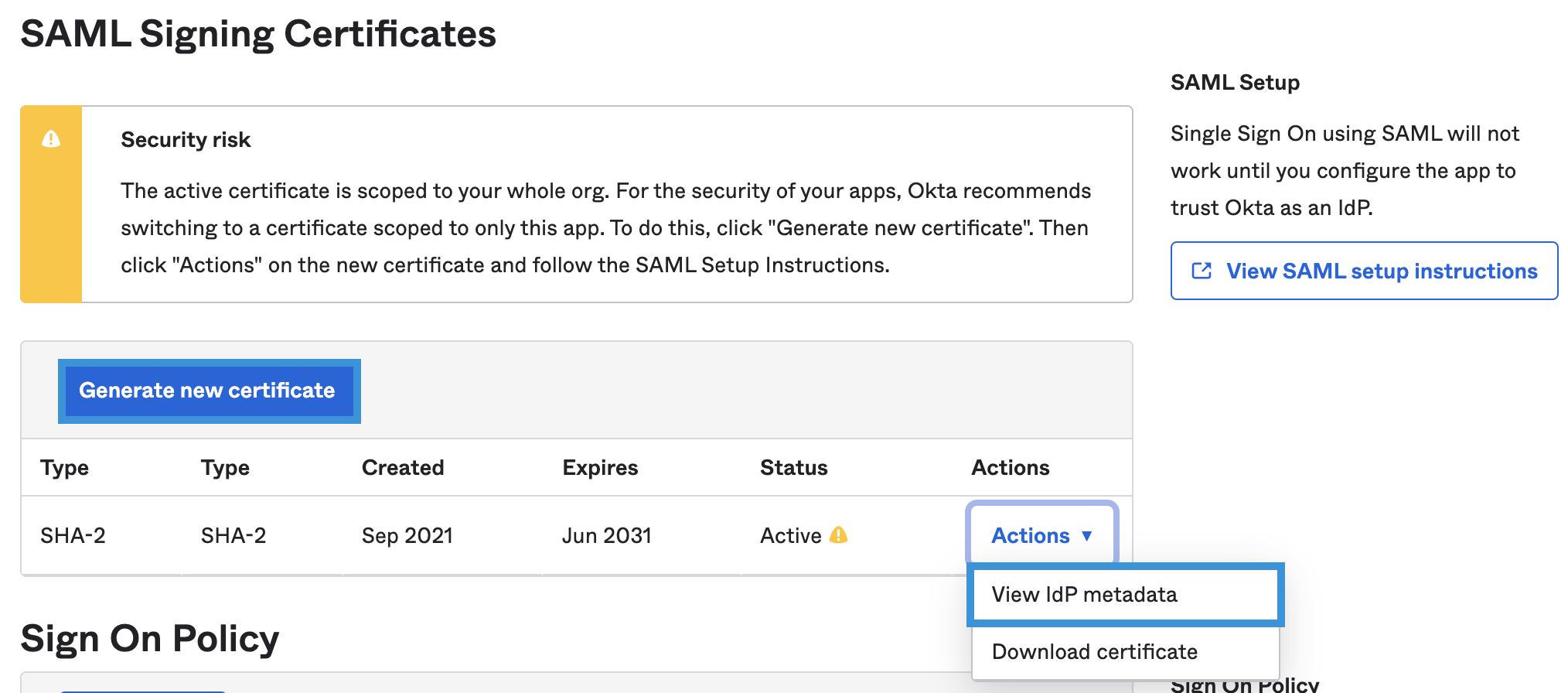
Scroll to SAML Signing Certificates and click Generate new certificate if one doesn't exist.
To the right of the certificate, select the Actions dropdown and click View IdP metadata.

Right-click on the metadata and save as an XML file.
After downloading the XML file, upload it to Command.
In the Verify Metadata section, click Run Login Test.
Troubleshooting
Updating usernames (emails) does not automatically take effect in Command. Un-assign the user from the SAML app, then re-add them for changes to take effect.
New users cannot log in via SSO? The email domain may not be in the SSO configuration. Add the domain to fix this.
Other SSO problems? Contact Verkada Support.
SCIM User Provisioning
Verkada Command integrates with Okta using System for Cross-Domain Identity Management (SCIM) for automated user and group provisioning.
SCIM synchronizes users and groups from Okta directly into Command. This lets you:
Retain Okta as your central IdP
Automatically update users and groups in Command as changes occur in Okta
Assign and manage permissions in Command using your existing identity structure
Before you begin
You need an API token to connect to the Verkada SCIM endpoint. Learn how to acquire a SCIM API token.
Choose the path for your region:
US orgs: Follow the steps to create a Verkada Okta app
EU and AUS orgs: Follow the steps to enable SCIM provisioning
Create a Verkada Okta app
Configure the Verkada app
Provision users and groups
Users added to the app push automatically; groups need to be pushed manually.
Add attributes to SCIM-managed users (optional)
Verkada and Okta support these attributes: userName, givenName, familyName, title, employeeNumber, primaryPhone, department, organization
Delete SCIM-managed users
When a SCIM-managed user is deactivated in Okta, you can remove them from Command:
Delete the user – Moves to Deleted Users page, keeps historical records
Permanently remove the user – Erases all data; re-provisioning creates a new record
You must deactivate the user in Okta before either deletion option is available in Command.
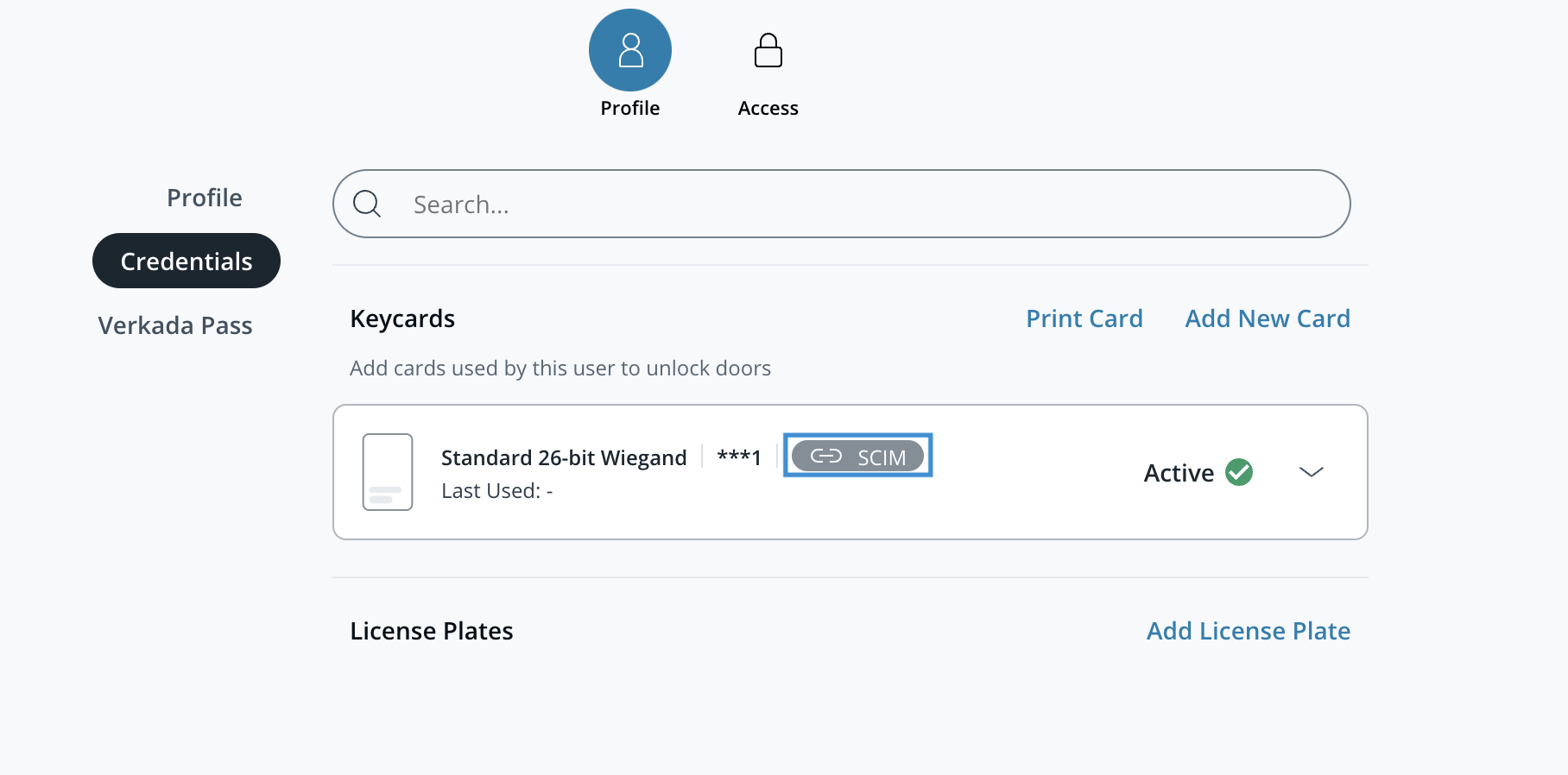
Add access credentials (optional)
Log in to Okta.
Go to Directory > Profile Editor and select User (default).
Click Add Attribute and add the custom attributes from the table below.
Go to Applications and open your Verkada SCIM application.
On the Provisioning tab, select To App > Go to Profile Editor.
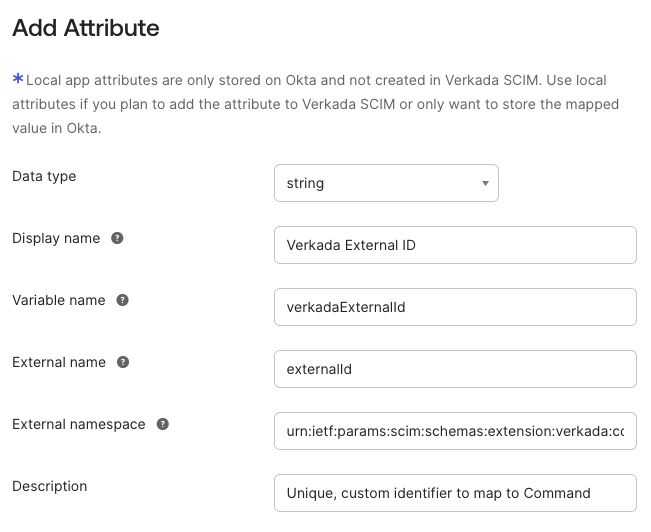
Click Add Attribute to create attributes with these details:
External namespace:
urn:ietf:params:scim:schemas:extension:verkada:access:2.0:UserAttribute type: Personal
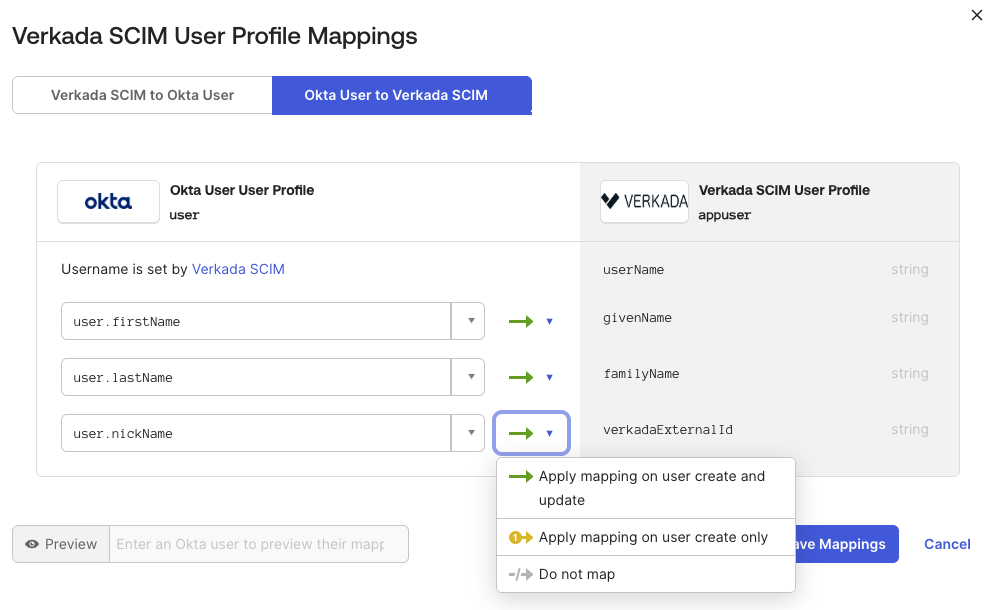
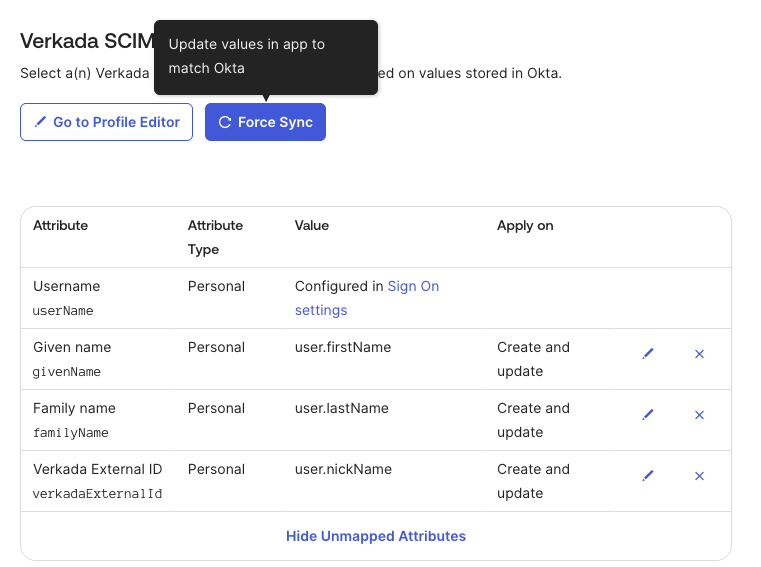
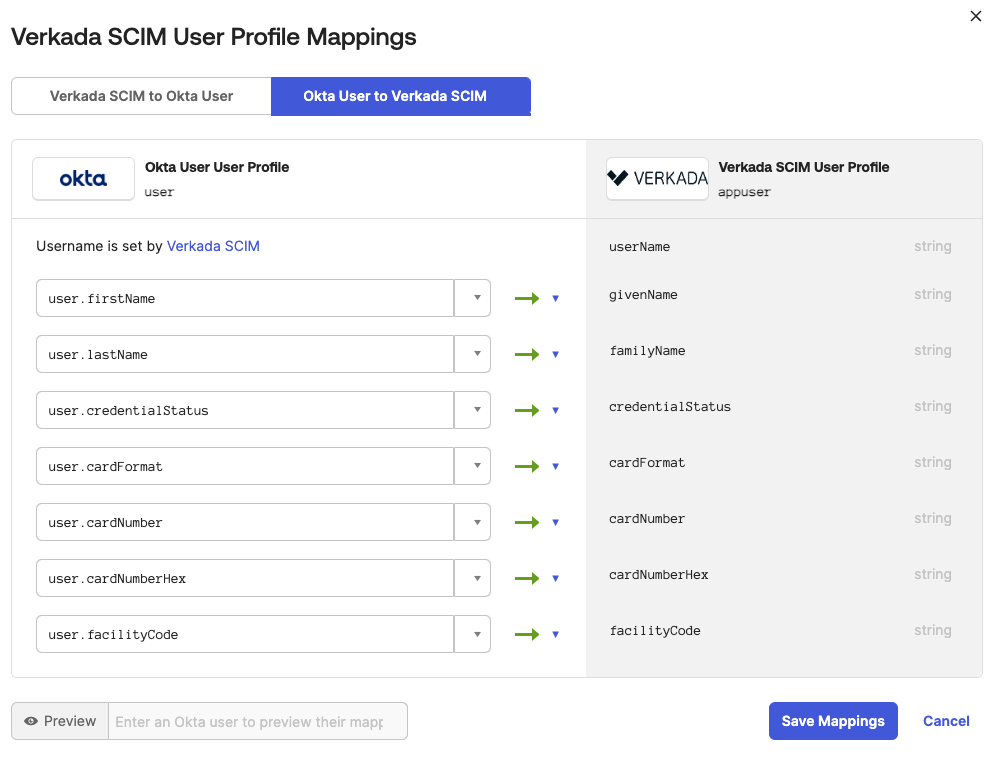
Click Mappings and map attributes from Okta User to your SCIM app.
Click Save Mappings and Apply updates now.
Credential attributes:
string
Card Format
cardFormat
string
Card Number
cardNumber
string
Card Number Hex
cardNumberHex
string
Credential Status
credentialStatus
string
Facility Code
facilityCode
string
External ID
externalId
string
Department ID
costCenter
Known issues
Updating usernames (emails) does not automatically take effect. Un-assign and re-add the user.
New users cannot log in via SSO? The email domain may not be added to SSO configuration.
Provisioning errors? See Okta's troubleshooting article.
Other problems? Contact Verkada Support.
Last updated
Was this helpful?