# OneLogin

Verkada supports Security Assertion Markup Language (SAML) authentication using OneLogin as your Identity Provider (IdP).

| Feature           | Supported |
| ----------------- | :-------: |
| OIDC SSO          |     —     |
| SAML SSO          |    Yes    |
| SCIM Provisioning |     —     |
| ECE Support       |     —     |

***

## Configure Verkada SSO with OneLogin

{% hint style="warning" %}
Before you can enable OneLogin SAML, you **must** [generate your client ID](https://help.verkada.com/command/security/identity-providers/..#generate-client-id).
{% endhint %}

{% stepper %}
{% step %}
**Launch OneLogin and on the menu bar, select Applications > Add App.**

<div align="left" data-with-frame="true"><img src="https://705858581-files.gitbook.io/~/files/v0/b/gitbook-x-prod.appspot.com/o/spaces%2FNRq5qDDjsYNxwNzF1bcB%2Fuploads%2Fgit-blob-d3bb6de48a2177e1c3566d4cf8656f45f656410e%2Fe2a1537bc3912dc895bfbf4dd57a339d5c98ea66.png?alt=media" alt="" width="948"></div>
{% endstep %}

{% step %}
**Search for SAML Custom Connector (Advanced).**

<div align="left" data-with-frame="true"><img src="https://705858581-files.gitbook.io/~/files/v0/b/gitbook-x-prod.appspot.com/o/spaces%2FNRq5qDDjsYNxwNzF1bcB%2Fuploads%2Fgit-blob-d77a5ef58cb808587bb0864abd30cbed7adf978a%2Feb0e7e26c3869c614d7a6305f1f16975e05ba13c.png?alt=media" alt="" width="1143"></div>
{% endstep %}

{% step %}
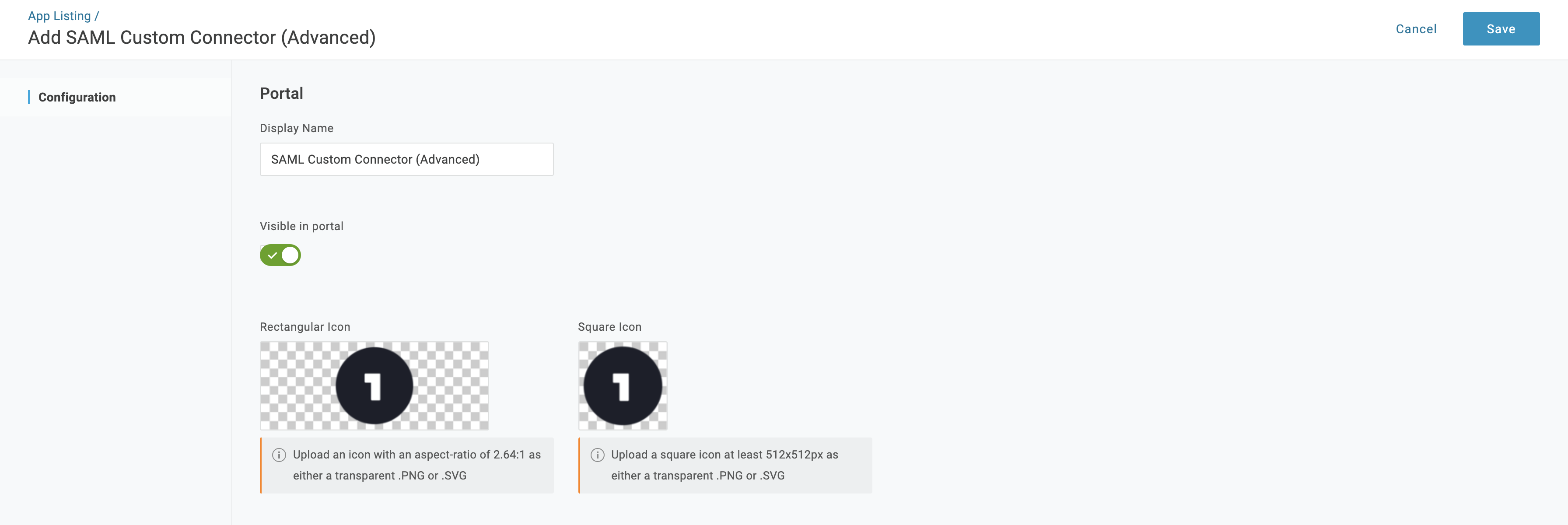
**Choose a Display Name and click Save.**

<div align="left" data-with-frame="true"><img src="https://705858581-files.gitbook.io/~/files/v0/b/gitbook-x-prod.appspot.com/o/spaces%2FNRq5qDDjsYNxwNzF1bcB%2Fuploads%2Fgit-blob-166a01fec564d03ba5f16127f6f9157654c20352%2F8b78fd33b4d2b91c688b257037448dc8a9825f69.png?alt=media" alt="" width="1792"></div>
{% endstep %}

{% step %}
**Go to Applications > SAML Custom Connector (Advanced), select Configuration, and use these values to copy and paste, where you replace `CLIENT-ID` with the client ID generated earlier.**

a. For **Audience (EntityID)** and **Recipient**:

* For US orgs: <https://vauth.command.verkada.com/saml/sso/%3Cclient-ID%3E>
* For EU orgs: [https://saml.prod2.verkada.com/saml/sso/](https://saml.prod2.verkada.com/saml/sso/%3CclientID%3E)
* For AUS orgs: <https://saml.prod-ap-syd.verkada.com/saml/sso/%3Cclient-ID%3E>

e. **Required**. For **ACS (Consumer) URL Validator**:

* For US orgs: [https://vauth.command.verkada.com/saml/sso/](https://vauth.command.verkada.com/saml/sso/%3CclientID%3E)
* For EU orgs: [https://saml.prod2.verkada.com/saml/sso/](https://saml.prod2.verkada.com/saml/sso/%3CclientID%3E)
* For AUS orgs: <https://saml.prod-ap-syd.verkada.com/saml/sso/%3Cclient-ID%3E>

i. **Required**. For **ACS (Consumer) URL**:

* For US orgs: [https://vauth.command.verkada.com/saml/sso/](https://vauth.command.verkada.com/saml/sso/%3CclientID%3E)
* For EU orgs: [https://saml.prod2.verkada.com/saml/sso/](https://saml.prod2.verkada.com/saml/sso/%3CclientID%3E)
* For AUS orgs: <https://saml.prod-ap-syd.verkada.com/saml/sso/%3Cclient-ID%3E>

m. For **SAML signature element**, click the dropdown and select **Both**.

{% hint style="warning" %}
To confirm which region you're located, [refer to where your organization was created for Verkada](https://help.verkada.com/command/getting-started/get-started-with-verkada-command).
{% endhint %}
{% endstep %}

{% step %}
**On Applications > SAML Custom Connector (Advanced), select Parameters.**
{% endstep %}

{% step %}
**Click the plus (+) icon, configure the parameters:**

a. For **Name**, enter the first and last name.\
b. Click the **Value** dropdown and select **Email** > **First Name**.\
c. Under **Flags**, check **Include in SAML assertion**, and click **Save**.
{% endstep %}

{% step %}
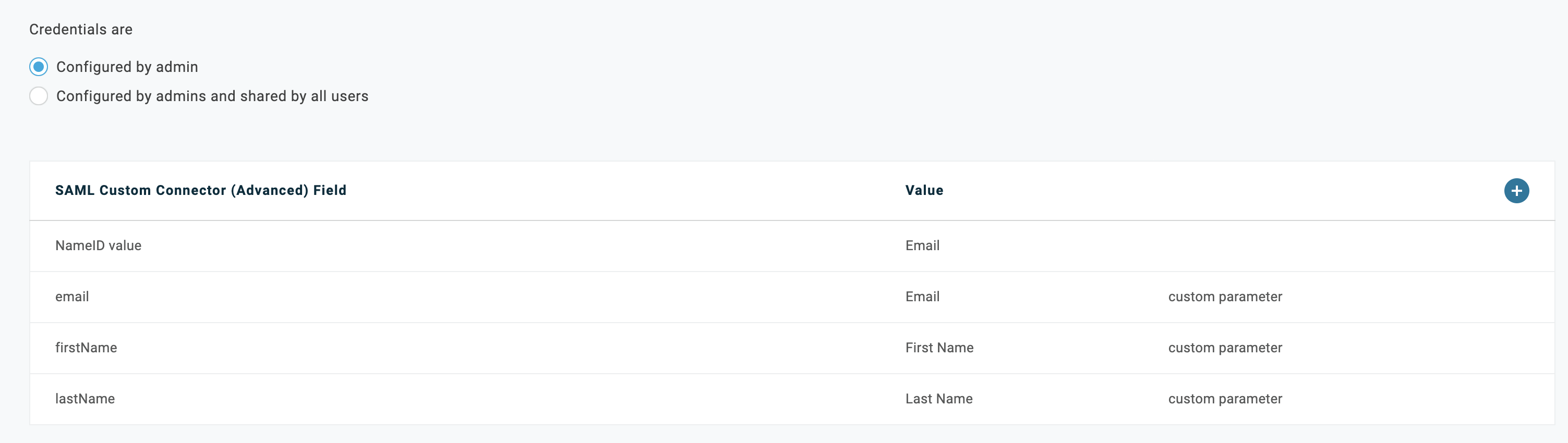
**Click the plus (+) icon and in the next open dialog, select Configured by admin.**

Your parameters should look like this:

<div align="left" data-with-frame="true"><img src="https://705858581-files.gitbook.io/~/files/v0/b/gitbook-x-prod.appspot.com/o/spaces%2FNRq5qDDjsYNxwNzF1bcB%2Fuploads%2Fgit-blob-09392aaab7bd0315a74eb77b5ff26429e871e621%2F4bb20143c57a3362019c931435201a3c1d268ce2.png?alt=media" alt="" width="1503"></div>
{% endstep %}

{% step %}
**Return to Applications > SAML Custom Connector (Advanced) and select SSO.**
{% endstep %}

{% step %}
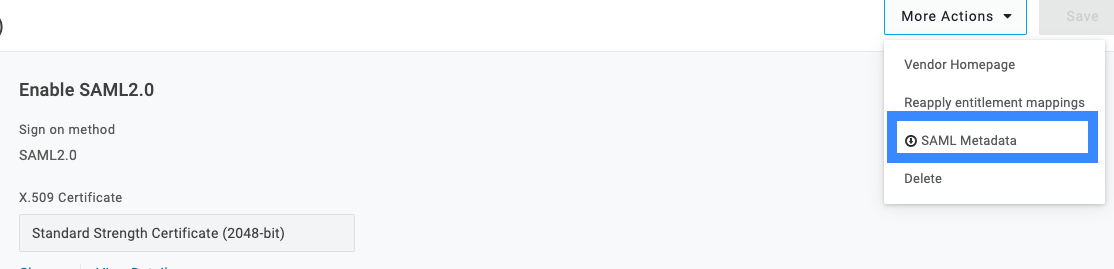
**Click the More Actions drop-down and select SAML Metadata to download the metadata.**

<div align="left" data-with-frame="true"><img src="https://705858581-files.gitbook.io/~/files/v0/b/gitbook-x-prod.appspot.com/o/spaces%2FNRq5qDDjsYNxwNzF1bcB%2Fuploads%2Fgit-blob-e3226d71e94a7caffde24fac1caf60087e93c480%2Fd9e1c9fa281fe8f15caf747f10c55349ff218df7.png?alt=media" alt="" width="557"></div>
{% endstep %}

{% step %}
**Required. To complete the setup process, you must** [**upload the metadata to Command**](https://help.verkada.com/command/security/identity-providers/..#upload-saml-xml-metadata)**.**
{% endstep %}

{% step %}
**Log in with the SAML Login URL.**
{% endstep %}
{% endstepper %}