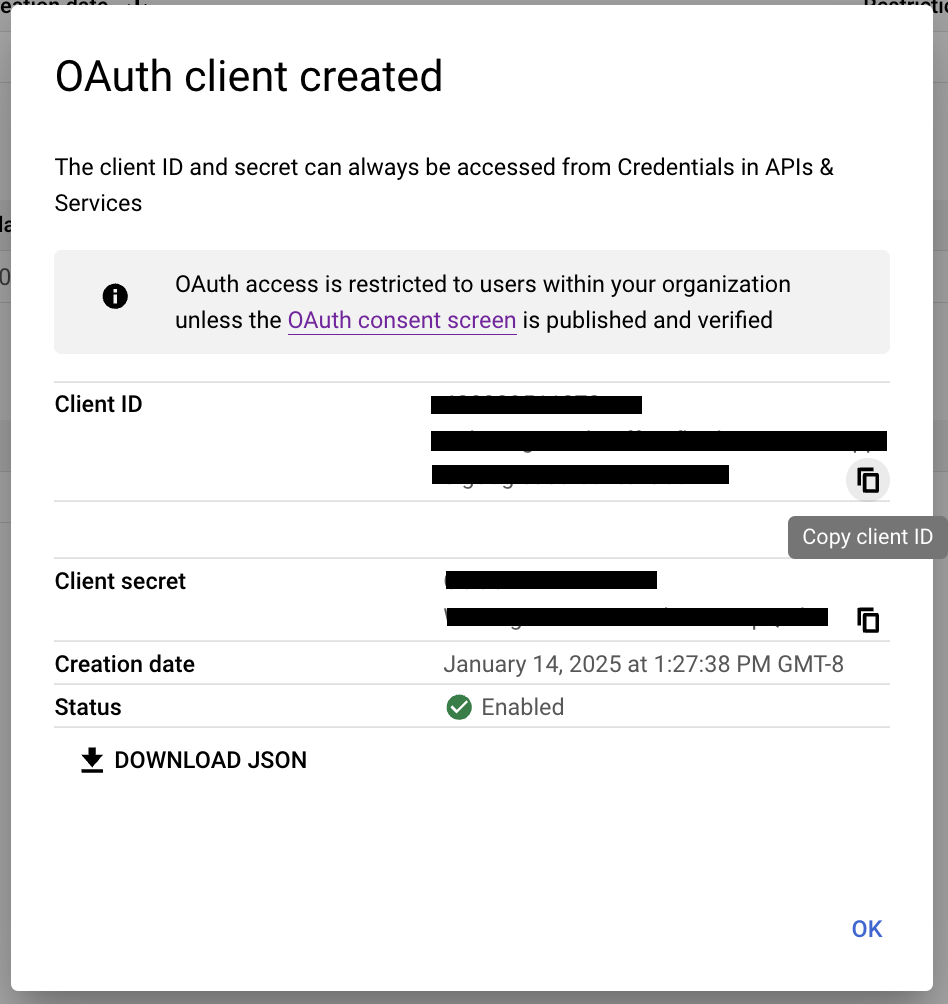
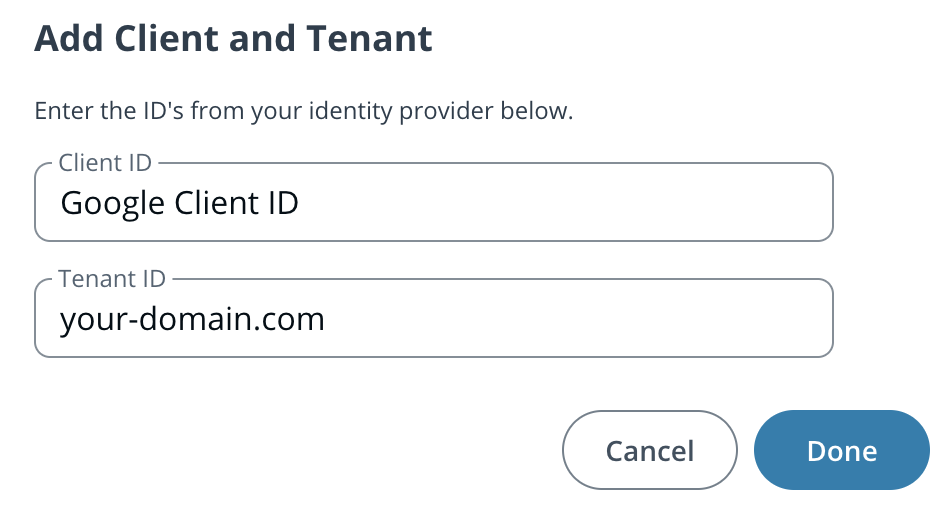
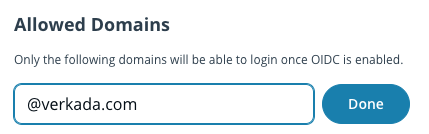
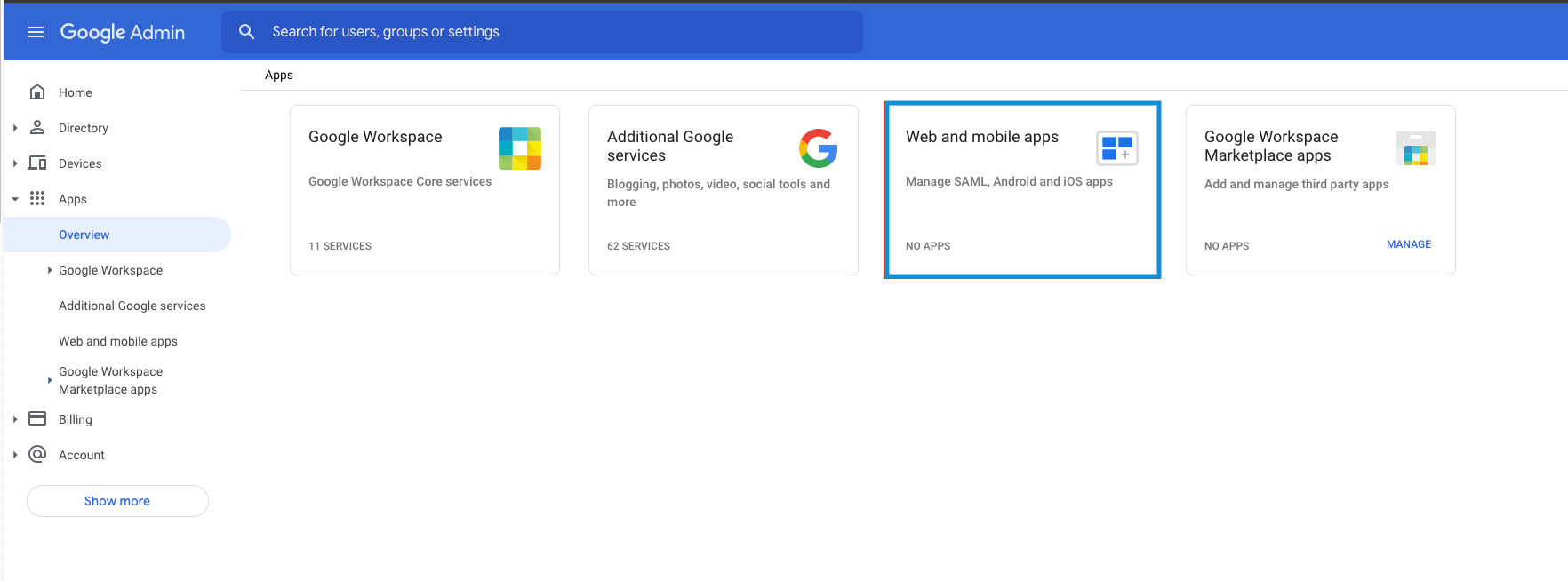
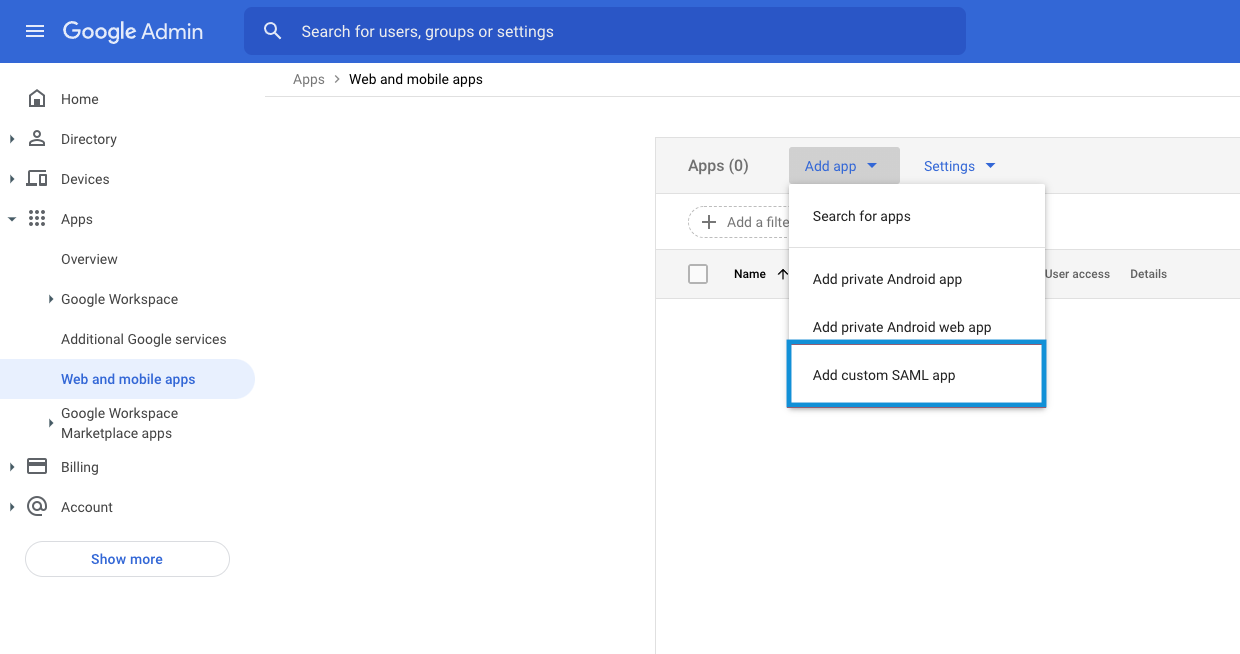
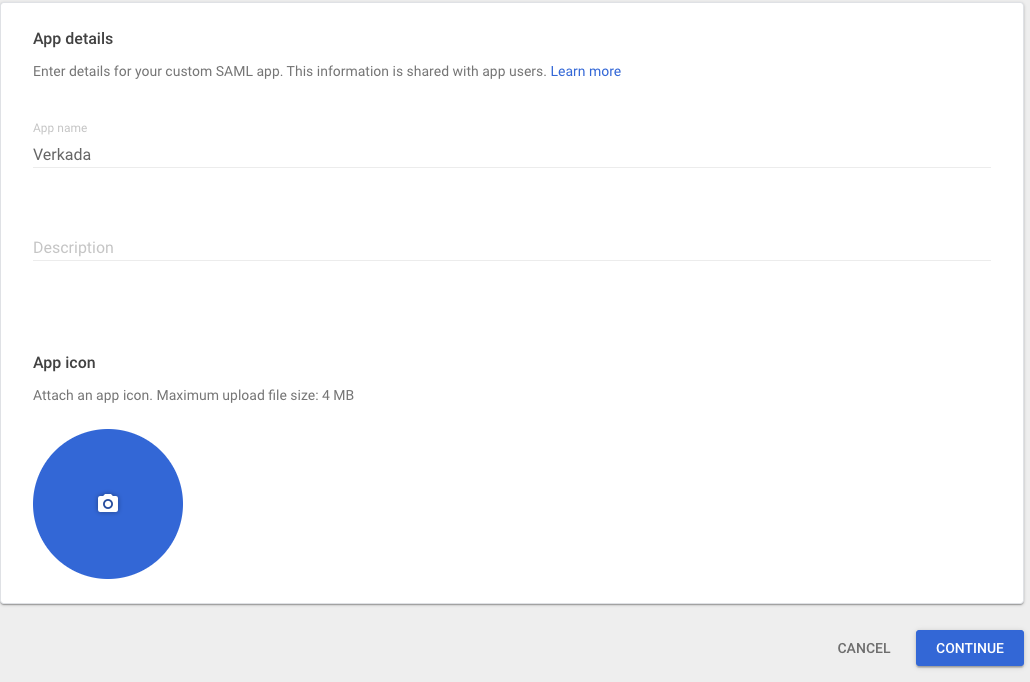
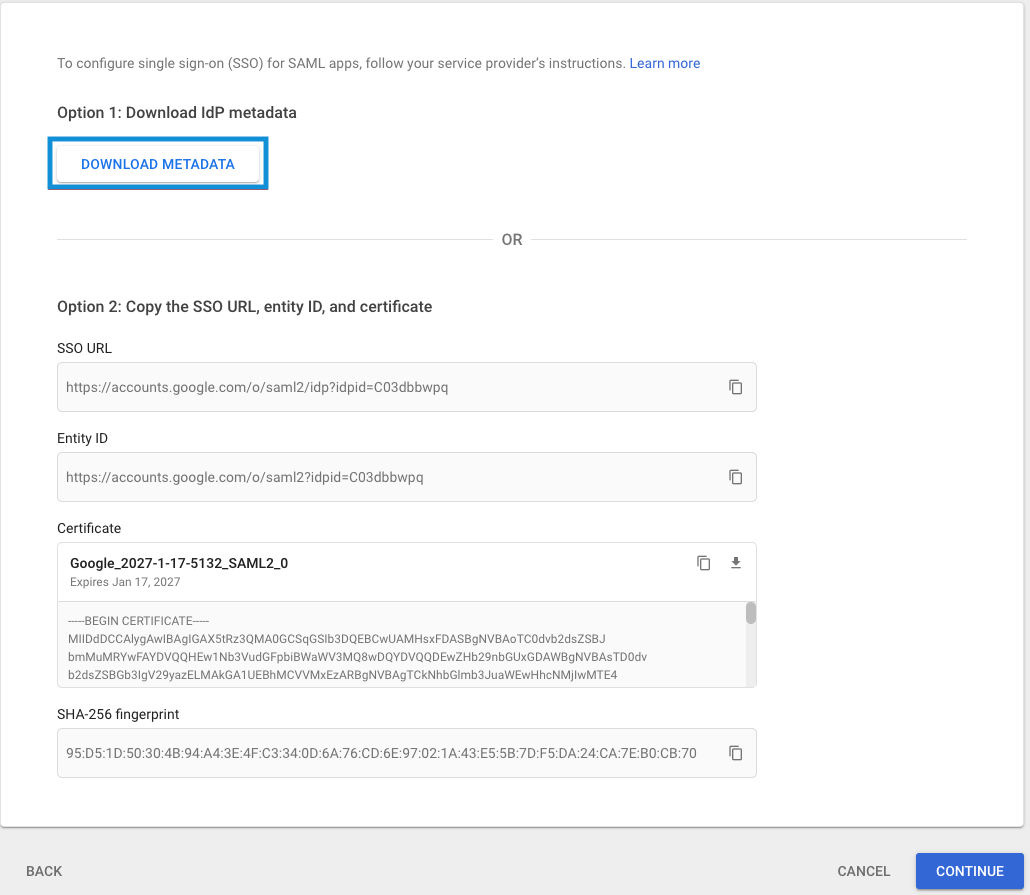
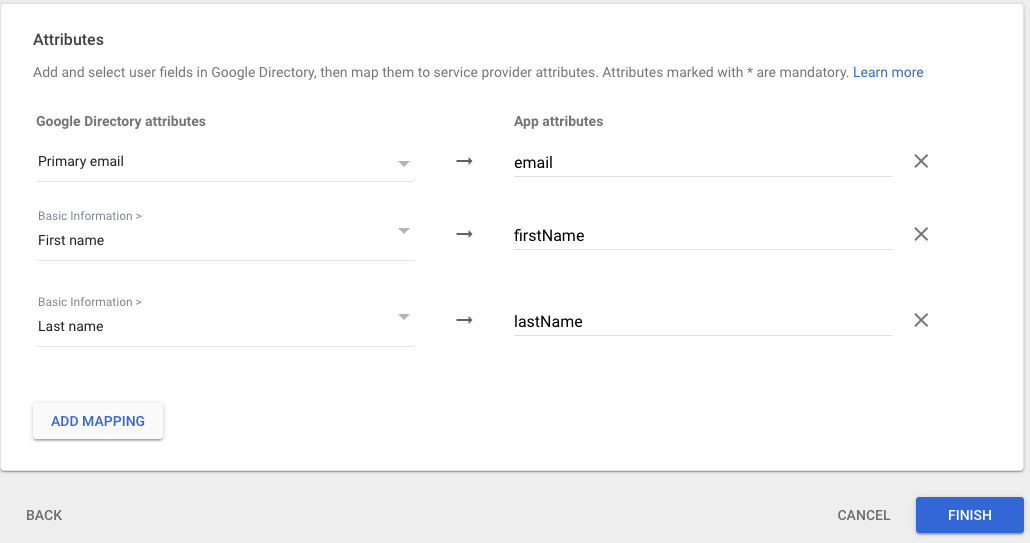
](https://saml.prod-ap-syd.verkada.com/saml/sso/%3Cclient-ID%3E)
{% hint style="warning" %}
See **Admin > Data Privacy > Data Residency > Data Processing Location** to confirm where your region is located.
{% endhint %}
{% endstep %}
{% step %}
**You'll be redirected to the Google Workspace app configuration page to complete the login.**
{% endstep %}
{% endstepper %}
***
### Log in via the mobile application
{% hint style="info" %}
Command on Android and iOS supports login through SAML.
{% endhint %}
{% stepper %}
{% step %}
**In the email address field, type the user's email and click Next.**
{% endstep %}
{% step %}
**You should be redirected to your IdP (Google Workspace) to complete the login process.**
{% endstep %}
{% endstepper %}
{% endtab %}
{% tab title="User Provisioning" %}
## Google Workspace User Provisioning
The Google Workspace native integration allows organizations to automatically sync users and groups from Google Workspace into Verkada Command. This simplifies identity management and general user onboarding.
Unlike Verkada's SCIM integrations with Okta or Azure, this integration uses the Google Workspace Admin SDK and Reports API, authenticated through a Google service account with domain-wide delegation.
With the integration enabled, Command can:
* Import users and groups from selected Google Workspace Groups or Organizational Units (OUs)
* Sync them into Command as managed users and groups
* Maintain directory accuracy with scheduled background syncs and on-demand syncs from the Admin UI
***
### Create a Google service account
To allow Command to read user and group data from your Google Workspace domain, it must authenticate with Google's APIs using a service account. This type of account is designed for programmatic access and must be configured with the correct API scopes and domain-wide delegation. These settings are configured in your [Google Cloud console](https://console.cloud.google.com/?hl=en-au) account.
#### Verify policies & roles
You must first verify whether your user has permissions to create a service account and to generate the service account JSON Key. To ensure you are not blocked by security policies in your tenant:
{% stepper %}
{% step %}
**Go to the** [**Google Cloud console**](https://console.cloud.google.com/?hl=en-au) **and sign in with your Super Admin credentials.**
{% endstep %}
{% step %}
**In the top-left corner, open the Project Selector dropdown, and choose your top-level (Type: Organization) resource.**
{% endstep %}
{% step %}
**From the left-hand panel, navigate to IAM & Admin → IAM.**
{% endstep %}
{% step %}
**Click Grant Access under View by principals.**
a. Under **Add principals**, enter the user's email address.\
b. Under **Assign roles**, search for and select **Organization Policy Administrator**.\
c. Click **Save**.
{% endstep %}
{% step %}
**From the left-hand panel, select Organization Policies.**
{% endstep %}
{% step %}
**In the list of policies, search for and disable the following:**
{% code title="Organization policies to disable" %}
```
Disable service account creation | Managed
Disable service account creation | Managed (Legacy)
Disable service account key creation | Managed
Disable service account key creation | Managed (Legacy)
```
{% endcode %}
{% endstep %}
{% endstepper %}
#### Create a service account
{% stepper %}
{% step %}
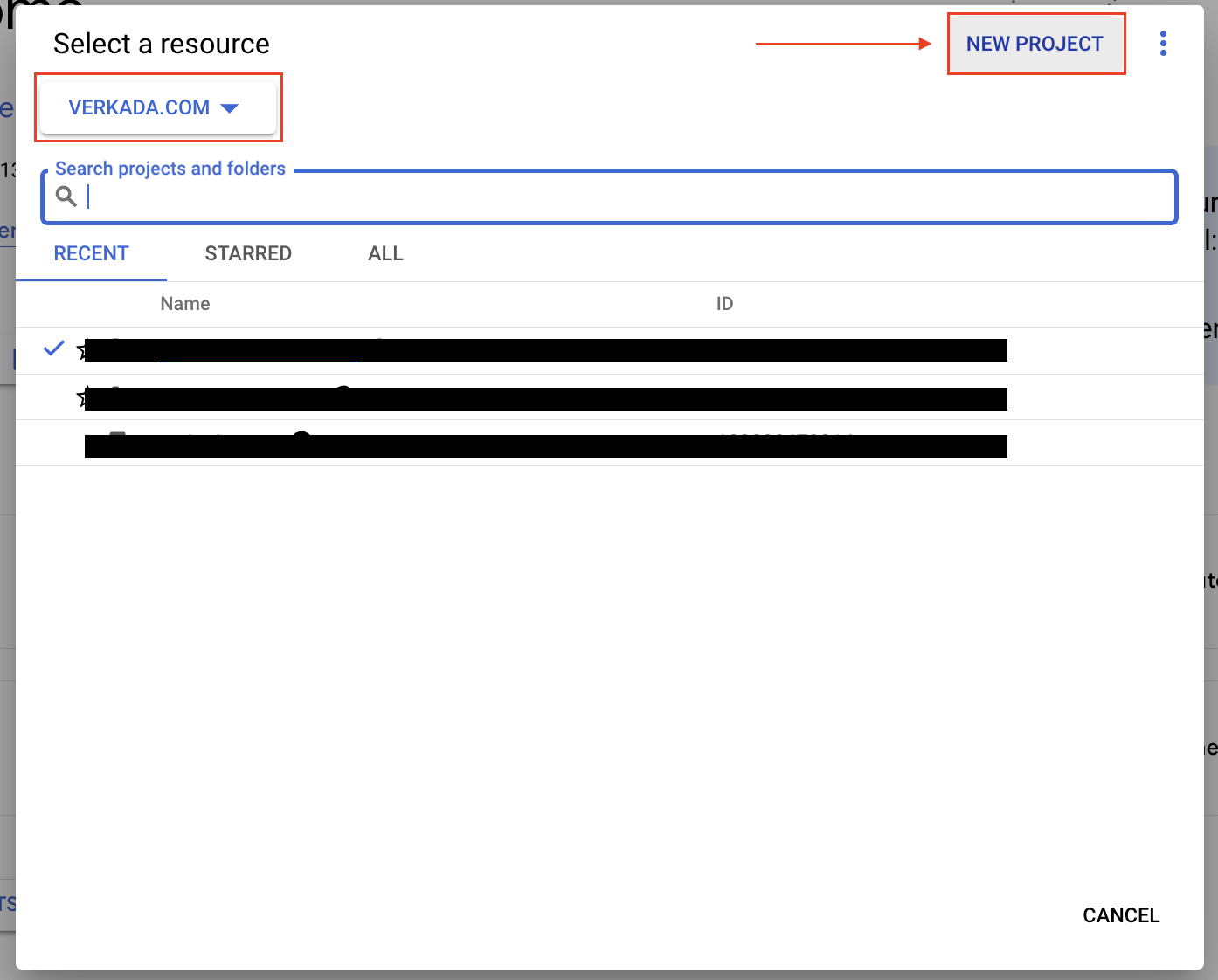
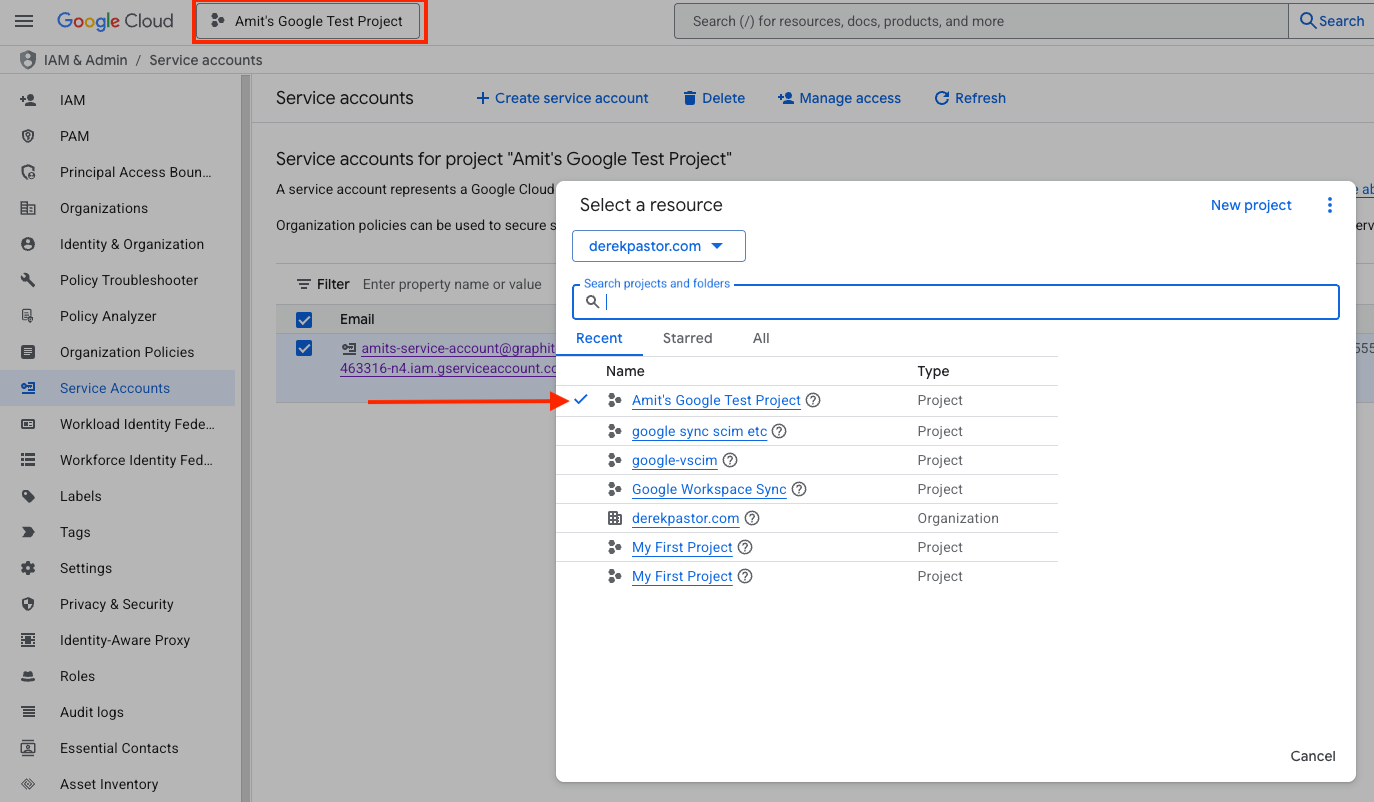
**In the** [**Google Cloud console**](https://console.cloud.google.com/?hl=en-au)**, in the top left, open the Project Selector dropdown.**
{% endstep %}
{% step %}
**Click New Project.**
{% endstep %}
{% step %}
**Enter a project name (for example, *****Verkada User Sync*****) and create the project.**
{% endstep %}
{% step %}
**Once the project is created, confirm it's selected in the navigation bar at the top left.**
{% endstep %}
{% step %}
**From the left-hand sidebar, go to IAM & Admin → Service Accounts.**
{% endstep %}
{% step %}
**Click + Create Service Account.**
{% endstep %}
{% step %}
**Fill in the following fields:**
* **Name:** Enter a descriptive name (e.g., *Verkada User Provisioning*)
* **ID:** Leave as-is or customize (optional)
* **Description:** Add a note, such as *Used by Verkada to read Workspace directory data* (optional)
{% endstep %}
{% step %}
**Click Create and Continue.**
{% endstep %}
{% step %}
**Skip the Grant Project Access step — no roles are required here.**
{% endstep %}
{% step %}
**Click Continue → Done.**
{% endstep %}
{% step %}
**From the list of service accounts, copy the OAuth 2 Client ID for the newly created account. You will need this ID later to complete your setup.**
{% endstep %}
{% endstepper %}
#### Generate a JSON key
{% stepper %}
{% step %}
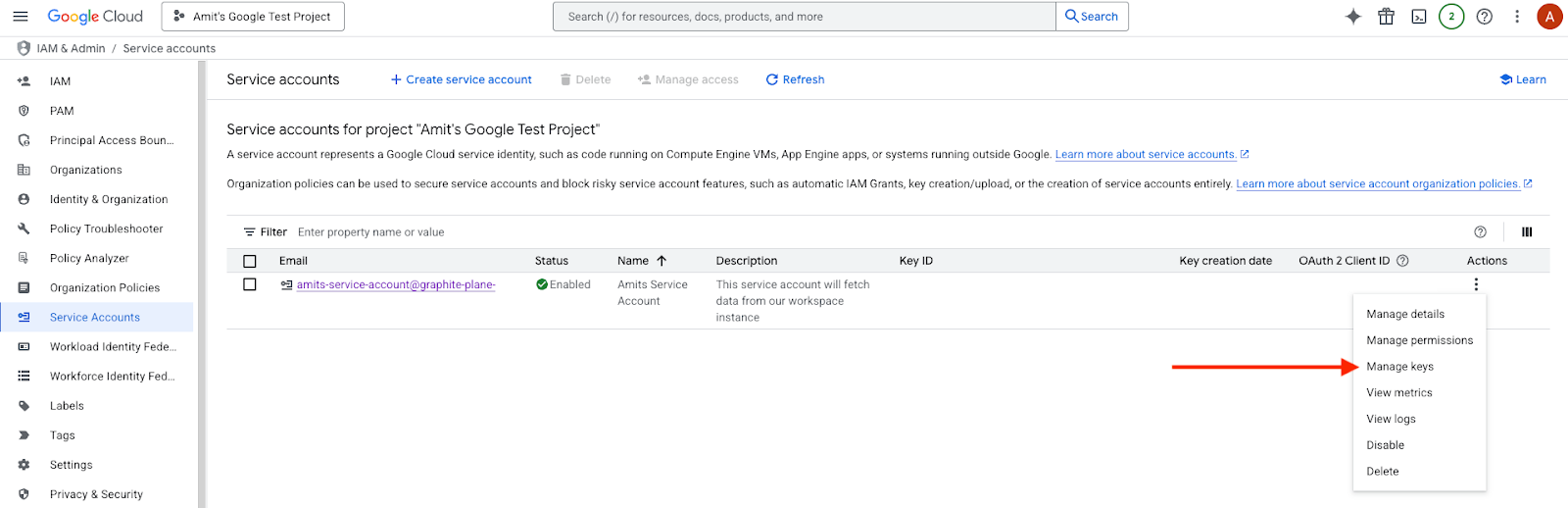
**From the Service Accounts list, click the account name or select the three dots next to your new service account and choose Manage keys.**
{% endstep %}
{% step %}
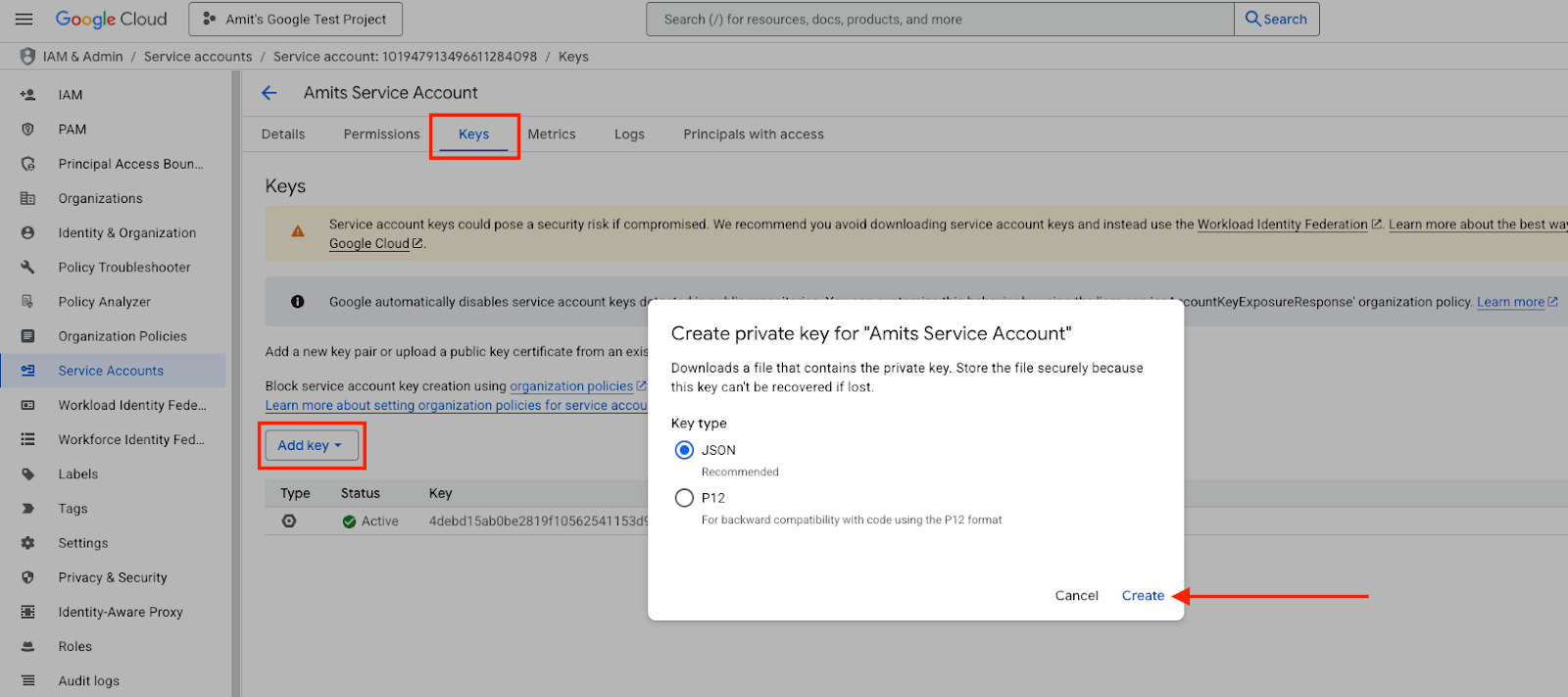
**Under the Keys tab, click Add Key → Create new key.**
{% endstep %}
{% step %}
**Select JSON and click Create.**
{% endstep %}
{% step %}
**A `.json` file will download to your computer. Save it in a secure location for use later when setting up the integration in Verkada Command.**
{% endstep %}
{% endstepper %}
{% hint style="danger" %}
This JSON file contains the credentials that the Google Workspace integration in Command uses to authenticate to Google APIs via OAuth 2.0. Keep this file secure, as it provides access to your Workspace data and should never be shared or made public.
{% endhint %}
#### Enable required Google APIs
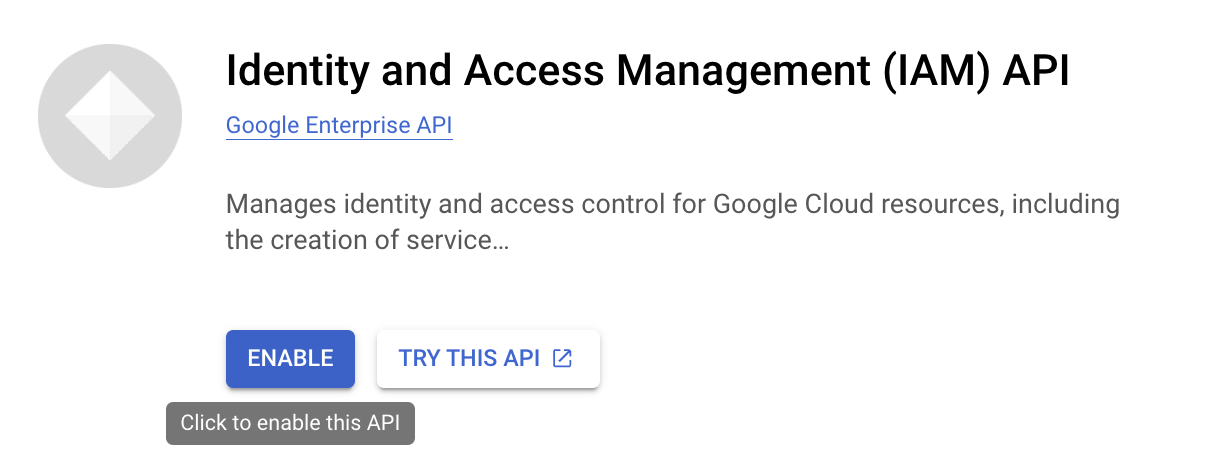
Verkada Command requires access to specific Google Workspace APIs to read users, groups, domains, and audit logs. These APIs must be enabled in your Google Cloud project before the integration can function.
{% stepper %}
{% step %}
**Go to the** [**Google Cloud console**](https://console.cloud.google.com/)**, and sign in with your Super Admin credentials.**
{% endstep %}
{% step %}
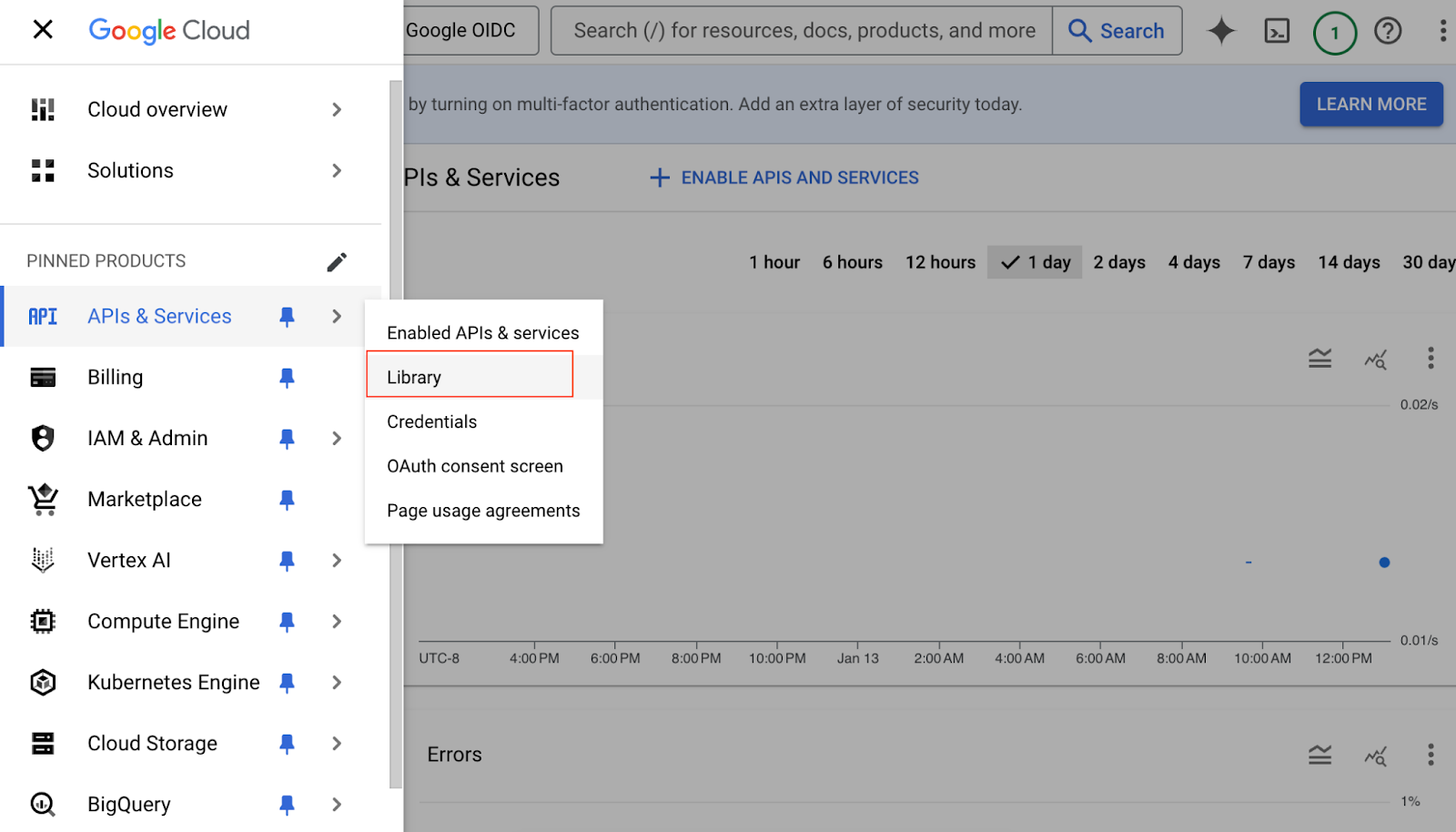
**From the left-hand sidebar, go to APIs & Services → API Library.**
{% endstep %}
{% step %}
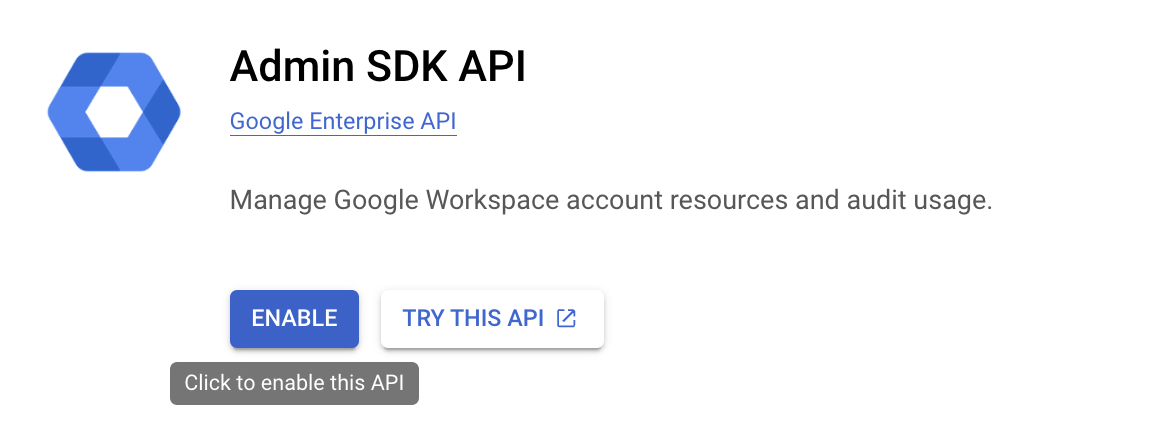
**In the search bar, find and select Admin SDK API, then click Enable.**
{% hint style="warning" %}
This API is required to read users, groups, and domain metadata.
{% endhint %}
{% endstep %}
{% step %}
**(Optional) Search for and enable the Reports API to allow audit log monitoring and detect directory changes.**
{% endstep %}
{% endstepper %}
***
### Enable Domain-wide delegation
To allow the service account to impersonate an administrator and access user and group data across your domain, you must grant it domain-wide delegation. This enables the service account to perform read operations on behalf of an admin without requiring manual re-authentication.
{% stepper %}
{% step %}
**Navigate to the** [**Google Admin Console**](https://admin.google.com/) **and sign in with your Super Administrator credentials for your Google Workspace tenant.**
{% endstep %}
{% step %}
**From the Admin Console homepage, go to Security →Access & data control → API Controls.**
{% endstep %}
{% step %}
**On the API Controls page, scroll to the Domain-wide Delegation section and click Manage Domain Wide Delegation.**
{% endstep %}
{% step %}
**Click Add New and enter the following details:**
* **Client ID:** Paste the OAuth 2 Client ID for your service account key file (the `client_id` field in the JSON).
* **OAuth Scopes (comma-separated):**
https://www.googleapis.com/auth/admin.directory.user.readonly,
  https://www.googleapis.com/auth/admin.directory.group.readonly,
  https://www.googleapis.com/auth/admin.directory.orgunit.readonly
{% endstep %}
{% step %}
**Click Authorize.**
{% endstep %}
{% endstepper %}
The new delegation entry will appear on the page, confirming that the service account can now be used by Verkada Command to query user, group, and audit data.
#### Set user attribute values
Before syncing users to Verkada Command, confirm that key attributes (such as first name, last name, email, and employee ID) are correctly populated in Google Workspace.
{% stepper %}
{% step %}
**Sign in to the** [**Google Admin Console**](https://admin.google.com/) **using your Super Admin account.**
{% endstep %}
{% step %}
**Go to Directory → Users.**
{% endstep %}
{% step %}
**Select the user profile you want to update.**
{% endstep %}
{% step %}
**Click User information, then expand the relevant sections (for example, Basic information or Employee information).**
{% endstep %}
{% step %}
**Update the following fields as needed:**
* **Primary email address**
* **First name** and **Last name**
* **Employee ID** (under *Employee information*)
* **Phone number** (under *Contact information*)
{% endstep %}
{% step %}
**Click Save to apply your changes.**
{% endstep %}
{% endstepper %}
The following attributes can be synced from Google Workspace to Verkada Command:
| Google Workspace Attribute Name | Command Field |
| --------------------------------------- | -------------- |
| Email | Email |
| First name | First Name |
| Last name | Last Name |
| Department | Department |
| Cost center | Department ID |
| Employee ID | Employee ID |
| Job title | Employee Title |
| Phone number (Primary Home/Work/Mobile) | Phone Number |
{% hint style="danger" %}
Users and groups synced from Google Workspace are managed exclusively in Workspace and cannot be edited in Verkada Command. Users must have a first name, last name, and email address to sync successfully with Command.
{% endhint %}
{% hint style="info" %}
To ensure users' phone numbers sync correctly to Verkada Command, enter them in international format, including the country code and no spaces or hyphens.
**Example:** `+14155552671`
{% endhint %}
***
### Enable the integration in Command
{% hint style="danger" %}
You need **Org Admin** permissions to configure this integration.
{% endhint %}
{% stepper %}
{% step %}
**In Verkada Command, go to All Products > Admin.**
{% endstep %}
{% step %}
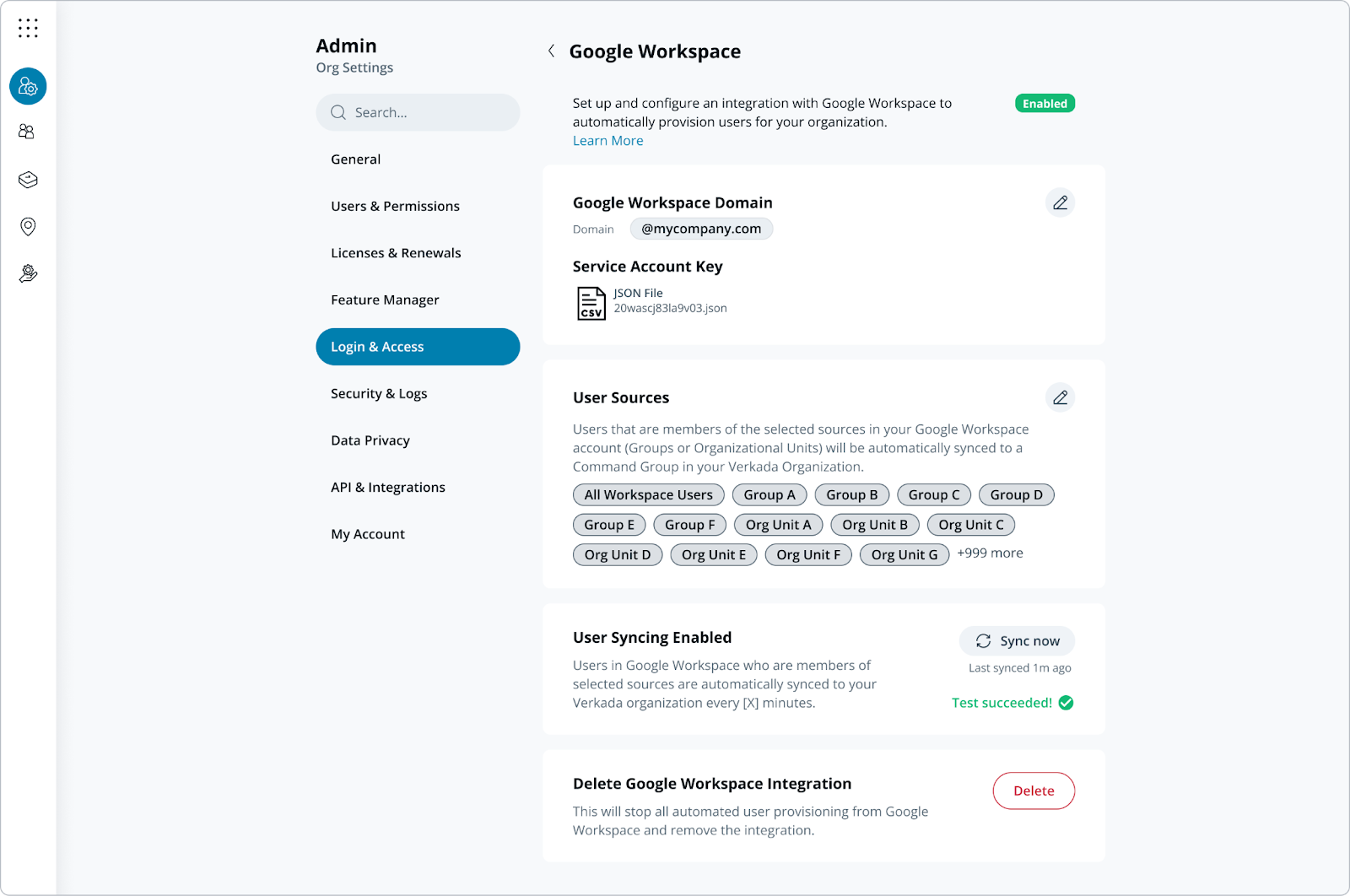
**On Org Settings, select Login & Access → User Provisioning → Google Workspace.**
a. Enter the email address of your Google Workspace Super Admin. For security and continuity, Verkada recommends using a dedicated service account that has equivalent admin permissions, rather than a personal user account.\
a. Upload the JSON key you generated in your Google Cloud Console project.\
b. Once authentication succeeds, click **Add** to select the Groups and/or Organizational Units you want to sync to Command.\
c. Click **Enable**.
{% endstep %}
{% step %}
**Upon successfully completing the first sync, a Sync Now button will be available for on-demand updates at any time.**
{% endstep %}
{% endstepper %}
***
### FAQ
Do users sync automatically on a regular schedule?
Yes, users are synced from your Google Workspace account to Verkada Command automatically every 40 minutes.
{% endtab %}
{% endtabs %}
---
# Agent Instructions
This documentation is published with GitBook. GitBook is the documentation platform designed so that both humans and AI agents can read, navigate, and reason over technical content effectively. Learn more at gitbook.com.
## Querying This Documentation
If you need additional information that is not directly available in this page, you can query the documentation by asking a question.
Perform an HTTP GET request on the following URL with the `ask` and `goal` query parameters:
```
GET https://help.verkada.com/command/security/identity-providers/google-workspace.md?ask=&goal=
```
`ask` is the immediate question: it should be specific, self-contained, and written in natural language.
`goal` is what the user is ultimately trying to achieve, the reason they need the answer. Sharing it helps GitBook give you a better, more relevant answer. A goal is most helpful when it describes the outcome the user wants rather than restating the question. For example, with `ask=how do I create an API token`, a goal like `automate deployments from our CI pipeline` lets GitBook tailor the answer to that use case.
The response will contain a direct answer to the question and relevant excerpts and sources from the documentation.
Use this mechanism when the answer is not explicitly present in the current page, you need clarification or additional context, or you want to retrieve related documentation sections.