> For the complete documentation index, see [llms.txt](https://help.verkada.com/llms.txt). Markdown versions of documentation pages are available by appending `.md` to page URLs; this page is available as [Markdown](https://help.verkada.com/command/security/identity-providers/ad-fs.md).
# AD FS
Integrate SAML with Active Directory Federation Services
Verkada Command has the ability to integrate with Active Directory Federation Services (AD FS) to allow your users to log in using their existing AD credentials.
Security Assertion Markup Language (SAML) is the language that allows AD FS to communicate to Command to securely grant your users access to your organization.
| Feature | Supported |
| ----------------- | :-------: |
| OIDC SSO | — |
| SAML SSO | Yes |
| SCIM Provisioning | — |
| ECE Support | — |
{% hint style="warning" %}
SAML does not add or invite users to your organization. It simply allows previously provisioned users to log in with their AD credentials, rather than with a Verkada-managed username and password.
If you're interested in syncing domain users and groups to Command, learn more about [SCIM](/command/security/identity-providers/microsoft-entra-id.md).
{% endhint %}
### Before you begin
To begin the SAML integration, you must [generate your organization's client ID](/command/security/identity-providers.md#generate-client-id) (where the client ID is case-sensitive).
***
## Configuration
### Add relying party trust
{% stepper %}
{% step %}
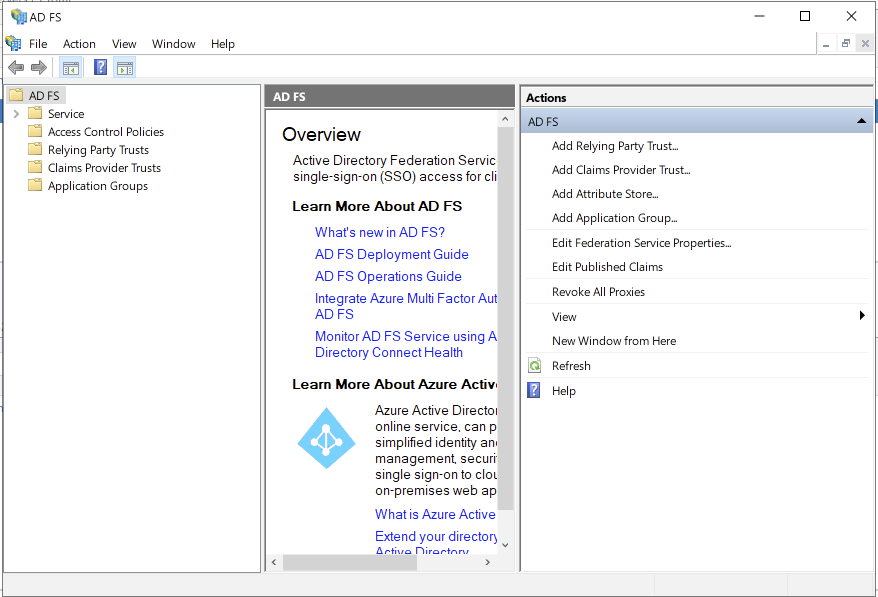
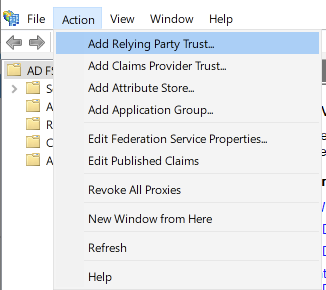
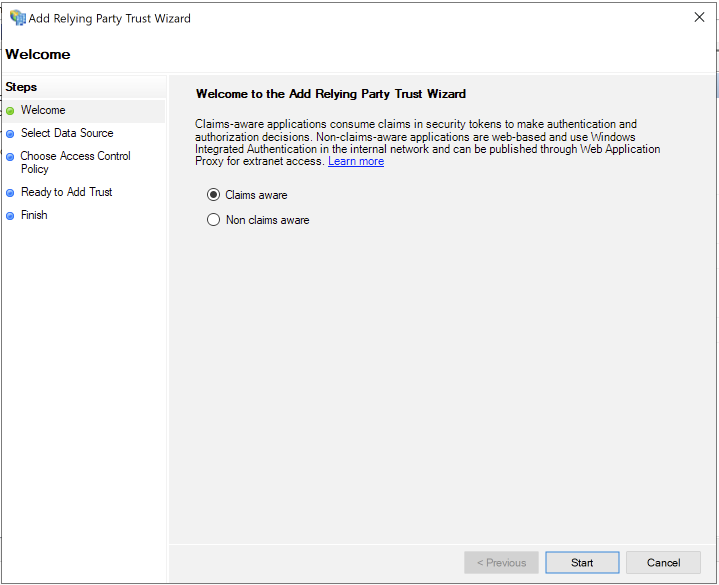
**Open AD FS Management.**
{% endstep %}
{% step %}
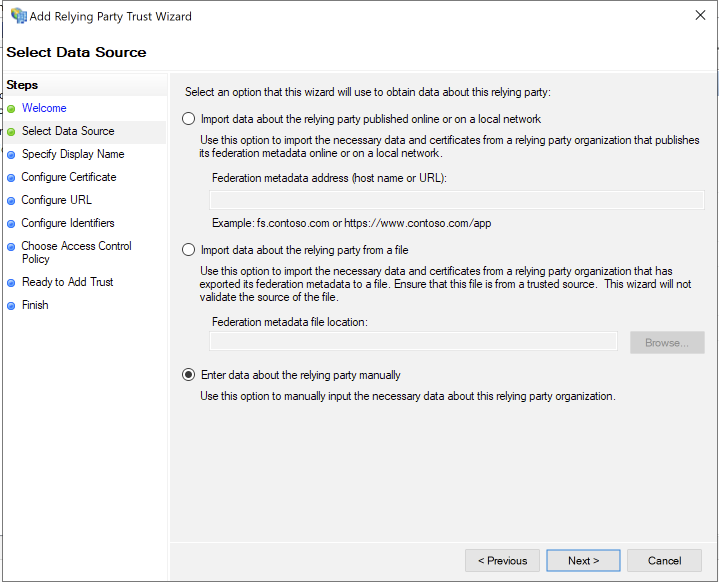
**Select Enter data about the relying party manually and click Next.**
{% endstep %}
{% step %}
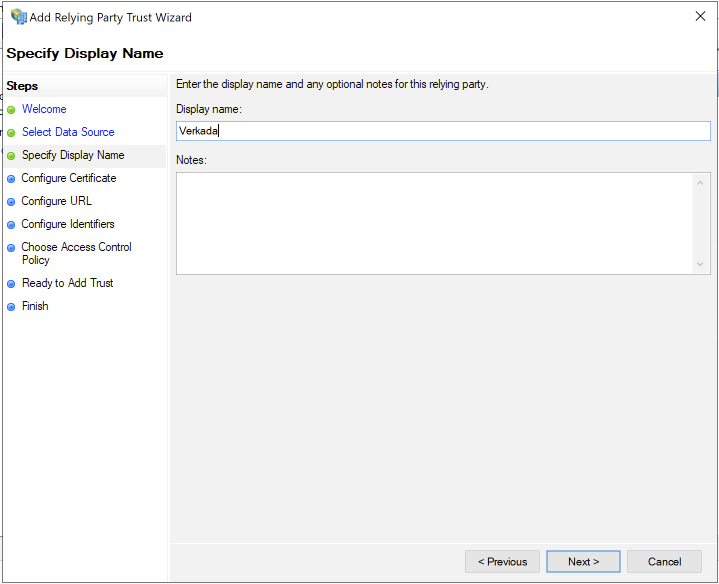
**Type a Display name (can be anything) and click Next.**
{% endstep %}
{% step %}
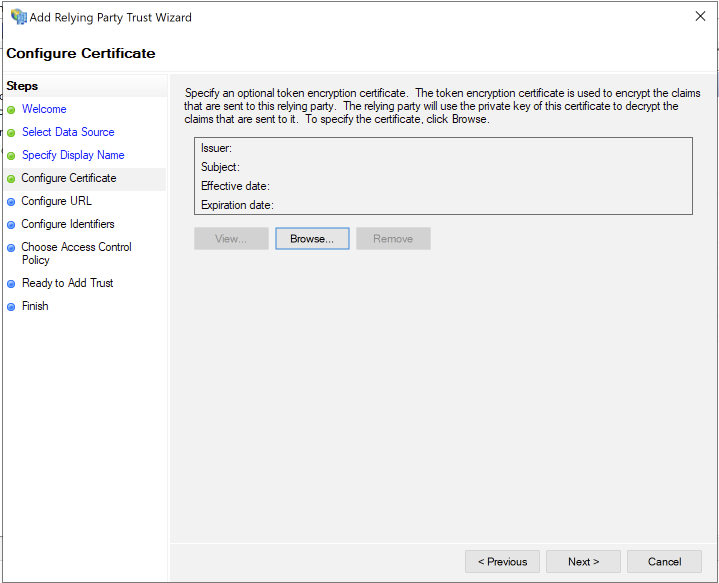
**Specify and optional token encryption certificate (click Browse to specify), then click Next.**
{% endstep %}
{% step %}
**Check Enable support for the SAML 2.0 WebSSO protocol and in the Relying party SAML 2.0 SSO service URL field (substitute *****client-ID***** with the client ID that was previously generated):**
* For US orgs:
* For EU orgs: [https://saml.prod2.verkada.com/saml/sso/](https://saml.prod2.verkada.com/saml/sso/%3Cclient-ID%3E)
* For AUS:
{% hint style="warning" %}
To confirm which region you're located, please [refer to where your organization was created for Verkada](/command/getting-started/get-started-with-verkada-command.md).
{% endhint %}
{% endstep %}
{% step %}
**Click Next.**
{% endstep %}
{% step %}
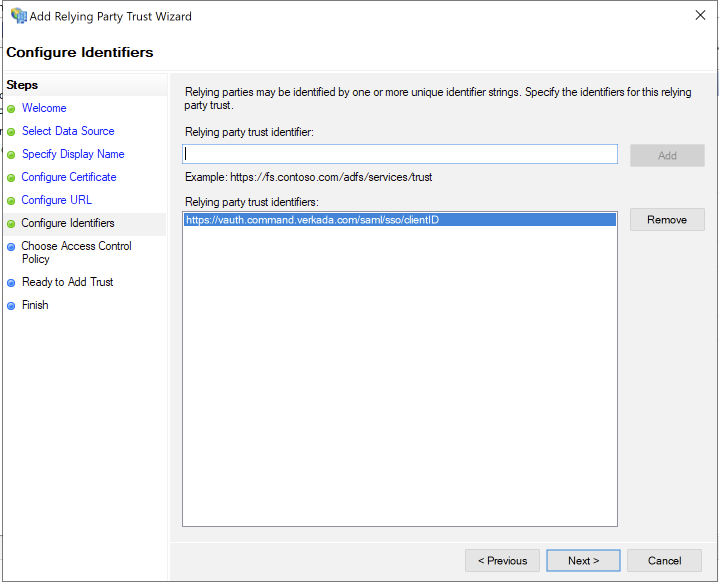
**In the Relying party trust identifier field, type the same URL from step 7, and click Add > Next.**
{% endstep %}
{% step %}
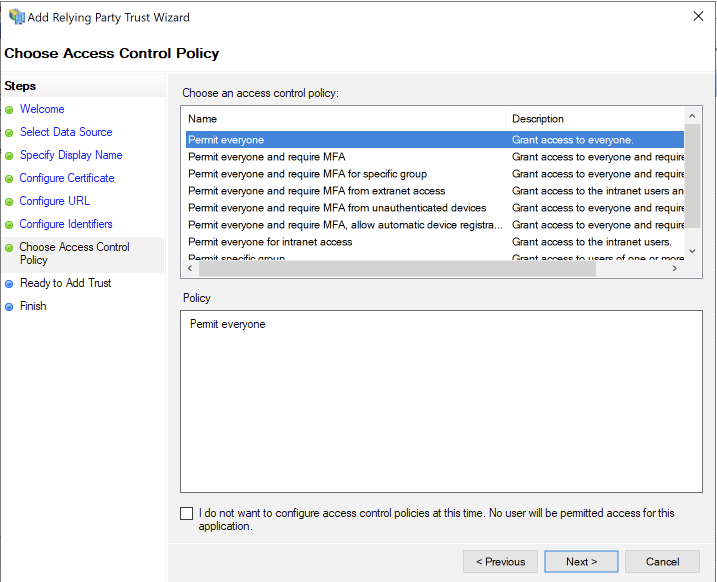
**Configure an appropriate access control policy for this application and click Next.**
{% endstep %}
{% step %}
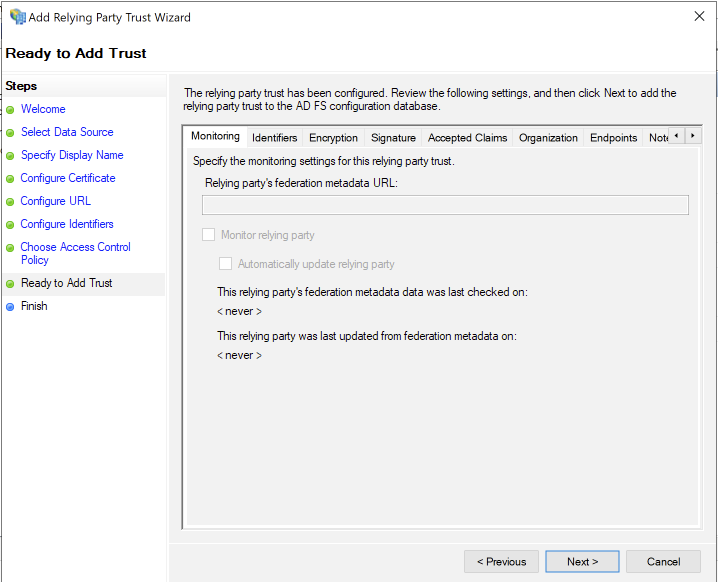
**Review the relying party settings and click Next > Close.**
{% endstep %}
{% endstepper %}
### Edit the claim issuance policy
{% stepper %}
{% step %}
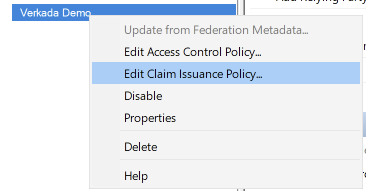
**Right-click the newly-created Relying Party Trust and select Edit Claim Issuance Policy.**
{% endstep %}
{% step %}
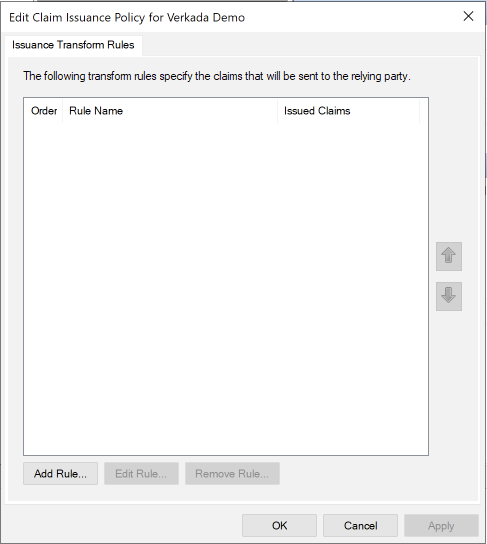
**Click Add Rule > OK.**
{% endstep %}
{% endstepper %}
### Add the transform claim rule
{% stepper %}
{% step %}
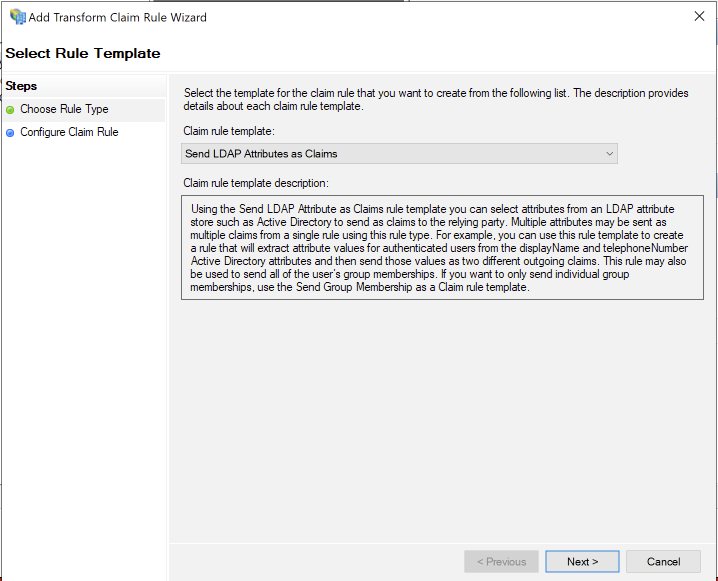
**Ensure that Send LDAP Attributes as Claims is selected and click Next.**
{% endstep %}
{% step %}
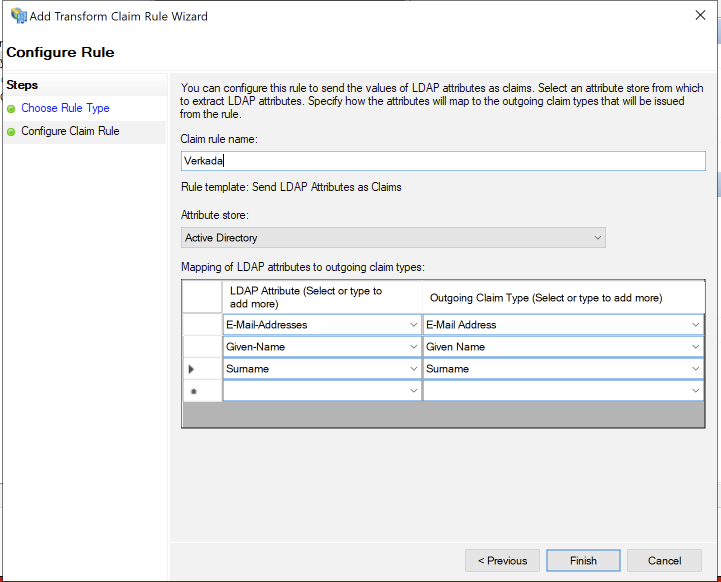
**Configure these rule settings and (when done) click Finish:**
a. Enter a **Claim rule name** (can be anything).\
b. Under **Attribute store**, ensure that **Active Directory** is selected.\
c. Configure these LDAP attributes to map to the proper **Outgoing Claim Type**:
* E-Mail-Addresses > E-Mail Address
* Given-Name > Given Name
* Surname > Surname
{% endstep %}
{% step %}
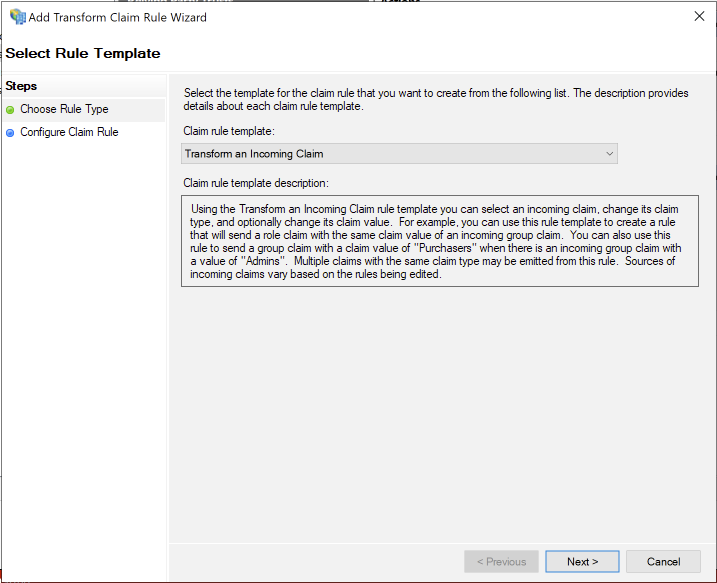
**Under Claim rule template, select Transform an Incoming Claim to add another rule, and click Next.**
{% endstep %}
{% step %}
**Configure the claim rule:**
a. Type a **Claim rule name** (can be anything).\
b. Next to **Incoming claim type**, select **E-Mail Address**.\
c. Next to **Outgoing claim type**, select **Name ID**.\
d. Next to **Outgoing name ID format**, select **Transient Identifier**.\
e. Ensure that **Pass through all claim values** is selected.\
f. Click **Finish**.
{% endstep %}
{% step %}
**Go to `https:///FederationMetadata/2007-06/FederationMetadata.xml` to download your XML metadata file.**
{% hint style="danger" %}
**Do not** use Internet Explorer to complete this step; using Internet Explorer may cause issues with the XML file.
{% endhint %}
{% endstep %}
{% endstepper %}
***
### Complete the SAML setup on Command
Follow the steps in [Enable SAML for Your Command Account](/command/security/identity-providers.md#upload-saml-xml-metadata) to complete the SAML setup on Command.
### Test the integration
Once the integration is complete, test it.
{% stepper %}
{% step %}
**Open an incognito/private browsing window and go to (where you will replace clientID with the client ID you generated above):**
* For US:
* For EU: [https://saml.prod2.verkada.com/saml/login/](https://saml.prod2.verkada.com/saml/login/%3Cclient-ID%3E)
* For AUS: [https://saml.prod-ap-syd.verkada.com/saml/sso/](https://saml.prod2.verkada.com/saml/login/%3Cclient-ID%3E)
{% hint style="warning" %}
To confirm which region you're located, please [refer to where your organization was created for Verkada](/command/getting-started/get-started-with-verkada-command.md).
{% endhint %}
{% endstep %}
{% step %}
**You should be taken to your AD FS login page. Try to sign in with your credentials.**
{% endstep %}
{% step %}
**If you are redirected to your Command organization, the SAML integration is successful.**
{% endstep %}
{% endstepper %}
---
# Agent Instructions
This documentation is published with GitBook. GitBook is the documentation platform designed so that both humans and AI agents can read, navigate, and reason over technical content effectively. Learn more at gitbook.com.
## Querying This Documentation
If you need additional information that is not directly available in this page, you can query the documentation by asking a question.
Perform an HTTP GET request on the following URL with the `ask` and `goal` query parameters:
```
GET https://help.verkada.com/command/security/identity-providers/ad-fs.md?ask=&goal=
```
`ask` is the immediate question: it should be specific, self-contained, and written in natural language.
`goal` is what the user is ultimately trying to achieve, the reason they need the answer. Sharing it helps GitBook give you a better, more relevant answer. A goal is most helpful when it describes the outcome the user wants rather than restating the question. For example, with `ask=how do I create an API token`, a goal like `automate deployments from our CI pipeline` lets GitBook tailor the answer to that use case.
The response will contain a direct answer to the question and relevant excerpts and sources from the documentation.
Use this mechanism when the answer is not explicitly present in the current page, you need clarification or additional context, or you want to retrieve related documentation sections.
.png?alt=media&token=4242fa92-e60f-454d-bbf9-fb6eb73ea134)