JumpCloud

Learn how to set up SAML with JumpCloud

Verkada supports Security Assertion Markup Language (SAML) authentication using JumpCloud as your Identity Provider (IdP).

Feature
Supported

OIDC SSO

SAML SSO

Yes

SCIM Provisioning

ECE Support


Before you begin

To integrate SAML, you must first generate a client ID.


Step 1: Set up SSO in Command

1

In Verkada Command, go to All Products > Admin > Privacy & Security > Authentication & User Management.

2

Click Add New to set up single sign-on (SSO).


Step 2: Create your Verkada app

1

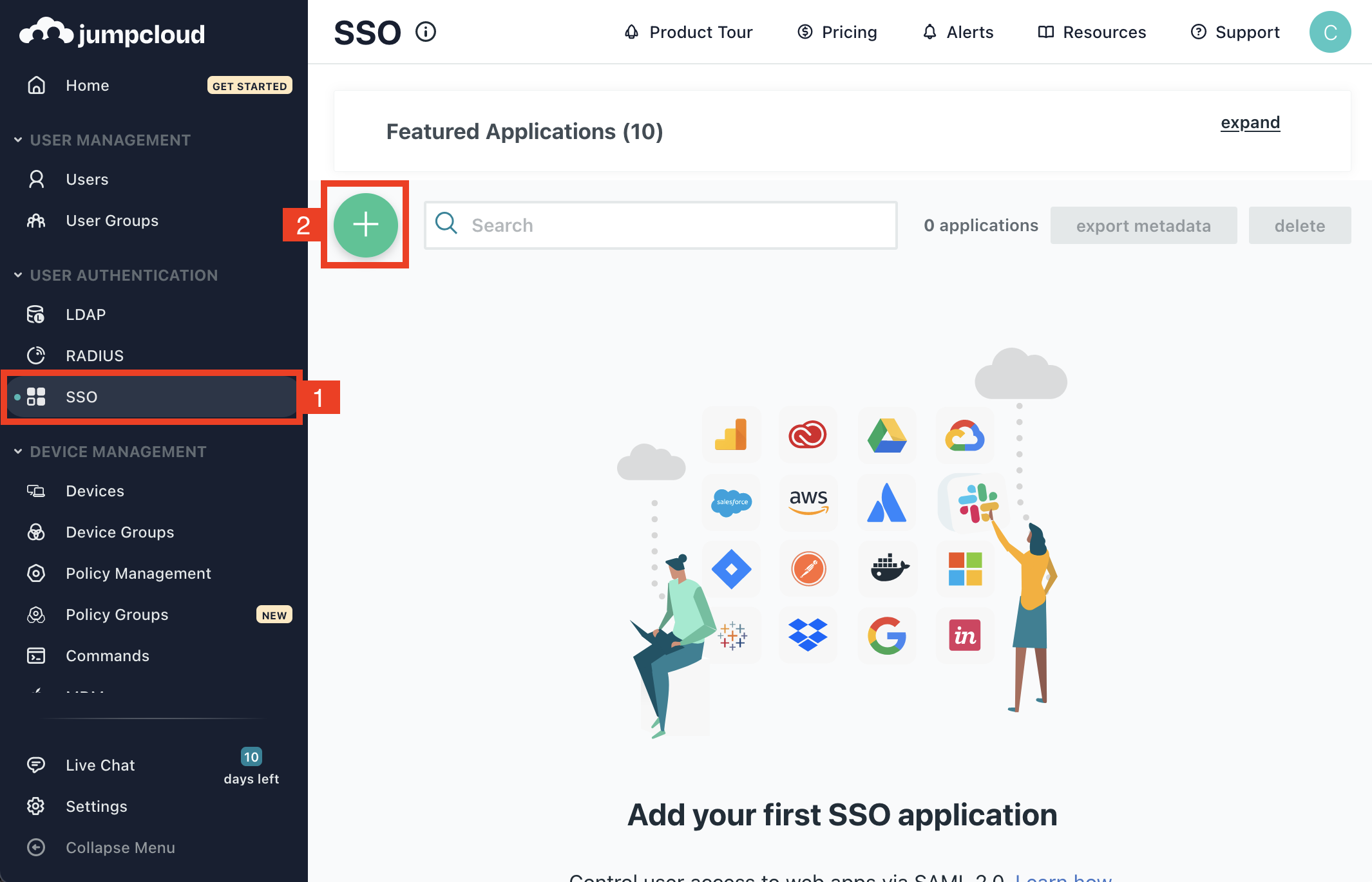
Navigate to your JumpCloud dashboard and click SSO to view your SSO applications.

2

Click the plus (+) icon to create a new application.

3

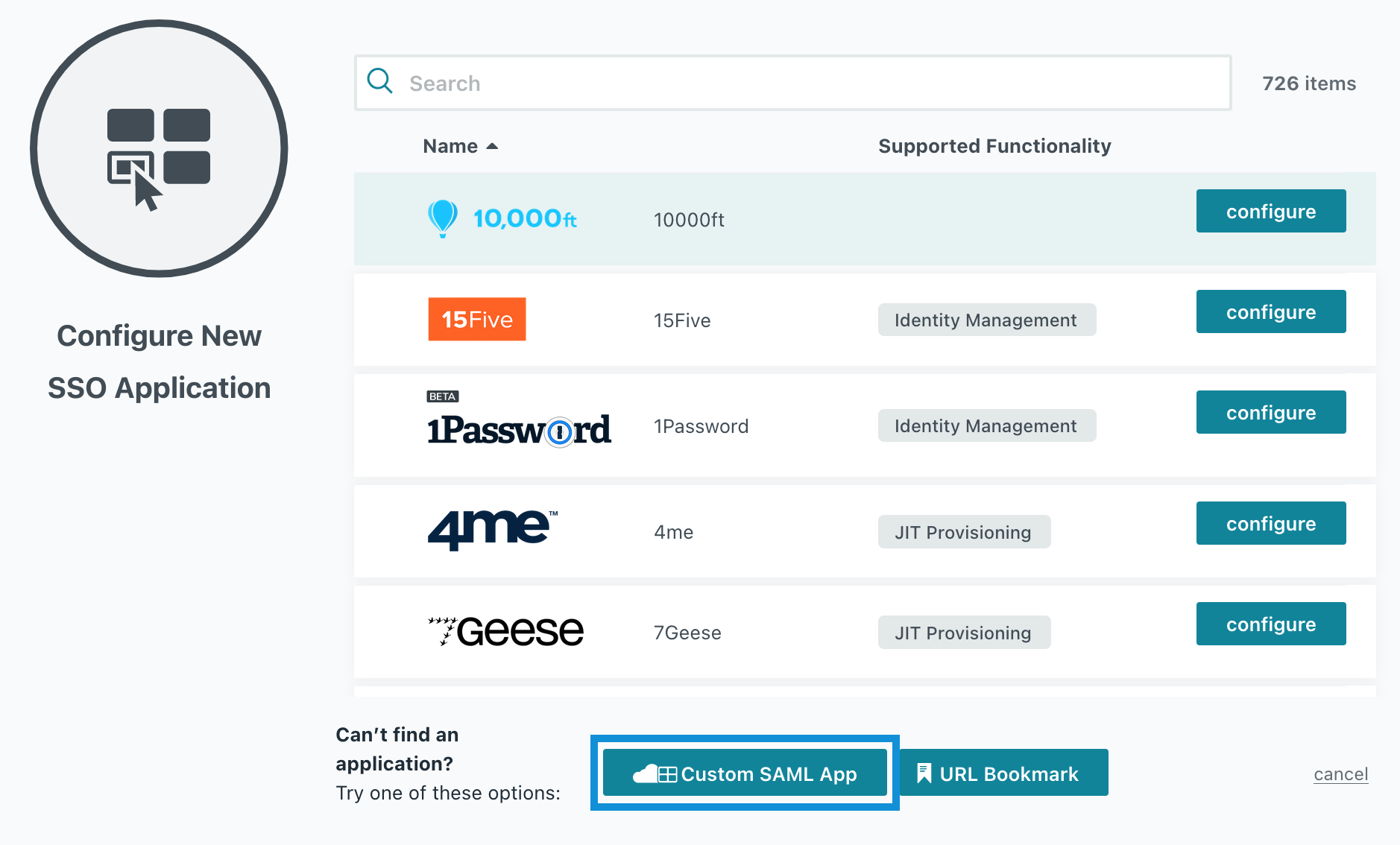
Click Custom SAML App.

4

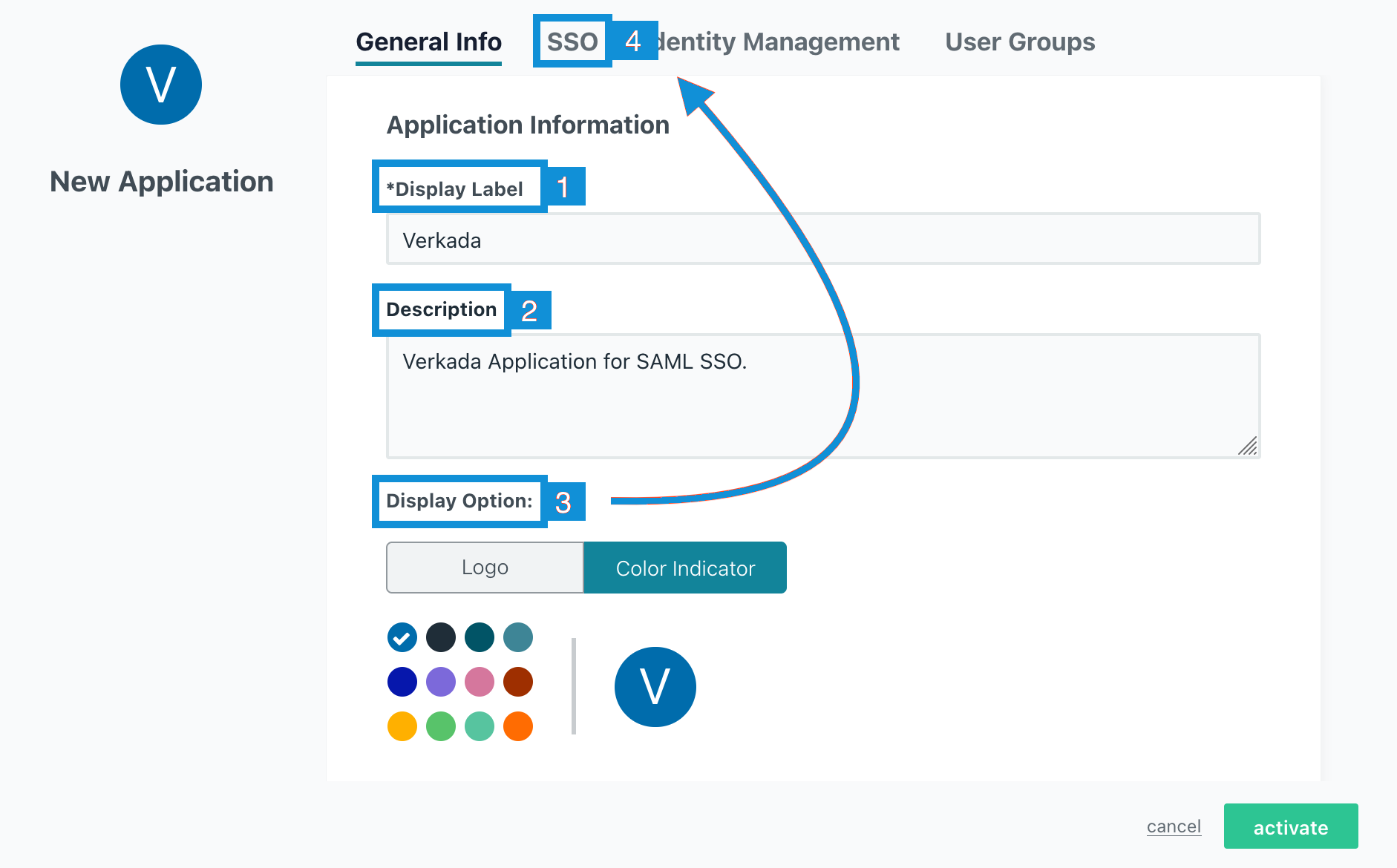
Name your application, add a description, and (optionally) change the icon.

5

At the top menu, select SSO and click activate.

6

Configure the IdP Entity ID, SP Entity ID, and ACS URL:

  • IdP Entity ID:

    • US orgs: https://vauth.command.verkada.com/saml/sso

    • EU orgs: https://saml.prod2.verkada.com/saml/sso

    • AUS orgs: https://saml.prod-ap-syd.verkada.com/saml/sso

  • SP Entity ID:

    • US orgs: https://vauth.command.verkada.com/saml/sso

    • EU orgs: https://saml.prod2.verkada.com/saml/sso

    • AUS orgs: https://saml.prod-ap-syd.verkada.com/saml/sso

  • Sign on URL:

    • US orgs: https://vauth.command.verkada.com/saml/login

    • EU orgs: https://saml.prod2.verkada.com/saml/login

    • AUS orgs: https://saml.prod-ap-syd.verkada.com/saml/login

7

Click activate.

8

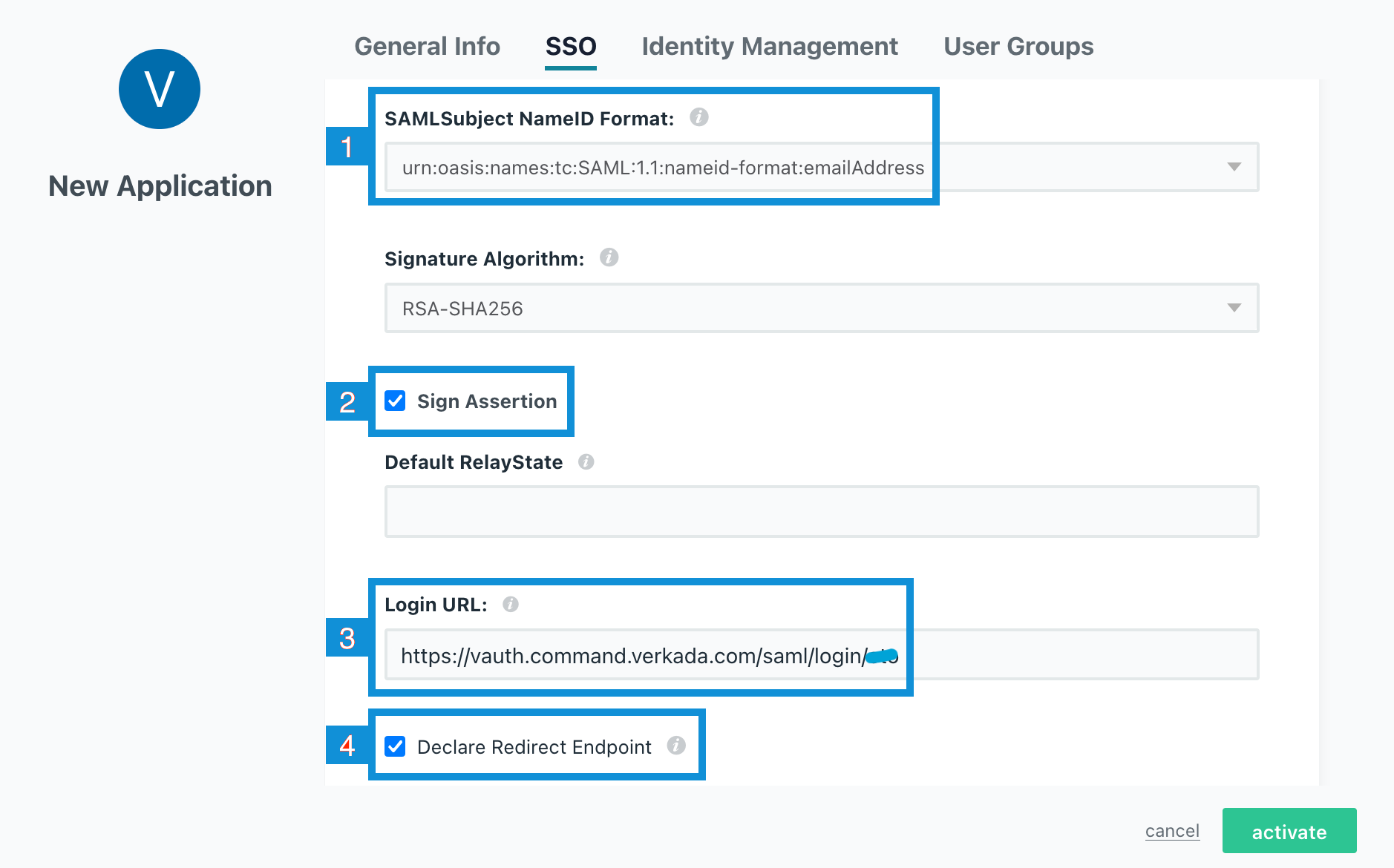
Set SAML Subject NameID Format to urn:oasis:names:tc:SAML:1.1:nameid-format:emailAddress.

9

Check the Sign Assertion box.

10

Set the Login URL (replace <client-ID> with your client ID):

  • US orgs: https://vauth.command.verkada.com/saml/login/<client-ID>

  • EU orgs: https://saml.prod2.verkada.com/saml/login/<client-ID>

  • AUS orgs: https://saml.prod-ap-syd.verkada.com/saml/sso/<client-ID>

11

Check the Declare Redirect Endpoint box and click activate.


Step 3: Configure SAML attributes

1

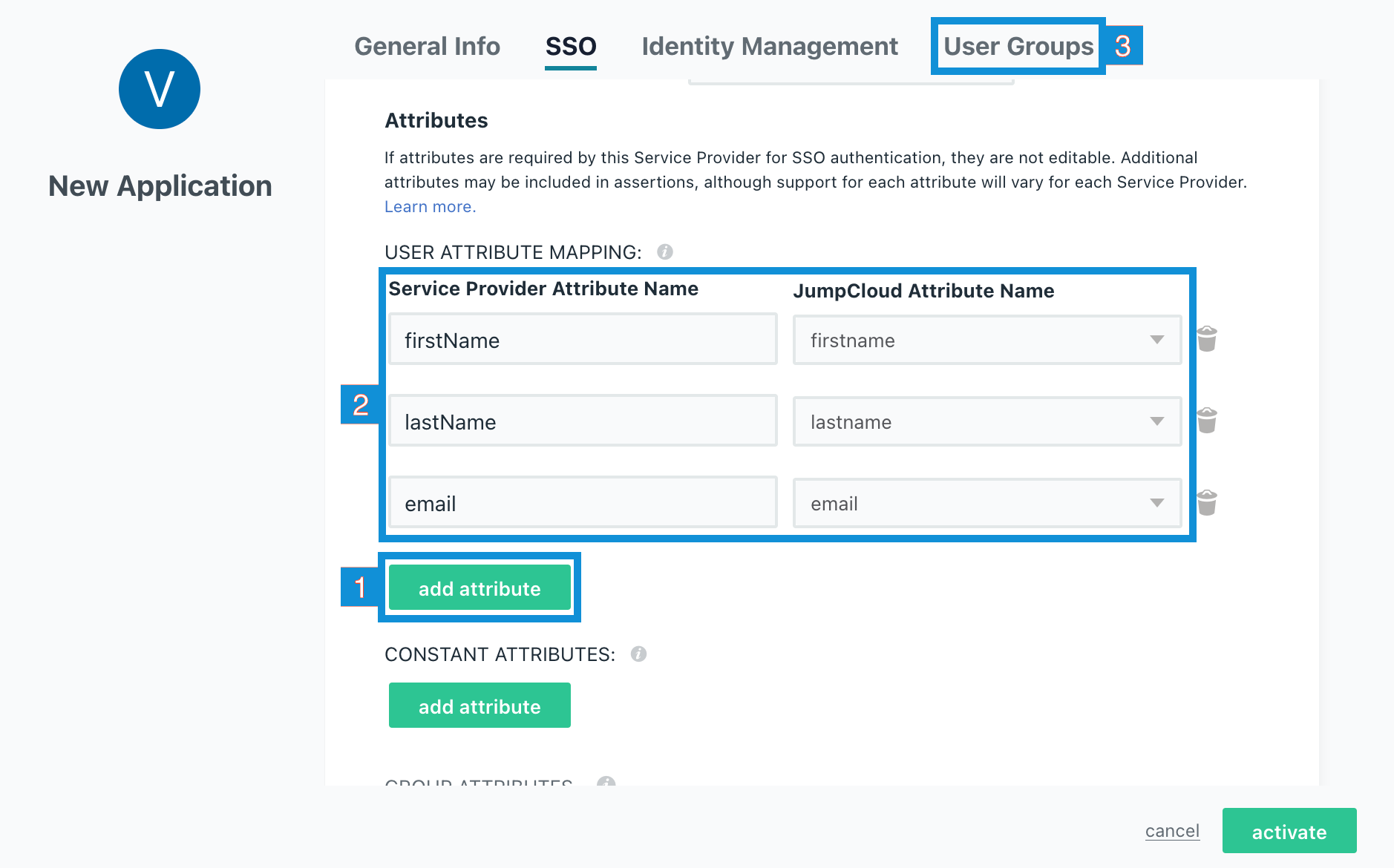
Scroll down and click add attribute THREE times to open 3 attribute fields.

2

Enter the information exactly as shown (case-sensitive):

  • email → Email

  • firstName → First Name

  • lastName → Last Name

3

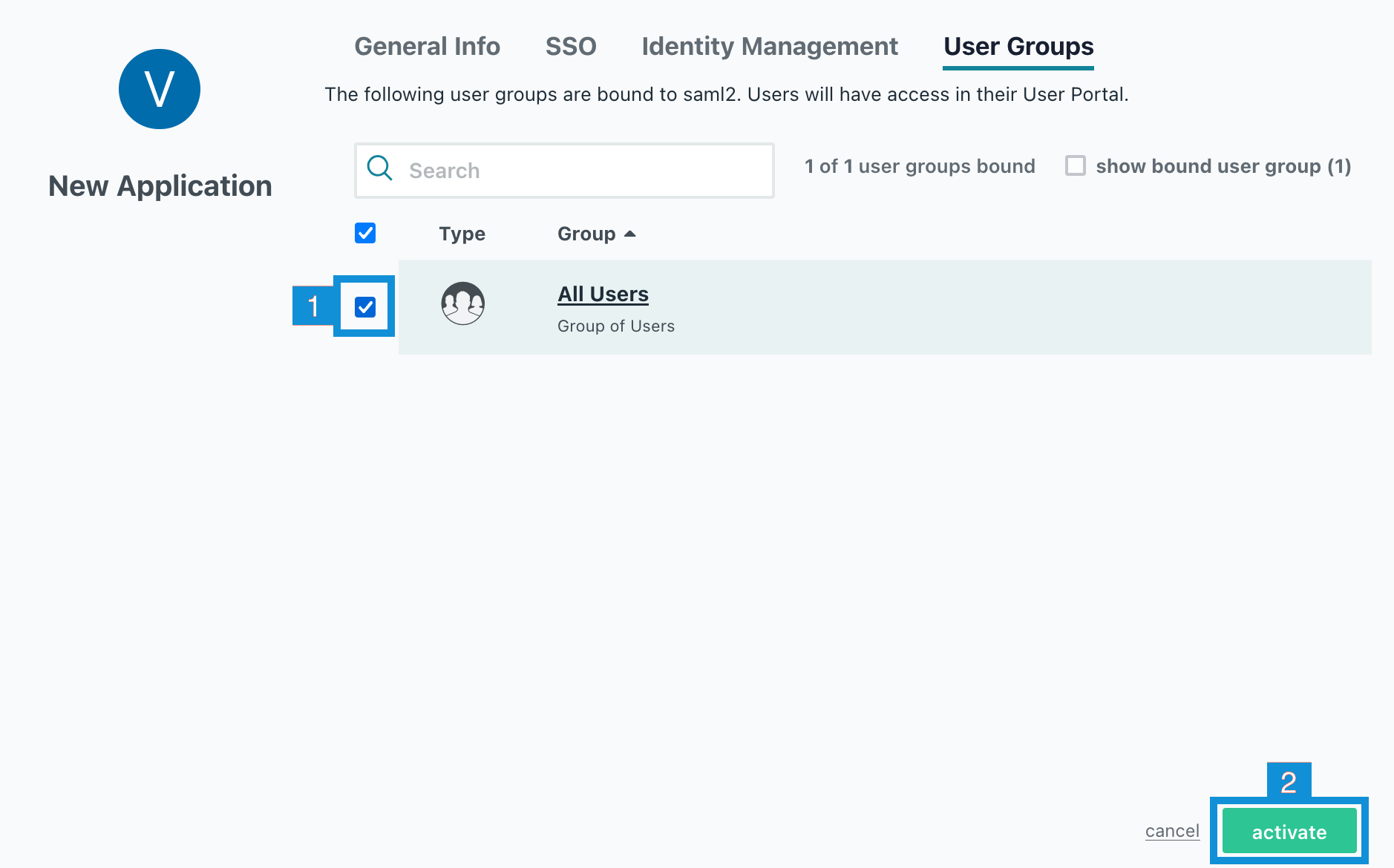
Select User Groups and confirm the groups you want to enable SSO access for.

4

Click activate to enable group access to your Verkada application.

5

Click activate > confirm to complete your new SSO connector.


Step 4: Export XML metadata

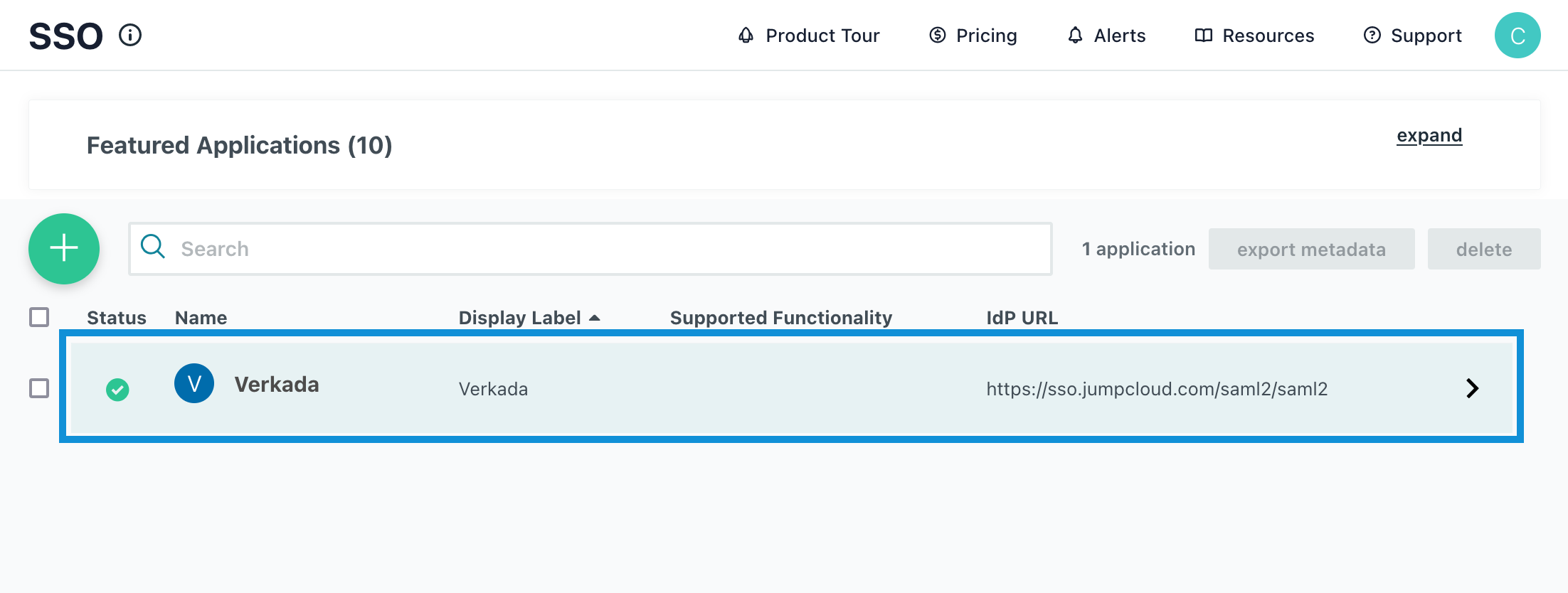
1

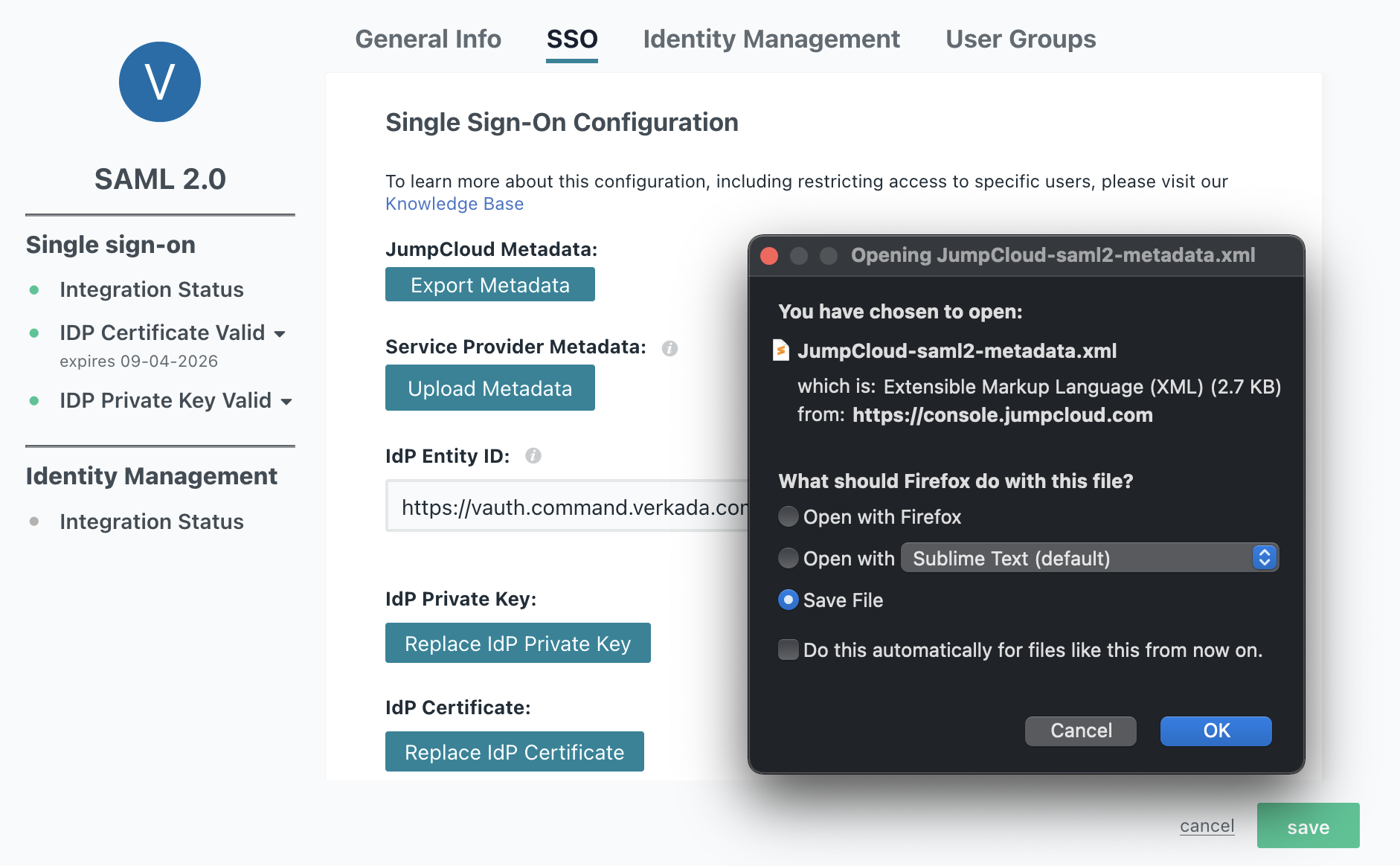
Once activated, go back to the application to download your XML metadata file.

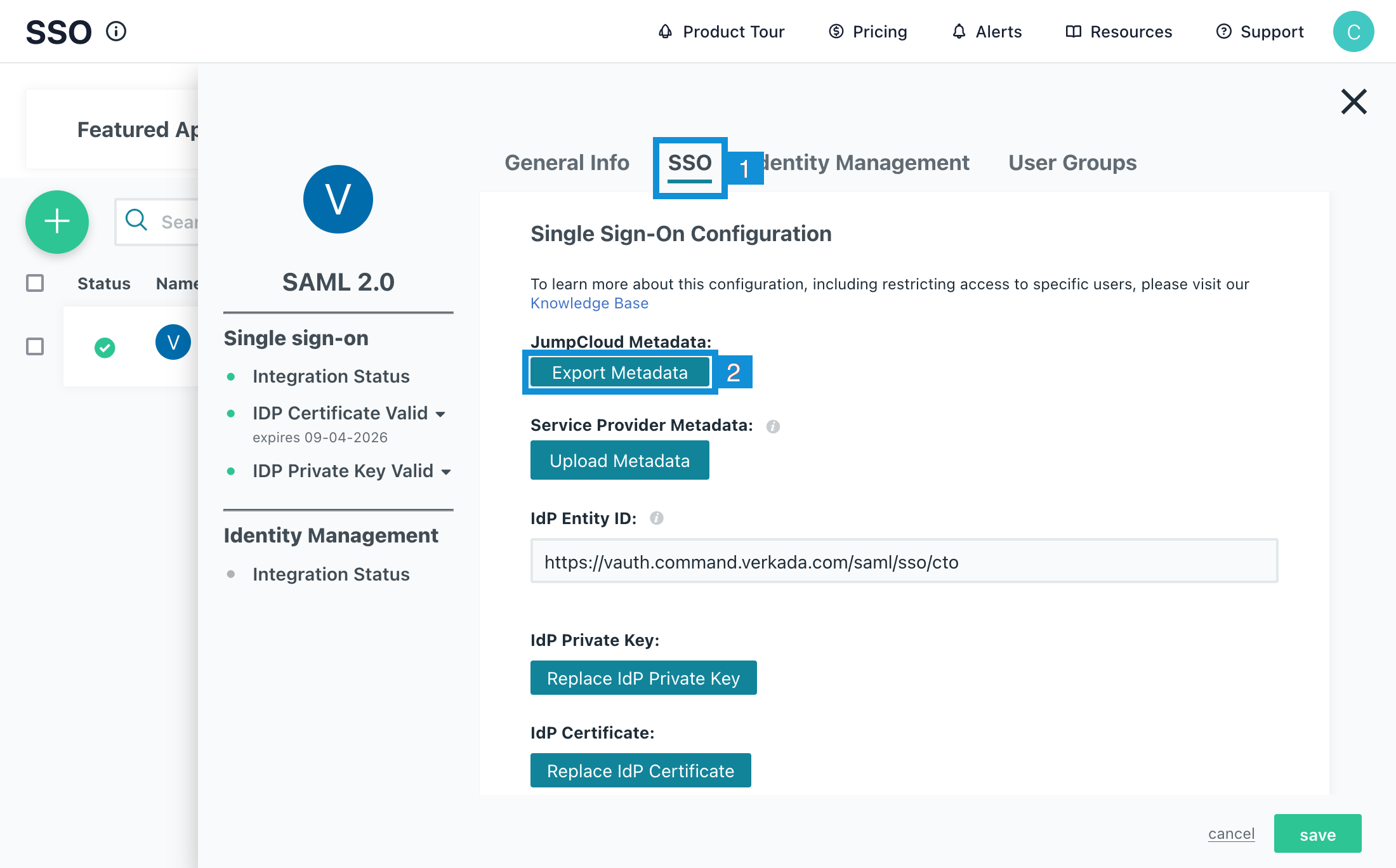
2

Select SSO and click Export Metadata.

3

Save the exported file with a relevant name.


Step 5: Upload XML metadata

1

Go to Command and upload your IdP XML metadata file.

2

Click Add Domain to add the Fully Qualified Domain Name (FQDN) that your users log in with.

3

Type the domain name and press Enter.

4

Run the login test. A successful test redirects to your IdP and then back to Command.

5

(Optional) Enable Require SSO to force users to use SSO instead of Command login.


Log in using SSO

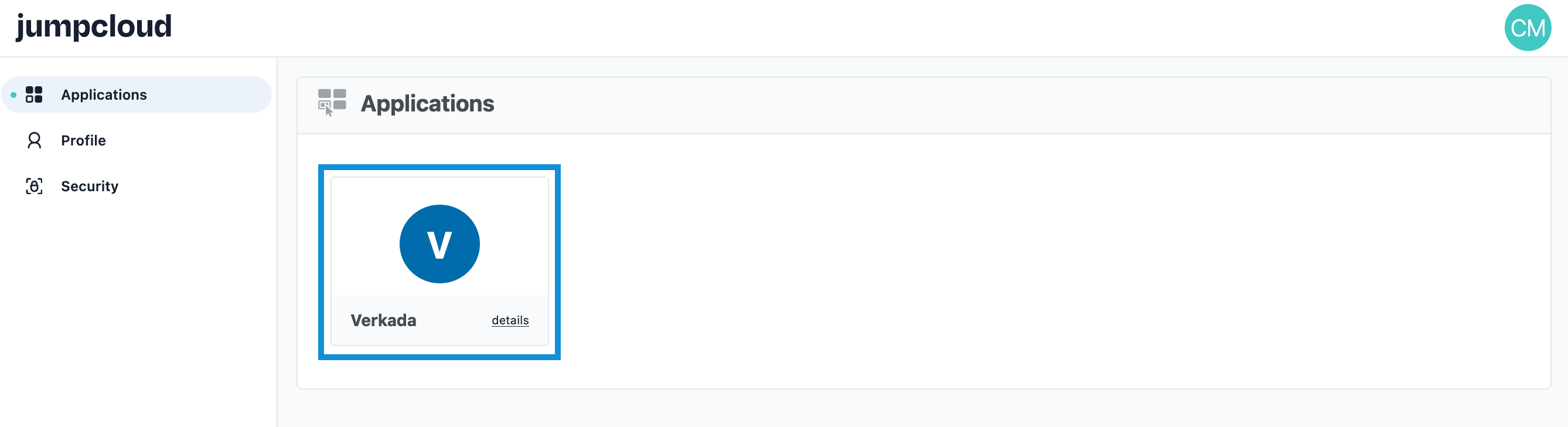
Users can access:

Last updated

Was this helpful?