> For the complete documentation index, see [llms.txt](https://help.verkada.com/llms.txt). Markdown versions of documentation pages are available by appending `.md` to page URLs; this page is available as [Markdown](https://help.verkada.com/intercom/configuration/configure-a-video-intercom-as-a-1-door-ac.md).
# Configure a Video Intercom as a 1-Door AC
Configure a Video Intercom as a 1-door access controller
### Before you begin
* Follow the [install guide](https://www.verkada.com/docs/?product=intercom\&contentType=setupGuide) to set up your hardware.
* Follow all the requirements in [Get Started with Verkada Intercom](/intercom/getting-started/get-started-with-verkada-intercom.md).
{% hint style="warning" %}
You do not need a separate door license when configuring the intercom as a 1-door controller. It is included with the intercom license.
{% endhint %}
## Hardware setup
TD33
### Verkada reader
The second generation of Verkada Intercoms (TD33, TD53, TD63) all include a built-in reader. On the TD63, visitors can also enter entry codes on the keypad followed by **#** to unlock (for example, **1234#**). See [Grant Temporary Intercom Access with Visit Keys](/intercom/configuration/grant-temporary-access-with-visit-keys.md) for more information.
### Output wiring
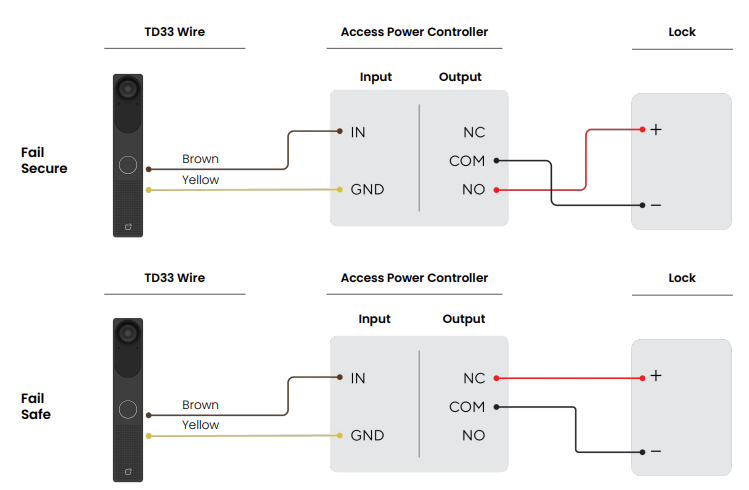
The TD33 has a dry-form C relay output that you can configure as an access controller. This involves wiring the intercom to an auxiliary power controller and a lock.
TK74
### Verkada reader
The TK74 includes a built-in reader. Visitors can also enter entry codes via the touch screen or scan QR codes via the embedded camera. See [Grant Temporary Intercom Access with Visit Keys](/intercom/configuration/grant-temporary-access-with-visit-keys.md) for more information.
### Output wiring
The TK74 has a dry-form C relay output that you can configure as an access controller. This involves wiring the intercom to an auxiliary power controller and a lock.
TD53/63
### Verkada reader
The second generation of Verkada Intercoms (TD33, TD53, TD63) all include a built-in reader. On the TD63, visitors can also enter entry codes on the keypad followed by **#** to unlock (for example, **1234#**). See [Grant Temporary Intercom Access with Visit Keys](/intercom/configuration/grant-temporary-access-with-visit-keys.md) for more information.
### Output wiring
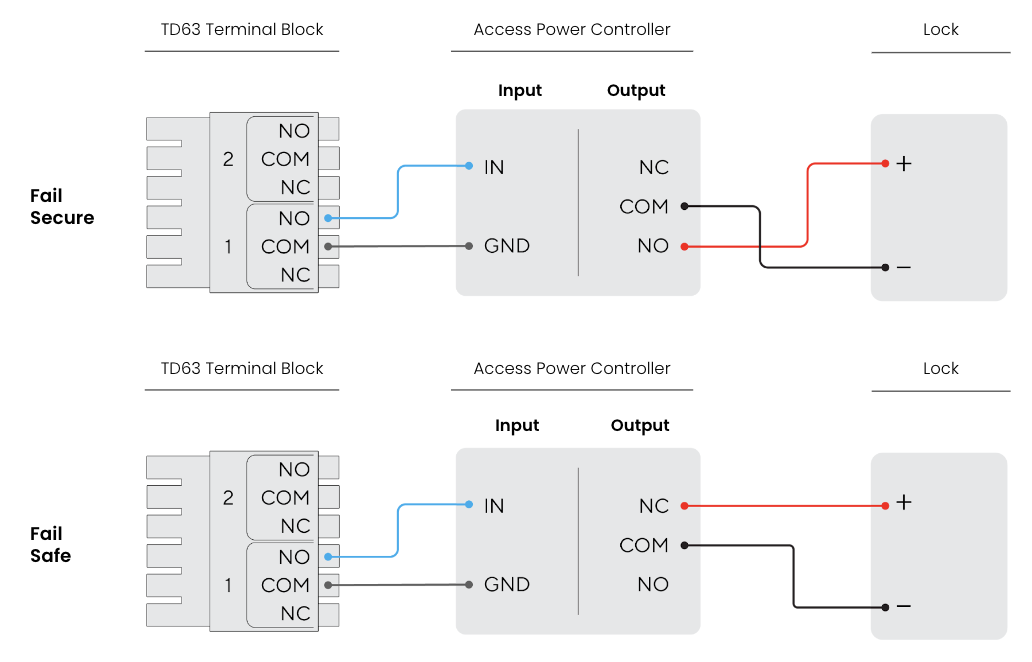
The TD53 and TD63 have a dry-form C relay output that you can configure as an access controller. This involves wiring the intercom to an auxiliary power controller and a lock.
TS12
#### Verkada reader
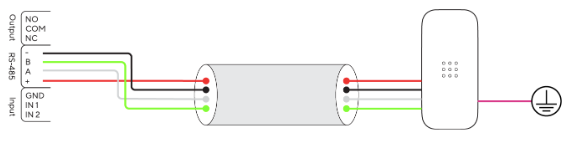
The TS12 intercom is rated to power Verkada readers at 12V and 250mA via the V+ and GND terminals on the terminal block located on the rear of the device. Use the diagram below to wire a Verkada reader to the terminal block.We recommend connecting the drain wire to the earth ground at the reader side.Avoid using 12V power to power other peripheral devices, as it has latch-off current limiting.
#### Inputs
The TS12 has 2 general-purpose dry inputs that can act as a Call Trigger, DPI, or REX. These can be configured in Verkada Command in your intercom's settings page in the I/O section.
**Input connections**
For each input, you connect one wire to the IN pin and the other wire to the GND pin. You can connect any device with a dry relay output to these ports. All associated events are logged in Command.
#### Output
The TS12 has 1 dry form C relay output that you can configure as an access controller (AC) by connecting an access power controller to the output terminal, as detailed below.
TD52
### Verkada reader
The [Verkada TD52 Video Intercom](https://www.verkada.com/intercom/td52/) is rated to power Verkada readers at 12V and 250mA via the (**+**) and (**–**) connection.
{% hint style="info" %}
We recommend connecting the drain wire to the earth ground at the reader side.
{% endhint %}
{% hint style="warning" %}
Avoid using 12V power to power other peripheral devices, as it has latch-off current limiting.
{% endhint %}
### Inputs
The TD52 has 2 general-purpose dry inputs. The default input state (Normally Closed \[NC] or Normally Open \[NO]) for each can be configured in Verkada Command.
#### Connections
For each input, you should connect 1 wire to the IN pin, and the other to the GND pin. You can connect any device with a dry relay output to these ports, such as door position indicator (DPI), request to exit (REX) sensor, intercom, or access control output. All associated events are logged in Command. Learn more about how to [wire the input device](/intercom/configuration/wire-a-video-intercom.md).
### Output
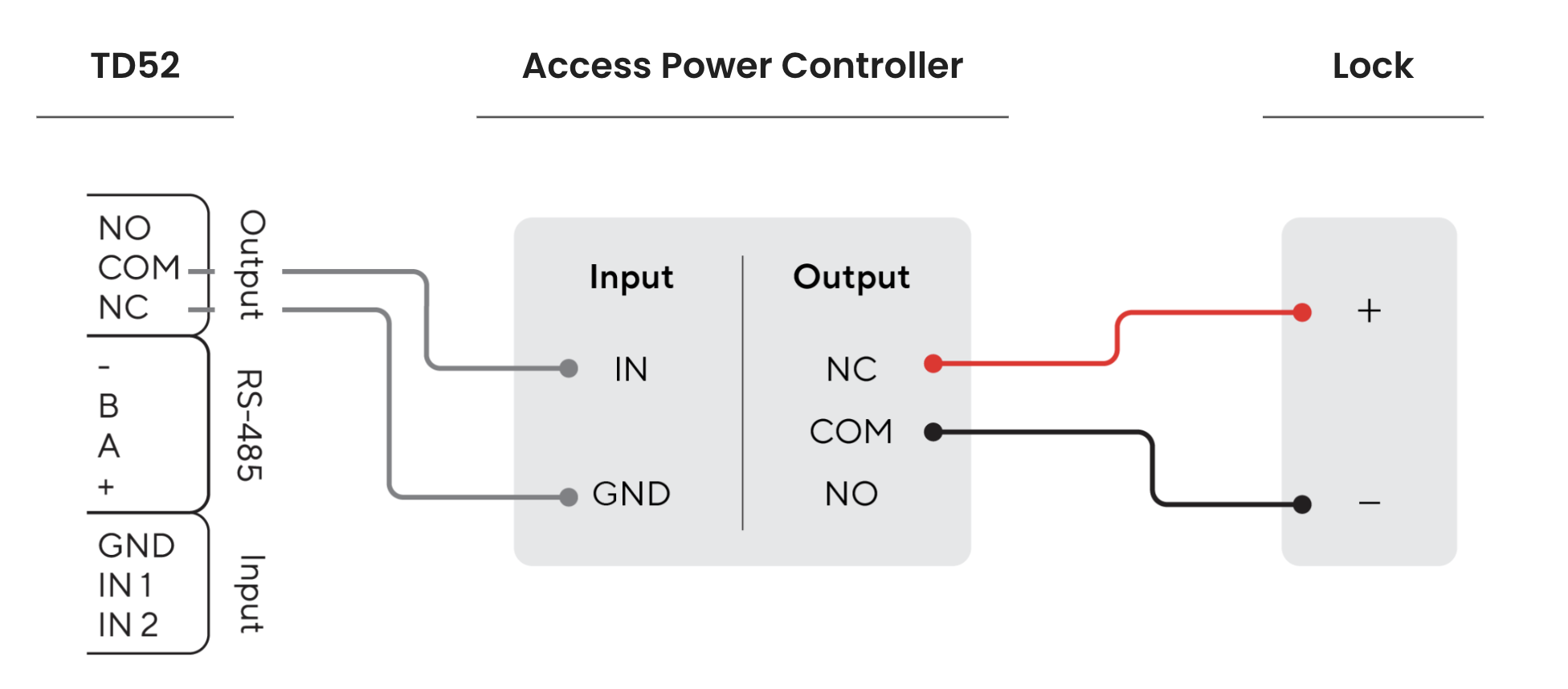
The TD52 has 1 dry form C relay output that you can configure as an access controller (AC) by connecting an access power controller to the output terminal, as detailed below.
#### Connections
You can also use the output relay as a general-purpose output.
* *For fail safe locks*, you should connect + to NC to be locked, by default.
* *For fail secure locks*, you should connect + to NO to be locked, by default.
Learn more about how to [wire an output device](/intercom/configuration/wire-a-video-intercom.md).
***
## Command setup
{% stepper %}
{% step %}
**In Verkada Command, go to All Products > Devices.**
{% endstep %}
{% step %}
**Select an intercom to configure.**
{% endstep %}
{% step %}
**Under Settings > Door click Add a door.**
{% endstep %}
{% step %}
**Click Select for Directly to the Intercom.**
{% endstep %}
{% step %}
**Select the building and floor and click Apply.**
{% endstep %}
{% endstepper %}
{% hint style="info" %}
See [Assign a User Access to a Door](/access-control/users-and-credentials/add-a-user-to-the-verkada-access-system/assign-a-user-access-to-a-door.md) to grant users access to the door.
{% endhint %}
---
# Agent Instructions
This documentation is published with GitBook. GitBook is the documentation platform designed so that both humans and AI agents can read, navigate, and reason over technical content effectively. Learn more at gitbook.com.
## Querying This Documentation
If you need additional information that is not directly available in this page, you can query the documentation by asking a question.
Perform an HTTP GET request on the following URL with the `ask` and `goal` query parameters:
```
GET https://help.verkada.com/intercom/configuration/configure-a-video-intercom-as-a-1-door-ac.md?ask=&goal=
```
`ask` is the immediate question: it should be specific, self-contained, and written in natural language.
`goal` is what the user is ultimately trying to achieve, the reason they need the answer. Sharing it helps GitBook give you a better, more relevant answer. A goal is most helpful when it describes the outcome the user wants rather than restating the question. For example, with `ask=how do I create an API token`, a goal like `automate deployments from our CI pipeline` lets GitBook tailor the answer to that use case.
The response will contain a direct answer to the question and relevant excerpts and sources from the documentation.
Use this mechanism when the answer is not explicitly present in the current page, you need clarification or additional context, or you want to retrieve related documentation sections.