> For the complete documentation index, see [llms.txt](https://help.verkada.com/llms.txt). Markdown versions of documentation pages are available by appending `.md` to page URLs; this page is available as [Markdown](https://help.verkada.com/intercom/configuration/wire-a-video-intercom.md).
# Wire a Second-Generation Video Intercom
Wire a Verkada Video Intercom
The [Verkada TD52 Video Intercom](https://www.verkada.com/intercom/td52/) provides a Power over Ethernet (POE) port to enable communication with your [Verkada Command dashboard](/command/getting-started/get-started-with-verkada-command.md) and 3 input/output (I/O) ports.
The Verkada TD53 and TD63 video intercoms include a Power over Ethernet (POE) port, 3 general purpose inputs, 2 general purpose outputs, and 1 RS485 output.
{% hint style="danger" %}
Intercoms require a (PoE/PoE+)-enabled switch port.
* Power: 11.5W (IEEE 802.3af PoE)
* Extended Temperature Range: 25.5W (IEEE 802.3at PoE)
{% endhint %}
***
{% tabs %}
{% tab title="TD53/TD63" %}
### Wire the TD53/TD63
The back of the intercom has an I/O cover secured by 4 T10 security screws.
{% stepper %}
{% step %}
**Use the included Torx screwdriver to loosen these 4 screws and remove the cable door from the rear of the unit.**
{% endstep %}
{% step %}
**Remove the tabs from the cable grommets.**
{% endstep %}
{% step %}
**Thread the cables through their corresponding grommets and use the supplied RJ45 cap to thread the ethernet cable through.**
{% endstep %}
{% endstepper %}
#### Wire the I/O ports
| Input Device Options | Output Device Options |
| ----------------------------- | --------------------- |
| Call Triggers | Door Unlock |
| Door Position Indicator (DPI) | Chime |
| Request to Exit (REX) | Call in progress |
| | OSDP |
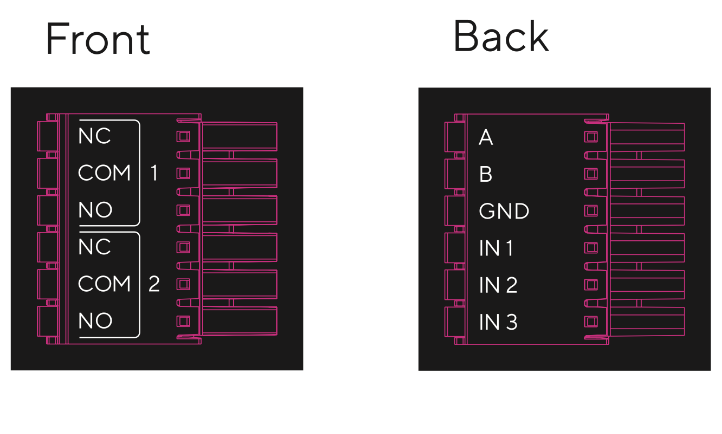
The Terminal block has two layers (outputs on the front, inputs on the back):
#### Wire an input
{% stepper %}
{% step %}
**Configure the input in Verkada Command: Intercom Settings > I/O. Note the number of the input you configured.**
{% endstep %}
{% step %}
**Thread the input device leads through the cable grommet in the I/O cover.**
{% endstep %}
{% step %}
**Remove the terminal block from the device and wire your input device into the corresponding input from step 1.**
{% endstep %}
{% step %}
**Press the orange button to open the port and release to close.**
{% hint style="warning" %}
Inputs 1-3 share common ground directly to the right of IN 1.
{% endhint %}
{% endstep %}
{% endstepper %}
#### Wire an output
{% stepper %}
{% step %}
**Configure the output in Verkada Command: Intercom Settings > I/O. Note the number of the output you configured.**
{% endstep %}
{% step %}
**Thread the output device leads through the cable grommet in the I/O cover.**
{% endstep %}
{% step %}
**Remove the terminal block from the device and wire your output device into the corresponding output from step 1.**
{% hint style="warning" %}
Use a normally closed (NC) or normally open (NO) wiring configuration based on your output device.
{% endhint %}
{% endstep %}
{% endstepper %}
#### Finish up
{% stepper %}
{% step %}
**Seat the cable grommets into the cable door for sealing.**
{% endstep %}
{% step %}
**Plug the ethernet cable/terminal block into the device.**
{% endstep %}
{% step %}
**Refasten the cable door onto the device.**
{% endstep %}
{% step %}
**Mount the device on the mount plate (in either subflush or surface mounted configuration) using the two hooks on the mount plate.**
{% endstep %}
{% step %}
**Swing the device down against the mount plate and fasten it with the included T10 security screws using the supplied Torx screwdriver.**
{% endstep %}
{% endstepper %}
{% endtab %}
{% tab title="TS12" %}
### Wire the TS12
#### Power on and connect to the Internet
{% stepper %}
{% step %}
**Examine the back of the intercom.**
{% endstep %}
{% step %}
**Plug the Ethernet cable into the PoE terminal.**
{% endstep %}
{% endstepper %}
#### Wire the I/O ports
| Input Device Options | Output Device Options |
| ----------------------------- | --------------------- |
| Call Triggers | Door Unlock |
| Door Position Indicator (DPI) | Chime |
| Request to Exit (REX) | Call in progress |
| OSDP (Verkada Readers) | Amp/Line Out Audio |
The Terminal block has two layers (outputs on the front, inputs on the back):
#### Wire an input
{% stepper %}
{% step %}
**Configure the input in Verkada Command: Intercom Settings > I/O. Note the number of the input you configured.**
{% endstep %}
{% step %}
**Remove the terminal block from the device and wire your input device into the corresponding input from step 1.**
{% endstep %}
{% step %}
**Press the orange button to open the port and release to close.**
{% hint style="warning" %}
Inputs 1-2 share common ground directly next to IN 1.
{% endhint %}
{% endstep %}
{% endstepper %}
#### Wire an Output (NO/COM/NC)
{% stepper %}
{% step %}
**Configure the output in Verkada Command: Intercom Settings > I/O. Note the number of the output you configured.**
{% endstep %}
{% step %}
**Remove the terminal block from the device and wire your output device into the corresponding output from step 1.**
{% endstep %}
{% step %}
**Press the orange button to open the port and release to close.**
{% hint style="warning" %}
Use a normally closed (NC) or normally open (NO) wiring configuration based on your output device.
{% endhint %}
{% endstep %}
{% endstepper %}
#### Wire Audio Out (Audio+/Audio-)
Audio Out is used to drive an external speaker. There are two power selections available: Amp Out, and Line Out. Amp out provides 12W of power for speakers which do not have an onboard amplifier. Line out provides normalized line voltage for speakers that already have external power.
{% stepper %}
{% step %}
**Use the power selector switch on the back of the device to select the correct configuration.**
{% endstep %}
{% step %}
**Remove the terminal block from the device and wire your speaker into the Audio + and - terminals.**
{% endstep %}
{% step %}
**Press the orange button to open the port and release to close.**
{% hint style="warning" %}
Use a normally closed (NC) or normally open (NO) wiring configuration based on your output device.
{% endhint %}
{% endstep %}
{% endstepper %}
{% hint style="info" %}
See [Configure a Video Intercom as a 1-Door AC](/intercom/configuration/configure-a-video-intercom-as-a-1-door-ac.md) for information on how to wire a Verkada reader to your intercom.
{% endhint %}
{% endtab %}
{% tab title="TD33" %}
### Wire the TD33
#### Wire the I/O ports
| Input Device Options | Output Device Options |
| ----------------------------- | --------------------- |
| Call Triggers | Door Unlock |
| Door Position Indicator (DPI) | Chime |
| Request to Exit (REX) | Call in progress |
| | OSDP |
#### Wire an Input
{% stepper %}
{% step %}
**Configure the input in Verkada Command: Intercom Settings > I/O. Note the number of the input you configured.**
{% endstep %}
{% step %}
**Attach the inputs according to the diagram below.**
{% endstep %}
{% endstepper %}
#### Wire an Output
{% stepper %}
{% step %}
**Configure the output in Verkada Command: Intercom Settings > I/O.**
{% endstep %}
{% step %}
**Attach the output according to the diagram below. Be sure to wire normally closed (NC) or normally open (NO), depending on your output device.**
{% endstep %}
{% endstepper %}
#### Finish Up
{% stepper %}
{% step %}
**Guide the intercom onto the hook on the top edge of the mount plate.**
{% endstep %}
{% step %}
**Feed the pigtail cables through the pigtail pass-through hole.**
{% endstep %}
{% step %}
**Gently swing the bottom edge of the intercom down against the mount plate.**
{% endstep %}
{% step %}
**Secure the intercom by tightening the T10 security torx screw at the bottom of the mount plate using the T10 Security Torx screwdriver.**
{% endstep %}
{% endstepper %}
{% endtab %}
{% tab title="TD52" %}
### Wire the TD52
{% hint style="danger" %}
The TD52 requires a (PoE/PoE+)-enabled switch port.
* Power: 11.5W (IEEE 802.3af PoE)
* Extended Temperature Range: 25.5W (IEEE 802.3at PoE)
{% endhint %}
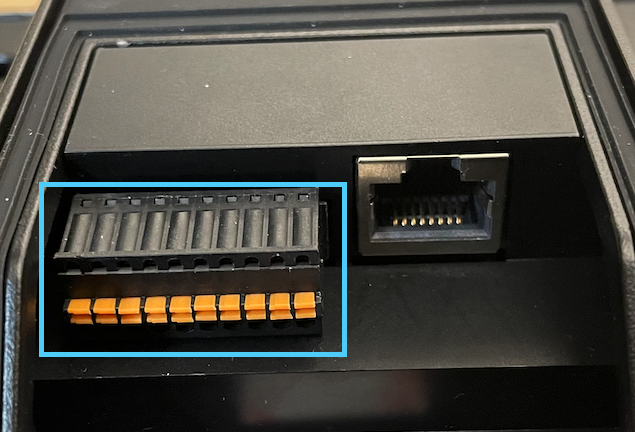
The back of the TD52 has an I/O cover is secured by 4 screws that hold the I/O cover in place.
{% stepper %}
{% step %}
**Using a #2 Phillips head, remove these 4 screws.**
{% endstep %}
{% step %}
**Plug the the Ethernet cable to provide power to the Intercom.**
{% endstep %}
{% step %}
**Remove the rubber grommets (circular components) using the included grommet punch. The Ethernet chord goes *****through***** the grommet to create a water tight seal.**
{% endstep %}
{% endstepper %}
The intercom should power on and the status LEDs display on the face of the Intercom. Read [about what each LED status indicates](/intercom/configuration/configure-a-td52/td52-status-leds.md).
#### Wire the I/O port
The TD52 provides space in the I/O port for 2 inputs and 1 output.
| Input device options | Output device options |
| ----------------------------- | --------------------- |
| Call triggers | Door unlocks |
| Door Position Indicator (DPI) | Chime |
| Request to Exit (REX) | Call in progress |
**Example**: I/O ports when the cover is removed
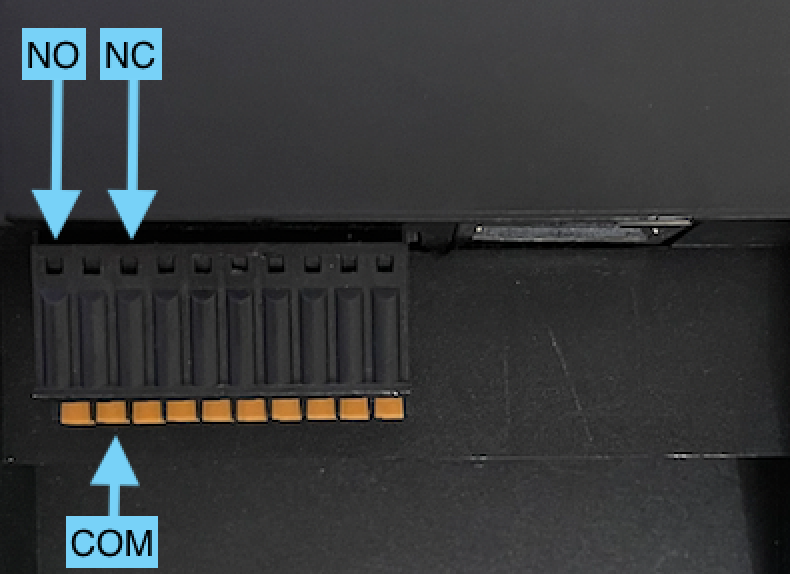
Each I/O port corresponds to the following pins from left to right:
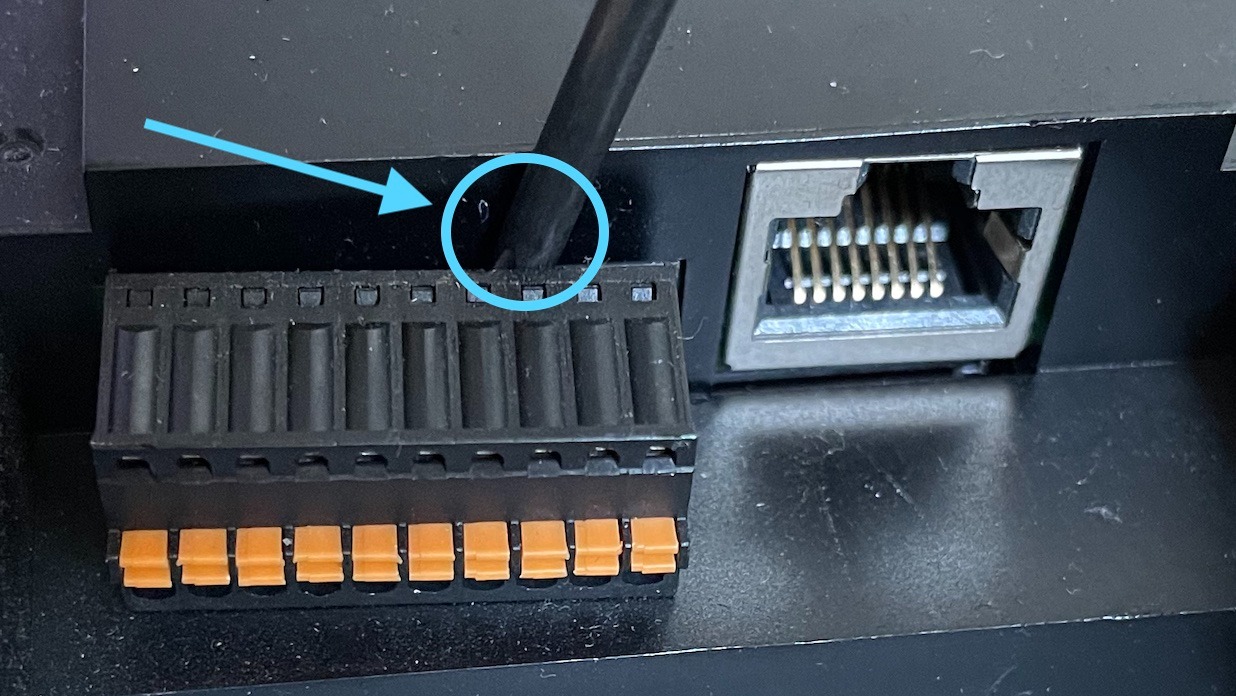
To simplify the I/O port wiring, remove the I/O terminal. You can use a Torx security screwdriver provided in the box or any tool that allows you to lever the terminal away from the device.
#### Wire an input device
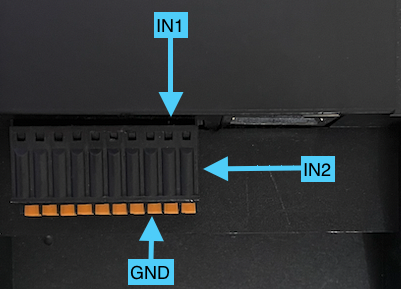
Looking at the I/O terminal, the 3 ports closest to the right are for inputs:
* IN2 (Pin 10)
* IN1 (Pin 9)
* GND (Pin 8)
{% stepper %}
{% step %}
**Choose which port(s) the input(s) to wired into.**
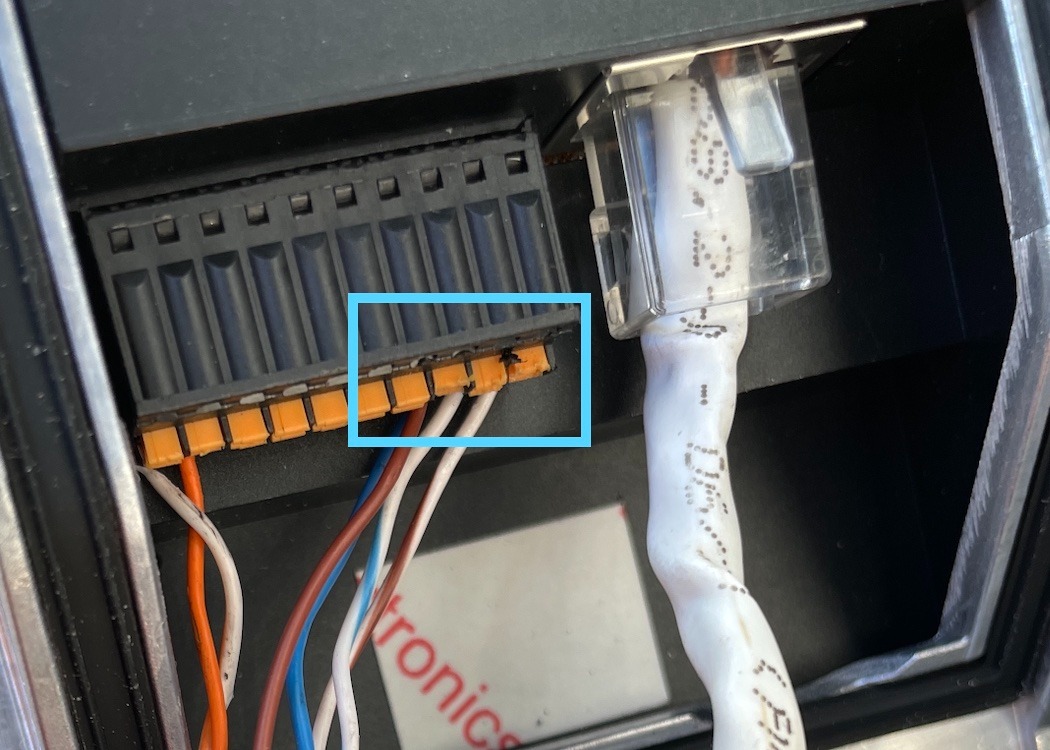
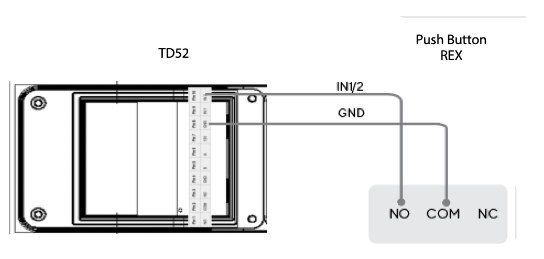
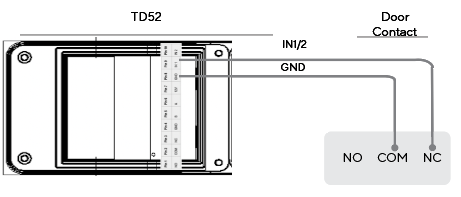
Note the number input; this corresponds to an input number in your Intercom settings. For example, a door position indicator ([DPI](#h_b3da7a77bd)) wired into IN1/Pin 9 and a Request to Exit ([REX](#h_2d6adad256)) wired into IN2/Pin 10.
{% endstep %}
{% step %}
**Press and hold the orange push button to insert the second wire of input device into ground (Pin 8/GND).**
* You can use the same ground port when 2 inputs are installed.
* The example shown is an Intercom I/O terminal with 2 input devices attached, both of them using the same ground port.
{% endstep %}
{% endstepper %}
#### Example wiring scenarios
**REX / Call Trigger**
**Door Contact / DPI**
{% hint style="danger" %}
When wiring an Intercom as an access controller, you **must** wire the REX into Input 2 (IN2) and DPI into Input 1 (IN1).
{% endhint %}
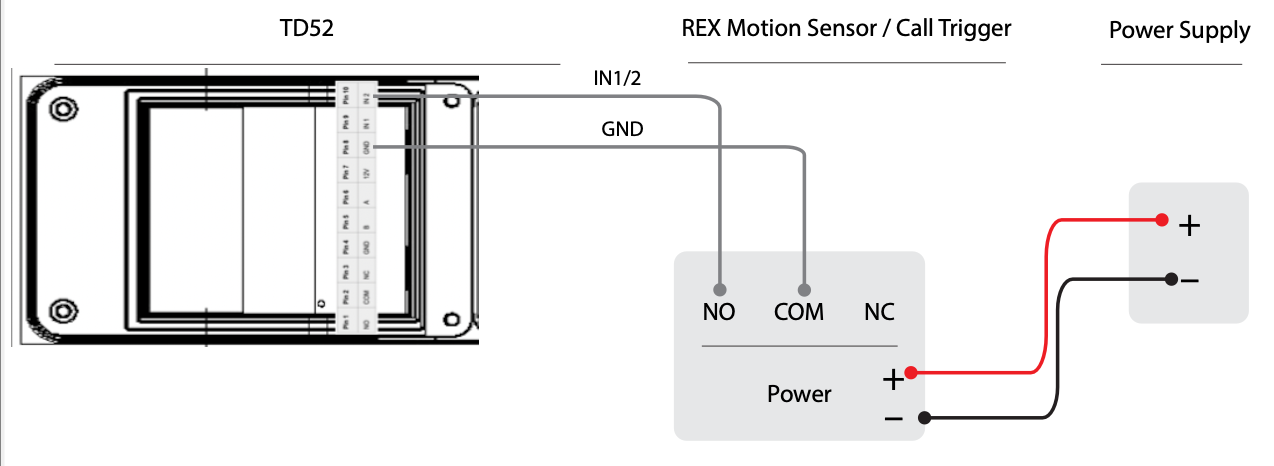
#### Power your input device using an external power supply
To wire using an external power supply, take the positive (**+**) and negative (**–**) wires from the input device and then wire it into the power source.
**Example**: How to wire a powered REX/call trigger into an external power supply
#### Wire an output device
Looking at the I/O board, the 3 ports closest to the left:
* NO (Pin 1)
* COM (Pin 2)
* NC (Pin 3)
{% stepper %}
{% step %}
**Using the orange push button on the terminal block, insert the negative wire (–) into COM (Pin 2). This wire will be inserted into the ground (GND) or negative (–) on your output device.**
{% endstep %}
{% step %}
**Determine what relay state the output device requires to be triggered, then use the orange push button to insert the second wire into Normally Open (NO) or Normally Closed (NC).**
* If the output device expects NO, then put the '+' wire into NO/Pin 1.
* If the output device expects NC, then put the '+' wire into NC/Pin 2.
* This wire will be inserted into the input (IN) or positive (+) on your output device.
{% endstep %}
{% step %}
**Select the appropriate output setting for the output in the Verkada Command dashboard.**
{% endstep %}
{% endstepper %}
{% hint style="warning" %}
The TD52 uses a dry relay, which means that it cannot power an output device. All output devices that require power need to use an external power controller or power supply.
{% endhint %}
#### Wire a reader
Learn [how to wire a reader to an Intercom and use it as a 1-door access controller](/intercom/configuration/configure-a-video-intercom-as-a-1-door-ac.md).
#### Example wiring scenarios
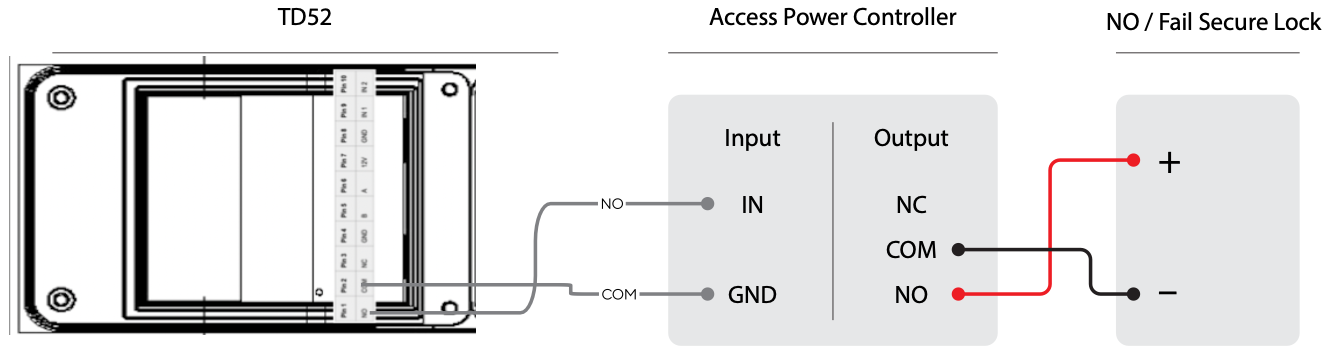
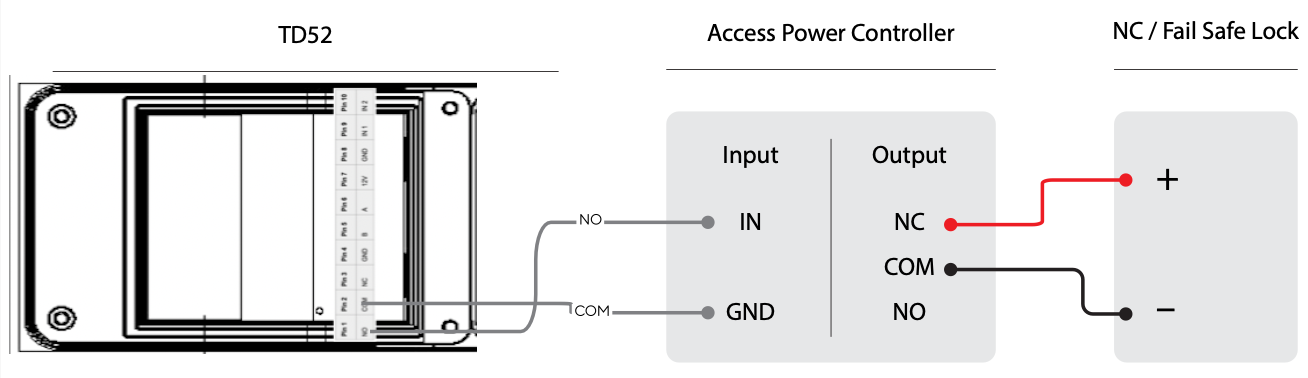
**Door unlock**
The door unlock allows for the output relay to trigger when an unlock is sent from the receiver. In both wiring scenarios, the lock is attached to an access power controller.
**Using a fail secure lock**
**Using a fail safe lock**
{% endtab %}
{% endtabs %}
---
# Agent Instructions
This documentation is published with GitBook. GitBook is the documentation platform designed so that both humans and AI agents can read, navigate, and reason over technical content effectively. Learn more at gitbook.com.
## Querying This Documentation
If you need additional information that is not directly available in this page, you can query the documentation by asking a question.
Perform an HTTP GET request on the following URL with the `ask` and `goal` query parameters:
```
GET https://help.verkada.com/intercom/configuration/wire-a-video-intercom.md?ask=&goal=
```
`ask` is the immediate question: it should be specific, self-contained, and written in natural language.
`goal` is what the user is ultimately trying to achieve, the reason they need the answer. Sharing it helps GitBook give you a better, more relevant answer. A goal is most helpful when it describes the outcome the user wants rather than restating the question. For example, with `ask=how do I create an API token`, a goal like `automate deployments from our CI pipeline` lets GitBook tailor the answer to that use case.
The response will contain a direct answer to the question and relevant excerpts and sources from the documentation.
Use this mechanism when the answer is not explicitly present in the current page, you need clarification or additional context, or you want to retrieve related documentation sections.