> For the complete documentation index, see [llms.txt](https://help.verkada.com/llms.txt). Markdown versions of documentation pages are available by appending `.md` to page URLs; this page is available as [Markdown](https://help.verkada.com/intercom/configuration/integrate-verkada-intercoms-with-sip.md).
# Integrate Verkada Intercoms with SIP
Learn the features that SIP integration unlocks
Verkada Intercoms can integrate with virtually any Session Initiation Protocol (SIP) phone system. See [Intercom Interoperability Manual](/intercom/configuration/intercom-deployment-best-practices-guide/intercom-interoperability-manual.md) for a list of compatible SIP servers.
### Benefits
* Add your SIP phones as receivers in your Call List
* Custom Caller ID for your Intercoms
* Unlock the door by pressing any button 1–9
* Talk down to your Intercom by dialing its extension
* SIP calls work even during a site internet outage
{% hint style="danger" %}
For enhanced security and compliance, we recommend customers enable SRTP for encrypted media streams and TLS for encrypted signaling whenever possible.
{% endhint %}
***
## Configuration
### Provision your intercom as a user/phone in your SIP system
{% hint style="info" %}
To do this step, we recommend that you follow the user/device provisioning instructions supplied by your SIP provider.
{% endhint %}
Follow these general steps, as you would to add a traditional SIP phone:
{% stepper %}
{% step %}
**Add your intercom as a user. (This is typically where you define the extension.)**
{% endstep %}
{% step %}
**Add your intercom as a device, then assign this device to the user you created in step 1. (This typically requires the device’s media access control (MAC) address, which can be found in the device settings or on the back of the device.)**
{% endstep %}
{% endstepper %}
### Configure your intercom in Command
{% stepper %}
{% step %}
**In Verkada Command, go to All Products > Intercom.**
{% endstep %}
{% step %}
**Click Settings > Call > Add Account.**
{% endstep %}
{% step %}
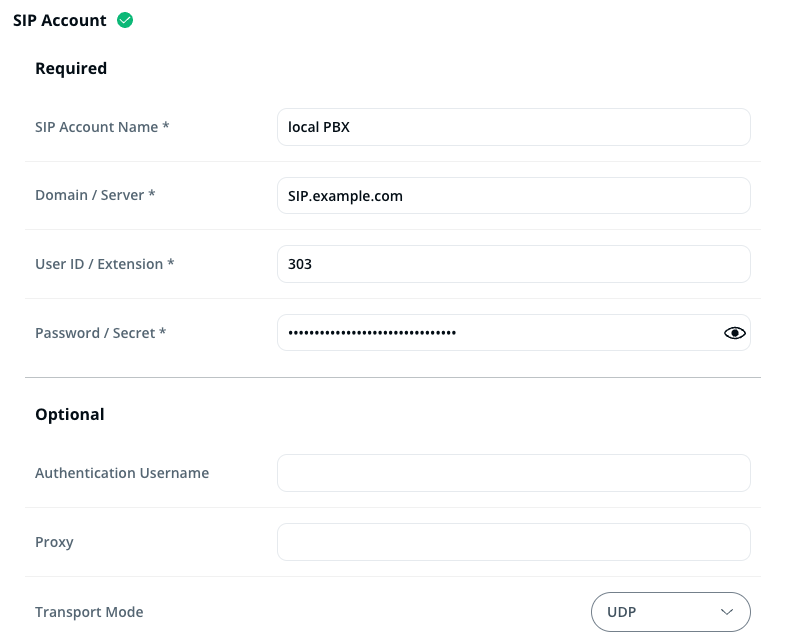
**At a minimum, fill out the Required section. Your SIP account name is used to tag events in Command, and is not sent to the SIP server. The Domain, User ID, and Password should match what you configured in step 1.**
For many SIP applications, the **Required** section is enough information. For instance, a local PBX server may only need the information seen below.
However, if you’re using an off-premises solution, such as Zoom or RingCentral, they may provide you with an Outbound Proxy address, which you can paste in the **Proxy** section.
Some providers (both on and off premises) may require that you configure an Authentication Username. Zoom calls this an **Authentication ID**, where Cisco expects the Authentication Username to match the End User ID created in the [Cisco Unified Communication Manager](/intercom/configuration/integrate-verkada-intercoms-with-sip/sip-integration-cisco-unified-cm.md), and freePBX requires nothing.
Overall, different providers expect varying values in the **Optional** fields, and if you experience trouble configuring the correct options, contact [Verkada Support](/command/need-help/contact-verkada-support.md) for guidance.
{% endstep %}
{% step %}
**Once you’ve successfully provisioned your Intercom, you should see a green checkmark under Device Settings > Call > SIP Account.**
{% endstep %}
{% endstepper %}
### Add your SIP phones as receivers
{% stepper %}
{% step %}
**Navigate to your Intercom’s Receivers tab and examine the Call List.**
{% endstep %}
{% step %}
**In your Call List groups, click the plus (+) icon and select SIP Phone.**
{% endstep %}
{% step %}
**Enter the extension of the recipient you want to add to the call list. Alternatively, to call the intercom from your SIP devices, simply dial its extension.**
{% endstep %}
{% endstepper %}
***
{% hint style="info" %}
**Prefer to see it in action?** Check out the [video tutorial](https://www.youtube.com/watch?v=pgUM7Jwglng).
{% endhint %}
---
# Agent Instructions
This documentation is published with GitBook. GitBook is the documentation platform designed so that both humans and AI agents can read, navigate, and reason over technical content effectively. Learn more at gitbook.com.
## Querying This Documentation
If you need additional information that is not directly available in this page, you can query the documentation by asking a question.
Perform an HTTP GET request on the following URL with the `ask` and `goal` query parameters:
```
GET https://help.verkada.com/intercom/configuration/integrate-verkada-intercoms-with-sip.md?ask=&goal=
```
`ask` is the immediate question: it should be specific, self-contained, and written in natural language.
`goal` is what the user is ultimately trying to achieve, the reason they need the answer. Sharing it helps GitBook give you a better, more relevant answer. A goal is most helpful when it describes the outcome the user wants rather than restating the question. For example, with `ask=how do I create an API token`, a goal like `automate deployments from our CI pipeline` lets GitBook tailor the answer to that use case.
The response will contain a direct answer to the question and relevant excerpts and sources from the documentation.
Use this mechanism when the answer is not explicitly present in the current page, you need clarification or additional context, or you want to retrieve related documentation sections.