> For the complete documentation index, see [llms.txt](https://help.verkada.com/llms.txt). Markdown versions of documentation pages are available by appending `.md` to page URLs; this page is available as [Markdown](https://help.verkada.com/intercom/installation/configure-a-second-generation-intercom-as-a-1-door-ac.md).
# Configure a Second-Generation Intercom as a 1-Door AC
Set up your hardware before you begin the Verkada Command setup.
If you are using any of the second-generation intercoms, see the [install guide](https://www.verkada.com/docs/?product=intercom\&contentType=setupGuide) before you continue.
***
## Verkada reader
Second-generation Verkada Intercoms (TD33, TD53, TD63) include a built-in reader. On the TD63, visitors can also enter entry codes on the keypad followed by **#** to unlock (for example, **1234#**). See [Grant Temporary Intercom Access with Visit Keys](/intercom/configuration/grant-temporary-access-with-visit-keys.md) for more information. If you are using a TD52, see [this article](/intercom/configuration/configure-a-video-intercom-as-a-1-door-ac.md) to learn how to install a reader and configure the device as a 1 door access controller.
***
## Output wiring
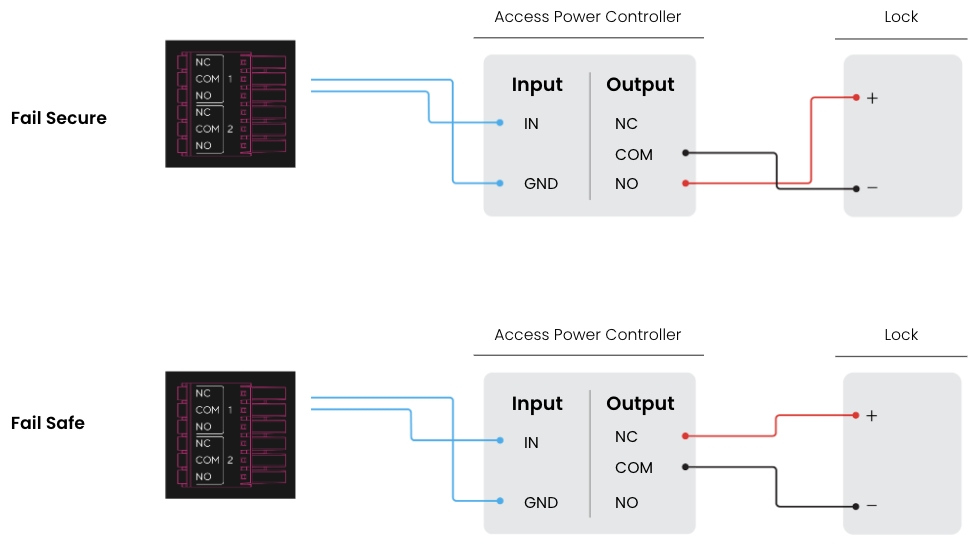
Second-generation Verkada Intercoms have a dry-form C relay output that you can configure as an access controller. This involves wiring the intercom to an auxiliary power controller and a lock as seen below.
***
## Door configuration
{% stepper %}
{% step %}
**Navigate to Intercom Settings > Door.**
{% endstep %}
{% step %}
**Click Add a door**
{% endstep %}
{% step %}
**Select Directly to the Intercom**
{% endstep %}
{% endstepper %}
### Reader
| | |
| ---------------------------- | ------------------------------------------------------ |
| **Badge Reader** | Toggle RFC and NFC support (doesn't include bluetooth) |
| **NFC Unlock** | Toggle NFC support |
| **Bluetooth Unlock** | Toggle Bluetooth support |
| **Bluetooth Unlock Trigger** | Set the distance and action required to gain access |
| **Bluetooth Cooldown** | Minimum interval between bluetooth door unlocks |
| **Beep on Bluetooth Unlock** | Beep upon access granted |
### I/O
| | |
| ------------ | -------------------------------------- |
| **Input 1** | Configure DPI or Call Trigger |
| **Input 2** | Configure REX or Call Trigger |
| **Input 3** | Configure REX or Call Trigger |
| **Output** | Unlock - not mutable in 1 Door AC Mode |
| **Output 2** | Configure Chime or Call in Progress |
### Unlock
| | |
| ----------------- | ------------------------------------------------------------------------ |
| **Unlock Time** | Configure how long door stays open upon unlock |
| **Unlock Sound** | Toggle whether tone is played when door is unlocked by receiver |
| **Remote Unlock** | Toggle whether eligible users in Command or Pass app can unlock the door |
***
## Assign user access to an intercom door
After you add a door to an intercom in Command, you can [assign access levels in the access control menu](/access-control/users-and-credentials/add-a-user-to-the-verkada-access-system/assign-a-user-access-to-a-door.md).
---
# Agent Instructions
This documentation is published with GitBook. GitBook is the documentation platform designed so that both humans and AI agents can read, navigate, and reason over technical content effectively. Learn more at gitbook.com.
## Querying This Documentation
If you need additional information that is not directly available in this page, you can query the documentation by asking a question.
Perform an HTTP GET request on the following URL with the `ask` and `goal` query parameters:
```
GET https://help.verkada.com/intercom/installation/configure-a-second-generation-intercom-as-a-1-door-ac.md?ask=&goal=
```
`ask` is the immediate question: it should be specific, self-contained, and written in natural language.
`goal` is what the user is ultimately trying to achieve, the reason they need the answer. Sharing it helps GitBook give you a better, more relevant answer. A goal is most helpful when it describes the outcome the user wants rather than restating the question. For example, with `ask=how do I create an API token`, a goal like `automate deployments from our CI pipeline` lets GitBook tailor the answer to that use case.
The response will contain a direct answer to the question and relevant excerpts and sources from the documentation.
Use this mechanism when the answer is not explicitly present in the current page, you need clarification or additional context, or you want to retrieve related documentation sections.