> For the complete documentation index, see [llms.txt](https://help.verkada.com/llms.txt). Markdown versions of documentation pages are available by appending `.md` to page URLs; this page is available as [Markdown](https://help.verkada.com/verkada-cameras/video-streaming-and-sharing/embed-a-cameras-live-stream-on-a-website.md).
# Embed a Camera's Live Stream on a Website
Learn how to embed a live stream of a camera on your website
Verkada cameras let you embed a live stream of a camera on your website. The embed is an inline frame (iframe) code snippet that is compatible with any webpage.
{% hint style="warning" %}
Once an embed is created, access can be revoked at any time.
{% endhint %}
***
## Create an embed link
{% stepper %}
{% step %}
**In Verkada Command, go to All Products > Cameras.**
{% endstep %}
{% step %}
**Navigate to the camera feed you want to embed on your website.**
{% endstep %}
{% step %}
**At the right side of the frame, click Share.**
* Read the video sharing terms and conditions. If you agree, click **I Agree.**
* In the bottom left, click **More options > Embed Code.**
* Enter the domain(s) where you want to authorize video to play.
* Click **Embed Link > Done.**
{% hint style="warning" %}
The link is automatically added to the clipboard.
{% endhint %}
{% endstep %}
{% endstepper %}
{% hint style="info" %}
Wildcards are accepted (for example, *\*.yourdomain.com*). If your domain is *yourdomain.com*, you don’t need the preceding wildcard and can simply use *yourdomain.com*. However, if your domain is *yoursubdomain.yourdomain.com*, you can use the wildcard to specify the subdomain.
{% endhint %}
***
## Manage existing embed links
{% stepper %}
{% step %}
**In Verkada Command, go to All Products > Admin.**
{% endstep %}
{% step %}
**Select Login & Access > Manage Shared Links.**
{% endstep %}
{% step %}
**Select the Embedded tab.**
{% endstep %}
{% step %}
**On the right side of your link:**
* Click :code: to code the embed code.
* Click :trash-can: to revoke the embed.
{% endstep %}
{% endstepper %}
***
## Resize Embedded Video Streams
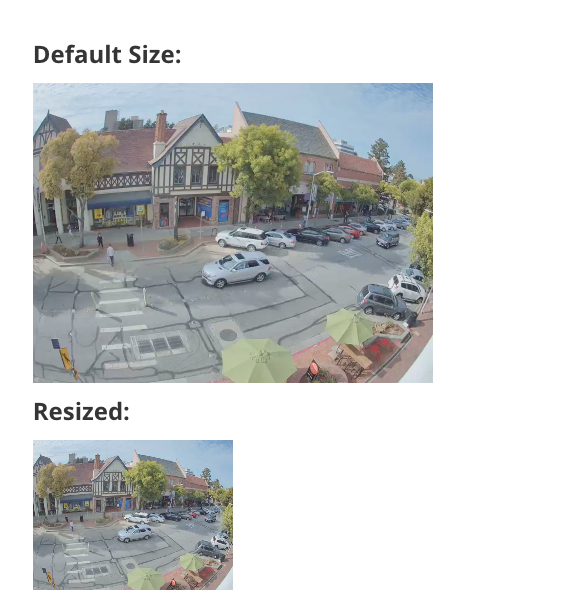
Embedded camera feeds can be resized on your webpage by adjusting the width, height, and widescreen attributes.
{% hint style="warning" %}
When you resize an embed, be sure to keep the width-to-height ratio the same, as shown below.
{% endhint %}
***
## Show the embed in widescreen
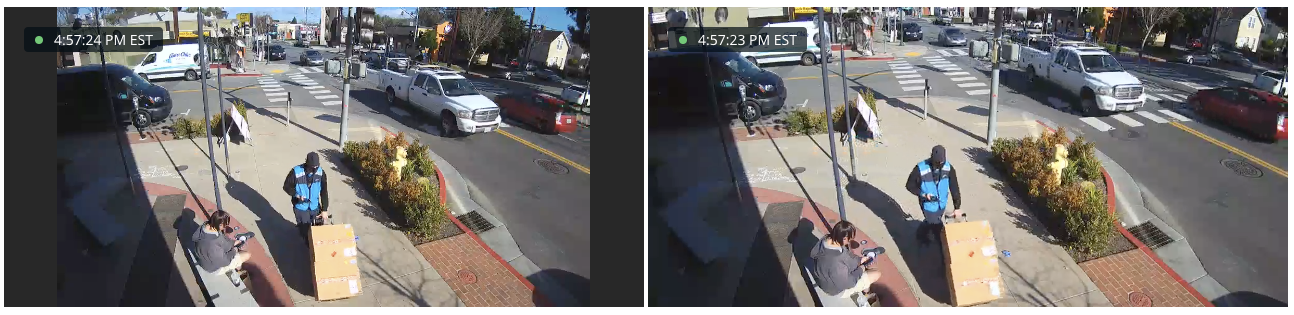
To make the embed appear in widescreen, use the **`?widescreen=1`** parameter in the URL, as shown:
The embed on the left is standard, whereas the embed on the right has the **`widescreen=1`** query parameter:
***
When a user loads a webpage that contains a Verkada-embedded live stream, the page loads the URL of the embed in an iframe.
{% hint style="warning" %}
The inline frame (iframe) appears as a black screen if the referring website doesn’t match the domain name specified when the embed was created.
{% endhint %}
***
## Resolve embeds that don’t load
{% stepper %}
{% step %}
[**Find the referring website**](#find-the-referring-website) **so you can specify a matching domain name when creating the embed.**
{% endstep %}
{% step %}
[**Re-create the embed using the correct domain name**](#recreate-the-embed-using-the-correct-domain-name)**.**
{% endstep %}
{% step %}
**Place the new embed on your website.**
{% endstep %}
{% endstepper %}
### Find the referring website
{% stepper %}
{% step %}
**On the webpage where you placed the embed, right-click in your browser and select Inspect. This will be a black screen because the embed will not load.**
{% endstep %}
{% step %}
**At the top, click Network.**
{% endstep %}
{% step %}
**In the search/filter bar, type "embed" ( to filter for embed-related requests.**
{% endstep %}
{% step %}
**Click the request with the alphanumeric ID, which should have a similar format to the example shown below.**
{% endstep %}
{% step %}
**Under the Request Headers section, find the Referrer URL. This is the URL/domain you need to put into Verkada Command. (You only need up to the top-level domain, such as .com. In the example, the referring domain is verkadasupport.com.)**
{% endstep %}
{% endstepper %}
{% hint style="warning" %}
If you don’t immediately see the **embed.html**, click **Refresh** to reload the page.
{% endhint %}
### Re-create the embed using the correct domain name
{% stepper %}
{% step %}
**In Verkada Command, go to All Products > Cameras.**
{% endstep %}
{% step %}
**Select the camera and click Share.**
{% endstep %}
{% step %}
**Select More options > click Embed Code and enter in your referrer domain.**
{% endstep %}
{% step %}
**Click Embed Link.**
{% endstep %}
{% endstepper %}
### Place new embed on your website
{% stepper %}
{% step %}
**Copy the new embed link you just created in the previous procedure.**
{% endstep %}
{% step %}
**Go to your site’s Admin portal.**
{% endstep %}
{% step %}
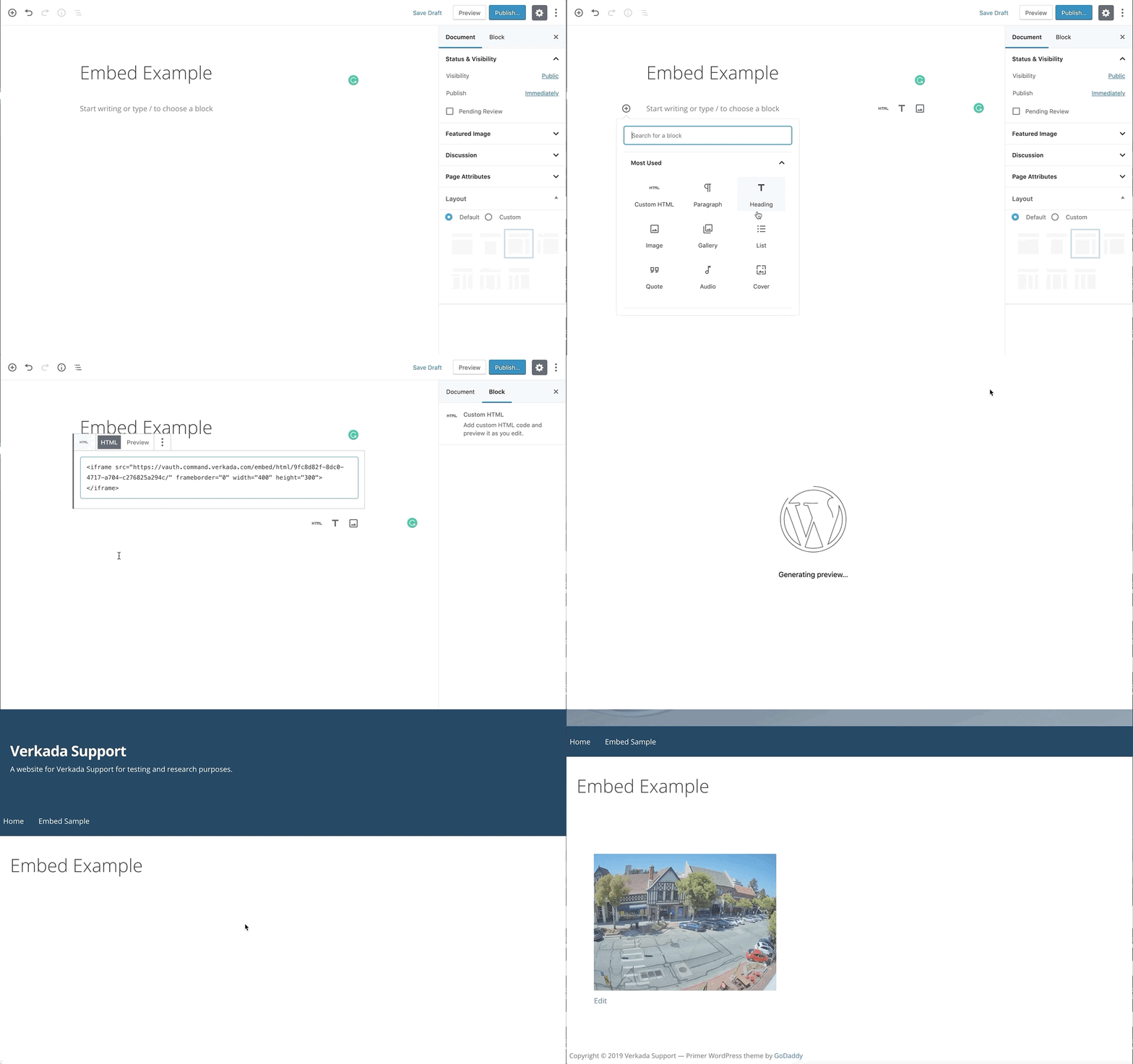
**Paste the HTML embed iframe where you want the embed to live on your site.**
{% endstep %}
{% step %}
**Save and open the site and ensure it works.**
{% endstep %}
{% endstepper %}
---
# Agent Instructions
This documentation is published with GitBook. GitBook is the documentation platform designed so that both humans and AI agents can read, navigate, and reason over technical content effectively. Learn more at gitbook.com.
## Querying This Documentation
If you need additional information that is not directly available in this page, you can query the documentation by asking a question.
Perform an HTTP GET request on the following URL with the `ask` and `goal` query parameters:
```
GET https://help.verkada.com/verkada-cameras/video-streaming-and-sharing/embed-a-cameras-live-stream-on-a-website.md?ask=&goal=
```
`ask` is the immediate question: it should be specific, self-contained, and written in natural language.
`goal` is what the user is ultimately trying to achieve, the reason they need the answer. Sharing it helps GitBook give you a better, more relevant answer. A goal is most helpful when it describes the outcome the user wants rather than restating the question. For example, with `ask=how do I create an API token`, a goal like `automate deployments from our CI pipeline` lets GitBook tailor the answer to that use case.
The response will contain a direct answer to the question and relevant excerpts and sources from the documentation.
Use this mechanism when the answer is not explicitly present in the current page, you need clarification or additional context, or you want to retrieve related documentation sections.