> For the complete documentation index, see [llms.txt](https://help.verkada.com/llms.txt). Markdown versions of documentation pages are available by appending `.md` to page URLs; this page is available as [Markdown](https://help.verkada.com/verkada-cameras/analytics/people-and-vehicle-motion-search.md).
# People and Vehicle Motion Search
Learn now to search paths of people and vehicles with advanced motion search
Verkada’s people and vehicle search features use advanced computer vision functionality to identify people and vehicles within the camera’s field of view and quickly find relevant events.
The Verkada Command UI enables instant video replay previews and trajectory viewing. Trajectory analysis features offer possibilities for event search, reducing missed detections, improving detection distance, and reducing duplicates.
***
## View people and vehicles over a timeline
{% hint style="danger" %}
You must have Site Viewer and Site Admin access to view the **Motion** tab under the camera feed. Learn more about [Roles and Permissions for Cameras](/verkada-cameras/getting-started/roles-and-permissions-for-cameras.md).
{% endhint %}
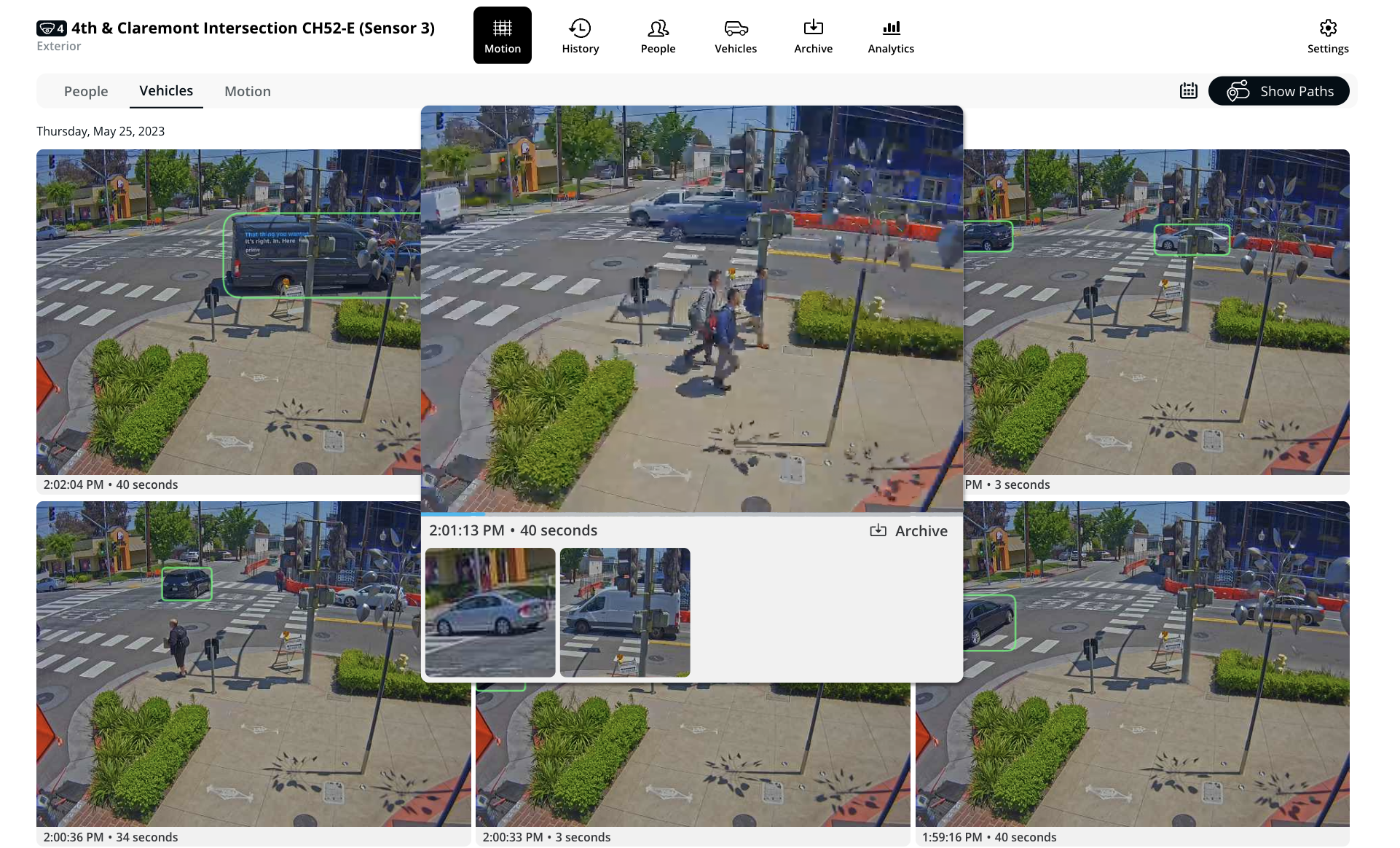
You can view people and vehicles detected by a Verkada camera within historical footage.
{% stepper %}
{% step %}
**In Verkada Command, go to All Products > Cameras.**
{% endstep %}
{% step %}
**Select a camera to view its feed.**
{% endstep %}
{% step %}
**Select the Motion tab.**
{% endstep %}
{% step %}
**To the right, click Show Paths to toggle the feature on/off.**
When the icon is black, the feature is on.
* Click and drag on the video feed to create a grid to search for motion in the area.
* Use the People, Vehicle, and Date filters for more granular searches.
{% endstep %}
{% step %}
**Hover over a thumbnail while the People or Vehicle tabs are selected to see the number of people or vehicles in the frame and the option to archive the clip.**
{% hint style="warning" %}
People and/or vehicles will be available only if detected in the camera frame.
{% endhint %}
{% endstep %}
{% step %}
**Hover over the preview to view individual tracks.**
{% endstep %}
{% step %}
**Click the thumbnail to be taken to the exact time in the recorded footage.**
{% endstep %}
{% endstepper %}
### View people trajectories (paths)
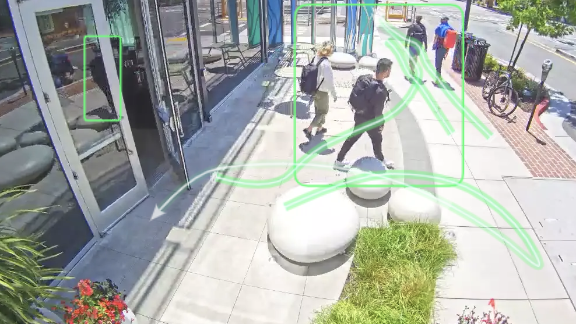
The people trajectories feature visualizes the paths of people moving through the scene to show the trajectories of each detected person.
Trajectories drastically improve motion event recall and enable the cameras to recognize people and vehicles at greater distances. For a detailed breakdown of the detection ranges of each model, see the [People Analytics Guide](https://docs.verkada.com/docs/people-analytics-guide.pdf).
{% stepper %}
{% step %}
**In Verkada Command, go to All Products > Cameras.**
{% endstep %}
{% step %}
**Select a camera to view its feed.**
{% endstep %}
{% step %}
**Select the Motion tab.**
{% endstep %}
{% step %}
**(Optional) Make a selection on the video player grid to search for motion in the area.**
{% endstep %}
{% step %}
**Select the People or Vehicle filter to see the trajectories.**
{% endstep %}
{% endstepper %}
### MotionX advanced search
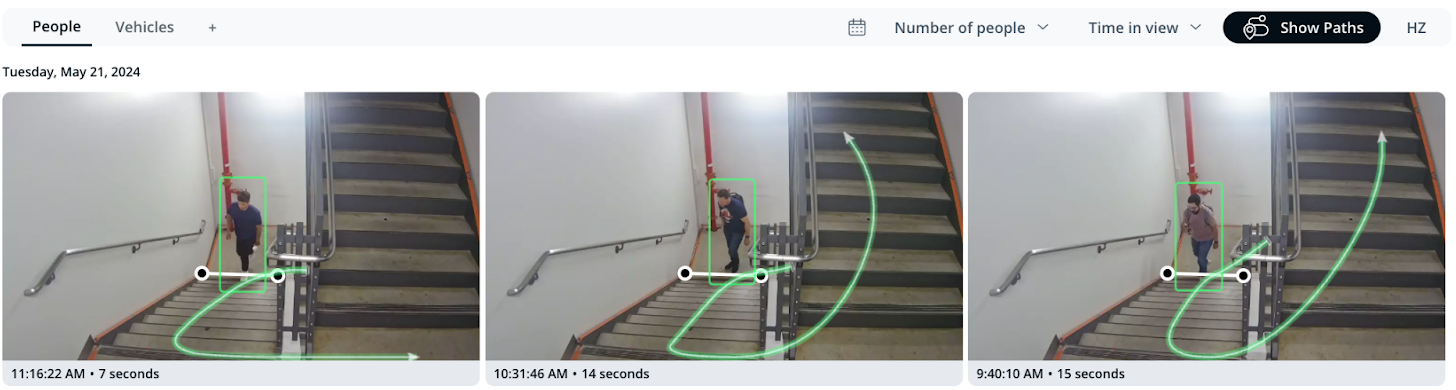
Verkada supports advanced searches based on certain events. You can use filters to quickly retrieve clips of people or vehicles that have:
* Crossed a certain line
* A minimum number in view
* Been in view for a minimum amount of time
See below to learn more about how each filter can be used individually and together.
#### Set up line crossing
{% hint style="warning" %}
Only [CB53-E](https://docs.verkada.com/docs/video-security-cb53-e-datasheet.pdf)/[CB63-E](https://docs.verkada.com/docs/video-security-cb63-e-datasheet.pdf), [CB52-E/CB62-E](https://www.verkada.com/security-cameras/bullet#models), [CD22](https://www.verkada.com/au/security-cameras/dome/cd22/)/[CD22-E](https://www.verkada.com/au/security-cameras/dome/cd22-e/), [CD32](https://www.verkada.com/au/security-cameras/dome/cd32/)/[CD32-E](https://www.verkada.com/au/security-cameras/dome/cd32-e/), [CD42](https://www.verkada.com/security-cameras/dome/cd42/)/[CD42-E](https://www.verkada.com/security-cameras/dome/cd42-e/), [CD43](https://docs.verkada.com/docs/video-security-cd43-datasheet.pdf)/[CD43-E](https://docs.verkada.com/docs/video-security-cd43-e-datasheet.pdf), [CD52](https://www.verkada.com/security-cameras/dome/cd52/)/[CD52-E](https://www.verkada.com/security-cameras/bullet/cb52-e/), [CD53](https://docs.verkada.com/docs/video-security-cd53-datasheet.pdf)/[CD53-E](https://docs.verkada.com/docs/video-security-cd53-e-datasheet.pdf), [CD62](https://www.verkada.com/security-cameras/dome/cd62/)/[CD62-E](https://www.verkada.com/security-cameras/bullet/cb62-e/), [CD63](https://docs.verkada.com/docs/video-security-cd63-datasheet.pdf)/[CD63-E](https://docs.verkada.com/docs/video-security-cd63-e-datasheet.pdf), [CH52-E](https://www.verkada.com/security-cameras/multisensor/ch52-e/), [CH53-E](https://docs.verkada.com/docs/video-security-ch53-e-datasheet.pdf), [CH63-E](https://docs.verkada.com/docs/video-security-ch63-e-datasheet.pdf), [CM22](https://docs.verkada.com/docs/cm22-mini-dome-datasheet.pdf), [CM42](https://www.verkada.com/security-cameras/mini/cm42/), [CM42-S](https://www.verkada.com/security-cameras/mini/cm42-s/), [CR63-E](https://docs.verkada.com/docs/video-security-cr63-e-datasheet.pdf)/[CR63-TE](https://docs.verkada.com/docs/video-security-cr63-te-datasheet.pdf), [CY53-E](https://docs.verkada.com/docs/video-security-cy53-e-datasheet.pdf), and [CY63-E](https://docs.verkada.com/docs/video-security-cy63-e-datasheet.pdf) cameras support this feature.
{% endhint %}
{% stepper %}
{% step %}
**In Verkada Command, go to All Products > Cameras.**
{% endstep %}
{% step %}
**Select a camera.**
{% endstep %}
{% step %}
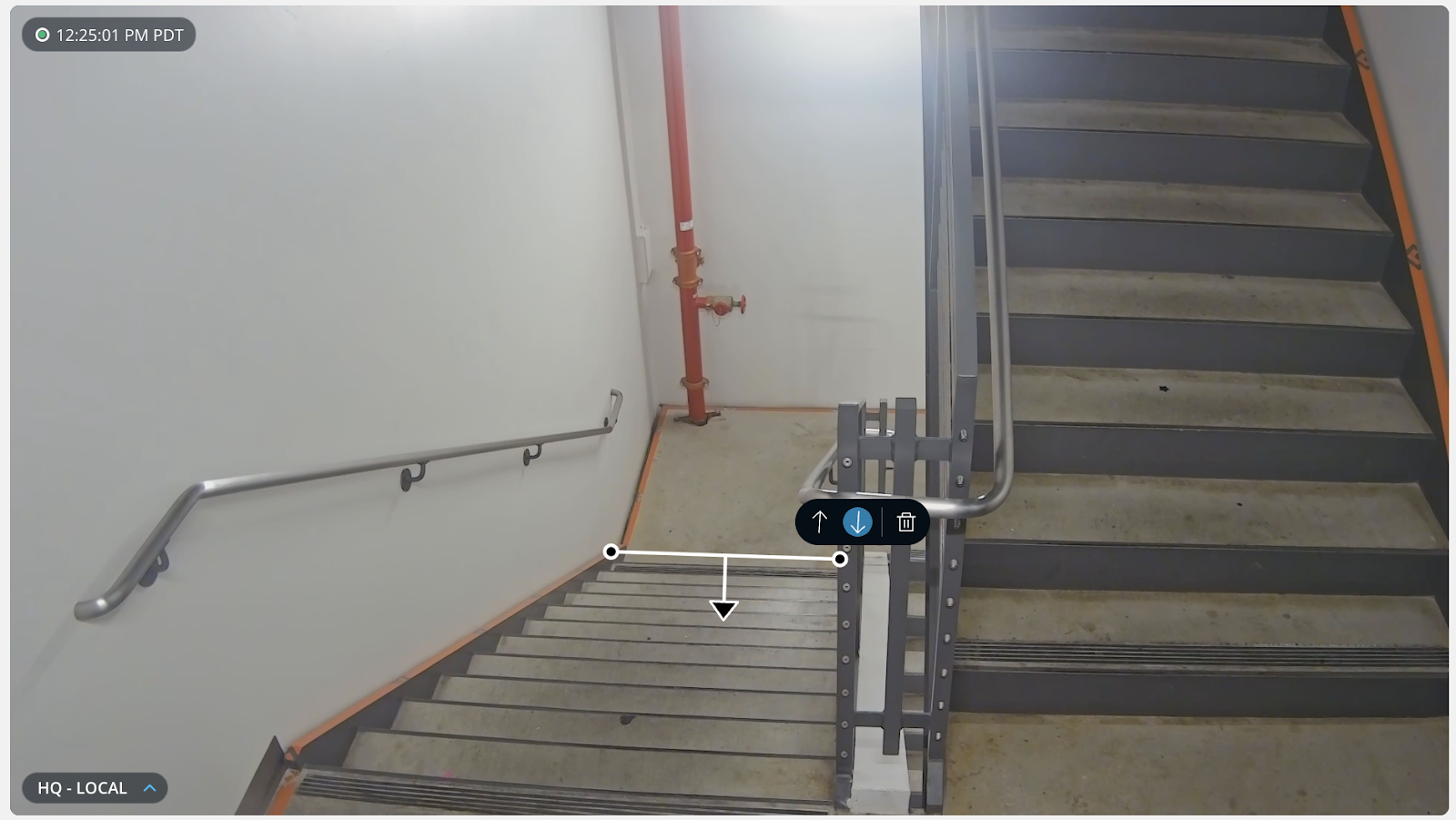
**On the right menu, click Camera Overlays > Line Crossing Search.**
{% endstep %}
{% step %}
**To add a line:**
a. Click the live feed to drop a point where you want the line to start.\
b. Drag the mouse and click the spot where you want the line to end.\
c. Select the direction after drawing the line.
{% endstep %}
{% step %}
**The motion thumbnails generated will show any detected objects that have crossed the drawn line.**
{% endstep %}
{% endstepper %}
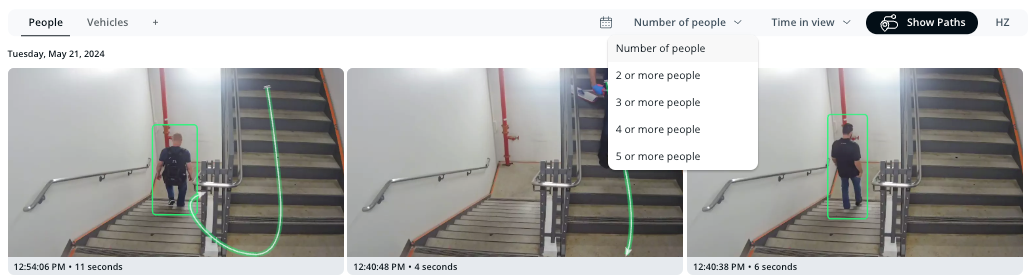
#### Filter by the number of people in frame
{% hint style="warning" %}
This feature is available on all cameras.
{% endhint %}
{% stepper %}
{% step %}
**In Verkada Command, go to All Products > Cameras.**
{% endstep %}
{% step %}
**Choose a camera to see the Motion tab.**
{% endstep %}
{% step %}
**Select an option from the Number of People dropdown.**
{% endstep %}
{% step %}
**The filtered results will show thumbnails of cases where *****at least***** the selected number of people are in the frame.**
{% endstep %}
{% endstepper %}
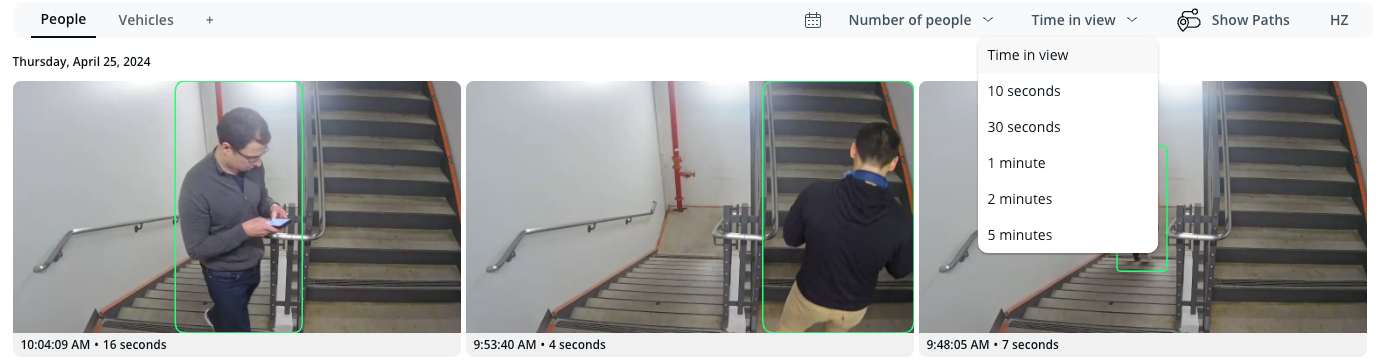
#### Filter by how long people/vehicles have been in view
{% hint style="warning" %}
Only [CB53-E](https://docs.verkada.com/docs/video-security-cb53-e-datasheet.pdf)/[CB63-E](https://docs.verkada.com/docs/video-security-cb63-e-datasheet.pdf), [CB52-E/CB62-E](https://www.verkada.com/security-cameras/bullet#models), [CD22](https://www.verkada.com/au/security-cameras/dome/cd22/)/[CD22-E](https://www.verkada.com/au/security-cameras/dome/cd22-e/), [CD32](https://www.verkada.com/au/security-cameras/dome/cd32/)/[CD32-E](https://www.verkada.com/au/security-cameras/dome/cd32-e/), [CD42](https://www.verkada.com/security-cameras/dome/cd42/)/[CD42-E](https://www.verkada.com/security-cameras/dome/cd42-e/), [CD43](https://docs.verkada.com/docs/video-security-cd43-datasheet.pdf)/[CD43-E](https://docs.verkada.com/docs/video-security-cd43-e-datasheet.pdf), [CD52](https://www.verkada.com/security-cameras/dome/cd52/)/[CD52-E](https://www.verkada.com/security-cameras/bullet/cb52-e/), [CD53](https://docs.verkada.com/docs/video-security-cd53-datasheet.pdf)/[CD53-E](https://docs.verkada.com/docs/video-security-cd53-e-datasheet.pdf), [CD62](https://www.verkada.com/security-cameras/dome/cd62/)/[CD62-E](https://www.verkada.com/security-cameras/bullet/cb62-e/), [CD63](https://docs.verkada.com/docs/video-security-cd63-datasheet.pdf)/[CD63-E](https://docs.verkada.com/docs/video-security-cd63-e-datasheet.pdf), [CH52-E](https://www.verkada.com/security-cameras/multisensor/ch52-e/), [CH53-E](https://docs.verkada.com/docs/video-security-ch53-e-datasheet.pdf), [CH63-E](https://docs.verkada.com/docs/video-security-ch63-e-datasheet.pdf), [CM22](https://docs.verkada.com/docs/cm22-mini-dome-datasheet.pdf), [CM42](https://www.verkada.com/security-cameras/mini/cm42/), [CM42-S](https://www.verkada.com/security-cameras/mini/cm42-s/), [CR63-E](https://docs.verkada.com/docs/video-security-cr63-e-datasheet.pdf)/[CR63-TE](https://docs.verkada.com/docs/video-security-cr63-te-datasheet.pdf), [CY53-E](https://docs.verkada.com/docs/video-security-cy53-e-datasheet.pdf), and [CY63-E](https://docs.verkada.com/docs/video-security-cy63-e-datasheet.pdf) cameras support this feature.
{% endhint %}
{% stepper %}
{% step %}
**In Verkada Command, go to All Products > Cameras.**
{% endstep %}
{% step %}
**Select a camera.**
{% endstep %}
{% step %}
**On the Motion tab, click the Time in view dropdown in the top right corner and select a time frame.**
{% endstep %}
{% step %}
**The filtered results will show all matches that have been in view for *****at least***** the duration you have selected.**
{% endstep %}
{% endstepper %}
{% hint style="info" %}
Any combination of these filters will result in a logical AND operation, meaning that all the conditions must be simultaneously true for all thumbnails. For example, if you have:
* Drawn a line on the camera overlay
* Selected **Number of people: 3 or more**
* Selected **Time in view: 10 Seconds**
The results will be filtered to cases where at least 3 people have a recorded trajectory that crosses the line, AND at least 3 people are in the frame, AND at least 3 people have been in frame for a minimum of 10 seconds.
{% endhint %}
***
## Compatible cameras
The following table outlines which camera models support Motion Events, which models support Motion Trajectories, and where the motion model is running. Newer camera models can run the motion detection model locally, whereas D-series cameras still rely on the Verkada Cloud to run it.
| | | | |
| ---------------------------------------------------------------------------------------------------------------------------------------------------------------------------------------- | ----------------- | ----------------------- | ------------------ |
| **Model** | **Motion Events** | **Motion Trajectories** | **Motion Model** |
| CB53-E, CB63-E,
CB52-E, CB62-E, CD22, CD32, CD42, CD43, CD52, CD53, CD62, CD63, CF81-E, CF83-E, CH52, CH53, CH63, CM42, CM42-S, CP52-E, CP63-E, CR63-E, CR63-TE, CY53, CY63
| Supported | Supported | Runs in the camera |
| CD31, CD41, CD51, CD61, CM41, CM61 | Supported | Not supported | Runs in the camera |
| D30, D40, D50, D80 | Supported | Not supported | Runs in the cloud |
***
{% hint style="info" %}
**Prefer to see it in action?** Check out the [video tutorial](https://www.youtube.com/watch?v=H4f0hVifcWs\&list=PL3USUWfBbtdJpB2F8sOOJOdvv2qlWcfpk\&index=1).
{% endhint %}
---
# Agent Instructions
This documentation is published with GitBook. GitBook is the documentation platform designed so that both humans and AI agents can read, navigate, and reason over technical content effectively. Learn more at gitbook.com.
## Querying This Documentation
If you need additional information that is not directly available in this page, you can query the documentation by asking a question.
Perform an HTTP GET request on the following URL with the `ask` and `goal` query parameters:
```
GET https://help.verkada.com/verkada-cameras/analytics/people-and-vehicle-motion-search.md?ask=&goal=
```
`ask` is the immediate question: it should be specific, self-contained, and written in natural language.
`goal` is what the user is ultimately trying to achieve, the reason they need the answer. Sharing it helps GitBook give you a better, more relevant answer. A goal is most helpful when it describes the outcome the user wants rather than restating the question. For example, with `ask=how do I create an API token`, a goal like `automate deployments from our CI pipeline` lets GitBook tailor the answer to that use case.
The response will contain a direct answer to the question and relevant excerpts and sources from the documentation.
Use this mechanism when the answer is not explicitly present in the current page, you need clarification or additional context, or you want to retrieve related documentation sections.