> For the complete documentation index, see [llms.txt](https://help.verkada.com/llms.txt). Markdown versions of documentation pages are available by appending `.md` to page URLs; this page is available as [Markdown](https://help.verkada.com/verkada-cameras/analytics/people-and-vehicle-history-search.md).
# People and Vehicle History Search
Learn how to use the Search page to view all people and vehicles in your organization
You can use the People and Vehicle search pages to:
* View all people and vehicles detected by every camera in your organization (org).
* Quickly and easily determine where and when a particular person or vehicle was last seen.
* Find new faces that have been seen.
* Configure notifications when specific people or vehicles are sighted.
***
{% tabs %}
{% tab title="People" %}
## Search for people
{% stepper %}
{% step %}
**In Verkada Command, go to All Products > Cameras.**
{% endstep %}
{% step %}
**In the left navigation, select People.**
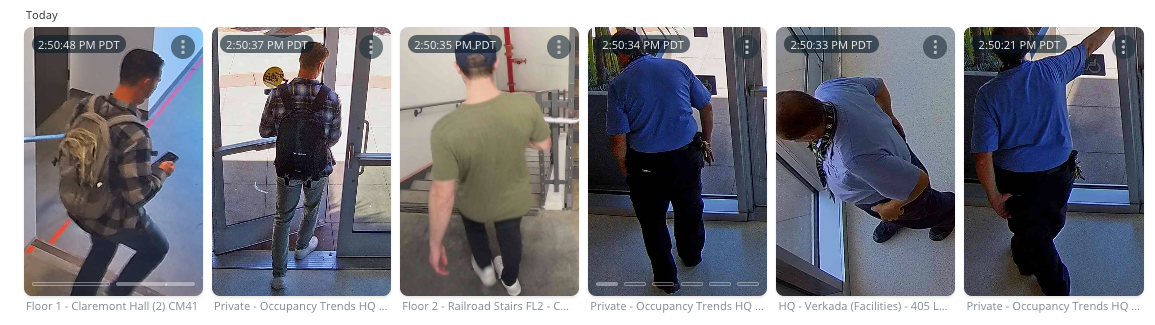
You should see all the people sighted on cameras in your organization.
{% endstep %}
{% step %}
**At the top, use the filters to tailor your results.**
{% endstep %}
{% step %}
**Select a thumbnail to play a clip from the camera where this person was sighted.**
Each thumbnail image includes a timestamp and the camera name.
{% endstep %}
{% endstepper %}
{% hint style="info" %}
See [People and Face Search on Mobile Apps](/verkada-cameras/analytics/people-analytics/people-and-face-search-on-mobile-apps.md) to search for people in the mobile app.
{% endhint %}
### Search for People of Interest
{% stepper %}
{% step %}
**In Verkada Command, go to All Products > Cameras > People > People of Interest.**
{% endstep %}
{% step %}
**Select a person to open that person’s profile page and show thumbnail images for all the instances where that person was last sighted. Each thumbnail image includes a timestamp and the camera name.**
{% endstep %}
{% step %}
**(Optional) To view the corresponding video footage, simply select the thumbnail image that is of interest. If the face spotted was not this person, on the thumbnail, click the Kebab icon (three dots) and select Not This Person.**
{% endstep %}
{% step %}
**(Optional) You can use the search bar to filter options to narrow your search.**
{% endstep %}
{% endstepper %}
### Set People of Interest notifications
To receive alerts for People of Interest, you need to [set up alerts](/verkada-cameras/analytics/create-camera-event-alerts/person-of-interest-alerts.md).
{% hint style="danger" %}
People of Interest replaced Profiles on June 8, 2023. Profiles created before this date that were not set as People of Interest are not automatically send People of Interest alerts.
To set up notifications when a particular face is detected:
{% stepper %}
{% step %}
**Select the profile.**
{% endstep %}
{% step %}
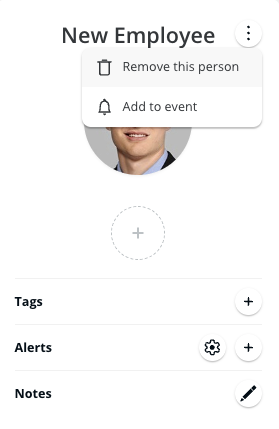
**At the top left corner, click the Kebab icon (three dots).**
{% endstep %}
{% step %}
**Select Add to event.**
{% endstep %}
{% endstepper %}
{% endhint %}
### Create People of Interest
You can manually create a People of Interest group by uploading an image of a person’s face.
{% stepper %}
{% step %}
**In Verkada Command, go to All Products > Cameras > People > People of Interest.**
{% endstep %}
{% step %}
**At the top right, click Person of Interest.**
{% endstep %}
{% step %}
**On the Add Person of Interest dialog, upload a photo that clearly shows the face of only one person (close up). The image should be in JPG or PNG format and should be less than 15 MB in size.**
{% endstep %}
{% endstepper %}
{% hint style="warning" %}
If you upload a picture that resembles an existing Person of Interest, then Command may suggest a profile to add the image to. If the picture you are uploading is of an existing profile, you can select it to add this picture as a reference photo. If not, select **create a new one** to continue creating a new profile.
{% endhint %}
### Merge People of Interest
Sometimes duplicate People of Interest are accidentally created. If this happens, you can merge the duplicate People of Interest profiles.
{% stepper %}
{% step %}
**In Verkada Command, go to All Products > Cameras > People > People of Interest.**
{% endstep %}
{% step %}
**At the top of each face, use the checkboxes to select the Person of Interest you want to merge.**
{% endstep %}
{% step %}
**Click Merge.**
{% endstep %}
{% endstepper %}
The profiles should merge and you will be prompted to view the new profile for that person.
### Create a new tag to People of Interest
You can create and add tags to People of Interest to group similar profiles together.
Type the desired name and at the bottom of the tag list, click **Add Tags**.
### Add a tag to a user’s profile
Select the profile and select the plus (**+**) icon (adjacent to the **Tags** button). If the tag you want to add is already in the list, you can select it from the list.
### Filter a tag name
{% stepper %}
{% step %}
**On the People of Interest page, click Tag (from the search menu) to filter by tag name.**
{% endstep %}
{% step %}
**Select the desired tag. This should show all associated profiles.**
{% endstep %}
{% endstepper %}
### Remove a person of interest
{% stepper %}
{% step %}
**Select a person.**
{% endstep %}
{% step %}
**At the top, click the Kebab icon (three dots) and select Remove this person.**
{% endstep %}
{% endstepper %}
To learn more about how individual faces are identified, see [People Analytics](/verkada-cameras/analytics/people-analytics.md).
{% endtab %}
{% tab title="Vehicles" %}
## Search for vehicles
{% stepper %}
{% step %}
**In Verkada Command, go to All Products > Cameras > Vehicles > All Vehicles.**
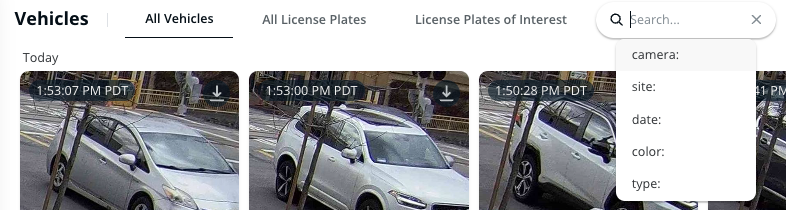
You should see all vehicles sighted on cameras in your org.
{% endstep %}
{% step %}
**Select a camera thumbnail (where the vehicle was sighted) to play a clip.**
{% endstep %}
{% step %}
**At the top left, use the search bar to filter options, such as camera, site, date, and so on to narrow your search.**
{% endstep %}
{% endstepper %}
### Search all license plates
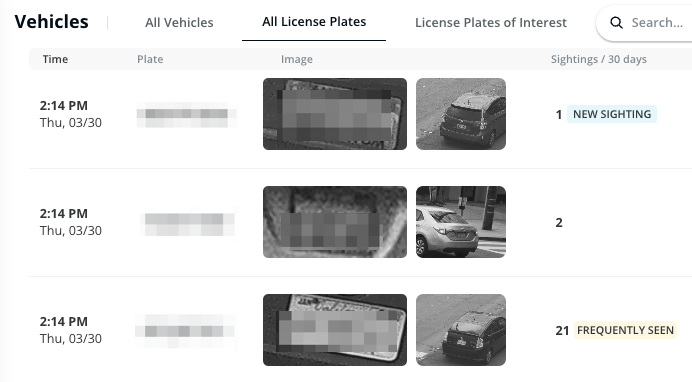
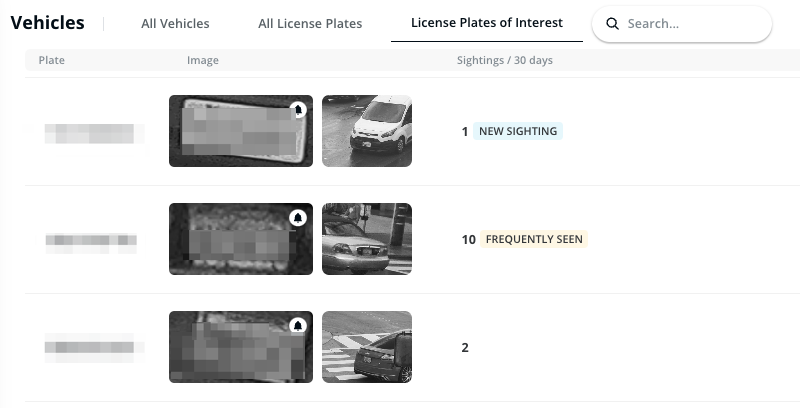
If you have Verkada License Plate Recognition (LPR) cameras installed, you can use the **All License Plates** and **License Plates of Interest** tabs.
{% stepper %}
{% step %}
**In Verkada Command, go to All Products > Cameras > Vehicles.**
{% endstep %}
{% step %}
**At the top, click All License Plates or License Plates of Interest.**
* If you click **All License Plates**, you can view all the license plates detected in your org and how often they were detected. By clicking a license plate, you can see all recent sightings of this plate.
* If you click **License Plates of Interest**, you can receive alerts whenever this plate is detected. You can also view all license plates that have been marked for notifications and filter out all other plates.\
{% endstep %}
{% endstepper %}
### Associate an LPOI to a POI
You can associate License Plate of Interest profiles with Person of Interest profiles. This makes it easier to review events when you investigate a specific person.
{% stepper %}
{% step %}
**In Verkada Command, go to All Products > Cameras.**
{% endstep %}
{% step %}
**On the left navigation, select People.**
{% endstep %}
{% step %}
**On the left, click People of Interest.**
{% endstep %}
{% step %}
**Select a person of interest.**
a. On the left, next to **License Plate** click :plus:.\
b. Select a license plate to add it to the profile.\
c. Alternatively, if the plate is not already added to the Command, type the plate number into the search bar and click Create a License Plate of Interest.
{% endstep %}
{% endstepper %}
{% hint style="warning" %}
Access control users can also be linked to POIs. See [Create a Person of Interest from an Access User](/access-control/integrations-and-alerts/create-a-person-of-interest-from-an-access-user.md) for more information.
{% endhint %}
Once a license plate is added, sightings of the associated car will show up in the **Appearances** section of the linked POI. If an access control user is linked, their access control events will also be visible.
{% endtab %}
{% endtabs %}
***
{% hint style="info" %}
**Prefer to see it in action?** Check out the [video tutorial](https://www.youtube.com/watch?v=jJwzwAoJ190).
{% endhint %}
---
# Agent Instructions
This documentation is published with GitBook. GitBook is the documentation platform designed so that both humans and AI agents can read, navigate, and reason over technical content effectively. Learn more at gitbook.com.
## Querying This Documentation
If you need additional information that is not directly available in this page, you can query the documentation by asking a question.
Perform an HTTP GET request on the following URL with the `ask` and `goal` query parameters:
```
GET https://help.verkada.com/verkada-cameras/analytics/people-and-vehicle-history-search.md?ask=&goal=
```
`ask` is the immediate question: it should be specific, self-contained, and written in natural language.
`goal` is what the user is ultimately trying to achieve, the reason they need the answer. Sharing it helps GitBook give you a better, more relevant answer. A goal is most helpful when it describes the outcome the user wants rather than restating the question. For example, with `ask=how do I create an API token`, a goal like `automate deployments from our CI pipeline` lets GitBook tailor the answer to that use case.
The response will contain a direct answer to the question and relevant excerpts and sources from the documentation.
Use this mechanism when the answer is not explicitly present in the current page, you need clarification or additional context, or you want to retrieve related documentation sections.