> For the complete documentation index, see [llms.txt](https://help.verkada.com/llms.txt). Markdown versions of documentation pages are available by appending `.md` to page URLs; this page is available as [Markdown](https://help.verkada.com/command-connector/troubleshooting/troubleshooting-a-command-connector.md).
# Troubleshooting a Command Connector
The Command Connector enables organizations to integrate legacy non-Verkada camera feeds into the Verkada ecosystem. This article outlines various troubleshooting steps that will help narrow down issues that might come up when setting up the connector with non-Verkada devices.
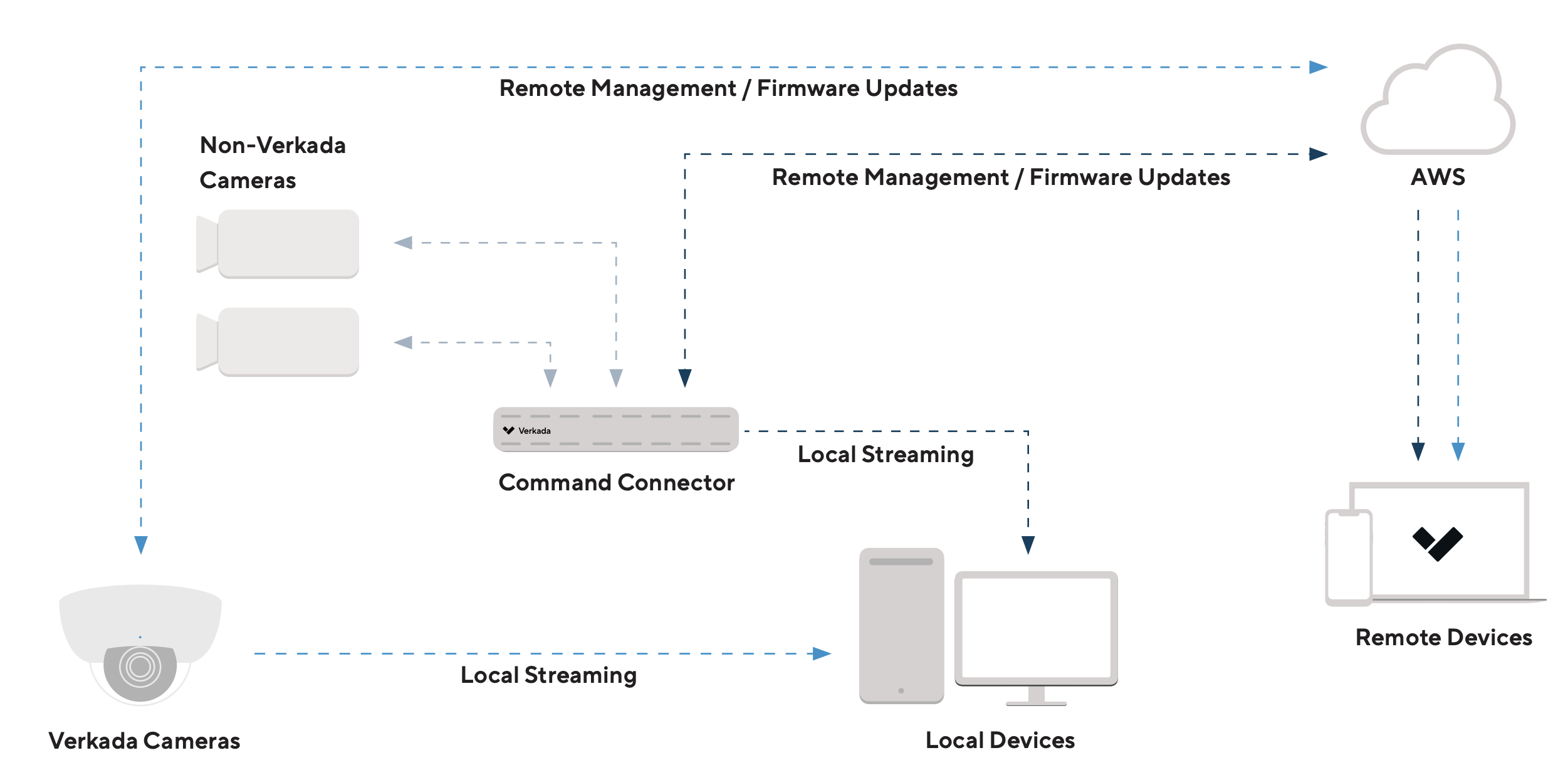
The following diagram outlines a typical setup where the Command Connector bridges non-Verkada camera devices into the Command platform to manage footage and supported features from a centralized platform.
What happens if a Command Connector is offline?
If a Command Connector is offline, it could have issues reaching the Verkada cloud.
* **Validate the power source:** Disconnect the Ethernet cable and physically power cycle the device to see if it will connect. If not, try connecting the Command Connector to a known working power source.
* **Validate the IP address:** Verify the Command Connector has a local IP address from your Dynamic Host Configuration Protocol (DHCP) server. You can create an IP reservation with the device’s Media Access Control (MAC) addresses. MAC addresses are listed on the top of each Command Connector and on the [Devices](https://command.verkada.com/devices) page.
* **Validate that the Command Connector is reachable:** Try to ping the Command Connector’s IP address, replies are expected.
{% hint style="warning" %}
If the Command Connector is on a network behind a firewall, certain endpoints need to be allowed to stream non-Verkada cameras. See [Command Connector Network Settings](/command-connector/getting-started/command-connector-network-settings.md) for more information.
{% endhint %}
What happens if a storage drive fails?
Reach out to [Verkada support](/command/need-help/contact-verkada-support.md) for assistance if a hard drive experiences a failure.
How do I verify communication between the Command Connector and non-Verkada cameras?
Verify that the Command Connector and the non-Verkada camera are connected on the same LAN. Then you can connect a computer to the same VLAN or port the Command Connector will use. Ping the camera’s IP address to test communication. Replies from the camera are expected.
### Non-Verkada camera troubleshooting
* Verify the Command Connector is online and fully operational before adding non-Verkada cameras.
* Run a **Connectivity Test** in Command to confirm that the cameras are reachable on the same LAN. The test emulates a three-way TCP handshake between the Command Connector and the non-Verkada camera to check that the required ports for video streaming and ONVIF configuration are accessible.
1. In Command, go to **All Products > Devices**.
2. Select a Command Connector.
3. Under Connected Channels, click **Run a Connectivity Test**.
1. Enter the non-Verkada camera’s IP address.
2. (Optional) Enter the port number. If no port is specified, the test will default to port 80.
4. Click **Test.**
Why can’t I add my non-Verkada camera to the Command Connector?
Check the [hardware compatibility list](https://www.verkada.com/security-cameras/command-connector/hcl/?page=1) to verify that your non-Verkada camera is compatible with the Command Connector. You can make a request for hardware compatibility at the bottom of the page if your camera is not on the list.
{% hint style="danger" %}
The user profile adding the cameras must be an Org Admin **and** a Site Admin for the site the Command Connector is in.
{% endhint %}
If a camera is not found via [network discovery](/command-connector/configuration/add-a-non-verkada-camera-to-a-command-connector.md), try uploading the camera to the Command Connector via [CSV import](/command-connector/configuration/add-a-non-verkada-camera-to-a-command-connector.md) and ensure that both the Command Connector and the non-Verkada cameras can communicate on the same LAN.
If you observe any credential errors, ensure that the username of the non-Verkada camera is an administrator.
Why is my Non-Verkada camera not connecting to the Command Connector?
Verify the camera has been activated by following the vendor-specific instructions to activate the camera and assign credentials. Most vendors have a default IP address that the activating device (laptop/desktop) must be on to activate and assign an IP address to the camera.
After activating the device, validate that the camera stream is accessible locally by logging into the camera via its IP address.
Open a new browser window, and navigate to the camera via IP address by typing http\://\.Enter the credentials that were set up during camera activation or any known administrator credentials.Ensure that the camera is on ONVIF Profile S and uses H.264 or H.265 for video encoding.After logging into the camera, ensure that the camera is configured with a static IP or a DHCP reservation.
{% hint style="warning" %}
If the camera IP changes at any point, the Command Connector won’t be able to reach the camera. This will cause streaming and recording from the camera to stop.
{% endhint %}
---
# Agent Instructions
This documentation is published with GitBook. GitBook is the documentation platform designed so that both humans and AI agents can read, navigate, and reason over technical content effectively. Learn more at gitbook.com.
## Querying This Documentation
If you need additional information that is not directly available in this page, you can query the documentation by asking a question.
Perform an HTTP GET request on the following URL with the `ask` and `goal` query parameters:
```
GET https://help.verkada.com/command-connector/troubleshooting/troubleshooting-a-command-connector.md?ask=&goal=
```
`ask` is the immediate question: it should be specific, self-contained, and written in natural language.
`goal` is what the user is ultimately trying to achieve, the reason they need the answer. Sharing it helps GitBook give you a better, more relevant answer. A goal is most helpful when it describes the outcome the user wants rather than restating the question. For example, with `ask=how do I create an API token`, a goal like `automate deployments from our CI pipeline` lets GitBook tailor the answer to that use case.
The response will contain a direct answer to the question and relevant excerpts and sources from the documentation.
Use this mechanism when the answer is not explicitly present in the current page, you need clarification or additional context, or you want to retrieve related documentation sections.