> For the complete documentation index, see [llms.txt](https://help.verkada.com/llms.txt). Markdown versions of documentation pages are available by appending `.md` to page URLs; this page is available as [Markdown](https://help.verkada.com/command-connector/configuration/add-a-non-verkada-camera-to-a-command-connector.md).
# Add a non-Verkada camera to a Command Connector
Connect non-Verkada cameras to Command with a Command Connector
The Command Connector integrates non-Verkada cameras into Command. This allows you to view the camera live streams and access Verkada analytics and features.
***
### Before you begin
{% hint style="info" %}
Connecting a camera to multiple video security systems simultaneously can degrade streaming performance and lead to inconsistent video quality. Verkada recommends connecting each camera to a single system to maintain optimal performance and video integrity.
{% endhint %}
For ONVIF cameras
1. Verify the non-Verkada camera datasheet states ONVIF Profile S compatibility. Check the Command Connector [hardware compatibility list](https://www.verkada.com/security-cameras/command-connector/hcl/?page=1) to make sure your model is compatible.
Note: Verkada Command only supports I-frames and P-frames. B-frames are not supported.
2. Verify the Command Connector and non-Verkada camera are on the same Local Area Network (LAN). Dynamic NAT or L3 translation is not supported between the devices.
3. Verify the non-Verkada camera IP address is configured with one of the following:
1. Static IP
2. DHCP reservation
The Command Connector communicates with cameras using IP addresses. If a camera's IP address changes, it will stop streaming.
4. The Command Connector and non-Verkada camera need bidirectional traffic to communicate. Verify these ports are allowed on the network:
1. TCP+UDP port 80 - needed for camera HTTP web server access.\
Note: If you are using a non-default port allow that port in TCP+UDP.
2. TCP+UDP port 554 - needed for camera RTSP streams.
5. Ensure that the IP address, along with the admin username and password is available for each of the non-Verkada cameras that will be added to the Command Connector.
For Non-ONVIF cameras
1. Check the Command Connector [hardware compatibility list](https://www.verkada.com/security-cameras/command-connector/hcl/?page=1) to ensure your model is compatible.
Note: Verkada Command only supports I-frames and P-frames. B-frames are not supported.
2. Verify the Command Connector and non-Verkada camera are on the same Local Area Network (LAN). Dynamic NAT or L3 translation is not supported between the devices.
3. Verify the non-Verkada camera IP address is configured with one of the following:
1. Static IP
2. DHCP reservation
The Command Connector communicates with cameras using IP addresses. If a camera's IP address changes, it will stop streaming.
4. The Command Connector and non-Verkada camera need bidirectional traffic to communicate. Verify this port is allowed on the network:
* TCP+UDP port 554 - needed for camera RTSP streams.
5. Ensure the IP address is available and part of the RTSP URL that will be used for each non-Verkada camera that will be added to the Command Connector. Credentials are only required if RTSP authentication is enabled on the camera.
6. Ensure that streaming configurations for the RTSP stream meet the following criteria for an optimal experience:
1. Resolution: should be greater than 2MP and should not exceed 4K.
2. GOV Length: 80.
3. FPS: cameras must stream at a minimum of 5 FPS and a maximum of 20 FPS.
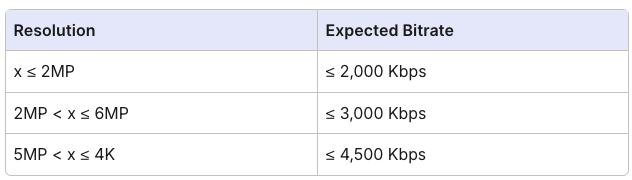
4. The following bitrates are recommended based on resolution:
***
## Add a camera to the Command Connector
{% hint style="danger" %}
You need Organization Admin and/or Site Admin [permissions](/command/users-and-permissions/roles-and-permissions-for-command.md) for your Verkada Command organization to complete these actions.
{% endhint %}
{% stepper %}
{% step %}
**In Command, go to All Products > Devices.**
{% endstep %}
{% step %}
**Select a Command Connector.**
{% endstep %}
{% step %}
**Under Connected Channels, click + Add Cameras.**
{% endstep %}
{% step %}
**Cameras can be added in the following ways:**
a. [Network discovery](#h_01e8a443bf)\
b. [CSV upload](#h_dd77d93cd5)\
c. [Manually add IP addresses](#h_d8d0bb8a7a)
{% hint style="warning" %}
When using Avigilon cameras managed in Avigilon Control Center 7 with the Verkada Command Connector, the HQ (vkda-high) stream must be configured manually in ACC 7 before adding the camera.
* **Required settings:** H.264 or H.265, no B-frames, 2MP–4K resolution, GOV 80, 5–20 FPS
* **If streaming to both NVR + Command Connector:** enable Multicast and Dual Mode per camera
Missing these settings may prevent the HQ stream from working.
{% endhint %}
{% endstep %}
{% endstepper %}
### Network Discovery
If a non-Verkada camera is discoverable on the LAN, it can be added to the Command Connector via network discovery.
{% stepper %}
{% step %}
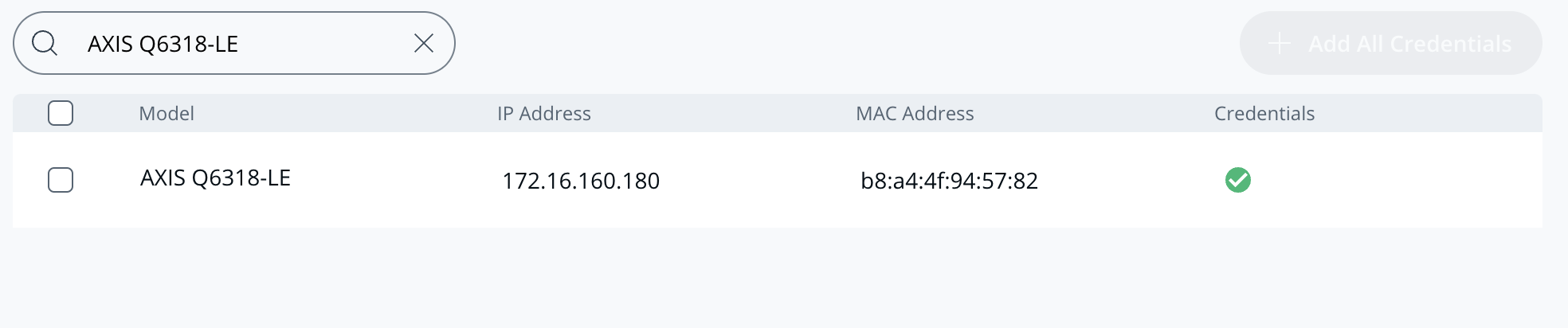
**Select Network Discovery to view the list of cameras discoverable to the LAN.**
{% endstep %}
{% step %}
**Click the checkbox to select a camera. Then select + Credential and input the username and password.**
{% endstep %}
{% step %}
**Select Continue to view the list of cameras successfully added.**
{% endstep %}
{% endstepper %}
### CSV upload
A CSV template can be used to add cameras in bulk to the Command Connector.
{% hint style="danger" %}
For ONVIF cameras, the IP address, username, and password fields are required, and all other fields are optional.
{% endhint %}
{% stepper %}
{% step %}
**Select which CSV template to download. You can select IP Cameras with ONVIF or RTSP Cameras.**
{% endstep %}
{% step %}
**Fill out the template.**
{% hint style="warning" %}
The **HTTP Port** field is required if the camera is configured on a non-standard port.
{% endhint %}
{% endstep %}
{% step %}
**Select Upload CSV and upload your file.**
{% endstep %}
{% endstepper %}
### Manually add cameras via IP address
{% stepper %}
{% step %}
**Select Manually Add IPs Instead. Input the IP address range and click Verify.**
{% endstep %}
{% step %}
**Select the camera(s) you want to add and click Activate.**
{% endstep %}
{% endstepper %}
***
## Verify non-Verkada camera configuration
The Command Connector configures non-Verkada cameras through HTTP requests. You can connect to the camera web server to validate the configuration.
{% stepper %}
{% step %}
**The Command Connector will create one administrator user with the username verkada.**
{% endstep %}
{% step %}
**Two media profiles will be configured.**
a. An HQ stream labeled **vkda-high.**\
b. An SQ stream labeled **vkda-low\.Note:** A pair of media profiles will be created per channel if the device is a multi-sensor and has multiple channels.
{% hint style="info" %}
The Command Connector creates the `vkda-high` and `vkda-low` profiles when **Streaming Profile Selection** is set to **Optimal**. In **Manufacturer** mode it uses the profiles already on the camera. See [Configure streaming profile selection for non-Verkada channels](/command-connector/configuration/configure-streaming-profile-selection-for-non-verkada-channels.md).
{% endhint %}
{% endstep %}
{% endstepper %}
{% hint style="warning" %}
The **vkda-high** profile will also be used for Verkada analytics and thumbnails.
{% endhint %}
---
# Agent Instructions
This documentation is published with GitBook. GitBook is the documentation platform designed so that both humans and AI agents can read, navigate, and reason over technical content effectively. Learn more at gitbook.com.
## Querying This Documentation
If you need additional information that is not directly available in this page, you can query the documentation by asking a question.
Perform an HTTP GET request on the following URL with the `ask` and `goal` query parameters:
```
GET https://help.verkada.com/command-connector/configuration/add-a-non-verkada-camera-to-a-command-connector.md?ask=&goal=
```
`ask` is the immediate question: it should be specific, self-contained, and written in natural language.
`goal` is what the user is ultimately trying to achieve, the reason they need the answer. Sharing it helps GitBook give you a better, more relevant answer. A goal is most helpful when it describes the outcome the user wants rather than restating the question. For example, with `ask=how do I create an API token`, a goal like `automate deployments from our CI pipeline` lets GitBook tailor the answer to that use case.
The response will contain a direct answer to the question and relevant excerpts and sources from the documentation.
Use this mechanism when the answer is not explicitly present in the current page, you need clarification or additional context, or you want to retrieve related documentation sections.