> For the complete documentation index, see [llms.txt](https://help.verkada.com/llms.txt). Markdown versions of documentation pages are available by appending `.md` to page URLs; this page is available as [Markdown](https://help.verkada.com/viewing-station/ja/gou-cheng/set-up-your-viewing-station.md).
# Viewing Station を設定する
ライブ表示のために Verkada Viewing Station の設定方法を学ぶ
Verkada [Viewing Station](https://docs.verkada.com/docs/viewing-station-overview.pdf) ローカル設定不要で、複数のカメラフィードを同時にディスプレイへストリーミングするプラグアンドプレイデバイスです。カスタマイズ可能なレイアウトを備えた、専用の管理者管理デバイスとして機能します。
* 1ページあたり最大30件のカメラフィードに対応
* 最大10ページに対応
{% hint style="danger" %}
あなたは **組織管理者** である必要があります。Viewing Station を登録して管理するには。
{% endhint %}
***
## Viewing Station を接続する
箱の中には以下が含まれています:
* HDMI ケーブル
* 電源コード
* Viewing Station のリモコン
{% hint style="warning" %}
Ethernet ケーブルは別途ご用意ください。ネットワーク構成の詳細については、 [Viewing Station のネットワーク設定](/viewing-station/ja/gou-cheng/set-up-your-viewing-station.md).
{% endhint %}
### 設置
{% stepper %}
{% step %}
**電源コードを Viewing Station に接続し、電源に差し込んでください。**
{% endstep %}
{% step %}
**HDMI ケーブルの一端を Viewing Station に、もう一端をディスプレイに接続します。**
{% endstep %}
{% step %}
**Viewing Station からネットワークに Ethernet ケーブルを接続します。**
{% endstep %}
{% step %}
**リモコンを接続する**\
リモコンが自動で応答しない場合は、 [リモコンを再接続してみてください](https://support.apple.com/guide/tv/pair-the-remote-atvbc9953e63/tvos)。それでも動作しない場合は、リモコンを充電してからもう一度お試しください。
{% endstep %}
{% endstepper %}
***
## Viewing Station を登録する
### シリアル番号を確認する
Viewing Station のシリアル番号を確認する方法は 2 つあります:
{% stepper %}
{% step %}
**デバイス上:電源を入れると、ディスプレイにシリアル番号と QR コードが表示されます。**
{% endstep %}
{% step %}
**Verkada Command で:**
* 次へ移動し、 **すべての製品 > デバイス** を開き、Viewing Station を選択します。
* 右側のパネルには、次のような詳細が表示されます: **サイト**, **場所**, **追加日**, **シリアル番号**, **モデル**, **タイムゾーン**、および **ローカル IP**.
{% endstep %}
{% endstepper %}
### デバイスを登録する
{% stepper %}
{% step %}
**Verkada Command で、すべての製品 > デバイス > デバイスの追加に移動します。**
{% endstep %}
{% step %}
**Viewing Station のシリアル番号を入力またはスキャンします。**
{% endstep %}
{% step %}
**プロンプトが表示されたら、必要に応じてデバイスを登録し、設定します。**
{% endstep %}
{% endstepper %}
VX52 の登録が完了すると、設定して組織のレイアウトに追加する準備が整います。
***
## Viewing Station を設定する
### Viewing Station を見つける
{% stepper %}
{% step %}
**Verkada Command で、すべての製品 > デバイスに移動します。**
{% endstep %}
{% step %}
**一覧をフィルタして Viewing Station を表示します。**
{% endstep %}
{% step %}
**右上の矢印アイコンを選択して、設定を開始します。**
{% endstep %}
{% endstepper %}
### Viewing Station 名を編集する
{% stepper %}
{% step %}
**ページ左上で、現在の名前を選択します。**
{% endstep %}
{% step %}
**新しい一意の名前を入力します。**
{% endstep %}
{% endstepper %}
### カメラタイルと Smart Tiles を追加する
{% hint style="warning" %}
最大 10 ページまで追加でき、各ページに最大 30 件のライブフィードを表示できます。
{% endhint %}
{% stepper %}
{% step %}
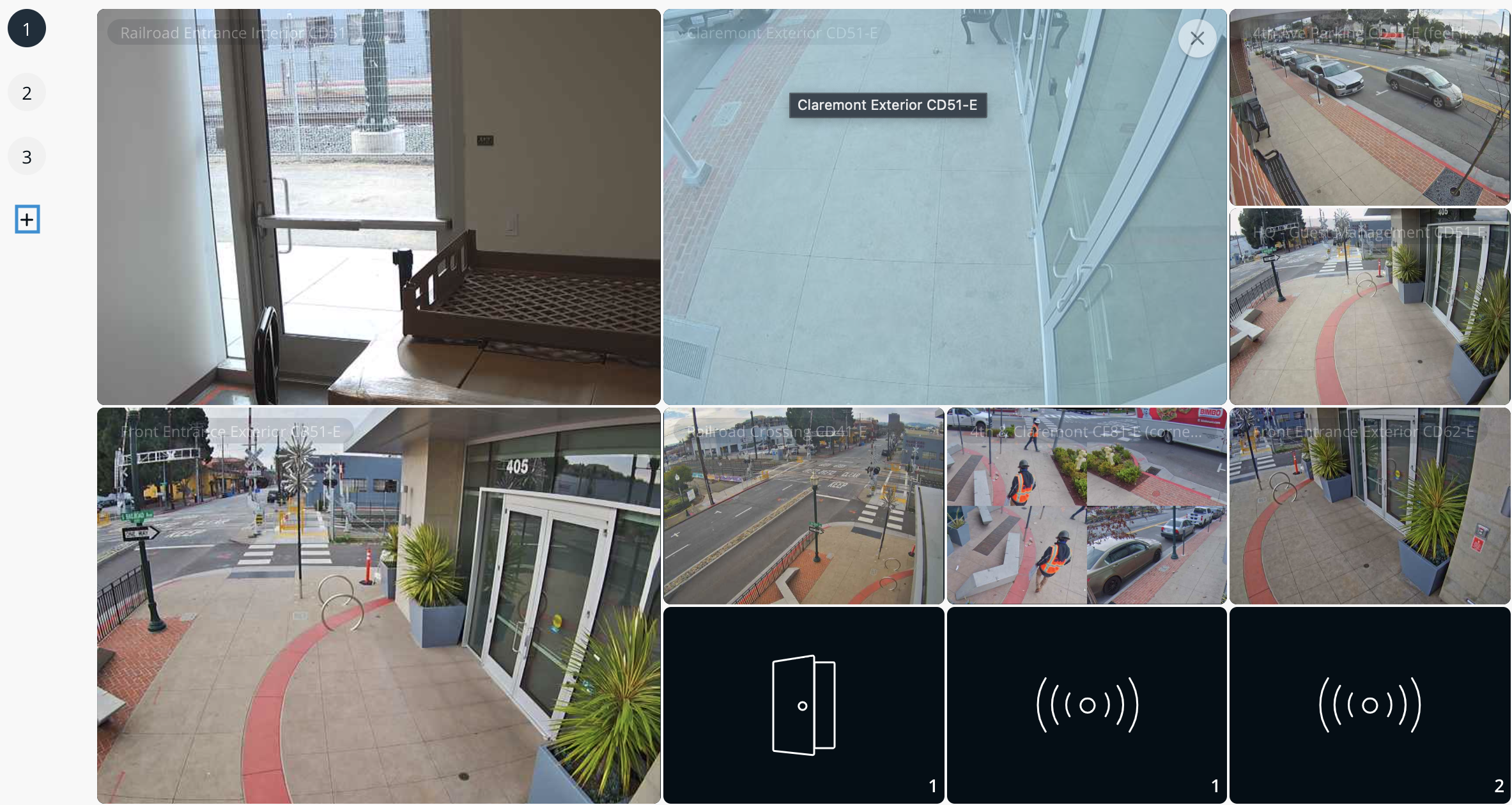
**Viewing Station ページで、\[カメラタイルを追加] を選択します。**
{% endstep %}
{% step %}
**追加データを表示するには、\[Smart Tiles を追加] を選択します。Smart Tiles では次の内容を表示できます:**
* 最もアクティブなカメラ
* 最新のアクセスコントロールイベント
* 空気質または環境センサーの情報
{% endstep %}
{% endstepper %}
### レイアウトをカスタマイズする
{% stepper %}
{% step %}
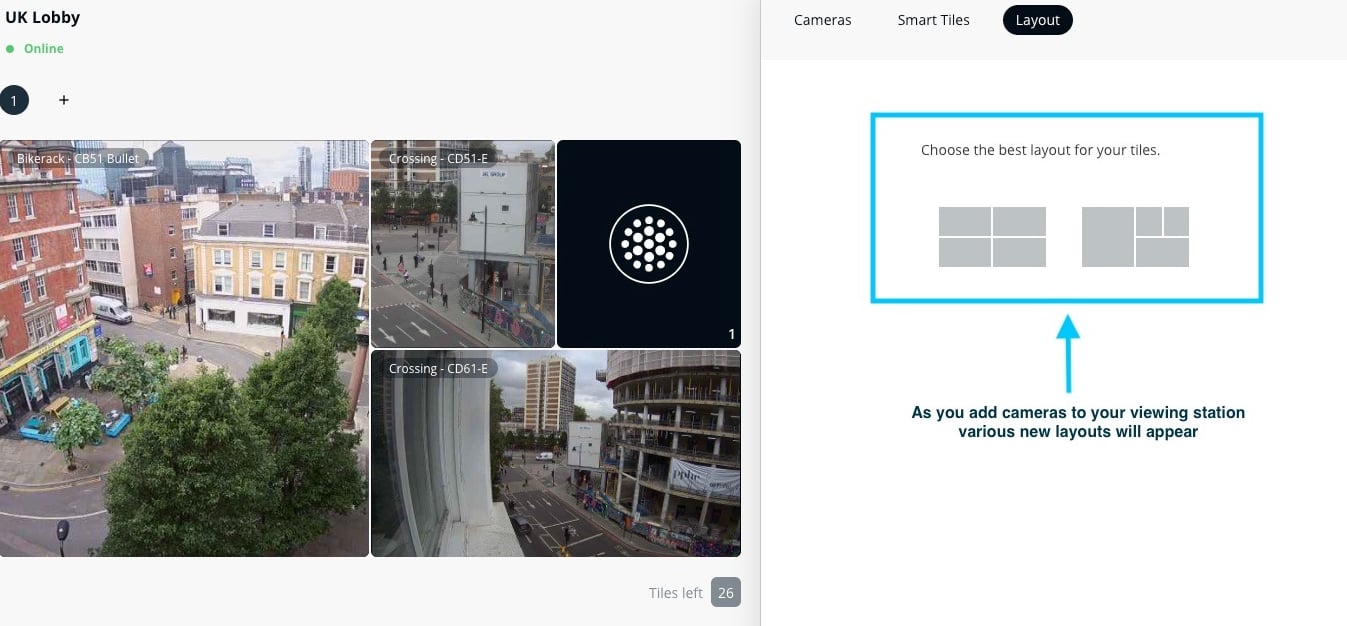
**[設定](歯車アイコン)>[レイアウト]を選択します。**
{% endstep %}
{% step %}
**希望する表示レイアウトを選択します。**
{% endstep %}
{% endstepper %}
### 追加ページを追加する
{% stepper %}
{% step %}
**プラス(+)アイコンを選択します。**
{% endstep %}
{% step %}
**最大 10 ページを作成でき、各ページで 30 件のライブフィードに対応します。**
{% endstep %}
{% endstepper %}
各ページには **タイマー** があり、Viewing Station 上の異なるカメラセットを自動で切り替えます。
***
## Viewing Station の設定を構成する
| | | |
| ----------------------------- | ------------------------ | ----------------------------------------------------------------------------------------- |
| **カテゴリ** | **設定** | **説明** |
| **通知** | オフライン通知 | Viewing Station がオフラインになったときにアラートを受け取るユーザーを選択します。 |
| **一般** | 名前 | Viewing Station 名を編集します。 |
| | ラベルを表示 | 有効にすると、Viewing Station にカメラ名が表示されます。 |
| | クラウド ストリーミングを有効にする | クラウド経由で動画をストリーミングします(ローカルネットワークで動画を利用できない場合のみ)。リモートカメラをストリーミングするには、このオプションを有効にする必要があります。 |
| | 履歴再生を有効にする | 視聴者は Apple TV リモコンで過去の映像をスクラブ再生できます。プライバシー上の懸念から、この機能を無効にして VX でライブ映像のみを表示するようにする組織もあります。 |
| | オフラインモードをテストする | Viewing Station で WAN 障害をシミュレートして、オフライン接続をテストします。 |
| | 音声をミュート | カメラ映像の再生音声をミュートします。 |
| | グローバルバナー | この Viewing Station のすべてのページにテキストバナーを作成します。 |
| | ロケール | Viewing Station の言語を設定します。 |
| | 削除 | デバイスはこの組織から削除されます。 |
| **インターコム** | インターコム連携 | 通話中に映像を表示するインターコムを選択します。 |
| [**Wi‑Fi**](#configure-wi-fi) | Wi‑Fi | Viewing Station を Wi‑Fi で使用するように設定します。 |
| **デバイス** | 一般設定 | 一般的なデバイス設定を表示します。 |
| | 既存の Viewing Station をコピー | 組織内の別の Viewing Station からライブフィードの構成と Viewing Station 設定をコピーします。 |
| | Viewing Station を再起動 | 再起動中は、Viewing Station を数分間利用できなくなります。 |
### Wi‑Fi を設定する
{% hint style="warning" %}
Viewing Station の Wi‑Fi サポートには、Verkada ソフトウェア バージョン 2.2.0 (137) 以上が必要です。ソフトウェア バージョンとシリアル番号は次の場所で確認できます: **\[設定] > \[デバイス]**.
{% endhint %}
{% stepper %}
{% step %}
**Viewing Station を有線ネットワークに接続し、セットアップを完了します。**
{% endstep %}
{% step %}
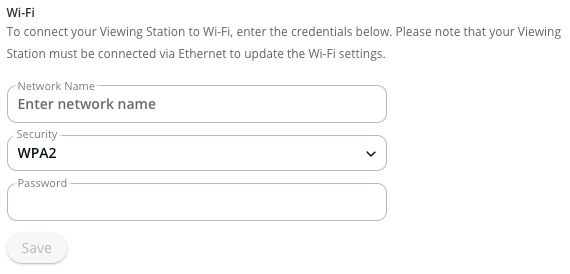
**有線ネットワーク経由でオンラインになったら、Wi‑Fi ネットワーク名(SSID)を入力します。**
{% endstep %}
{% step %}
**セキュリティの種類(WPA3、WPA2、WPA、WEP、またはなし)を選択します。**
{% endstep %}
{% step %}
**Wi‑Fi ネットワークのパスワードを入力し、[保存]をクリックします。**
{% hint style="warning" %}
非表示 SSID はサポートされていません。
{% endhint %}
{% endstep %}
{% step %}
**1~2 分待ってから Viewing Station の電源を切り、ネットワークケーブルを外して、再度電源を入れます。すると Viewing Station は Wi‑Fi に接続し、通常どおり動作を続けるはずです。**
{% endstep %}
{% endstepper %}
---
# Agent Instructions
This documentation is published with GitBook. GitBook is the documentation platform designed so that both humans and AI agents can read, navigate, and reason over technical content effectively. Learn more at gitbook.com.
## Querying This Documentation
If you need additional information that is not directly available in this page, you can query the documentation by asking a question.
Perform an HTTP GET request on the following URL with the `ask` and `goal` query parameters:
```
GET https://help.verkada.com/viewing-station/ja/gou-cheng/set-up-your-viewing-station.md?ask=&goal=
```
`ask` is the immediate question: it should be specific, self-contained, and written in natural language.
`goal` is what the user is ultimately trying to achieve, the reason they need the answer. Sharing it helps GitBook give you a better, more relevant answer. A goal is most helpful when it describes the outcome the user wants rather than restating the question. For example, with `ask=how do I create an API token`, a goal like `automate deployments from our CI pipeline` lets GitBook tailor the answer to that use case.
The response will contain a direct answer to the question and relevant excerpts and sources from the documentation.
Use this mechanism when the answer is not explicitly present in the current page, you need clarification or additional context, or you want to retrieve related documentation sections.