> For the complete documentation index, see [llms.txt](https://help.verkada.com/llms.txt). Markdown versions of documentation pages are available by appending `.md` to page URLs; this page is available as [Markdown](https://help.verkada.com/viewing-station/configuration/set-up-your-viewing-station.md).
# Set Up Your Viewing Station
Learn how to set up your Verkada Viewing Station for live viewing
The Verkada [Viewing Station](https://docs.verkada.com/docs/viewing-station-overview.pdf) is a plug-and-play device that streams multiple camera feeds simultaneously on a display with no local configuration required. It serves as a dedicated, admin-managed device with customizable layouts.
* Supports up to 30 camera feeds per page
* Supports up to 10 pages
{% hint style="danger" %}
You must be an **Org Admin** to claim and manage a Viewing Station.
{% endhint %}
***
## Connect your viewing station
In the box, you’ll find:
* HDMI cable
* Power cord
* Viewing Station remote
{% hint style="warning" %}
You’ll need to provide an Ethernet cable. For network configuration details, see [Viewing Station Network Settings](/viewing-station/configuration/set-up-your-viewing-station.md).
{% endhint %}
### Installation
{% stepper %}
{% step %}
**Connect the power cord to the Viewing Station and plug it into a power source.**
{% endstep %}
{% step %}
**Connect one end of the HDMI cable to the Viewing Station and the other end to your display.**
{% endstep %}
{% step %}
**Connect an Ethernet cable from the Viewing Station to your network.**
{% endstep %}
{% step %}
**Connect the remote**\
If the remote does not respond automatically, try [reconnecting the remote](https://support.apple.com/guide/tv/pair-the-remote-atvbc9953e63/tvos). If that does not work, charge the remote and then try again.
{% endstep %}
{% endstepper %}
***
## Claim your viewing station
### Find the serial number
There are two ways to find your Viewing Station’s serial number:
{% stepper %}
{% step %}
**On the device: When powered on, the serial number and a QR code appear on the display.**
{% endstep %}
{% step %}
**In Verkada Command:**
* Go to **All Products > Devices** and select the Viewing Station.
* The right panel displays details such as **Site**, **Location**, **Date Added**, **Serial Number**, **Model**, **Timezone**, and **Local IP**.
{% endstep %}
{% endstepper %}
### Claim the device
{% stepper %}
{% step %}
**In Verkada Command, go to All Products > Devices > Add Devices.**
{% endstep %}
{% step %}
**Enter or scan the Viewing Station’s serial number.**
{% endstep %}
{% step %}
**When prompted, claim and configure the device as needed.**
{% endstep %}
{% endstepper %}
Once the VX52 is claimed, it’s ready to be configured and added to your organization’s layout.
***
## Configure your viewing station
### Find your viewing station
{% stepper %}
{% step %}
**In Verkada Command, go to All Products > Devices.**
{% endstep %}
{% step %}
**Filter the list to show Viewing Stations.**
{% endstep %}
{% step %}
**At the top right, select the arrow icon to begin configuration.**
{% endstep %}
{% endstepper %}
### Edit the viewing station name
{% stepper %}
{% step %}
**At the top left of the page, select the current name.**
{% endstep %}
{% step %}
**Enter a new, unique name.**
{% endstep %}
{% endstepper %}
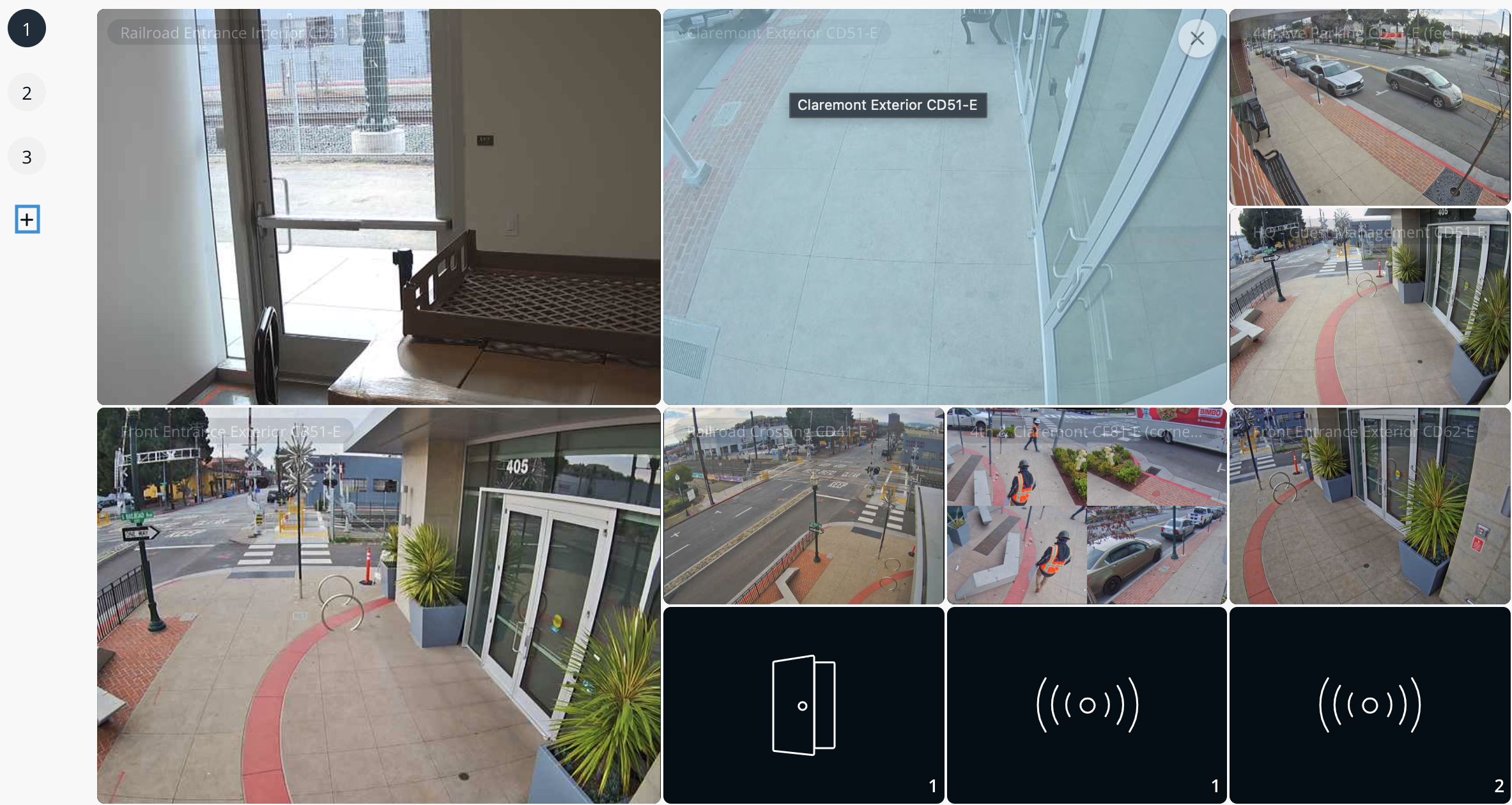
### Add camera tiles and Smart Tiles
{% hint style="warning" %}
You can add up to 10 pages and up to 30 live feeds per page.
{% endhint %}
{% stepper %}
{% step %}
**On the Viewing Station page, select Add Camera Tiles.**
{% endstep %}
{% step %}
**To display additional data, select Add Smart Tiles. Smart Tiles can show:**
* The most active camera
* The most recent access control event
* Air quality or environmental sensor information
{% endstep %}
{% endstepper %}
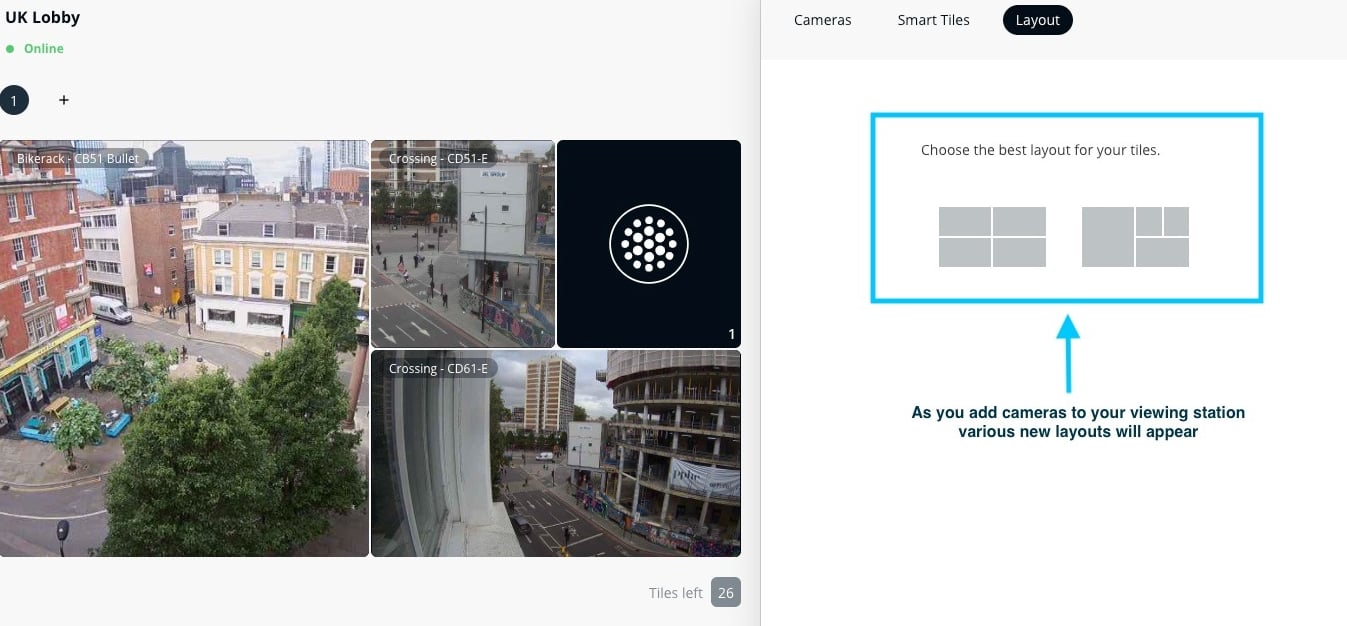
### Customize the layout
{% stepper %}
{% step %}
**Select Settings (gear icon) > Layout.**
{% endstep %}
{% step %}
**Choose your preferred display layout.**
{% endstep %}
{% endstepper %}
### Add additional pages
{% stepper %}
{% step %}
**Select the plus (+) icon.**
{% endstep %}
{% step %}
**You can create up to 10 pages, each supporting 30 live feeds.**
{% endstep %}
{% endstepper %}
Each page includes a **timer** that automatically cycles through different sets of cameras on your Viewing Station.
***
## Configure viewing station settings
| | | |
| ----------------------------- | ----------------------------- | ------------------------------------------------------------------------------------------------------------------------------------------------------------------------------------------------------- |
| **Category** | **Settings** | **Description** |
| **Notifications** | Offline Notifications | Select which users should receive alerts when the viewing station goes offline. |
| **General** | Name | Edit your viewing station name. |
| | Show Labels | If enabled, Viewing Station will show camera names. |
| | Enable Cloud Streaming | Stream video through the cloud (only when video is unavailable on the local network). This option must be enabled to stream remote cameras. |
| | Enable History Playback | Allows viewers to scrub through past footage with their Apple TV remote. Due to privacy concerns, some organizations choose to disable this feature, restricting their VX to display only live footage. |
| | Test Offline Mode | Simulate a WAN outage on the viewing station to test offline connectivity. |
| | Mute Audio | Mute the audio in camera video playback. |
| | Global Banner | Create a text banner on every page on this Viewing Station. |
| | Locale | Set the language on your Viewing Station. |
| | Delete | Device will be removed from this organization. |
| **Intercoms** | Intercom Integrations | Select intercoms that will display video during an in-progress call. |
| [**Wi-Fi**](#configure-wi-fi) | Wi-Fi | Configure your viewing station to use Wi-Fi. |
| **Device** | General settings | View general device settings. |
| | Copy Existing Viewing Station | Copy live feed configurations and Viewing Station settings from another Viewing Station in your organization. |
| | Restart Viewing Station | The viewing station becomes unavailable for a few minutes while it restarts. |
### Configure Wi-Fi
{% hint style="warning" %}
Wi-Fi support on the Viewing Station requires Verkada software version 2.2.0 (137) or higher. You can find the software version and serial number under **Settings > Device**.
{% endhint %}
{% stepper %}
{% step %}
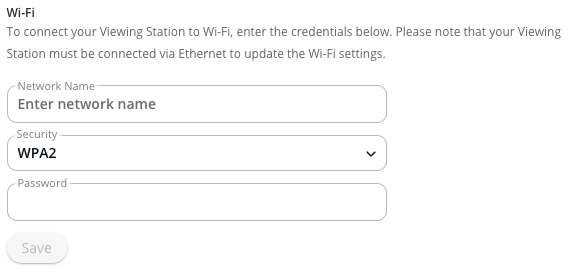
**Connect the Viewing Station to a wired network and complete the setup process.**
{% endstep %}
{% step %}
**Once it is online via a wired network, enter the Wi-Fi Network Name (SSID).**
{% endstep %}
{% step %}
**Select the Security Type (WPA3, WPA2, WPA, WEP, or None).**
{% endstep %}
{% step %}
**Enter the Wi-Fi network Password, then click Save.**
{% hint style="warning" %}
Hidden SSIDs are not supported.
{% endhint %}
{% endstep %}
{% step %}
**Wait 1–2 minutes and then power down the viewing station, disconnect the network cable, and power it back on. The viewing station should then connect to Wi-Fi and continue operating as usual.**
{% endstep %}
{% endstepper %}
---
# Agent Instructions
This documentation is published with GitBook. GitBook is the documentation platform designed so that both humans and AI agents can read, navigate, and reason over technical content effectively. Learn more at gitbook.com.
## Querying This Documentation
If you need additional information that is not directly available in this page, you can query the documentation by asking a question.
Perform an HTTP GET request on the following URL with the `ask` and `goal` query parameters:
```
GET https://help.verkada.com/viewing-station/configuration/set-up-your-viewing-station.md?ask=&goal=
```
`ask` is the immediate question: it should be specific, self-contained, and written in natural language.
`goal` is what the user is ultimately trying to achieve, the reason they need the answer. Sharing it helps GitBook give you a better, more relevant answer. A goal is most helpful when it describes the outcome the user wants rather than restating the question. For example, with `ask=how do I create an API token`, a goal like `automate deployments from our CI pipeline` lets GitBook tailor the answer to that use case.
The response will contain a direct answer to the question and relevant excerpts and sources from the documentation.
Use this mechanism when the answer is not explicitly present in the current page, you need clarification or additional context, or you want to retrieve related documentation sections.