> For the complete documentation index, see [llms.txt](https://help.verkada.com/llms.txt). Markdown versions of documentation pages are available by appending `.md` to page URLs; this page is available as [Markdown](https://help.verkada.com/verkada-cameras/video-streaming-and-sharing/view-historical-footage/history-player-search-and-unified-timeline.md).
# Unified Timeline
Use AI-powered search to automatically locate and combine video events from different cameras into a single, map-based timeline.
History Player Search allows users to quickly locate individuals or vehicles across multiple cameras to create a timeline of their movements. This eliminates the need to scrub footage manually and offers a seamless and efficient way to track persons or vehicles of interest.
AI-Powered Unified Timeline unifies video events from all cameras into a single map-based view. It automatically searches six hours before and after an event (a 12-hour window) to reconstruct the whole journey of a person or vehicle, reducing investigation time.
Live Unified Timeline follows the journey of a person across live camera feeds. Command adds new sightings to the same timeline as the person moves through the site.
{% hint style="info" %}
Live Unified Timeline tracks people only, based on their appearance. It does not track vehicles. Live tracking requires CV2x or CV7x series cameras.
{% endhint %}
{% hint style="warning" %}
Each Unified Timeline can include one person, one vehicle, or a combination of both. You can track a single person’s movement, follow a vehicle’s route, or view how a person and a vehicle interact within the same timeline.
{% endhint %}
***
### Search for people
{% hint style="danger" %}
Face detection and/or Person Attributes, and default history player search settings need to be enabled on the camera to use this feature. For optimal accuracy, ensure faces are visible. Obstructions, such as hats and masks, may affect detection quality. See [User Guide for People Analytics](https://docs.verkada.com/docs/people-analytics-guide.pdf) for best practice guidelines.
{% endhint %}
{% stepper %}
{% step %}
**In Verkada Command, go to All Products > Cameras.**
{% endstep %}
{% step %}
**Select a camera and click History.**
{% hint style="info" %}
You can also access history player search using face detection, attribute search, or AI-powered search.
{% endhint %}
{% endstep %}
{% step %}
**In the bottom right, click** :gear: **and select Unified Timeline.**
Select your desired search model:
* **Face Detection:** Locates individuals based on facial recognition.
* **Appearance Search:** Locates individuals based on clothing and physical attributes.
{% hint style="danger" %}
Ensure both Face Detection and Person Attributes are enabled on your cameras to use both models simultaneously.
{% endhint %}
{% endstep %}
{% step %}
**Select the date and time you want to review. To track a person who is on site now, start from a live feed or an alert.**
{% endstep %}
{% step %}
**Pause the history player once the individual is visible. On a live feed, click Vicusal search, then Search by person and select the highlighted person.**
{% endstep %}
{% step %}
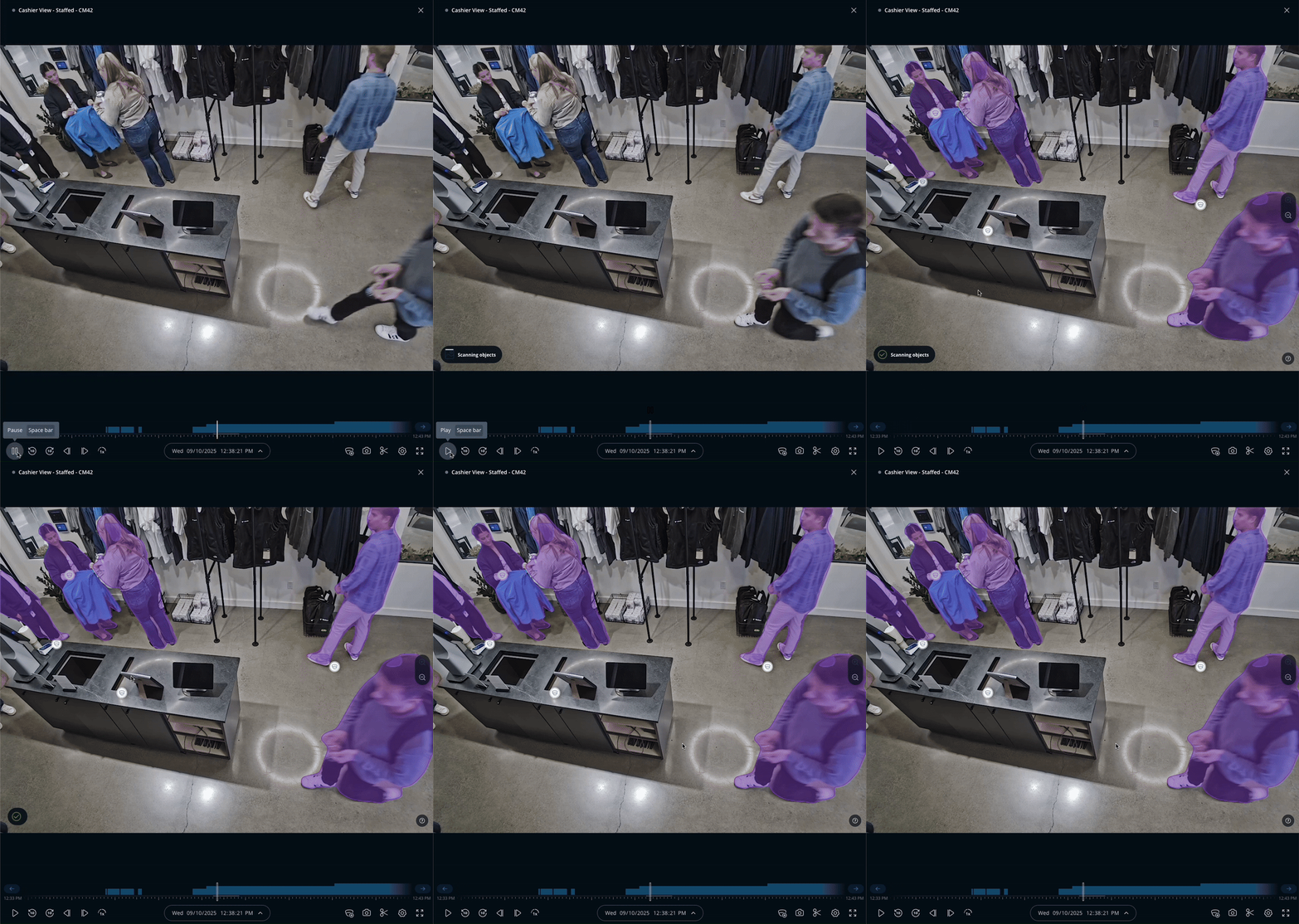
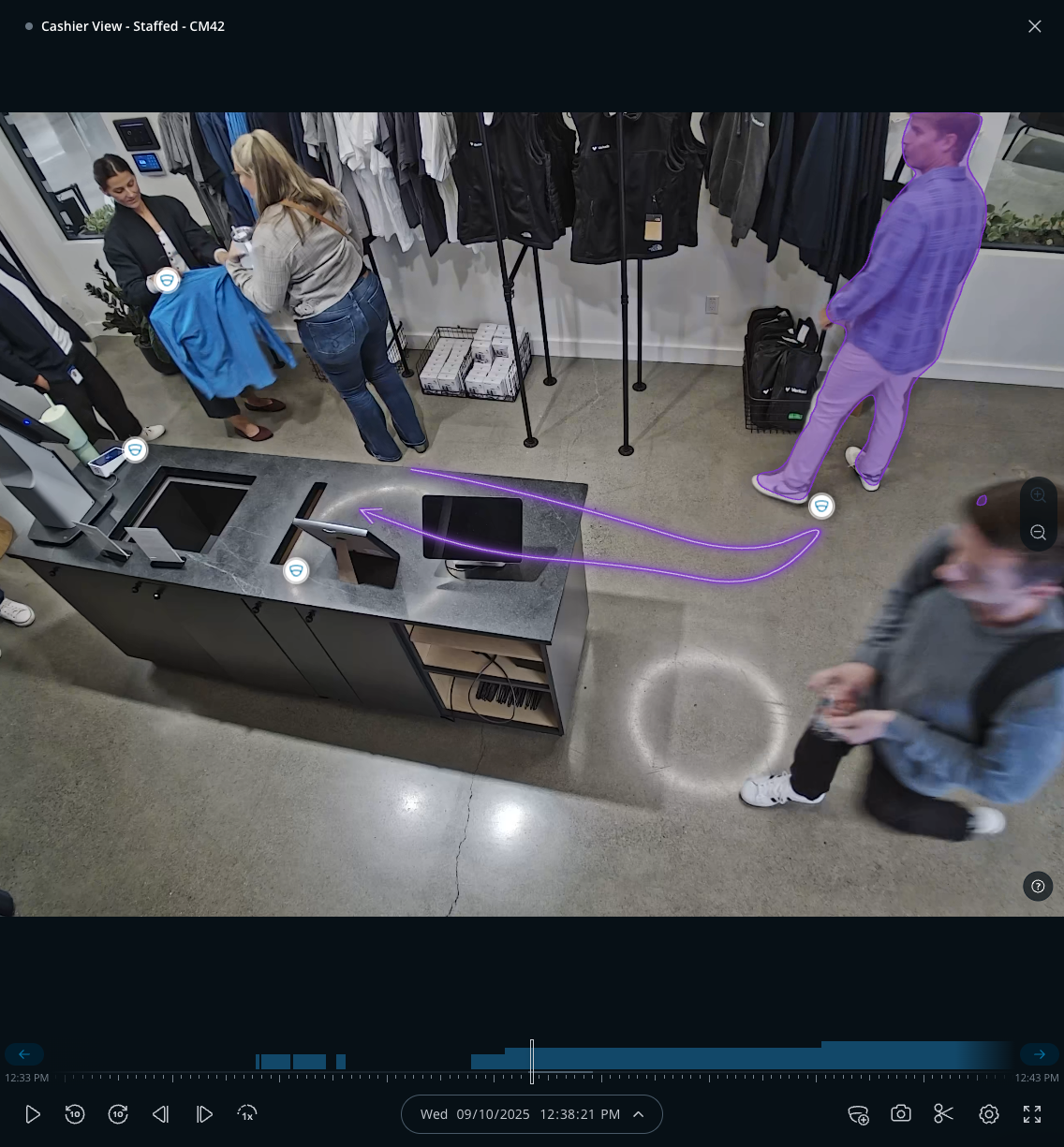
**All detected individuals in the frame are automatically highlighted.**
{% hint style="info" %}
The highlights will only appear if your cursor is on the video feed.
{% endhint %}
{% endstep %}
{% step %}
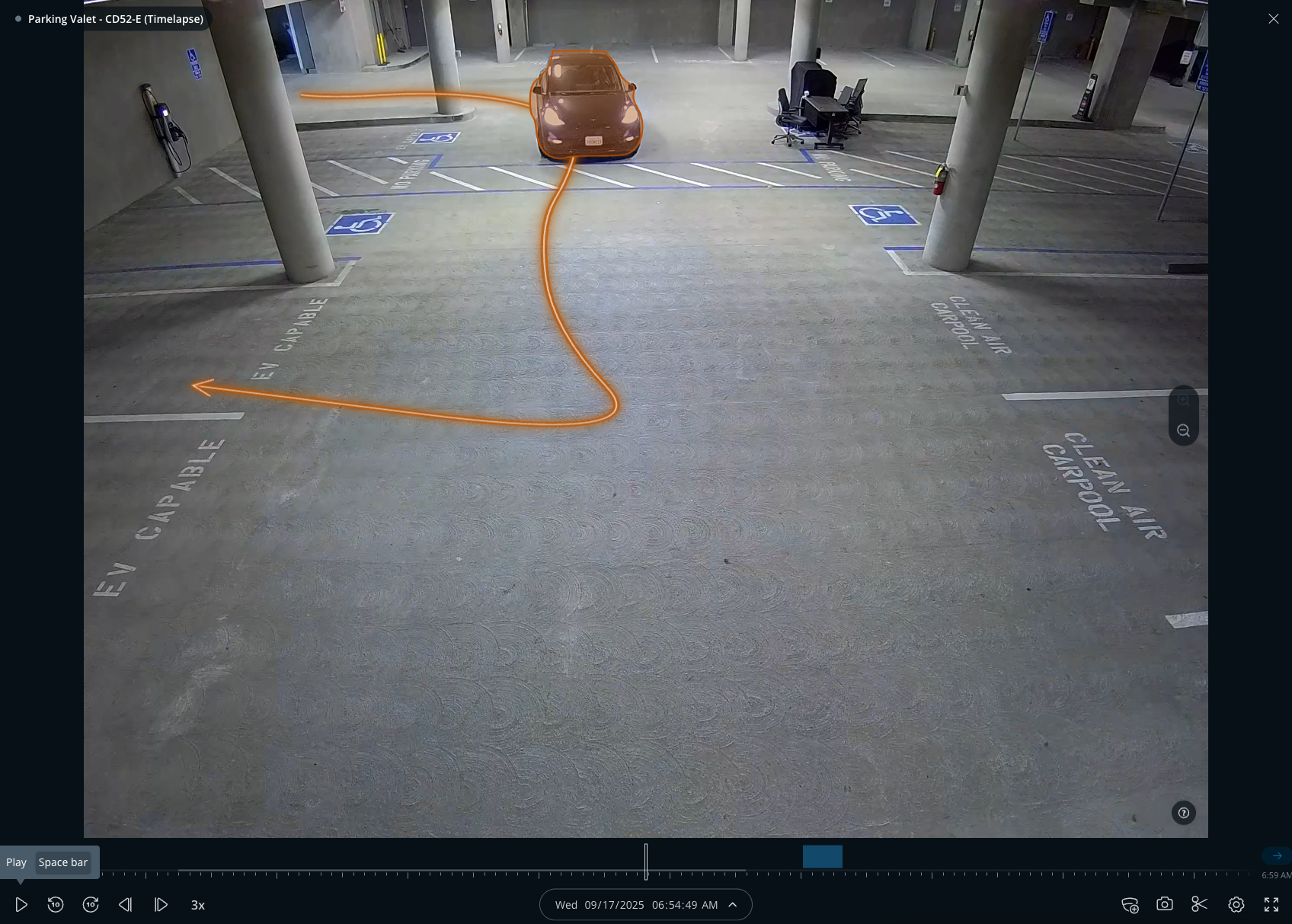
**Drag your cursor over the highlighted person to view their trajectory and movement within the camera’s frame.**
{% endstep %}
{% step %}
**Click the highlighted individual to generate a timeline of their sightings and associated footage.**
{% endstep %}
{% step %}
**To follow the person in real time, stay on the live feed. Command adds new sightings as the person moves between cameras.**
{% endstep %}
{% step %}
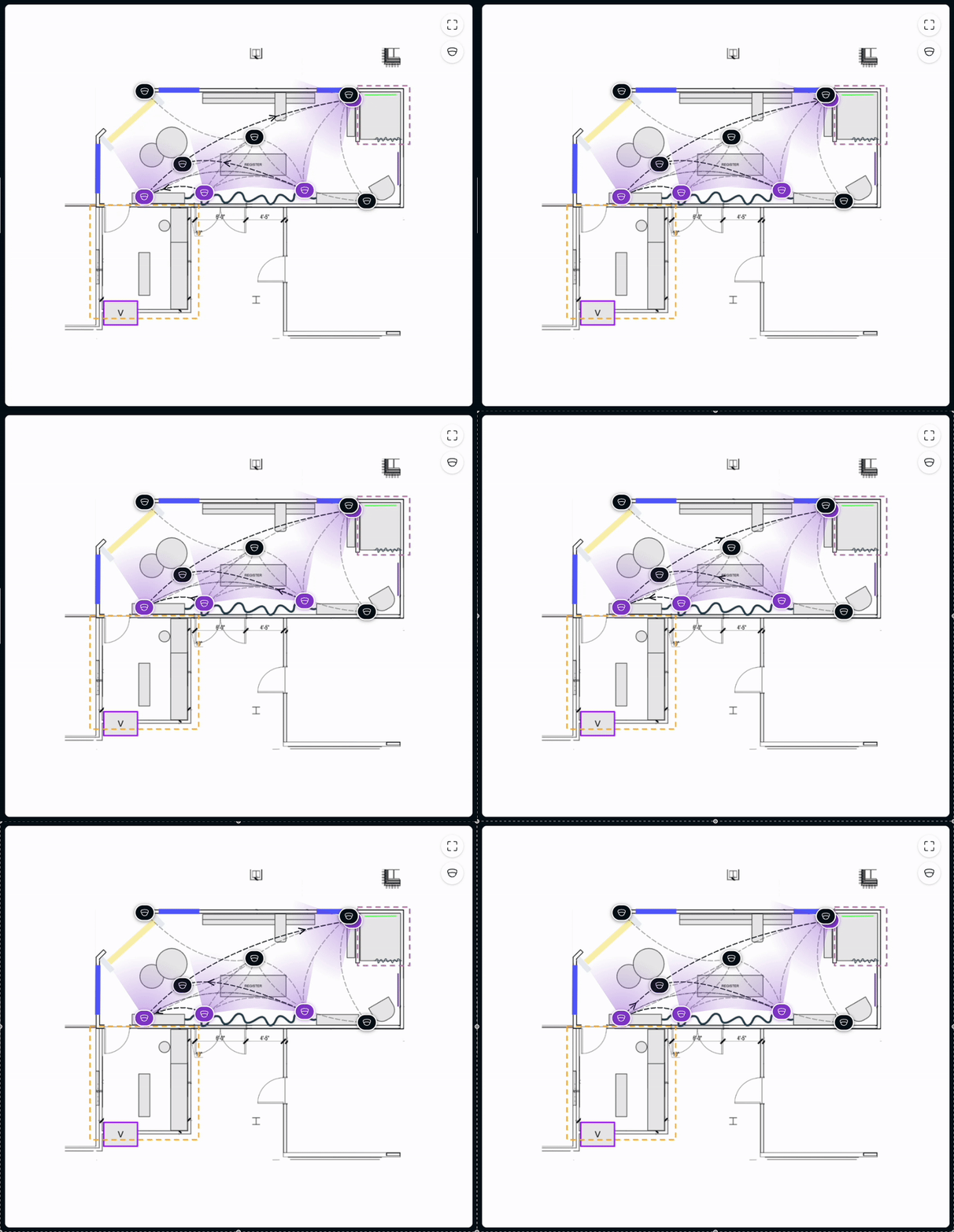
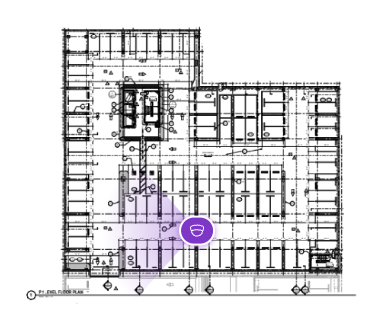
**If the cameras where the sighting occurred are added to a floor plan or map, they appear highlighted and display the video flow in Command.**
{% endstep %}
{% step %}
**Click a thumbnail in the timeline to play the footage in the history player. If the person appears in multiple cameras simultaneously, the footage plays in a multi-camera view.** [**Multi-camera playback speed limits**](/verkada-cameras/video-streaming-and-sharing/view-historical-footage/add-cameras-to-a-multicamera-view.md#multi-camera-playback-speed-limits) **apply based on the number of cameras displayed.**
{% endstep %}
{% step %}
**On the right, select the Date/Time dropdown to adjust the range.**
{% endstep %}
{% step %}
**Click Locate to view detailed sightings of the person.**
{% endstep %}
{% step %}
**Click Locate again to switch between the overview of all clips and the detailed sighting view.**
{% endstep %}
{% endstepper %}
### Switch between live and history
From a Unified Timeline, move between live video and recorded footage on the same timeline.
* Scrub backward to see where the person came from
* Select a recent sighting to return to the live feed
***
## Search for vehicles
{% hint style="danger" %}
Vehicle analytics and default history player search settings need to be enabled on the camera to use this feature. For optimal accuracy, ensure vehicles are visible as obstructions may affect detection quality. See [Vehicle Analytics](/verkada-cameras/analytics/vehicle-analytics.md) for more information.
{% endhint %}
{% stepper %}
{% step %}
**In Verkada Command, go to All Products > Cameras.**
{% endstep %}
{% step %}
**Select a camera and click History.**
{% endstep %}
{% step %}
**In the bottom right, click and select Unified Timeline.**
{% endstep %}
{% step %}
**Select the date and time you want to review.**
{% endstep %}
{% step %}
**Pause the history player once the vehicle is visible.**
{% endstep %}
{% step %}
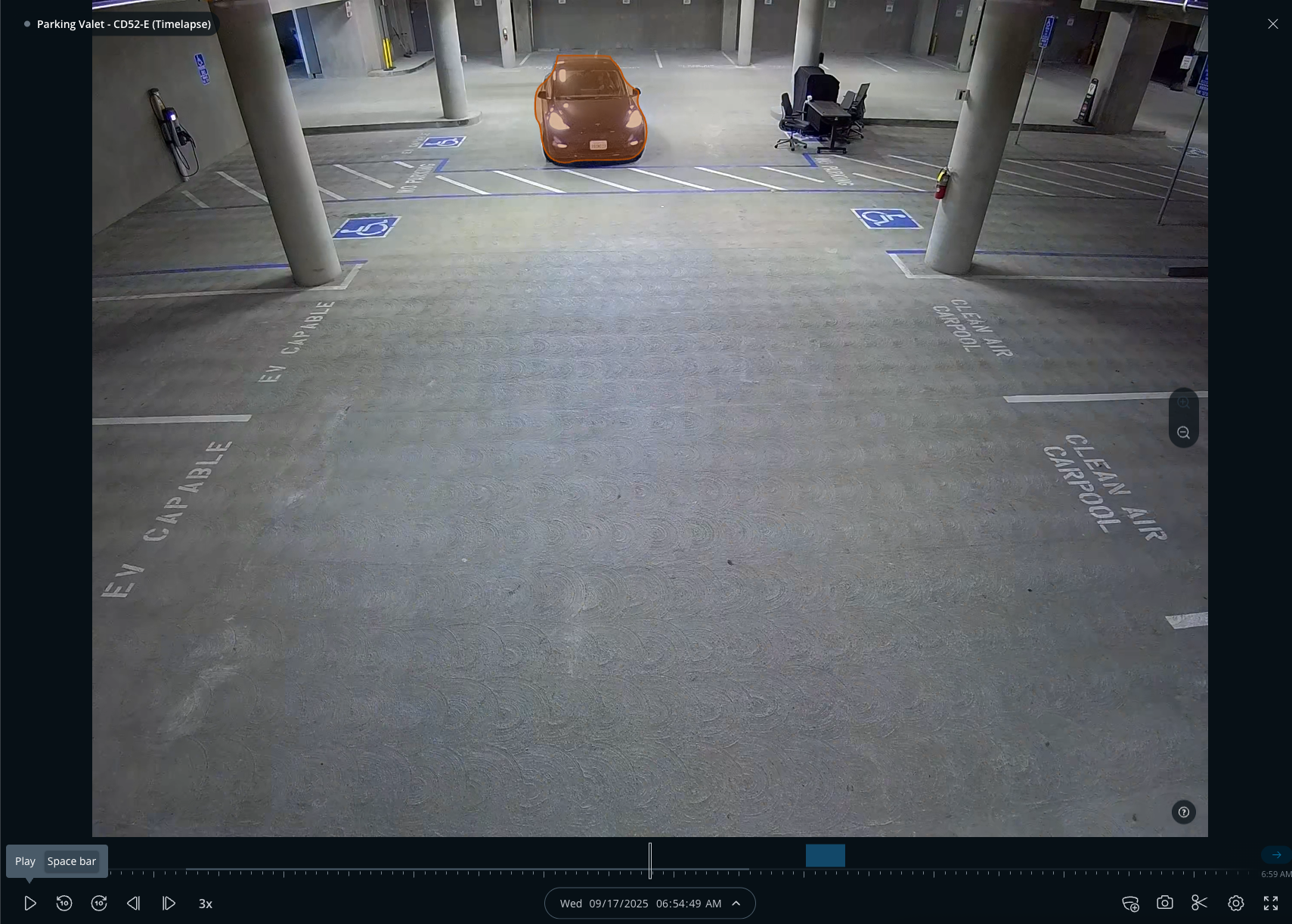
**All detected vehicles in the frame are automatically highlighted.**
{% hint style="warning" %}
Highlights appear only when your cursor is over the video feed.
{% endhint %}
{% endstep %}
{% step %}
**Drag your cursor over the highlighted vehicle to view its trajectory and movement within the camera’s frame.**
{% endstep %}
{% step %}
**Click the highlighted vehicle to generate a timeline of its sightings and associated footage.**
{% endstep %}
{% step %}
**If the cameras where the sighting occurred are added to a floorplan, they appear highlighted in purple and display the video flow in Command.**
{% endstep %}
{% step %}
**Click a thumbnail in the timeline to play the footage in the history player. If the vehicle appears in multiple cameras simultaneously, the footage plays in a multi-camera view.** [**Multi-camera playback speed limits**](/verkada-cameras/video-streaming-and-sharing/view-historical-footage/add-cameras-to-a-multicamera-view.md#multi-camera-playback-speed-limits) **apply based on the number of cameras displayed.**
{% endstep %}
{% step %}
**Click Refresh Vehicle Search to modify the vehicle’s color, make, and model. If enabled, you can also filter by license plate.**
{% endstep %}
{% endstepper %}
***
## Add access control events to a timeline
Unified Timeline can show access control events next to camera sightings.
{% stepper %}
{% step %}
**From the left identity pannel, click Connect to access user.**
{% endstep %}
{% step %}
**Select the access user that corresponds to the person viewed in the unified timeline**
{% endstep %}
{% step %}
**Click Connect User**
{% endstep %}
{% step %}
A granted door unlock, door forced open, door held open, or tailgating event now should appear with the related camera clip.
{% endstep %}
{% endstepper %}
* Open an access user profile to review that user's door history with the related camera sightings.
{% hint style="info" %}
You can also add events manually by selecting **Add events** from the identity pannel on the left.
{% endhint %}
***
## Export a timeline to an Incident
You can export a reconstructed journey, including a live investigation, from a Unified Timeline to a new or existing incident.
{% hint style="danger" %}
Timelines and the related access event records exported to an incident are retained in Command until the incident is deleted.
{% endhint %}
{% stepper %}
{% step %}
**From the left navigation of a generated Unified Timeline, click Export to Incident**  .
{% endstep %}
{% step %}
**Choose to Create New Incident or select an existing incident from the list.**
{% endstep %}
{% step %}
**When the confirmation message appears, click Go to Incident to open the exported timeline.**
After you export to an incident, you can edit the subject name, add notes, trim clips, or attach archives.
{% endstep %}
{% endstepper %}
***
## Disable history player search for an organization
{% stepper %}
{% step %}
**In Verkada Command, go to All Products > Cameras > Camera Settings.**
{% endstep %}
{% step %}
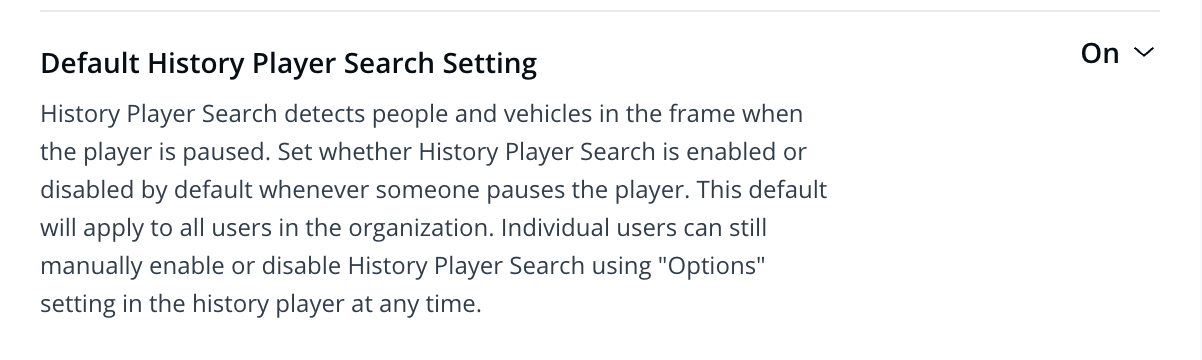
**You can change the default history player search setting. When turned off, history player search will not be triggered automatically when you pause the video in the history player. This setting impacts all users within the organization.**
{% endstep %}
{% endstepper %}
{% hint style="warning" %}
When the default is off, users can still trigger history player search as needed by clicking
.
{% endstep %}
{% step %}
**Choose to Create New Incident or select an existing incident from the list.**
{% endstep %}
{% step %}
**When the confirmation message appears, click Go to Incident to open the exported timeline.**
After you export to an incident, you can edit the subject name, add notes, trim clips, or attach archives.
{% endstep %}
{% endstepper %}
***
## Disable history player search for an organization
{% stepper %}
{% step %}
**In Verkada Command, go to All Products > Cameras > Camera Settings.**
{% endstep %}
{% step %}
**You can change the default history player search setting. When turned off, history player search will not be triggered automatically when you pause the video in the history player. This setting impacts all users within the organization.**
{% endstep %}
{% endstepper %}
{% hint style="warning" %}
When the default is off, users can still trigger history player search as needed by clicking  within the history player and selecting **History Player Search**.
{% endhint %}
***
## Manage history player search by user
{% stepper %}
{% step %}
**In Verkada Command, go to All Products > Cameras.**
{% endstep %}
{% step %}
**Select a camera and click History.**
{% endstep %}
{% step %}
**Click** :gear: **to select between history player search, unified timeline, or disable this feature by unchecking History Player Search.**
{% endstep %}
{% step %}
**(Optional) Select a Search Model:**
* **Face Detection:** Searches across cameras with Face Detection enabled.
* **Appearance Search:** Searches across cameras with Person Attributes enabled.
{% endstep %}
{% endstepper %}
{% hint style="warning" %}
Changing this setting only affects the user who makes the change. This choice persists across all cameras the user can access.
{% endhint %}
***
### Considerations
* All Verkada camera models, except for the D30, D40, D50, D80, CD22, CD22-E, and CM22 models, support history player search and Unified Timeline.
* Live cross-camera tracking is supported on second- and third-generation cameras.
* This feature is not currently supported on mobile (web & app).
---
# Agent Instructions
This documentation is published with GitBook. GitBook is the documentation platform designed so that both humans and AI agents can read, navigate, and reason over technical content effectively. Learn more at gitbook.com.
## Querying This Documentation
If you need additional information that is not directly available in this page, you can query the documentation by asking a question.
Perform an HTTP GET request on the following URL with the `ask` and `goal` query parameters:
```
GET https://help.verkada.com/verkada-cameras/video-streaming-and-sharing/view-historical-footage/history-player-search-and-unified-timeline.md?ask=&goal=
```
`ask` is the immediate question: it should be specific, self-contained, and written in natural language.
`goal` is what the user is ultimately trying to achieve, the reason they need the answer. Sharing it helps GitBook give you a better, more relevant answer. A goal is most helpful when it describes the outcome the user wants rather than restating the question. For example, with `ask=how do I create an API token`, a goal like `automate deployments from our CI pipeline` lets GitBook tailor the answer to that use case.
The response will contain a direct answer to the question and relevant excerpts and sources from the documentation.
Use this mechanism when the answer is not explicitly present in the current page, you need clarification or additional context, or you want to retrieve related documentation sections.
within the history player and selecting **History Player Search**.
{% endhint %}
***
## Manage history player search by user
{% stepper %}
{% step %}
**In Verkada Command, go to All Products > Cameras.**
{% endstep %}
{% step %}
**Select a camera and click History.**
{% endstep %}
{% step %}
**Click** :gear: **to select between history player search, unified timeline, or disable this feature by unchecking History Player Search.**
{% endstep %}
{% step %}
**(Optional) Select a Search Model:**
* **Face Detection:** Searches across cameras with Face Detection enabled.
* **Appearance Search:** Searches across cameras with Person Attributes enabled.
{% endstep %}
{% endstepper %}
{% hint style="warning" %}
Changing this setting only affects the user who makes the change. This choice persists across all cameras the user can access.
{% endhint %}
***
### Considerations
* All Verkada camera models, except for the D30, D40, D50, D80, CD22, CD22-E, and CM22 models, support history player search and Unified Timeline.
* Live cross-camera tracking is supported on second- and third-generation cameras.
* This feature is not currently supported on mobile (web & app).
---
# Agent Instructions
This documentation is published with GitBook. GitBook is the documentation platform designed so that both humans and AI agents can read, navigate, and reason over technical content effectively. Learn more at gitbook.com.
## Querying This Documentation
If you need additional information that is not directly available in this page, you can query the documentation by asking a question.
Perform an HTTP GET request on the following URL with the `ask` and `goal` query parameters:
```
GET https://help.verkada.com/verkada-cameras/video-streaming-and-sharing/view-historical-footage/history-player-search-and-unified-timeline.md?ask=&goal=
```
`ask` is the immediate question: it should be specific, self-contained, and written in natural language.
`goal` is what the user is ultimately trying to achieve, the reason they need the answer. Sharing it helps GitBook give you a better, more relevant answer. A goal is most helpful when it describes the outcome the user wants rather than restating the question. For example, with `ask=how do I create an API token`, a goal like `automate deployments from our CI pipeline` lets GitBook tailor the answer to that use case.
The response will contain a direct answer to the question and relevant excerpts and sources from the documentation.
Use this mechanism when the answer is not explicitly present in the current page, you need clarification or additional context, or you want to retrieve related documentation sections.