> For the complete documentation index, see [llms.txt](https://help.verkada.com/llms.txt). Markdown versions of documentation pages are available by appending `.md` to page URLs; this page is available as [Markdown](https://help.verkada.com/verkada-cameras/video-streaming-and-sharing/view-historical-footage/archive-recorded-video-footage.md).
# Archive Recorded Video Footage
Learn how Verkada Command makes it easy to archive recorded video footage
Verkada Command provides unlimited storage for archived video with valid license compliance. All exported archived footage includes a watermark to preserve its integrity.
{% hint style="danger" %}
You need [Site Viewer or Site Admin permissions](/command/users-and-permissions/roles-and-permissions-for-command.md) to archive footage from your cameras.
{% endhint %}
***
## Manage access to archives
Site Admins can create both public and private archives, while Site Viewers can create only public archives.
* Anyone with access to the camera’s historical footage (Site Admins and Site Viewers) can view public archives.
* Only the user who created the archive and other Org Admins can view private archives.
{% tabs %}
{% tab title="Customize archive permissions" %}
Org Admins can control how much access users have to archives, including creating private archives, sharing, and deleting them.
{% stepper %}
{% step %}
**In Verkada Command, go to All Products > Admin.**
{% endstep %}
{% step %}
**Under Org Settings, select Users & Permissions > Customize Roles.**
You should see the current permissions for all user roles.
1. Next to **Cameras,** click .
2. Configure the camera permissions that you want to grant to each role. Click **Reset** to restore the default permissions.
3. Click **Save.**
{% hint style="warning" %}
Changes apply to all Site Admins and Site Viewers in the organization.
{% endhint %}
{% endstep %}
{% endstepper %}
{% endtab %}
{% tab title="Maximum Archive Duration" %}
{% hint style="danger" %}
You need at least Site Admin permission to manage camera site settings.
{% endhint %}
{% stepper %}
{% step %}
**In Verkada Command, go to All Products > Cameras.**
{% endstep %}
{% step %}
**From the left navigation, click Cameras Settings.**
{% endstep %}
{% step %}
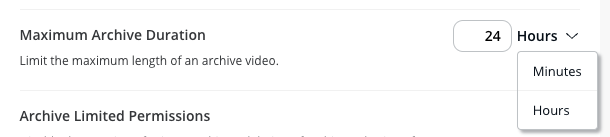
**Under Maximum Archive Duration:**
{% hint style="warning" %}
As a general rule, the longer the video clip, the longer it takes the system to archive the footage.
{% endhint %}
1. Use the dropdown next to the selected time to toggle between minutes and hours.
2. Enter the desired maximum archive duration.
{% hint style="warning" %}
The maximum archive duration can be a minimum of 1 minute and a maximum of 24 hours.
{% endhint %}
{% endstep %}
{% endstepper %}
{% endtab %}
{% endtabs %}
***
## Manage archives
{% tabs %}
{% tab title="Create an archive" %}
### Individual camera
{% stepper %}
{% step %}
**In Verkada Command, go to All Products > Cameras.**
{% endstep %}
{% step %}
**Select a camera to archive.**
{% endstep %}
{% step %}
**At the bottom of the camera footage, select the Archive tab and click Add Archive.**
1. Enter the date and time you want to archive.
2. (Optional) Add notes, tags, manage retention, add a Transportation camera, or copy the archive to an incident if needed.
{% hint style="warning" %}
Archives attached to incidents are retained indefinitely.
{% endhint %}
3. (Optional) By default, archives created by Org Admins are private. Toggle on **Share with Organization** to make the archive public to your organization.
4. Click **Create.**
{% endstep %}
{% step %}
**Once the archive is complete, you can view it from the camera’s Archive tab or from the global Archive tab on the Home page.**
{% endstep %}
{% endstepper %}
***
### Multiple cameras
When you archive footage from multiple cameras (covering the same time interval), you can create a multi-camera archive. This feature is particularly useful when you need to archive footage from multiple angles, all captured by different cameras during a single event.
When you generate a multicamera archive, Command can create separate archives for each selected camera or a combined archive. The combined archive displays a grid layout that features footage from all selected cameras.
{% stepper %}
{% step %}
**In Verkada Command, go to All Products > Cameras.**
{% endstep %}
{% step %}
**Select a camera to archive.**
{% endstep %}
{% step %}
**At the bottom of the camera footage, select the Archive tab and click Add Archive.**
1. In the bottom right, click  .
1. Select up to 8 cameras.
2. In the top right, click **Done** to return to the archive menu**.**
2. Enter the date and time you want to archive.
3. (Optional) Toggle on **Create Multi-Camera Archive** to create one archive containing footage from all cameras. If left untoggled, the clips will be archived separately.
4. (Optional) Add notes, tags, manage retention, add a Transportation camera, or copy the archive to an incident if needed.
{% hint style="warning" %}
Archives attached to incidents are retained indefinitely.
{% endhint %}
5. (Optional) By default, archives created by Org Admins are private. Toggle on **Share with Organization** to make the archive public to your organization.
6. Click **Create.**
{% endstep %}
{% step %}
**Once all the archives are complete, you can view them from the global Archive tab on the Home page.**
{% endstep %}
{% endstepper %}
***
### ePTZ modes
{% hint style="danger" %}
ePTZ poses can only be captured on archives created from fisheye cameras that were recording in ePTZ at the time of the archive.
{% endhint %}
{% stepper %}
{% step %}
**In Verkada Command, go to All Products > Cameras.**
{% endstep %}
{% step %}
**In the left navigation, select the Archive tab.**
{% endstep %}
{% step %}
In the top right of your archive, click :ellipsis: > **Share**.
1. Under **Archive Copies**, click **Record ePTZ Poses.**
2. At the top, click **Start Recording** and use your mouse to pan, tilt, or zoom by dragging or scrolling on the video.
3. At the top, click **Stop** when you are finished.
4. On the right, click **Create a copy** to save.
{% endstep %}
{% endstepper %}
***
### Command app
{% stepper %}
{% step %}
**Open the Verkada Command app.**
{% endstep %}
{% step %}
**Select the camera feed you want to archive.**
{% endstep %}
{% step %}
**In the top right, tap**
.
1. Select up to 8 cameras.
2. In the top right, click **Done** to return to the archive menu**.**
2. Enter the date and time you want to archive.
3. (Optional) Toggle on **Create Multi-Camera Archive** to create one archive containing footage from all cameras. If left untoggled, the clips will be archived separately.
4. (Optional) Add notes, tags, manage retention, add a Transportation camera, or copy the archive to an incident if needed.
{% hint style="warning" %}
Archives attached to incidents are retained indefinitely.
{% endhint %}
5. (Optional) By default, archives created by Org Admins are private. Toggle on **Share with Organization** to make the archive public to your organization.
6. Click **Create.**
{% endstep %}
{% step %}
**Once all the archives are complete, you can view them from the global Archive tab on the Home page.**
{% endstep %}
{% endstepper %}
***
### ePTZ modes
{% hint style="danger" %}
ePTZ poses can only be captured on archives created from fisheye cameras that were recording in ePTZ at the time of the archive.
{% endhint %}
{% stepper %}
{% step %}
**In Verkada Command, go to All Products > Cameras.**
{% endstep %}
{% step %}
**In the left navigation, select the Archive tab.**
{% endstep %}
{% step %}
In the top right of your archive, click :ellipsis: > **Share**.
1. Under **Archive Copies**, click **Record ePTZ Poses.**
2. At the top, click **Start Recording** and use your mouse to pan, tilt, or zoom by dragging or scrolling on the video.
3. At the top, click **Stop** when you are finished.
4. On the right, click **Create a copy** to save.
{% endstep %}
{% endstepper %}
***
### Command app
{% stepper %}
{% step %}
**Open the Verkada Command app.**
{% endstep %}
{% step %}
**Select the camera feed you want to archive.**
{% endstep %}
{% step %}
**In the top right, tap**  **> Create Archive.**
1. Scroll to the start time of the event you want to capture, then tap the left bracket at the bottom to set the start time.
2. Scroll to the end time of the event you want to capture, then tap the right bracket at the bottom to set the end time.
{% endstep %}
{% step %}
**Click the checkmark icon to initialize the archive.**
1. (Optional) Add notes.
2. Tap **Make private** (only available to Org Admins).
3. Set the [archive retention](#archive-retention-periods) (default: 2 years).
4. Tap **Done** to complete.
The newly started archive should show as **Retrieving from camera** until the footage has finished uploading to the cloud.
{% endstep %}
{% endstepper %}
{% endtab %}
{% tab title="View archives" %}
## View archives
{% stepper %}
{% step %}
**In Verkada Command, go to All Products > Cameras.**
{% endstep %}
{% step %}
**On the left navigation, select Archives.**
Several features are available to improve your archive viewing experience:
* Archives default to **Newest First.** In the top right, you can change the sort order to an option that works best for you.
* Hover over an archive and click the ellipsis to select:
* **Make the Archive Private or Public** (displays the opposite of the current setting)
* **Download the Archive**
* **Delete The Archive**
{% endstep %}
{% endstepper %}
***
### Archive retention periods
Archives offer a configurable retention period upon creation. This allows archives to be automatically deleted after a set number of years to maintain compliance. After an archive is created, you can update the retention period by following these steps:
{% hint style="warning" %}
If you do not set a retention period, the archive is retained as long as your organization remains license-compliant.
{% endhint %}
{% stepper %}
{% step %}
**In Verkada Command, go to All Products > Cameras.**
{% endstep %}
{% step %}
**In the left navigation, select Archives.**
{% endstep %}
{% step %}
**Select an archive.**
{% endstep %}
{% step %}
**On the right, next to Retained until, click Change.**
1. Set the [archive retention](#archive-retention-periods) (default: 2 years).
2. Tap **Save** to complete.
{% endstep %}
{% endstepper %}
{% hint style="danger" %}
Once an archive is automatically deleted, it cannot be recovered
{% endhint %}
{% endtab %}
{% tab title="Download archives" %}
Once a historical clip has been archived, you can download it as an MP4 file for external storage. You can only download archives from Command; however, you can [share the link](/verkada-cameras/video-streaming-and-sharing/sharing-video.md) to an archived clip from any platform.
{% stepper %}
{% step %}
**In Verkada Command, go to All Products > Cameras.**
{% endstep %}
{% step %}
**In the left navigation, select Archives.**
{% endstep %}
{% step %}
**In the top right of the archive you want to download, click**  **> Prepare for Download.**
* Select the position for the **Timestamp Location.**
* (Optional) Toggle on [Blur Faces](/verkada-cameras/configuration/security-and-privacy/enable-face-blur-on-verkada-cameras.md).
{% endstep %}
{% step %}
**Click Next > Prepare Download.**
{% endstep %}
{% step %}
**Click Start Download to save the archive to your default Downloads folder.**
{% endstep %}
{% endstepper %}
{% hint style="warning" %}
If a camera is deleted from an organization, the archive is stored under **All Products** > **Cameras** > **Archives**. The archive is then marked as **Unknown Camera,** and only Org Admins can download and share it.
{% endhint %}
{% endtab %}
{% endtabs %}
***
{% hint style="info" %}
**Prefer to see it in action?** Check out the [video tutorial](https://www.youtube.com/watch?v=UrZNzxUpNzI).
{% endhint %}
---
# Agent Instructions
This documentation is published with GitBook. GitBook is the documentation platform designed so that both humans and AI agents can read, navigate, and reason over technical content effectively. Learn more at gitbook.com.
## Querying This Documentation
If you need additional information that is not directly available in this page, you can query the documentation by asking a question.
Perform an HTTP GET request on the following URL with the `ask` and `goal` query parameters:
```
GET https://help.verkada.com/verkada-cameras/video-streaming-and-sharing/view-historical-footage/archive-recorded-video-footage.md?ask=&goal=
```
`ask` is the immediate question: it should be specific, self-contained, and written in natural language.
`goal` is what the user is ultimately trying to achieve, the reason they need the answer. Sharing it helps GitBook give you a better, more relevant answer. A goal is most helpful when it describes the outcome the user wants rather than restating the question. For example, with `ask=how do I create an API token`, a goal like `automate deployments from our CI pipeline` lets GitBook tailor the answer to that use case.
The response will contain a direct answer to the question and relevant excerpts and sources from the documentation.
Use this mechanism when the answer is not explicitly present in the current page, you need clarification or additional context, or you want to retrieve related documentation sections.
**> Create Archive.**
1. Scroll to the start time of the event you want to capture, then tap the left bracket at the bottom to set the start time.
2. Scroll to the end time of the event you want to capture, then tap the right bracket at the bottom to set the end time.
{% endstep %}
{% step %}
**Click the checkmark icon to initialize the archive.**
1. (Optional) Add notes.
2. Tap **Make private** (only available to Org Admins).
3. Set the [archive retention](#archive-retention-periods) (default: 2 years).
4. Tap **Done** to complete.
The newly started archive should show as **Retrieving from camera** until the footage has finished uploading to the cloud.
{% endstep %}
{% endstepper %}
{% endtab %}
{% tab title="View archives" %}
## View archives
{% stepper %}
{% step %}
**In Verkada Command, go to All Products > Cameras.**
{% endstep %}
{% step %}
**On the left navigation, select Archives.**
Several features are available to improve your archive viewing experience:
* Archives default to **Newest First.** In the top right, you can change the sort order to an option that works best for you.
* Hover over an archive and click the ellipsis to select:
* **Make the Archive Private or Public** (displays the opposite of the current setting)
* **Download the Archive**
* **Delete The Archive**
{% endstep %}
{% endstepper %}
***
### Archive retention periods
Archives offer a configurable retention period upon creation. This allows archives to be automatically deleted after a set number of years to maintain compliance. After an archive is created, you can update the retention period by following these steps:
{% hint style="warning" %}
If you do not set a retention period, the archive is retained as long as your organization remains license-compliant.
{% endhint %}
{% stepper %}
{% step %}
**In Verkada Command, go to All Products > Cameras.**
{% endstep %}
{% step %}
**In the left navigation, select Archives.**
{% endstep %}
{% step %}
**Select an archive.**
{% endstep %}
{% step %}
**On the right, next to Retained until, click Change.**
1. Set the [archive retention](#archive-retention-periods) (default: 2 years).
2. Tap **Save** to complete.
{% endstep %}
{% endstepper %}
{% hint style="danger" %}
Once an archive is automatically deleted, it cannot be recovered
{% endhint %}
{% endtab %}
{% tab title="Download archives" %}
Once a historical clip has been archived, you can download it as an MP4 file for external storage. You can only download archives from Command; however, you can [share the link](/verkada-cameras/video-streaming-and-sharing/sharing-video.md) to an archived clip from any platform.
{% stepper %}
{% step %}
**In Verkada Command, go to All Products > Cameras.**
{% endstep %}
{% step %}
**In the left navigation, select Archives.**
{% endstep %}
{% step %}
**In the top right of the archive you want to download, click**  **> Prepare for Download.**
* Select the position for the **Timestamp Location.**
* (Optional) Toggle on [Blur Faces](/verkada-cameras/configuration/security-and-privacy/enable-face-blur-on-verkada-cameras.md).
{% endstep %}
{% step %}
**Click Next > Prepare Download.**
{% endstep %}
{% step %}
**Click Start Download to save the archive to your default Downloads folder.**
{% endstep %}
{% endstepper %}
{% hint style="warning" %}
If a camera is deleted from an organization, the archive is stored under **All Products** > **Cameras** > **Archives**. The archive is then marked as **Unknown Camera,** and only Org Admins can download and share it.
{% endhint %}
{% endtab %}
{% endtabs %}
***
{% hint style="info" %}
**Prefer to see it in action?** Check out the [video tutorial](https://www.youtube.com/watch?v=UrZNzxUpNzI).
{% endhint %}
---
# Agent Instructions
This documentation is published with GitBook. GitBook is the documentation platform designed so that both humans and AI agents can read, navigate, and reason over technical content effectively. Learn more at gitbook.com.
## Querying This Documentation
If you need additional information that is not directly available in this page, you can query the documentation by asking a question.
Perform an HTTP GET request on the following URL with the `ask` and `goal` query parameters:
```
GET https://help.verkada.com/verkada-cameras/video-streaming-and-sharing/view-historical-footage/archive-recorded-video-footage.md?ask=&goal=
```
`ask` is the immediate question: it should be specific, self-contained, and written in natural language.
`goal` is what the user is ultimately trying to achieve, the reason they need the answer. Sharing it helps GitBook give you a better, more relevant answer. A goal is most helpful when it describes the outcome the user wants rather than restating the question. For example, with `ask=how do I create an API token`, a goal like `automate deployments from our CI pipeline` lets GitBook tailor the answer to that use case.
The response will contain a direct answer to the question and relevant excerpts and sources from the documentation.
Use this mechanism when the answer is not explicitly present in the current page, you need clarification or additional context, or you want to retrieve related documentation sections.