> For the complete documentation index, see [llms.txt](https://help.verkada.com/llms.txt). Markdown versions of documentation pages are available by appending `.md` to page URLs; this page is available as [Markdown](https://help.verkada.com/verkada-cameras/video-streaming-and-sharing/live-streaming/local-streaming-on-verkada-cameras.md).
# Local Streaming on Verkada Cameras
Learn what local streaming is and how it works
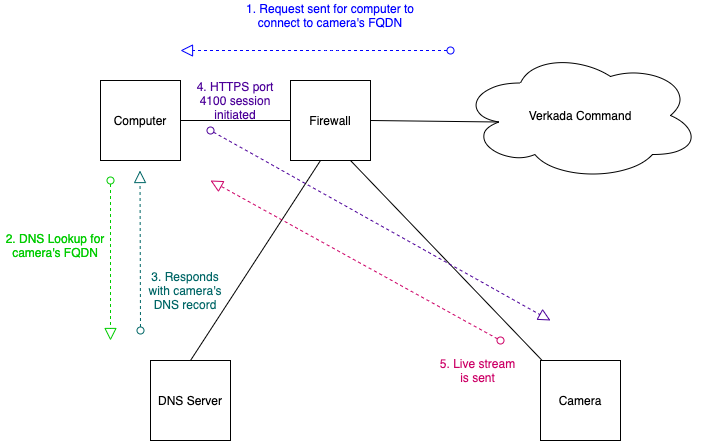
Local streaming is when the feed from a Verkada camera is forwarded directly to the accessing device, rather than accessed from the cloud.
This feature reduces the amount of traffic sent and received from the internet. When viewing a camera’s stream, the camera automatically attempts to transition to local stream mode.
{% hint style="warning" %}
When you access a camera’s live footage remotely (when local streaming isn’t possible), the video is proxied through the cloud and cached to speed up retrieval and playback. This approach enables large numbers of simultaneous viewers without negatively impacting the bandwidth of your local area network (LAN).
{% endhint %}
***
## Requirements for local streaming
* The accessing device must be able to reach the camera’s private IP.
* Port 4100 TCP/UDP must be open bidirectionally between the client and the camera.
* No proxies can be present between the client and the camera.
* See [Required Network Settings for Cameras](/command/need-help/required-network-settings.md) for allowlisted domains.
{% hint style="warning" %}
A camera will be able to SQ local stream, but not HQ local stream, when configured for H. 265, but the end user is using an unsupported H. 265 browser and/or device. For more information, see [**Camera High Efficiency Video Encoding (HEVC)**](/verkada-cameras/video-streaming-and-sharing/live-streaming/camera-high-efficiency-video-encoding-hevc.md)**.**
{% endhint %}
***
### Identify if your device is local streaming
| | |
| --------------------------------------- | -------------------------------------------------------------------------------------------------------------------------------------------------------------------------------------------------------------------------------------------------------------------------- |
| **View** | **Example** |
| Local stream on a web or mobile browser | 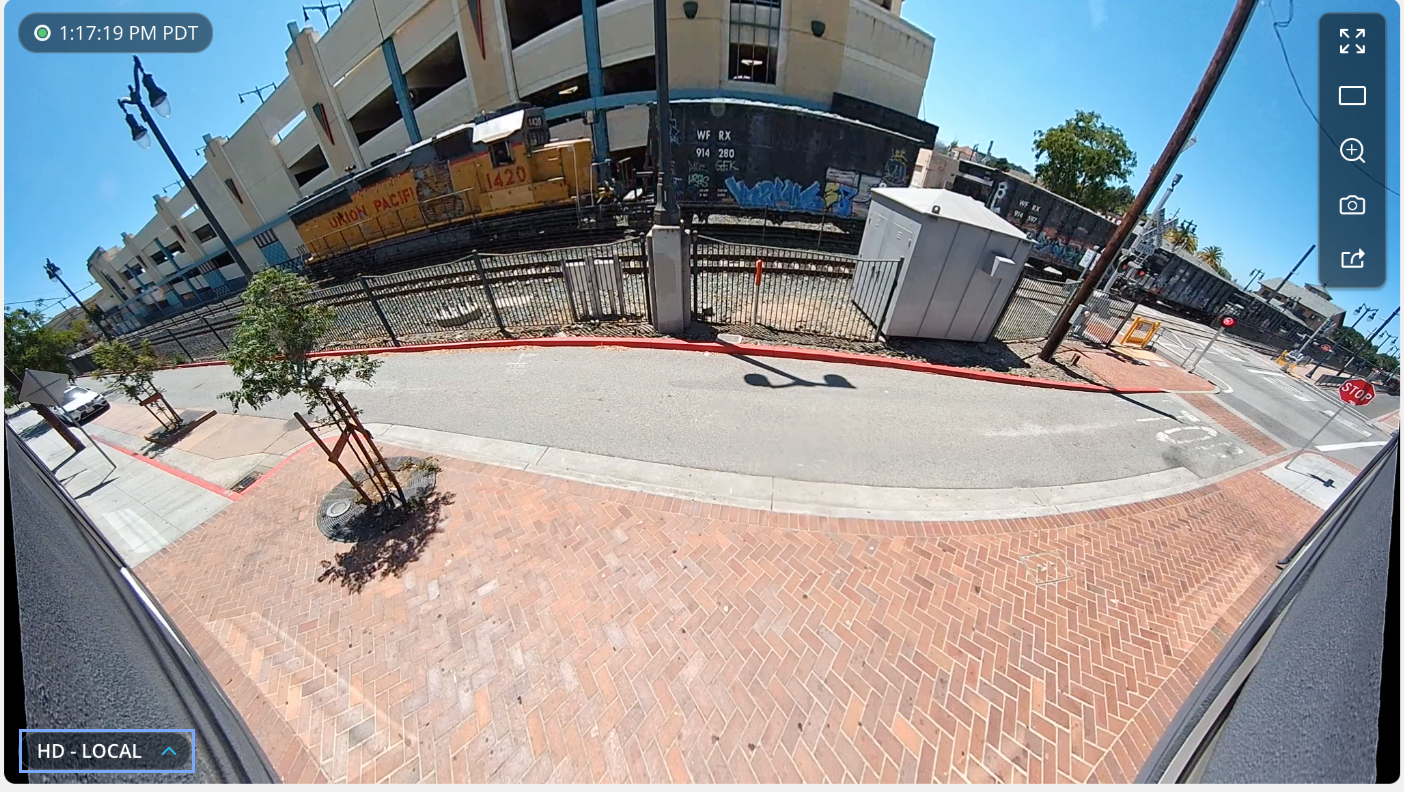 |
| Local stream on Command mobile app |  |
| Remote stream on Command mobile app | .jpg?alt=media\&token=2dea712b-aaa2-4523-b55e-eec0450d34c2) |
## How local streaming works
{% stepper %}
{% step %}
**The camera’s Domain Name System (DNS)** [**record needs to be registered**](#h_2fa97bf9bd)**.**
{% endstep %}
{% step %}
**Verkada Command instructs the streaming device to attempt to establish a** [**local stream with the camera**](#h_ffd43b346e)**.**
{% endstep %}
{% step %}
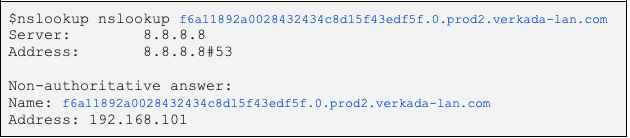
**The streaming device requests the** [**camera’s DNS record**](#h_071100bc92)**.**
{% endstep %}
{% step %}
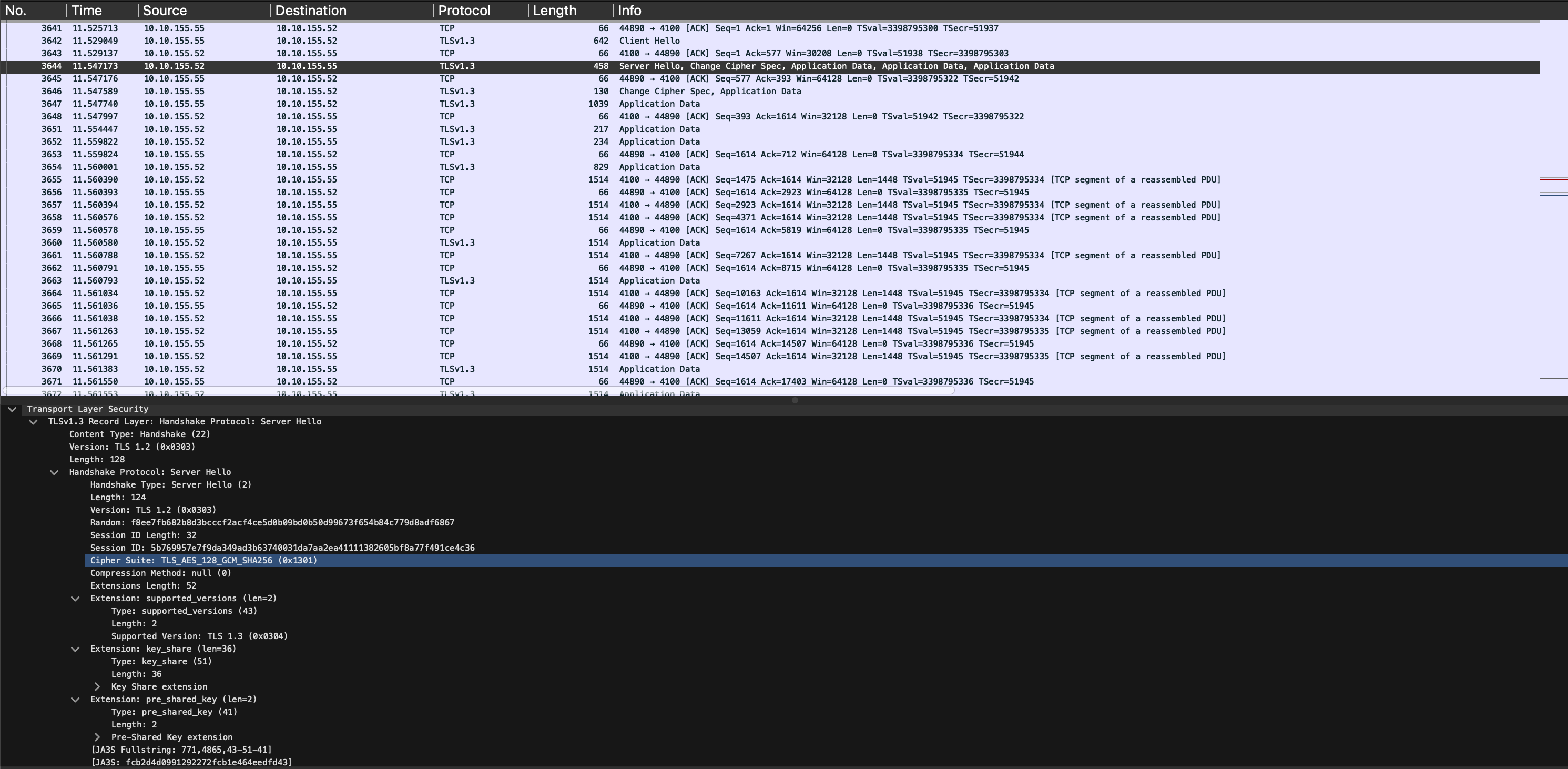
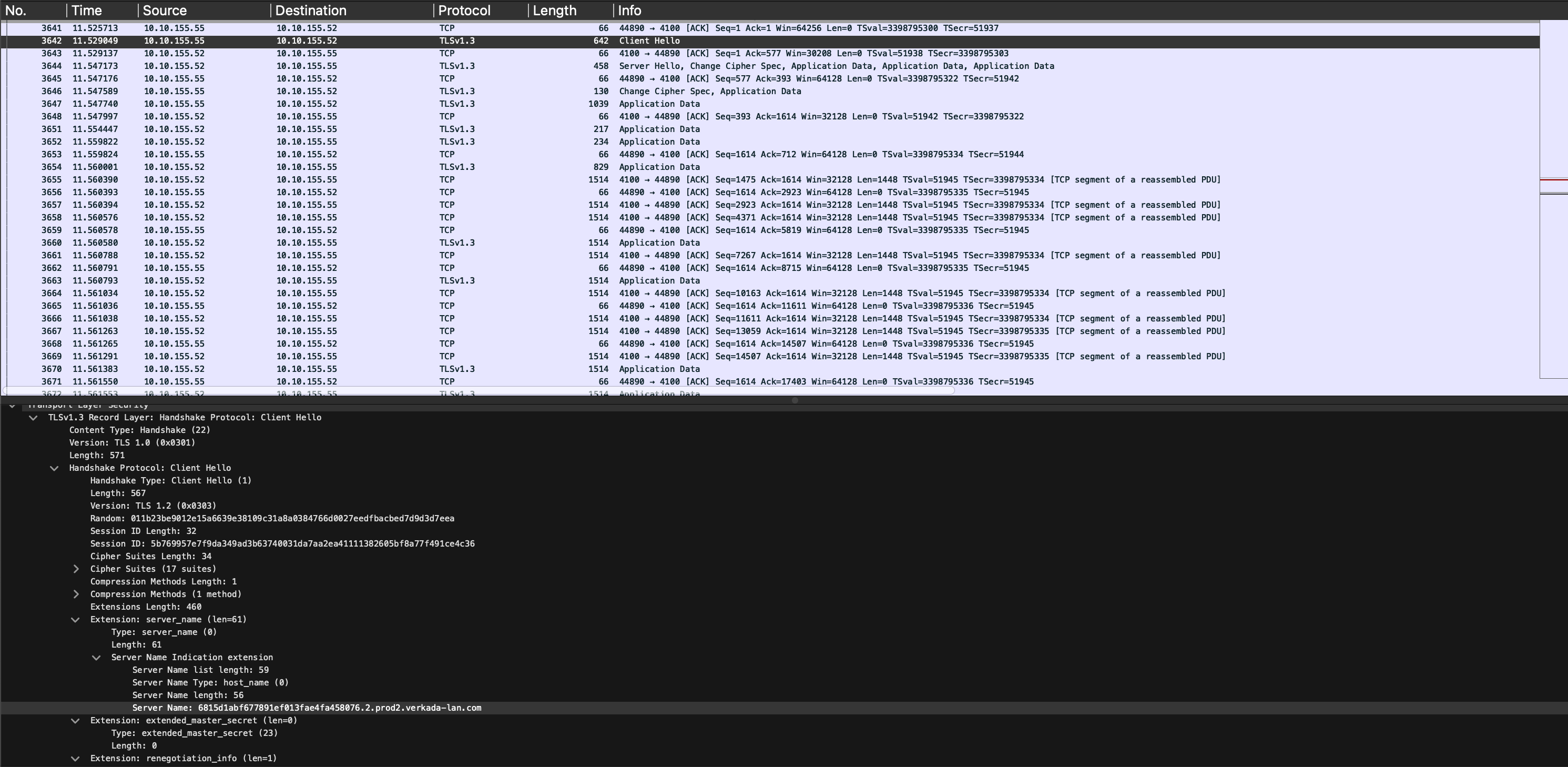
**The streaming device** [**establishes a secure connection with the camera**](#h_a9ef69580b)**.**
{% endstep %}
{% step %}
**The camera’s feed is sent** [**directly to the streaming device**](#h_97ccafdecb)**.**
{% endstep %}
{% endstepper %}
### Step 1: Camera’s DNS record is registered
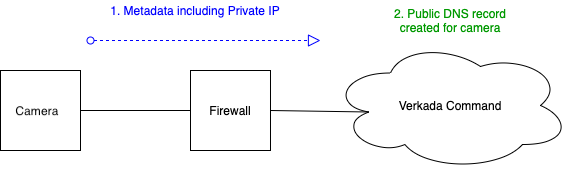
When the camera connects to Command, it shares its metadata, including its private IPv4 address. Verkada uses this data to provision a public type A DNS record for the camera's private IP address. Local DNS servers can now resolve requests for the Fully Qualified Domain Name (FQDN) of the camera. This DNS record is utilized for local streaming.
|
| Local stream on Command mobile app |  |
| Remote stream on Command mobile app | .jpg?alt=media\&token=2dea712b-aaa2-4523-b55e-eec0450d34c2) |
## How local streaming works
{% stepper %}
{% step %}
**The camera’s Domain Name System (DNS)** [**record needs to be registered**](#h_2fa97bf9bd)**.**
{% endstep %}
{% step %}
**Verkada Command instructs the streaming device to attempt to establish a** [**local stream with the camera**](#h_ffd43b346e)**.**
{% endstep %}
{% step %}
**The streaming device requests the** [**camera’s DNS record**](#h_071100bc92)**.**
{% endstep %}
{% step %}
**The streaming device** [**establishes a secure connection with the camera**](#h_a9ef69580b)**.**
{% endstep %}
{% step %}
**The camera’s feed is sent** [**directly to the streaming device**](#h_97ccafdecb)**.**
{% endstep %}
{% endstepper %}
### Step 1: Camera’s DNS record is registered
When the camera connects to Command, it shares its metadata, including its private IPv4 address. Verkada uses this data to provision a public type A DNS record for the camera's private IP address. Local DNS servers can now resolve requests for the Fully Qualified Domain Name (FQDN) of the camera. This DNS record is utilized for local streaming.