> For the complete documentation index, see [llms.txt](https://help.verkada.com/llms.txt). Markdown versions of documentation pages are available by appending `.md` to page URLs; this page is available as [Markdown](https://help.verkada.com/verkada-cameras/maintenance-and-troubleshooting/troubleshooting/network-troubleshooting-internet-sharing.md).
# Network Troubleshooting - Internet Sharing
A guide to network testing via a separate out-of-band path to the internet and how to take a packet capture via Wireshark
There will be times when troubleshooting requires you to eliminate the core network as a source of problems. This guide will walk you through how to create a mini test network using items you should have around the workplace.
***
## Initial Setup
{% stepper %}
{% step %}
**Set up your mobile hotspot so that your computer can connect to it. (Not covered in this guide, please refer to your owner’s manual for the specific device.)**
{% endstep %}
{% step %}
**Connect your computer to the hotspot.**
{% endstep %}
{% step %}
**Plug in the PoE injector and run one patch cable from the IN port to your computer. (We will wait to plug in the camera for now.)**
| | |
| ----------------------------------- | ------------- |
| Item | Number Needed |
| Mobile Hotspot | 1 |
| Laptop | 1 |
| PoE Injector | 1 |
| Short Patch Cable | 4 |
| Wireshark - Packet Capture software | 1 |
| {% endstep %} | |
| {% endstepper %} | |
***
## Set up for Apple Users 
{% stepper %}
{% step %}
**Select the Apple icon**  **in the top left of your computer screen.**
{% endstep %}
{% step %}
**Select System Settings.**
{% endstep %}
{% step %}
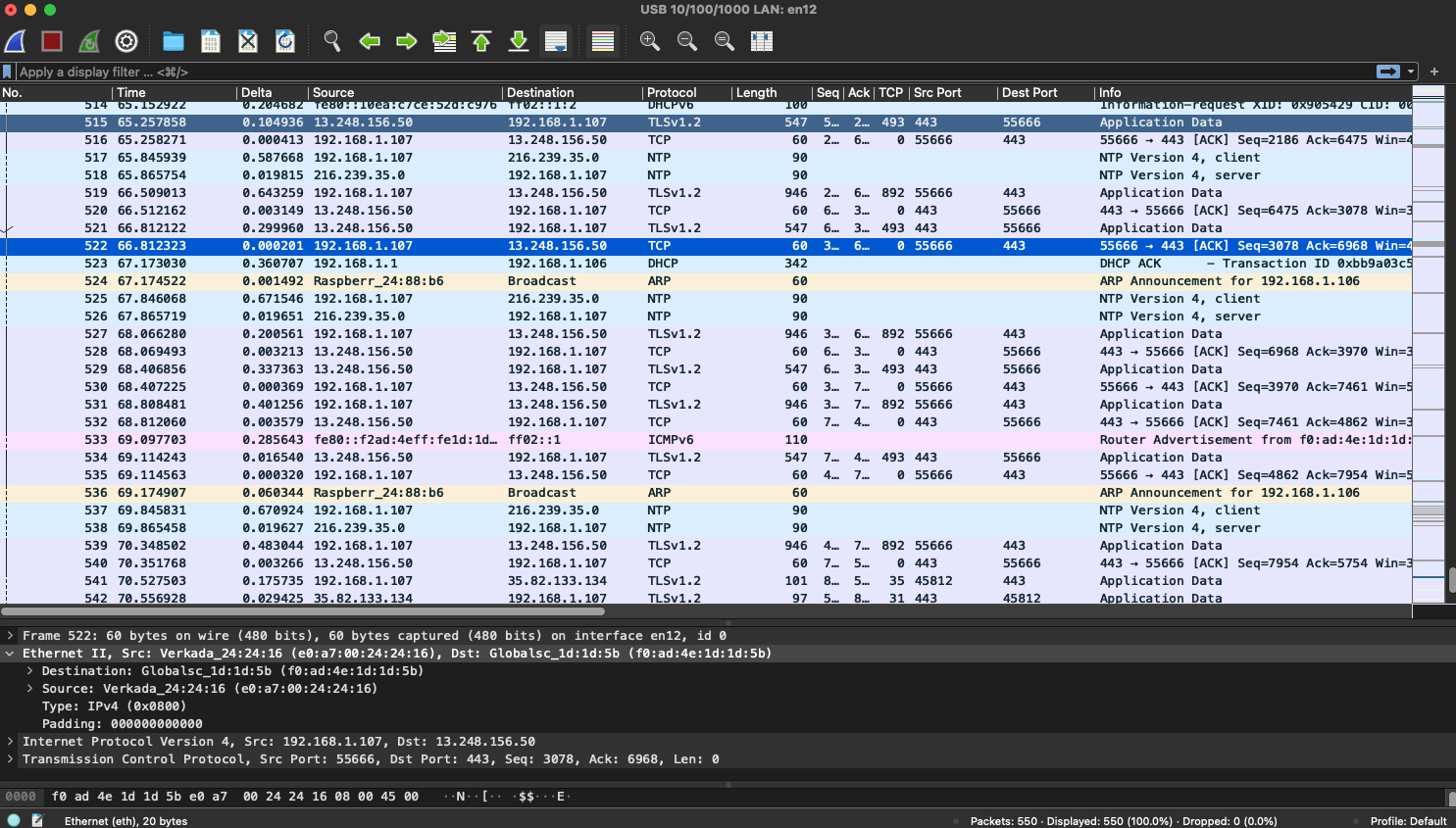
**In the search bar, type and select Sharing.**
{% endstep %}
{% step %}
**Select the info icon next to Internet Sharing.**
{% endstep %}
{% step %}
**Next to "Share your connection from," select the interface connected to the mobile hotspot, then select the interface connected to the PoE injector’s IN port.**
In this example, the device connects to the hotspot over Wi-Fi, and the PoE injector connects through a USB Ethernet adapter plugged into the Mac’s USB-C port. The connection is then shared from Wi-Fi to USB 10/100/1000 LAN. (Your configuration may vary depending on your setup.)
Click **Done** to continue.
{% endstep %}
{% step %}
**Back on the Sharing page, toggle on Internet Sharing. This will prompt you to start the sharing service. Click Turn on to start sharing.**
{% endstep %}
{% step %}
**Continue with** [**Packet captures - Wireshark**](#packet-captures-wireshark)**.**
{% endstep %}
{% endstepper %}
***
## Set up for Windows ⊞
{% stepper %}
{% step %}
**Press the Windows key ⊞ or click the search bar, type Control, and then select Control Panel.**
{% endstep %}
{% step %}
**Select Network and Internet.**
{% endstep %}
{% step %}
**Select Network and Sharing Center.**
{% endstep %}
{% step %}
**Select Change adapter settings.**
{% endstep %}
{% step %}
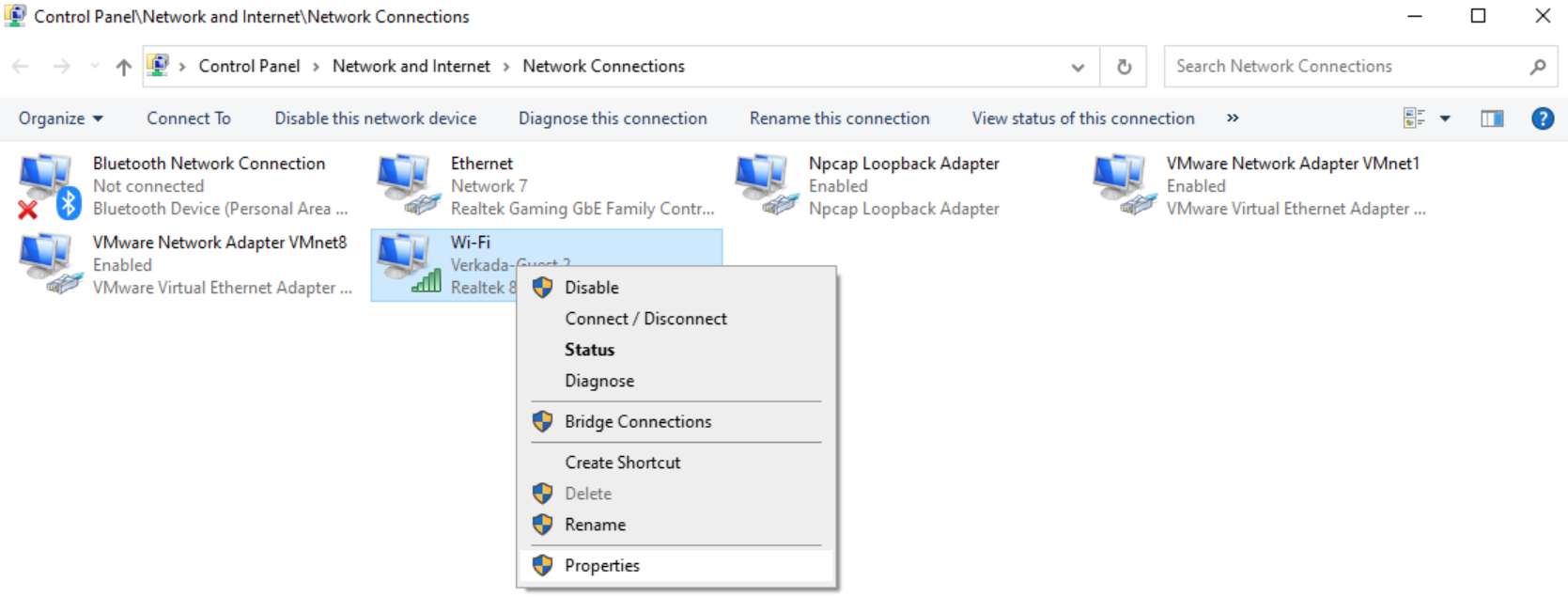
**Find the interface that is connected to the hotspot. Right-click it and select properties. In my setup, I have connected to my hotspot via WiFi.**
{% endstep %}
{% step %}
**Select the Sharing tab and check the box next to Allow other network users to connect.**
{% endstep %}
{% step %}
**Select the interface you wish to share the connection with. This will be the port of the PoE injector’s IN cable. In my case, it is Ethernet. Once the interface is selected, click OK to start sharing.**
{% endstep %}
{% step %}
**Continue with** [**Packet captures - Wireshark**](#packet-captures-wireshark)**.**
{% endstep %}
{% endstepper %}
***
## Packet Captures - Wireshark
Verkada Support’s tool of choice for getting packet captures is [Wireshark](https://www.wireshark.org/). Wireshark is an open-source packet capture/analyzer program. We will use it to create a .pcap file to send to the Verkada Support team.
{% stepper %}
{% step %}
**Download and install** [**Wireshark**](https://www.wireshark.org/)**.**
{% endstep %}
{% step %}
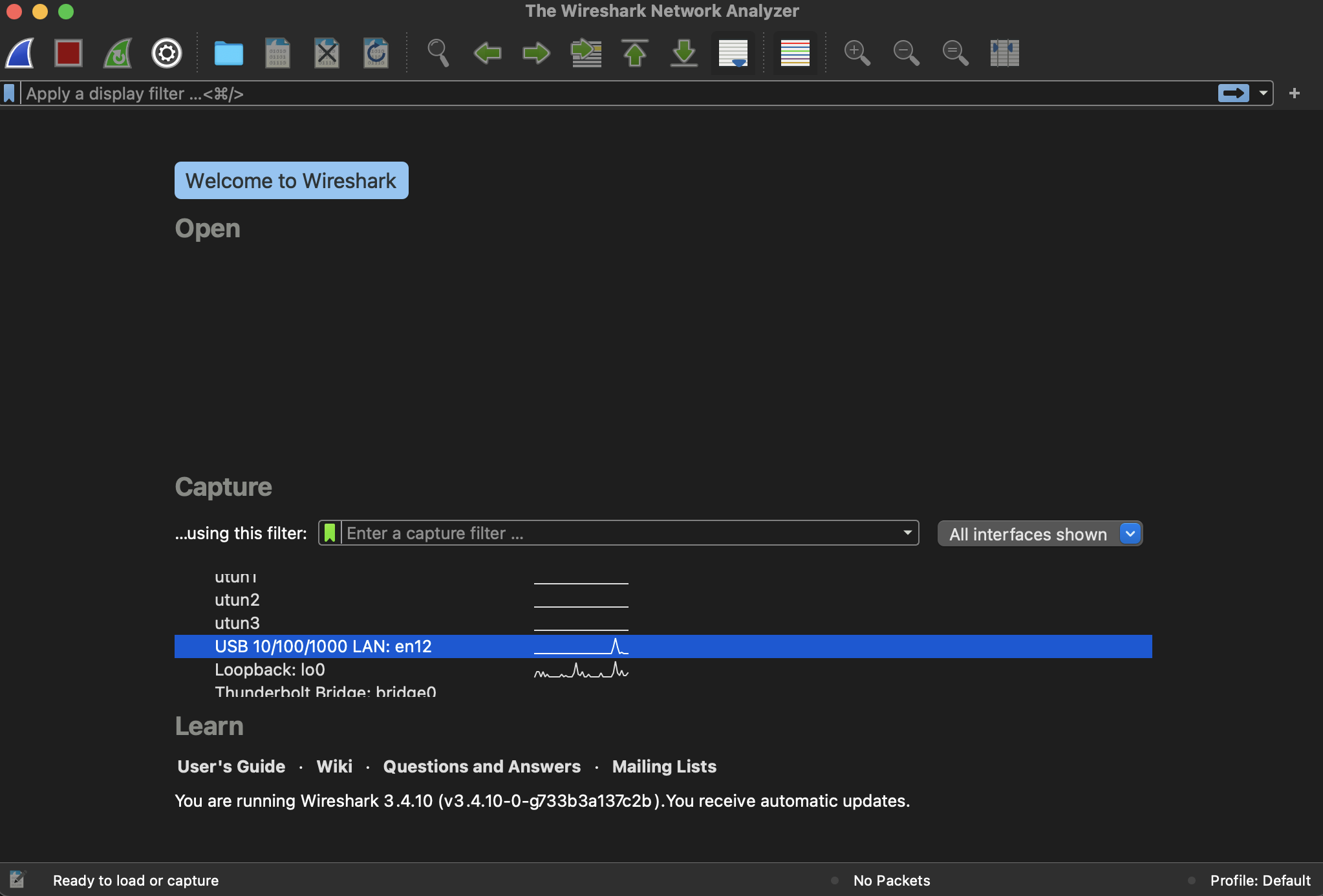
**Open Wireshark and select the interface that your PoE injector is connected to. In my setup, `USB 10/100/1000 LAN: en12` this is where my Poe injector’s IN cable is connected. This will allow us to capture and see the traffic passing to and from the camera.**
{% endstep %}
{% step %}
**In the top left, select the blue shark fin to start the packet capture.**
{% endstep %}
{% step %}
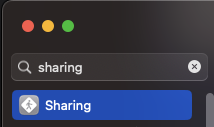
**Plug the camera into the OUT port of your PoE injector. Only *****after***** you start the packet capture plug in the camera. You will see the packets start to flow. (This could take a few moments as the camera needs to go through the boot process.)**
{% endstep %}
{% step %}
**Wait five minutes, or until the camera’s LED status light turns solid blue, then select the stop button (red square).**
{% endstep %}
{% step %}
**Save the file and share it with Verkada Support for assistance in troubleshooting.**
{% hint style="warning" %}
If your camera was not connecting on your core network but successfully connected to Command using your mobile setup, this tells us that the issue lies somewhere on the core network.
{% endhint %}
{% endstep %}
{% endstepper %}
---
# Agent Instructions
This documentation is published with GitBook. GitBook is the documentation platform designed so that both humans and AI agents can read, navigate, and reason over technical content effectively. Learn more at gitbook.com.
## Querying This Documentation
If you need additional information that is not directly available in this page, you can query the documentation by asking a question.
Perform an HTTP GET request on the following URL with the `ask` and `goal` query parameters:
```
GET https://help.verkada.com/verkada-cameras/maintenance-and-troubleshooting/troubleshooting/network-troubleshooting-internet-sharing.md?ask=&goal=
```
`ask` is the immediate question: it should be specific, self-contained, and written in natural language.
`goal` is what the user is ultimately trying to achieve, the reason they need the answer. Sharing it helps GitBook give you a better, more relevant answer. A goal is most helpful when it describes the outcome the user wants rather than restating the question. For example, with `ask=how do I create an API token`, a goal like `automate deployments from our CI pipeline` lets GitBook tailor the answer to that use case.
The response will contain a direct answer to the question and relevant excerpts and sources from the documentation.
Use this mechanism when the answer is not explicitly present in the current page, you need clarification or additional context, or you want to retrieve related documentation sections.
**in the top left of your computer screen.**
{% endstep %}
{% step %}
**Select System Settings.**
{% endstep %}
{% step %}
**In the search bar, type and select Sharing.**
{% endstep %}
{% step %}
**Select the info icon next to Internet Sharing.**
{% endstep %}
{% step %}
**Next to "Share your connection from," select the interface connected to the mobile hotspot, then select the interface connected to the PoE injector’s IN port.**
In this example, the device connects to the hotspot over Wi-Fi, and the PoE injector connects through a USB Ethernet adapter plugged into the Mac’s USB-C port. The connection is then shared from Wi-Fi to USB 10/100/1000 LAN. (Your configuration may vary depending on your setup.)
Click **Done** to continue.
{% endstep %}
{% step %}
**Back on the Sharing page, toggle on Internet Sharing. This will prompt you to start the sharing service. Click Turn on to start sharing.**
{% endstep %}
{% step %}
**Continue with** [**Packet captures - Wireshark**](#packet-captures-wireshark)**.**
{% endstep %}
{% endstepper %}
***
## Set up for Windows ⊞
{% stepper %}
{% step %}
**Press the Windows key ⊞ or click the search bar, type Control, and then select Control Panel.**
{% endstep %}
{% step %}
**Select Network and Internet.**
{% endstep %}
{% step %}
**Select Network and Sharing Center.**
{% endstep %}
{% step %}
**Select Change adapter settings.**
{% endstep %}
{% step %}
**Find the interface that is connected to the hotspot. Right-click it and select properties. In my setup, I have connected to my hotspot via WiFi.**
{% endstep %}
{% step %}
**Select the Sharing tab and check the box next to Allow other network users to connect.**
{% endstep %}
{% step %}
**Select the interface you wish to share the connection with. This will be the port of the PoE injector’s IN cable. In my case, it is Ethernet. Once the interface is selected, click OK to start sharing.**
{% endstep %}
{% step %}
**Continue with** [**Packet captures - Wireshark**](#packet-captures-wireshark)**.**
{% endstep %}
{% endstepper %}
***
## Packet Captures - Wireshark
Verkada Support’s tool of choice for getting packet captures is [Wireshark](https://www.wireshark.org/). Wireshark is an open-source packet capture/analyzer program. We will use it to create a .pcap file to send to the Verkada Support team.
{% stepper %}
{% step %}
**Download and install** [**Wireshark**](https://www.wireshark.org/)**.**
{% endstep %}
{% step %}
**Open Wireshark and select the interface that your PoE injector is connected to. In my setup, `USB 10/100/1000 LAN: en12` this is where my Poe injector’s IN cable is connected. This will allow us to capture and see the traffic passing to and from the camera.**
{% endstep %}
{% step %}
**In the top left, select the blue shark fin to start the packet capture.**
{% endstep %}
{% step %}
**Plug the camera into the OUT port of your PoE injector. Only *****after***** you start the packet capture plug in the camera. You will see the packets start to flow. (This could take a few moments as the camera needs to go through the boot process.)**
{% endstep %}
{% step %}
**Wait five minutes, or until the camera’s LED status light turns solid blue, then select the stop button (red square).**
{% endstep %}
{% step %}
**Save the file and share it with Verkada Support for assistance in troubleshooting.**
{% hint style="warning" %}
If your camera was not connecting on your core network but successfully connected to Command using your mobile setup, this tells us that the issue lies somewhere on the core network.
{% endhint %}
{% endstep %}
{% endstepper %}
---
# Agent Instructions
This documentation is published with GitBook. GitBook is the documentation platform designed so that both humans and AI agents can read, navigate, and reason over technical content effectively. Learn more at gitbook.com.
## Querying This Documentation
If you need additional information that is not directly available in this page, you can query the documentation by asking a question.
Perform an HTTP GET request on the following URL with the `ask` and `goal` query parameters:
```
GET https://help.verkada.com/verkada-cameras/maintenance-and-troubleshooting/troubleshooting/network-troubleshooting-internet-sharing.md?ask=&goal=
```
`ask` is the immediate question: it should be specific, self-contained, and written in natural language.
`goal` is what the user is ultimately trying to achieve, the reason they need the answer. Sharing it helps GitBook give you a better, more relevant answer. A goal is most helpful when it describes the outcome the user wants rather than restating the question. For example, with `ask=how do I create an API token`, a goal like `automate deployments from our CI pipeline` lets GitBook tailor the answer to that use case.
The response will contain a direct answer to the question and relevant excerpts and sources from the documentation.
Use this mechanism when the answer is not explicitly present in the current page, you need clarification or additional context, or you want to retrieve related documentation sections.


.avif?alt=media&token=4286be9f-5f17-4d39-9b9a-74c4c1831b81)