> For the complete documentation index, see [llms.txt](https://help.verkada.com/llms.txt). Markdown versions of documentation pages are available by appending `.md` to page URLs; this page is available as [Markdown](https://help.verkada.com/verkada-cameras/ja/she-ding/view-and-edit-camera-settings/ptz-user-priority.md).
# PTZユーザー優先度
ユーザー間でのPTZカメラ制御の競合をどのように解決するかを制御します
PTZ User Priority により、組織は PTZ(パン・チルト・ズーム)カメラの制御をめぐる競合の解決方法を管理できます。 [カスタムロール](/command/ja/yzto/roles-and-permissions-for-command/custom-roles.md) PTZ 制御では、1(最高)から 5(最低)までの優先度レベルを割り当てることができます。複数のユーザーが同じ PTZ カメラを操作しようとすると、そのレベルによって制御権を得る人が決まります。複数の人が同じ PTZ カメラを操作する必要があり、組織に、誰の制御を優先するかについて明確で予測可能なルールが必要な場合は、PTZ User Priority を使用してください。
{% hint style="warning" %}
優先度レベルは、カスタムロールでのみ設定できます。標準の Command ロールは、既定の優先度レベル 5 に設定されています。
{% endhint %}
***
## 仕組み
既定では、すべてのロール(標準の Command ロールを含む)の優先度レベルは 5 です。複数のユーザーが同じ優先度レベルを共有している場合、そのユーザー同士は互いに制御権を奪取できます。優先度レベルが異なる場合:
* 優先度が高い(番号が小さい)ユーザーが常に優先されます。
* 優先度が低いユーザーは、優先度が高いユーザーが制御を解除するまで待ってから引き継ぐ必要があります。
たとえば、セキュリティ運用チームに一般スタッフより高い優先度を与える場合です。
***
## 設定
{% hint style="danger" %}
カスタムロールのアクセスを管理するには、Org Admin 権限が必要です。
{% endhint %}
{% stepper %}
{% step %}
**Verkada Commandで、[すべての製品]>[管理者]に移動します。**
{% endstep %}
{% step %}
**管理者 > ユーザーと権限 で、ロールをクリックします。**
{% endstep %}
{% step %}
**右上の \[カスタムロールを作成] をクリックします。**
1. ロールの一意の名前を入力します。
2. (任意)権限をコピーする共通テンプレートを選択します。
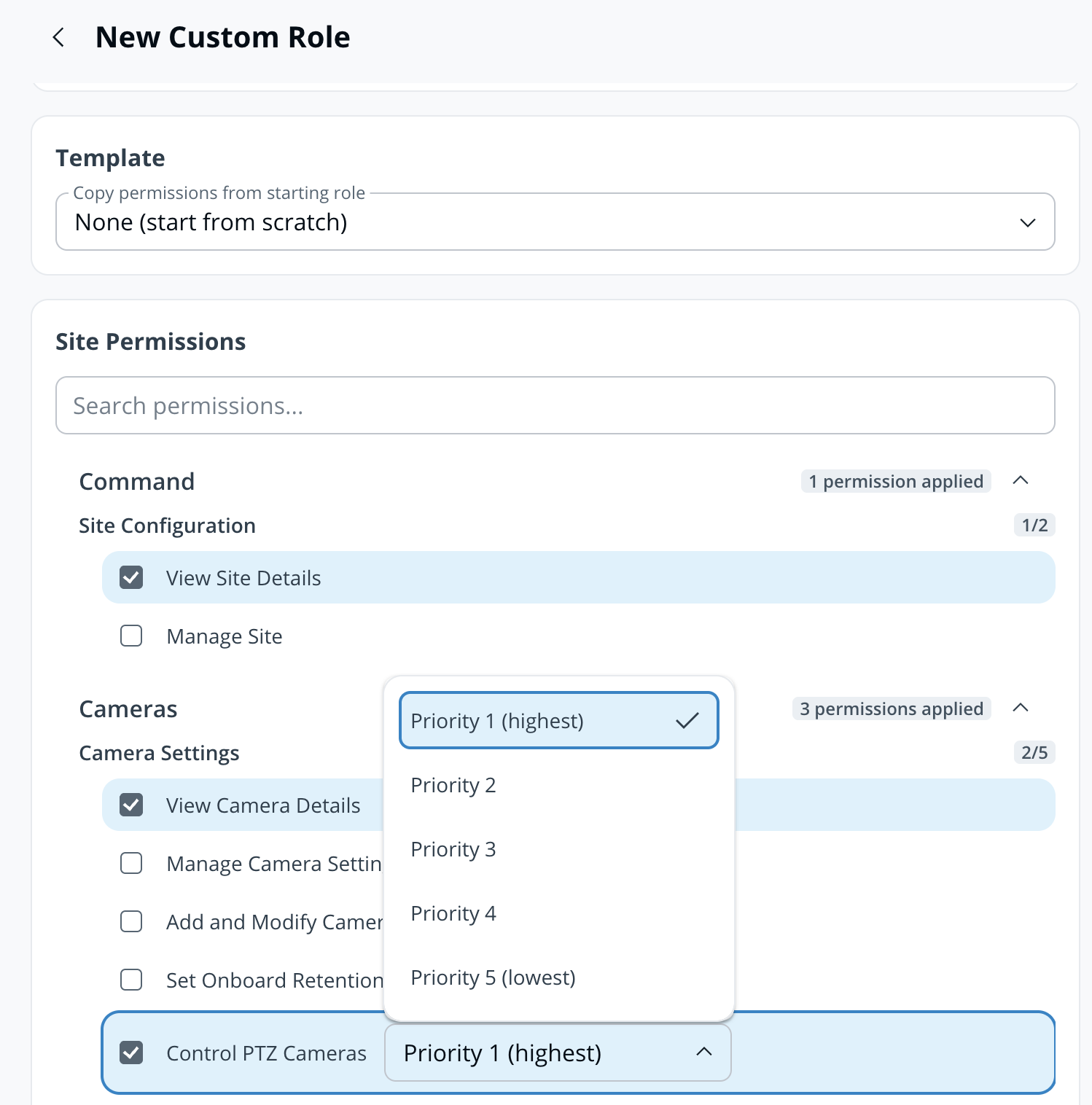
3. 次の項目の下で **サイト権限 > カメラ > カメラ設定、** 選択 **PTZ カメラを制御** を選択し、優先度レベル(1~5)を選びます。
4. 右上の **ロールを作成**.
{% endstep %}
{% step %}
**作成後、** [**カスタムロールを割り当て**](/command/ja/yzto/roles-and-permissions-for-command/custom-roles.md#assign-a-custom-role) **をユーザーまたはグループに。**
{% endstep %}
{% endstepper %}
***
## 優先度コントロールを使用
{% stepper %}
{% step %}
**Verkada Command で、\[All Products] > \[Cameras] に移動します。**
{% endstep %}
{% step %}
**PTZ カメラを選択します。**
{% endstep %}
{% step %}
**カメラフィードの中央にカーソルを合わせ、コントロールを使ってカメラフィードを動かします。**
ユーザーが制御している間、他の閲覧者には、カメラが使用中であることを示す緑のバッジがストリーミングする画面上に表示されます。
* より高い優先度のユーザーは、カメラを動かそうとすることでいつでも引き継ぐことができます。確認プロンプトが表示され、確認するとすぐに制御権が移り、以前のユーザーには画面上で通知されます。
* 制御を試みた優先度の低いユーザーはブロックされ、その理由はストリーミングする上のバッジで説明されます。
制御中のユーザーがカメラページを閉じるか 45 秒間操作しない場合、カメラはアイドル状態に戻り、他のユーザーが利用できるようになります。Sentry Mode が制御を奪われる前に有効だった場合は、その時点から再開します。
{% endstep %}
{% endstepper %}
***
## FAQ
標準の Command ロールはどの優先度レベルですか?
すべての標準ロールの既定の優先度レベルは 5 で、最も低いレベルです。
2 人のユーザーが同じ優先度レベルを共有している場合はどうなりますか?
同じ優先度レベルのユーザーは、いつでも互いに制御権を奪取できます。
ユーザーは自動的に制御権を失うことがありますか?
制御中のユーザーがカメラページを閉じるか 45 秒間操作しない場合、制御はアイドル状態に戻ります。制御を奪取される前に Sentry Mode が有効だった場合は、その時点から再開します。
---
# Agent Instructions
This documentation is published with GitBook. GitBook is the documentation platform designed so that both humans and AI agents can read, navigate, and reason over technical content effectively. Learn more at gitbook.com.
## Querying This Documentation
If you need additional information that is not directly available in this page, you can query the documentation by asking a question.
Perform an HTTP GET request on the following URL with the `ask` and `goal` query parameters:
```
GET https://help.verkada.com/verkada-cameras/ja/she-ding/view-and-edit-camera-settings/ptz-user-priority.md?ask=&goal=
```
`ask` is the immediate question: it should be specific, self-contained, and written in natural language.
`goal` is what the user is ultimately trying to achieve, the reason they need the answer. Sharing it helps GitBook give you a better, more relevant answer. A goal is most helpful when it describes the outcome the user wants rather than restating the question. For example, with `ask=how do I create an API token`, a goal like `automate deployments from our CI pipeline` lets GitBook tailor the answer to that use case.
The response will contain a direct answer to the question and relevant excerpts and sources from the documentation.
Use this mechanism when the answer is not explicitly present in the current page, you need clarification or additional context, or you want to retrieve related documentation sections.