> For the complete documentation index, see [llms.txt](https://help.verkada.com/llms.txt). Markdown versions of documentation pages are available by appending `.md` to page URLs; this page is available as [Markdown](https://help.verkada.com/verkada-cameras/ja/she-ding/view-and-edit-camera-settings/change-the-location-of-a-camera.md).
# カメラの場所を変更する
カメラの地理的位置を設定する
カメラの位置によって、地図上での位置とその [タイムゾーン](/verkada-cameras/ja/she-ding/view-and-edit-camera-settings/update-time-zone-for-a-camera.md).
{% hint style="danger" %}
カメラの位置を変更すると **削除されます** 現在のどのフロアプランからも
{% endhint %}
{% hint style="warning" %}
カメラの位置を特定の管轄区域に変更すると、性別検索、顔検出、登録人物など、カメラの人物分析機能が制限される場合があります。参照: [人物検出のコンプライアンスと利用可否](https://www.verkada.com/cameras-availability/) 詳細情報は
{% endhint %}
***
## カメラの位置を変更
### 設定ページ
{% stepper %}
{% step %}
**Verkada Commandで、[All Products]>[Cameras]に移動します。**
{% endstep %}
{% step %}
**更新するカメラを選択します。**
{% endstep %}
{% step %}
**右下で、[設定]をクリックします。**
{% endstep %}
{% step %}
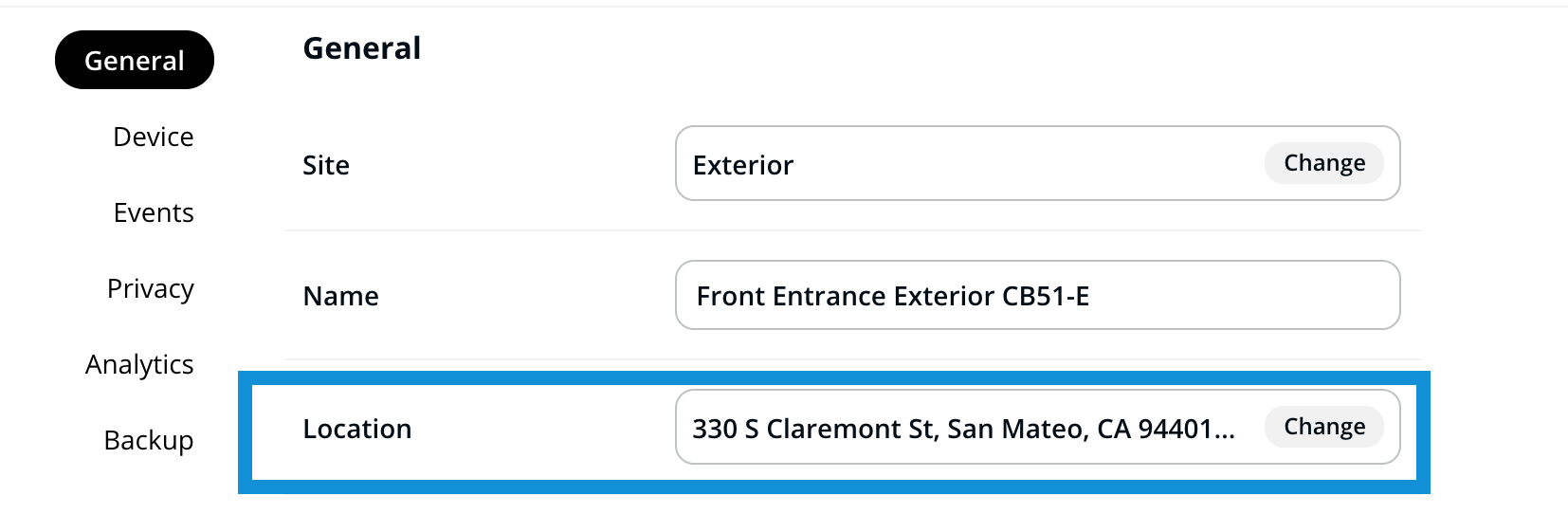
**[一般]>[位置]で、[変更]をクリックします。**
{% endstep %}
{% step %}
**新しい住所を入力し、[保存]をクリックします。**
{% endstep %}
{% endstepper %}
### デバイスページ
{% stepper %}
{% step %}
**Verkada Command で、すべての製品 > デバイス に移動します。**
{% endstep %}
{% step %}
**更新するカメラを選択します。**
{% endstep %}
{% step %}
**カメラの詳細の右側で、[位置]フィールドを選択します。**
{% endstep %}
{% step %}
**新しい住所を入力し、[保存]をクリックします。**
{% endstep %}
{% endstepper %}
### デバイスページからカメラの位置を一括変更する
{% stepper %}
{% step %}
**Verkada Command で、すべての製品 > デバイス に移動します。**
{% endstep %}
{% step %}
**位置を更新したいカメラの横にあるチェックボックスをオンにします。**
{% endstep %}
{% step %}
**上部で、[設定を編集]をクリックします。**
{% endstep %}
{% step %}
**[一般]>[位置]で、[変更]をクリックします。**
{% endstep %}
{% step %}
**新しい住所を入力し、[保存]をクリックします。**
{% endstep %}
{% endstepper %}
---
# Agent Instructions
This documentation is published with GitBook. GitBook is the documentation platform designed so that both humans and AI agents can read, navigate, and reason over technical content effectively. Learn more at gitbook.com.
## Querying This Documentation
If you need additional information that is not directly available in this page, you can query the documentation by asking a question.
Perform an HTTP GET request on the following URL with the `ask` and `goal` query parameters:
```
GET https://help.verkada.com/verkada-cameras/ja/she-ding/view-and-edit-camera-settings/change-the-location-of-a-camera.md?ask=&goal=
```
`ask` is the immediate question: it should be specific, self-contained, and written in natural language.
`goal` is what the user is ultimately trying to achieve, the reason they need the answer. Sharing it helps GitBook give you a better, more relevant answer. A goal is most helpful when it describes the outcome the user wants rather than restating the question. For example, with `ask=how do I create an API token`, a goal like `automate deployments from our CI pipeline` lets GitBook tailor the answer to that use case.
The response will contain a direct answer to the question and relevant excerpts and sources from the documentation.
Use this mechanism when the answer is not explicitly present in the current page, you need clarification or additional context, or you want to retrieve related documentation sections.