> For the complete documentation index, see [llms.txt](https://help.verkada.com/llms.txt). Markdown versions of documentation pages are available by appending `.md` to page URLs; this page is available as [Markdown](https://help.verkada.com/verkada-cameras/ja/fen-xi/create-camera-event-alerts/doanoarto.md).
# ドアの障害物アラート
Verkada のドア遮蔽検知機能は、カメラベースのビジョン分析を使用して、指定された出入口をふさいでいる物理的な物体を識別します。これにより、施設管理者は人通りの多い出入口を事前にモニターし、安全基準への準拠を維持し、緊急避難経路が完全に確保されていることを保証できます。
従来のアクセスコントロールのアラートとは異なり、ドア遮蔽検知は、電子ドアセンサーやアクセスコントローラーとは独立して動作するカメラベースのビジュアル分析機能です。
***
### 要件
* **カメラの互換性:** この機能はすべての Verkada カメラモデルと互換性があります。モデル固有のハードウェア制限はありません。
* **直接の視界:** カメラは、出入口またはドア枠を遮るもののない状態で見渡せる必要があります。基盤となるコンピュータービジョンモデルは、障害物を評価するためにドアの物理的な境界を検出することに依存しています。
* **カメラの設置位置:** 急角度や斜めの側面角度ではなく、カメラを出入口に正面から向けてください。
* **カメラの映像:** ドア遮蔽アラートは、カメラがドアをはっきりと映している場合に最も効果的です。アトリウム、廊下、または同様のエリアを広く映すカメラの使用は推奨しません。以下の例では、ドア遮蔽に適したカメラ映像を示しています:
| | |
| ------------------------------------------------------------------------------------------------------------------------------------------------------------------------------------------------------------------- | ------------------------------------------------------------------------------------------------------------------------------------------------------------------------------------------------------------------- |
|  |  |
***
### 仕組み
* **物体検知:** システムは、出入口をふさいでいる梱包箱、配達用カート、家具、ゴミ箱などの物理的な物体を検出します。
* **人物フィルタリング:** コンピュータービジョンモデルは、特定のエリアで滞留している人を除外して、誤アラートを減らします。
* **確認期間:** カメラが潜在的な障害物を検出すると、システムはそのイベントにモーションサムネイルを付けてフラグを立て、5分後に再確認を予定します。システムは少なくとも60分ごとに1回、障害物の有無を確認します。
* **アラートのトリガー:** 5分後の再確認でシステムが障害物を検出した場合、アラートをトリガーし、指定した受信者に通知を送信します。
{% hint style="warning" %}
このアラートはカメラベースの検知を使用するため、アクセスコントロールのダッシュボードには、Door Held Open や Door Forced Open などのドアイベントとしては表示されません。
{% endhint %}
***
## ドア遮蔽アラートの設定
{% hint style="danger" %}
Org Admin または [Site Admin 権限](/command/ja/yzto/roles-and-permissions-for-command.md) カメラが設置されているサイトでドア遮蔽アラートを設定するには。
{% endhint %}
### アラートの作成 > カメラ
{% stepper %}
{% step %}
**Command のホームページの左ナビゲーションで、アラートをクリックします。**
{% endstep %}
{% step %}
**左上の \[新しいアラート] をクリックします。**
{% endstep %}
{% step %}
**[イベントの選択]で、カメラ > ドアブロックを選択します。**
{% endstep %}
{% step %}
**[カメラ]で:**
1. アラートの受信元として次を選択します **サイト** または **個別のカメラ**.
2. クリック **完了** して続行します。
{% endstep %}
{% endstepper %}
### アラートの作成 > 通知スケジュール
{% stepper %}
{% step %}
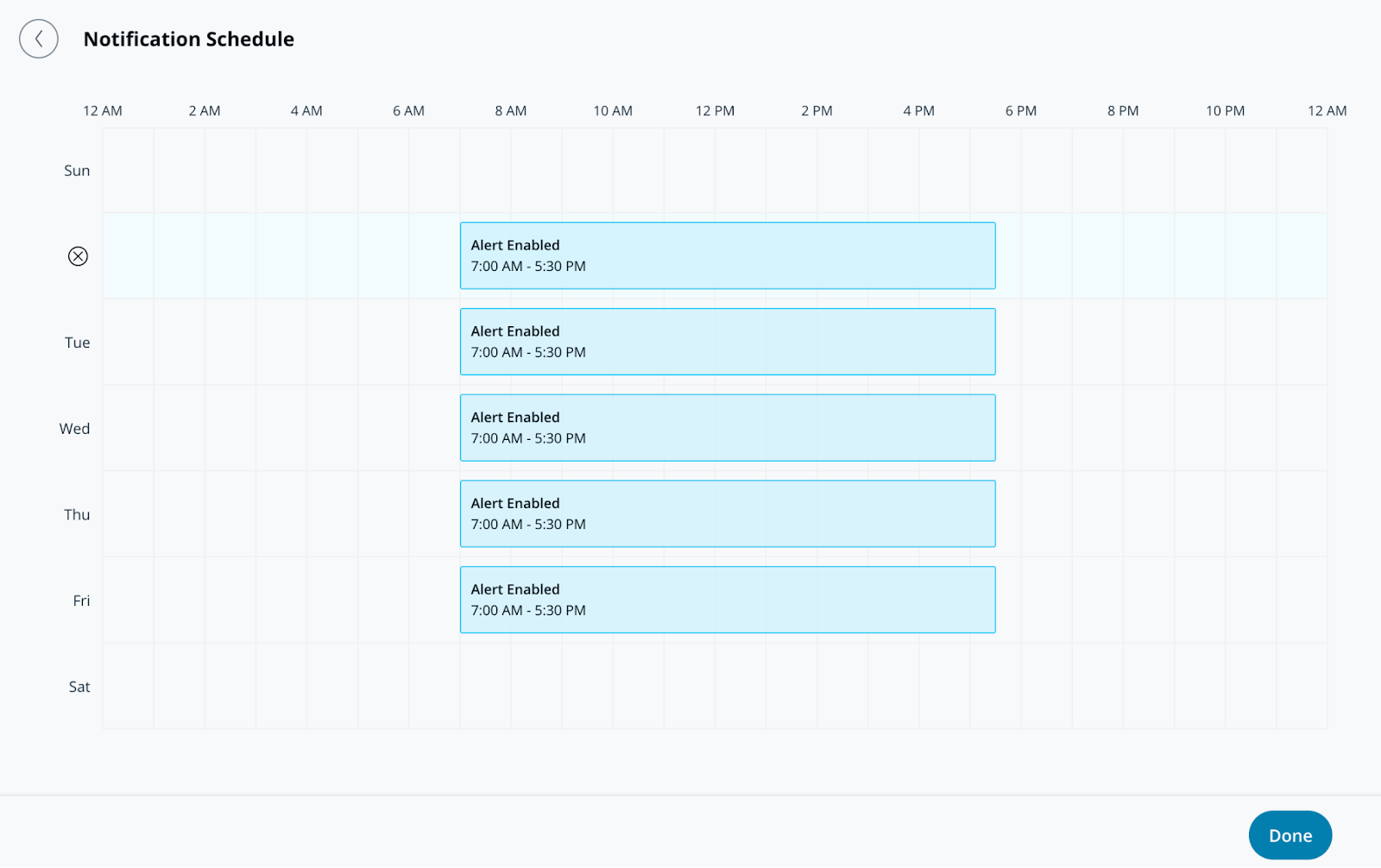
**通知スケジュールでは、アラートが通知を送信する曜日と時刻を指定します。アラートは既定で24時間365日送信されます。**
{% endstep %}
{% step %}
**「完了」をクリックして、アラートの設定を続行します** [**通知**](#create-alert-greater-than-notification)**.**
{% endstep %}
{% endstepper %}
### アラートの作成 > 通知
{% stepper %}
{% step %}
**通知では、ユーザーを個別に追加するか、アラートをグループに割り当てます。**
{% endstep %}
{% step %}
**ユーザーまたはグループの横にあるドロップダウンメニューを選択して、通知方法を選びます。受信者には、プッシュ通知、SMS、メッセージングプラットフォームのアラート、またはメール通知で通知できます。**
{% hint style="info" %}
このアラートに追加された受信者には、以下の **共有アラート** 各自の **アラート** ページ。
{% endhint %}
{% endstep %}
{% step %}
**(オプション)既定では、あなたはアラートの受信者になります。ドロップダウンメニューを選択し、「削除」をクリックして自分を削除します。**
{% endstep %}
{% step %}
**「完了」をクリックして、アラートの** [**オプション設定**](#optional-settings)**、または** [**アラートを完了します**](#finish-the-alert)**.**
{% endstep %}
{% endstepper %}
### オプション設定
#### アラートの作成 > 運用
{% stepper %}
{% step %}
**アラートからチケットを作成するには、[運用へルーティング]をオンにします。**
{% endstep %}
{% step %}
**(オプション)[チケットの手順]を選択してチケットに情報を追加し、「完了」をクリックします。**
{% endstep %}
{% step %}
**「完了」をクリックして次へ進みます** [**アラートを完了します**](#finish-the-alert)**.**
{% endstep %}
{% endstepper %}
#### アラートの作成 > デバイスアクション
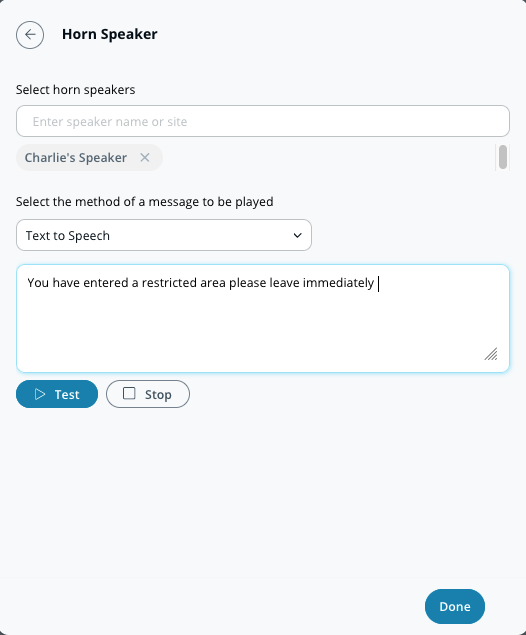
個人への通知に加えて、アラートがトリガーされたときにホーンスピーカーを再生するよう設定できます。これらのアラートは、テキスト読み上げまたはアップロードしたMP3ファイルを使用できます。
{% stepper %}
{% step %}
**デバイスアクションでは、メッセージを再生したいホーンスピーカーを選択します。**
{% endstep %}
{% step %}
**通知の設定を選択します(テキスト読み上げまたは音声ファイル)。**
a. **テキスト読み上げ、** 200文字以内のメッセージを入力します。\
b. **音声ファイル、** ファイルをドラッグ&ドロップするか、 **ファイルを選択** して音声クリップをアップロードします。
{% endstep %}
{% step %}
**「完了」をクリックして次へ進みます** [**アラートを完了します**](#finish-the-alert)**.**
{% endstep %}
{% endstepper %}
### アラートを完了する
{% stepper %}
{% step %}
**構成ウィンドウの右下で、「次へ」をクリックします。**
{% endstep %}
{% step %}
**アラートの説明的な名前を入力します。**
{% endstep %}
{% step %}
**設定を完了するには、「完了」をクリックします。**
{% endstep %}
{% endstepper %}
---
# Agent Instructions
This documentation is published with GitBook. GitBook is the documentation platform designed so that both humans and AI agents can read, navigate, and reason over technical content effectively. Learn more at gitbook.com.
## Querying This Documentation
If you need additional information that is not directly available in this page, you can query the documentation by asking a question.
Perform an HTTP GET request on the following URL with the `ask` and `goal` query parameters:
```
GET https://help.verkada.com/verkada-cameras/ja/fen-xi/create-camera-event-alerts/doanoarto.md?ask=&goal=
```
`ask` is the immediate question: it should be specific, self-contained, and written in natural language.
`goal` is what the user is ultimately trying to achieve, the reason they need the answer. Sharing it helps GitBook give you a better, more relevant answer. A goal is most helpful when it describes the outcome the user wants rather than restating the question. For example, with `ask=how do I create an API token`, a goal like `automate deployments from our CI pipeline` lets GitBook tailor the answer to that use case.
The response will contain a direct answer to the question and relevant excerpts and sources from the documentation.
Use this mechanism when the answer is not explicitly present in the current page, you need clarification or additional context, or you want to retrieve related documentation sections.