> For the complete documentation index, see [llms.txt](https://help.verkada.com/llms.txt). Markdown versions of documentation pages are available by appending `.md` to page URLs; this page is available as [Markdown](https://help.verkada.com/verkada-cameras/ja/bideonosutorminguto/view-historical-footage/use-the-timelapse-feature.md).
# ビデオのタイムラプス
Verkada Command の組み込みタイムラプス機能の使い方を学ぶ
[Verkada Command](/command/ja/hajimeni/get-started-with-verkada-command.md) 24時間にわたるサムネイルをつなぎ合わせ、全体の時間をタイムラプスとして表示できます。共有用にMP4ファイルとしてダウンロードできます。
{% hint style="warning" %}
タイムラプスは過去30日間の映像でのみ利用できます。
{% endhint %}
***
## タイムラプスを有効にする
{% hint style="danger" %}
使用する前にタイムラプス機能を有効にする必要があります。有効化した時点までさかのぼって生成することはできません。
{% endhint %}
{% stepper %}
{% step %}
**Verkada Command で、\[All Products] > \[Cameras] に移動します。**
{% endstep %}
{% step %}
**カメラを選択します。**
{% endstep %}
{% step %}
**カメラフィードの右側で、設定アイコンをクリックします。**
{% endstep %}
{% step %}
**左側で、デバイスを選択します。**
{% endstep %}
{% step %}
**タイムラプスをオンにします。**
{% endstep %}
{% endstepper %}
***
## タイムラプスを使用する
{% hint style="warning" %}
タイムラプス機能は24時間単位でのみ利用でき、映像が24時間未満の場合は利用できません。
{% endhint %}
{% stepper %}
{% step %}
**Verkada Command で、\[All Products] > \[Cameras] に移動します。**
{% endstep %}
{% step %}
**カメラを選択します。**
{% endstep %}
{% step %}
**カメラフィードの下で、履歴アイコンをクリックします。**
{% endstep %}
{% step %}
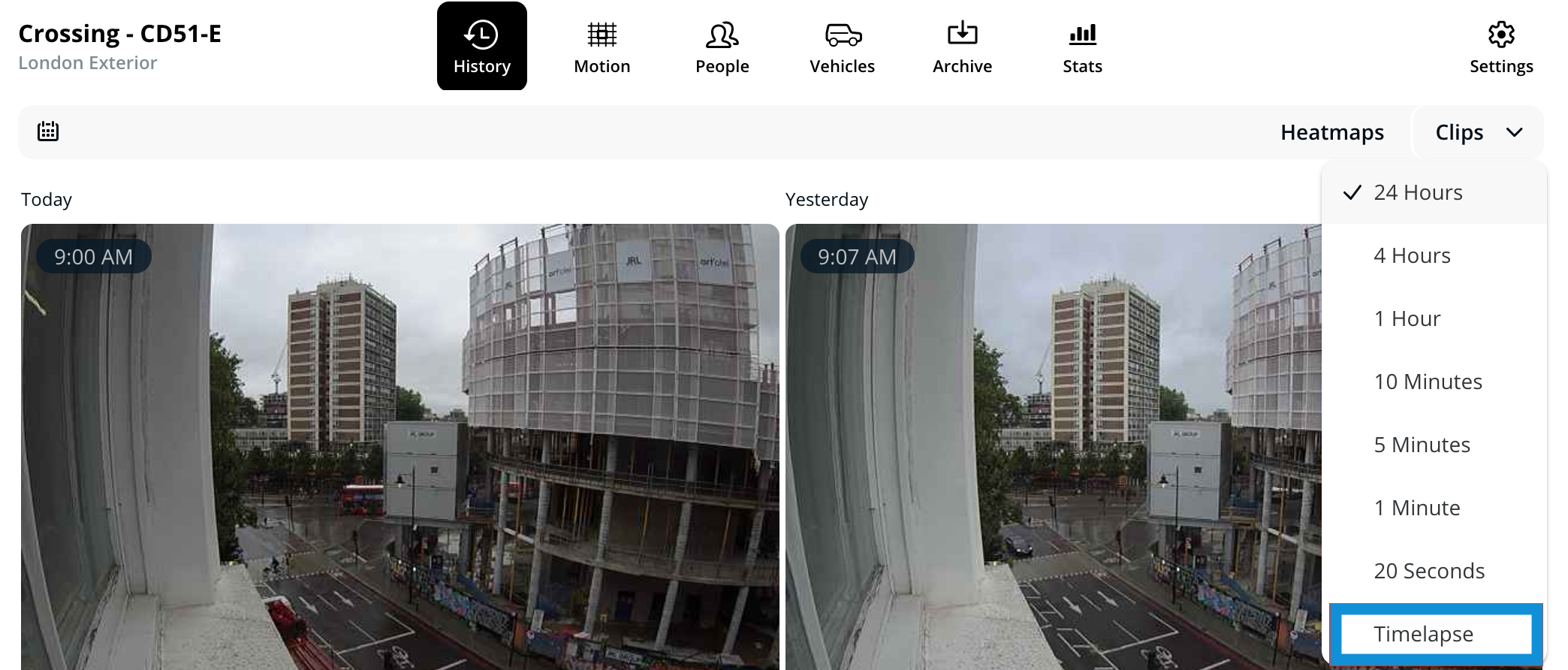
**右側で、クリップのドロップダウンをクリックし、タイムラプスを選択します。**
1. モーションバー上にカーソルを移動して、タイムラプスをスクロールします。
2. サムネイルをクリックしてタイムラプスを再生します。
{% endstep %}
{% step %}
**(オプション)タイムラプスの再生中に、ダウンロードアイコンをクリックしてMP4ファイルとして保存します。**
{% endstep %}
{% endstepper %}

---
# Agent Instructions
This documentation is published with GitBook. GitBook is the documentation platform designed so that both humans and AI agents can read, navigate, and reason over technical content effectively. Learn more at gitbook.com.
## Querying This Documentation
If you need additional information that is not directly available in this page, you can query the documentation dynamically by asking a question.
Perform an HTTP GET request on the current page URL with the `ask` query parameter, and the optional `goal` query parameter:
```
GET https://help.verkada.com/verkada-cameras/ja/bideonosutorminguto/view-historical-footage/use-the-timelapse-feature.md?ask=&goal=
```
`ask` is the immediate question: it should be specific, self-contained, and written in natural language.
`goal` is optional and describes the broader end goal you are ultimately trying to accomplish on behalf of the user. GitBook uses it to tailor the answer towards what is most useful for that goal.
The response will contain a direct answer to the question and relevant excerpts and sources from the documentation.
Use this mechanism when the answer is not explicitly present in the current page, you need clarification or additional context, or you want to retrieve related documentation sections.