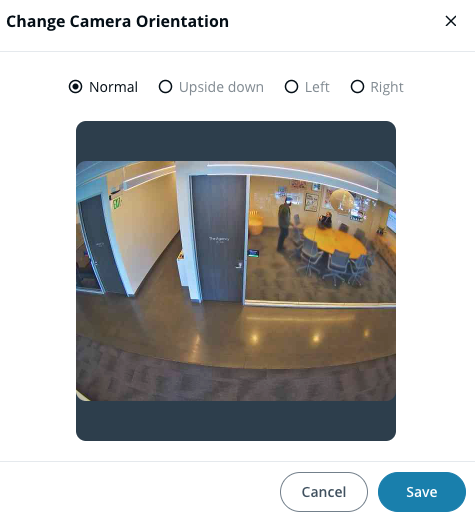
> For the complete documentation index, see [llms.txt](https://help.verkada.com/llms.txt). Markdown versions of documentation pages are available by appending `.md` to page URLs; this page is available as [Markdown](https://help.verkada.com/verkada-cameras/fr/configuration/view-and-edit-camera-settings/change-a-cameras-orientation.md).
# Modifier l’orientation d’une caméra
Faire pivoter la vue d’une caméra pour un positionnement optimal
Parfois, les caméras peuvent obtenir un meilleur champ de vision lorsqu’elles sont installées dans une orientation non standard. Par exemple, monter une caméra à un angle de 90° peut offrir une couverture complète d’un long couloir ou d’une cage d’escalier. Vous devez modifier l’orientation de la caméra dans Command si elle est installée dans une orientation non standard.
{% hint style="info" %}
Installez les caméras avec le voyant LED d’état orienté vers le sol pour que le flux en direct apparaisse comme prévu en orientation normale.
{% endhint %}
***
## Configuration
{% stepper %}
{% step %}
**Dans Verkada Command, accédez à Tous les produits > Caméras.**
{% endstep %}
{% step %}
**Sélectionnez la caméra que vous souhaitez configurer.**
{% endstep %}
{% step %}
**En bas à droite, cliquez sur Paramètres.**
{% endstep %}
{% step %}
**Sous Appareil > Orientation, cliquez sur** :pencil-line:**.**
a. Sélectionnez un mode d’orientation.\
b. Cliquez sur **Enregistrer** pour confirmer les modifications.
{% endstep %}
{% endstepper %}
{% hint style="warning" %}
[Fisheye](https://www.verkada.com/security-cameras/fisheye/) prend en charge 3 modes d’affichage supplémentaires : Panoramique, Quadripartition et Panoramique-Inclinaison-Zoom. Voir [Modifier les modes d’affichage Fisheye](/verkada-cameras/fr/configuration/view-and-edit-camera-settings/change-fisheye-view-modes.md) pour plus d’informations.
{% endhint %}
---
# Agent Instructions
This documentation is published with GitBook. GitBook is the documentation platform designed so that both humans and AI agents can read, navigate, and reason over technical content effectively. Learn more at gitbook.com.
## Querying This Documentation
If you need additional information that is not directly available in this page, you can query the documentation by asking a question.
Perform an HTTP GET request on the following URL with the `ask` and `goal` query parameters:
```
GET https://help.verkada.com/verkada-cameras/fr/configuration/view-and-edit-camera-settings/change-a-cameras-orientation.md?ask=&goal=
```
`ask` is the immediate question: it should be specific, self-contained, and written in natural language.
`goal` is what the user is ultimately trying to achieve, the reason they need the answer. Sharing it helps GitBook give you a better, more relevant answer. A goal is most helpful when it describes the outcome the user wants rather than restating the question. For example, with `ask=how do I create an API token`, a goal like `automate deployments from our CI pipeline` lets GitBook tailor the answer to that use case.
The response will contain a direct answer to the question and relevant excerpts and sources from the documentation.
Use this mechanism when the answer is not explicitly present in the current page, you need clarification or additional context, or you want to retrieve related documentation sections.