> For the complete documentation index, see [llms.txt](https://help.verkada.com/llms.txt). Markdown versions of documentation pages are available by appending `.md` to page URLs; this page is available as [Markdown](https://help.verkada.com/verkada-cameras/es/configuracion/view-and-edit-camera-settings/schedule-camera-firmware-updates.md).
# Programar actualizaciones de firmware de la cámara
Configura cuándo tus cámaras realizarán actualizaciones de firmware
Verkada publica actualizaciones periódicas del firmware de las cámaras. Estas actualizaciones mejoran la seguridad y la funcionalidad, y se incluyen sin costo adicional como parte de su licencia en la nube.
Las actualizaciones de firmware se envían automáticamente. Sin embargo, puede programar que las actualizaciones de firmware se realicen durante una ventana configurada.
## Programar actualizaciones de firmware
{% stepper %}
{% step %}
**En Verkada Command, ve a Todos los productos > Cámaras.**
{% endstep %}
{% step %}
**Seleccione la cámara que desea programar.**
{% endstep %}
{% step %}
**En la parte inferior derecha, haga clic en Configuración.**
{% endstep %}
{% step %}
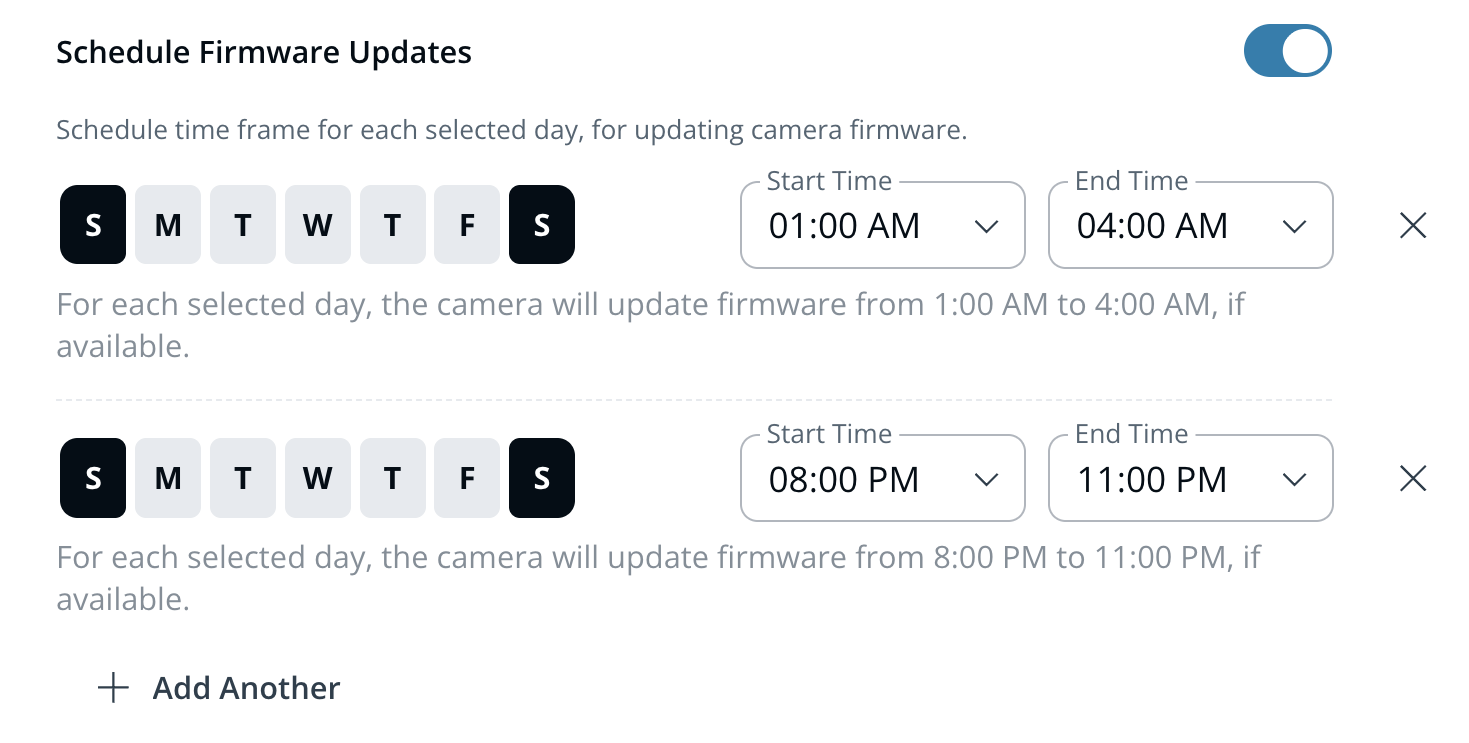
**En General, active Programar actualizaciones de firmware.**
{% endstep %}
{% step %}
**Establezca la ventana en la que se realizarán las actualizaciones.**
{% endstep %}
{% endstepper %}
{% hint style="danger" %}
La ventana de actualización debe tener una duración mínima de 2 horas. Las cámaras pueden reiniciarse durante este tiempo.
{% endhint %}
***
## Actualizaciones de firmware y versiones
### Actualizar ahora
Si hay una nueva actualización disponible, **Actualizar ahora** aparecerá debajo de su versión de firmware. Haga clic en **Actualizar ahora** para iniciar la actualización. El proceso puede tardar hasta 20 minutos en iniciarse y completarse.
### Versionado del firmware
La versión del firmware de la cámara aparece en la página de configuración de la cámara, en **Firmware**.
Las notas de la versión del firmware correspondiente están disponibles en [la página de actualizaciones de Verkada](https://www.verkada.com/updates/?category=release-notes\&page=1), a partir de C.29.0.6.
### Conmutación por error automática
Cada cámara Verkada tiene un banco de firmware de doble partición para garantizar actualizaciones fiables. En el raro caso de que falle una actualización de firmware, el dispositivo vuelve automáticamente a la versión anterior y vuelve a intentar la actualización más tarde.
### ¿Mi cámara deja de grabar durante las actualizaciones de firmware?
Priorizamos actualizaciones de firmware a prueba de fallos para minimizar las interrupciones del servicio. Aunque su cámara puede quedar fuera de línea brevemente durante la etapa final del proceso de actualización, estas actualizaciones se programan durante ventanas de mantenimiento regulares para garantizar una interrupción mínima.
---
# Agent Instructions
This documentation is published with GitBook. GitBook is the documentation platform designed so that both humans and AI agents can read, navigate, and reason over technical content effectively. Learn more at gitbook.com.
## Querying This Documentation
If you need additional information that is not directly available in this page, you can query the documentation by asking a question.
Perform an HTTP GET request on the following URL with the `ask` and `goal` query parameters:
```
GET https://help.verkada.com/verkada-cameras/es/configuracion/view-and-edit-camera-settings/schedule-camera-firmware-updates.md?ask=&goal=
```
`ask` is the immediate question: it should be specific, self-contained, and written in natural language.
`goal` is what the user is ultimately trying to achieve, the reason they need the answer. Sharing it helps GitBook give you a better, more relevant answer. A goal is most helpful when it describes the outcome the user wants rather than restating the question. For example, with `ask=how do I create an API token`, a goal like `automate deployments from our CI pipeline` lets GitBook tailor the answer to that use case.
The response will contain a direct answer to the question and relevant excerpts and sources from the documentation.
Use this mechanism when the answer is not explicitly present in the current page, you need clarification or additional context, or you want to retrieve related documentation sections.