> For the complete documentation index, see [llms.txt](https://help.verkada.com/llms.txt). Markdown versions of documentation pages are available by appending `.md` to page URLs; this page is available as [Markdown](https://help.verkada.com/verkada-cameras/de/wartung-und-fehlerbehebung/verkada-dome-camera-maintenance.md).
# Wartung der Verkada-Dome-Kamera
Erfahren Sie, wie Sie Ihre Verkada-Dome-Kamera pflegen
Es kann vorkommen, dass die Bildqualität Ihrer Kamera durch Staub, Schmutz, Fingerabdrücke, Feuchtigkeit, Kondensation usw. beeinträchtigt wird. Eine gelegentliche Wartung wird empfohlen, damit Ihre Kameras ordnungsgemäß funktionieren.
***
## Häufige Probleme und deren Behebung
### Interne Reflexion
**Ursache**
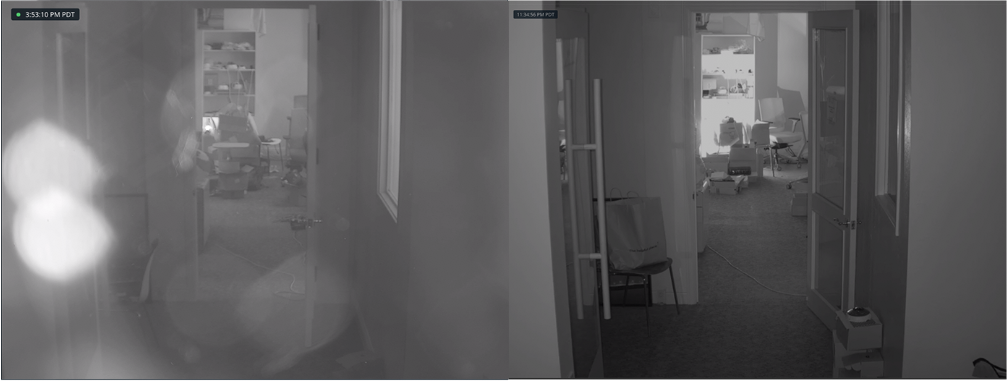
Wenn das Kameragehäuse nicht ordnungsgemäß am Kamerakörper befestigt ist, wird die Infrarot-(IR-)Blendung von der Kuppel in das Objektiv und zurück auf die Kuppel reflektiert.
**Lösung**
Befestigen Sie das Kameragehäuse wieder am Kamerakörper und ziehen Sie die Torx-Schrauben vollständig fest.
Das Bild links zeigt kreisförmige Bilder, die durch Reflexion verursacht werden. Das Bild rechts zeigt das Bild, nachdem das Kameragehäuse ordnungsgemäß angebracht wurde.
### Äußere Verdeckung
**Ursache**
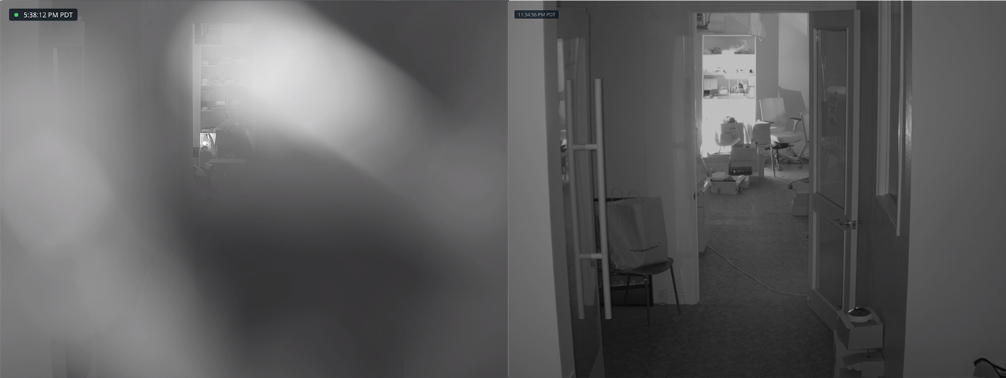
Wenn die Schutzfolie nach der Installation nicht entfernt wird, verursacht dies eine IR-Blendung.
**Lösung**
Entfernen Sie die Schutzfolie von der Kuppel. Die Kamera muss nach dem Entfernen der Folie möglicherweise neu fokussiert werden.
Das Bild links zeigt, wie die Schutzfolie das Bild unscharf und nicht fokussiert mit einem einzigartigen Mosaikmustereffekt erscheinen lässt. Das Bild rechts zeigt das Bild, nachdem die Schutzfolie entfernt wurde.
### Staub, Schmutz oder Fingerabdrücke auf der Kuppel
**Ursache**
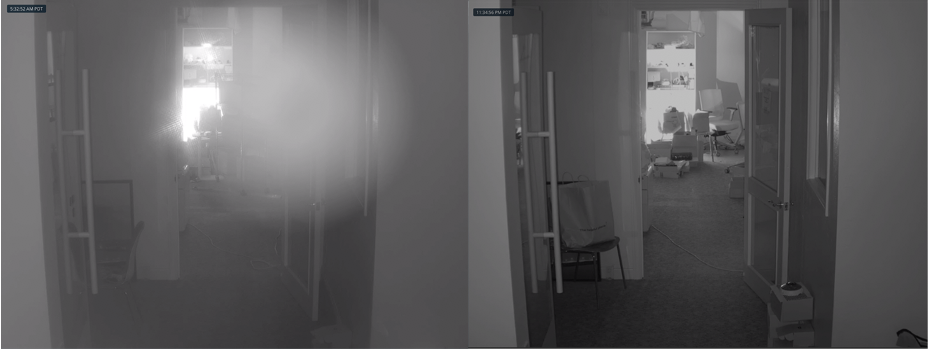
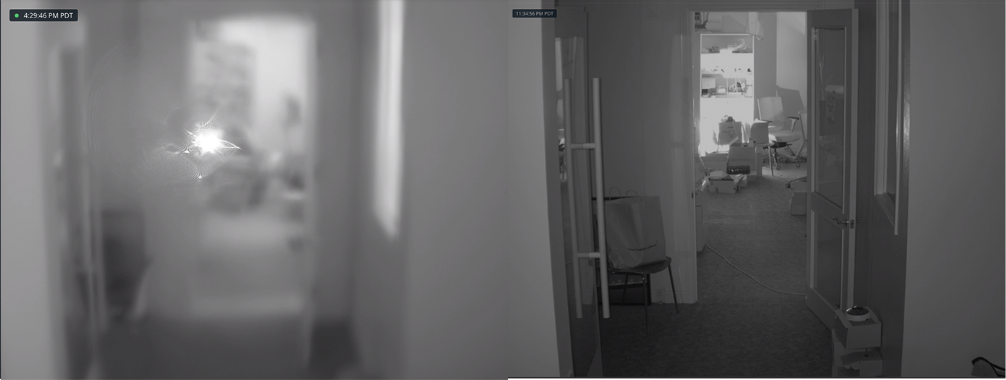
Wenn sich Staub oder Schmutz auf der Kuppel ansammelt, sieht das Bild im **Tagmodus** jedoch in **Nachtmodus** die IR-Blendung vom Staub und Schmutz reflektiert, wodurch helle Flecken und ein Kontrastverlust im Bild entstehen.
**Lösung**
Verwenden Sie Druckluft aus der Dose, um Staub und Schmutz wegzublasen, und [reinigen Sie dann die Kamerakuppel](/verkada-cameras/de/wartung-und-fehlerbehebung/clean-your-verkada-dome-camera.md).
Das Bild links zeigt das Bild mit hellen Flecken und Kontrastverlust, während einige Bereiche scharf bleiben. Das Bild rechts zeigt das Bild, nachdem die Kuppel gereinigt wurde.
---
# Agent Instructions
This documentation is published with GitBook. GitBook is the documentation platform designed so that both humans and AI agents can read, navigate, and reason over technical content effectively. Learn more at gitbook.com.
## Querying This Documentation
If you need additional information that is not directly available in this page, you can query the documentation by asking a question.
Perform an HTTP GET request on the following URL with the `ask` and `goal` query parameters:
```
GET https://help.verkada.com/verkada-cameras/de/wartung-und-fehlerbehebung/verkada-dome-camera-maintenance.md?ask=&goal=
```
`ask` is the immediate question: it should be specific, self-contained, and written in natural language.
`goal` is what the user is ultimately trying to achieve, the reason they need the answer. Sharing it helps GitBook give you a better, more relevant answer. A goal is most helpful when it describes the outcome the user wants rather than restating the question. For example, with `ask=how do I create an API token`, a goal like `automate deployments from our CI pipeline` lets GitBook tailor the answer to that use case.
The response will contain a direct answer to the question and relevant excerpts and sources from the documentation.
Use this mechanism when the answer is not explicitly present in the current page, you need clarification or additional context, or you want to retrieve related documentation sections.