> For the complete documentation index, see [llms.txt](https://help.verkada.com/llms.txt). Markdown versions of documentation pages are available by appending `.md` to page URLs; this page is available as [Markdown](https://help.verkada.com/verkada-cameras/de/analysen/create-camera-event-alerts/crowd-alerts.md).
# Menschenmengen-Benachrichtigungen
Benachrichtigungen für Menschenmengenereignisse für Ihre Kameras aktivieren
Verkada-Kameras können Sie proaktiv benachrichtigen, wenn eine Kamera mehr als die vom Benutzer angegebene Anzahl von Personen oder Fahrzeugen im Sichtfeld der Kamera erkennt.
{% hint style="danger" %}
Sie benötigen [Site-Admin-Berechtigungen](/command/de/benutzer-und-berechtigungen/roles-and-permissions-for-command.md) für den Standort, an dem sich eine Kamera befindet, um Crowd-Warnungen zu konfigurieren.
{% endhint %}
***
## Crowd-Warnungen konfigurieren
### Warnung erstellen > Ereignisse
{% stepper %}
{% step %}
**Klicken Sie auf der Command-Startseite in der linken Navigation auf Warnungen.**
{% endstep %}
{% step %}
**Klicken Sie oben auf Neue Warnung.**
{% endstep %}
{% step %}
**Wählen Sie unter Ereignis auswählen Kamera > Crowd.**
{% endstep %}
{% step %}
**Unter Kameras:**
1. Wählen Sie, von welchen **Standorte** oder **Einzelne Kameras**.
2. Klicken Sie auf **Fertig** um fortzufahren.
{% endstep %}
{% step %}
**Bei Crowd-Typ:**
1. Auswählen **Personen, Fahrzeuge,** oder **Personen und Fahrzeuge.**
2. Klicken Sie auf **Fertig** um fortzufahren.
{% endstep %}
{% step %}
**Bei Crowd-Bereiche:**
1. Wählen Sie **Richten Sie (x) Kameras ein** um den Crowd-Bereich und die Personen-/Fahrzeugschwellen jeder Kamera einzeln zu konfigurieren.
2. Alternativ wählen Sie **Vollbild-Crowd-Bereich** um für alle Kameras den gesamten Kamerarahmen auszuwählen.
3. Klicken Sie auf **Fertig** und fahren Sie mit der Warnung fort [Benachrichtigungszeitplan](#create-alert-greater-than-cameras).
{% endstep %}
{% endstepper %}
### Alarm erstellen > Benachrichtigungszeitplan
{% stepper %}
{% step %}
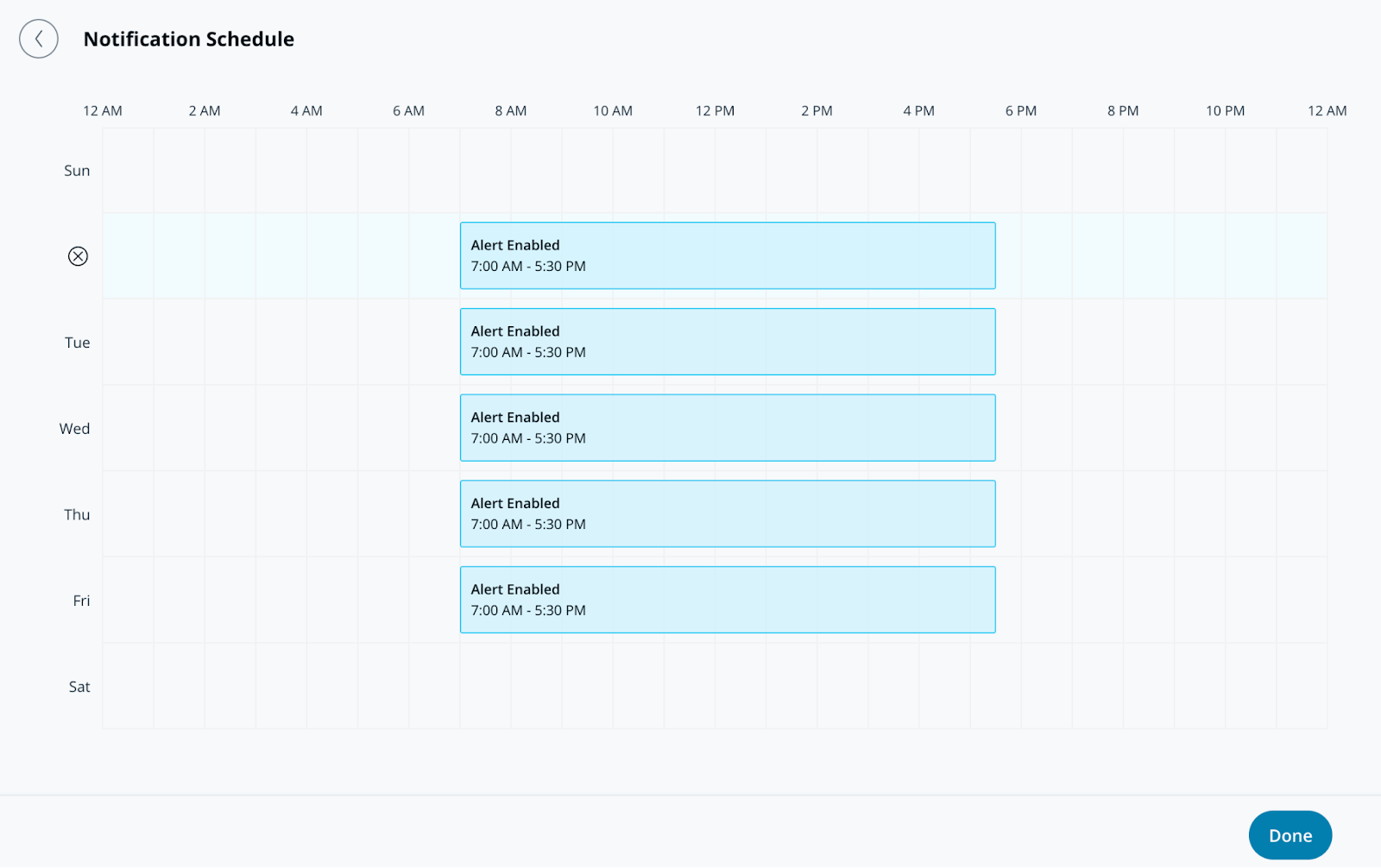
**Im Benachrichtigungszeitplan legen Sie die Tage und Zeiten fest, zu denen die Alarme Benachrichtigungen senden. Alarme werden standardmäßig rund um die Uhr generiert.**
{% endstep %}
{% step %}
**Klicken Sie auf Fertig und fahren Sie mit dem Alarm fort** [**Benachrichtigung**](#create-alert-greater-than-notification)**.**
{% endstep %}
{% endstepper %}
### Alarm erstellen > Benachrichtigung
{% stepper %}
{% step %}
**Fügen Sie unter Benachrichtigung Benutzer einzeln hinzu oder weisen Sie den Alarm einer Gruppe zu.**
{% endstep %}
{% step %}
**Wählen Sie das Dropdown-Menü neben einem Benutzer oder einer Gruppe aus, um die Benachrichtigungsmethode(n) auszuwählen. Empfänger können per Push, SMS, Benachrichtigungen auf Messaging-Plattformen oder E-Mail-Benachrichtigungen informiert werden.**
{% hint style="info" %}
Jeder Empfänger, der zu diesem Alarm hinzugefügt wird, sieht ihn unter **Geteilte Alarme** im Abschnitt **Alarme** Seite aufgeführt.
{% endhint %}
{% endstep %}
{% step %}
**(Optional) Standardmäßig sind Sie ein Alarmempfänger. Wählen Sie das Dropdown-Menü aus und klicken Sie auf Löschen, um sich selbst zu entfernen.**
{% endstep %}
{% step %}
**Klicken Sie auf Fertig und fahren Sie mit den** [**optionalen Einstellungen**](#optional-settings)**, oder** [**schließen Sie den Alarm ab**](#finish-the-alert)**.**
{% endstep %}
{% endstepper %}
### Optionale Einstellungen
#### Alarm erstellen > Betrieb
{% stepper %}
{% step %}
**Aktivieren Sie An Betrieb weiterleiten, um aus dem Alarm ein Ticket zu erstellen.**
{% endstep %}
{% step %}
**(Optional) Wählen Sie Ticket-Anweisungen aus, um dem Ticket Informationen hinzuzufügen, und klicken Sie auf Fertig.**
{% endstep %}
{% step %}
**Klicken Sie auf Fertig und fahren Sie fort zu** [**schließen Sie den Alarm ab**](#finish-the-alert)**.**
{% endstep %}
{% endstepper %}
#### Alarm erstellen > Geräteaktion
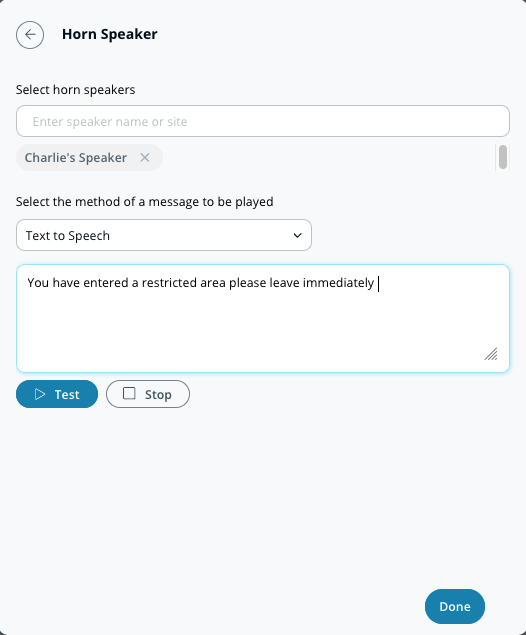
Zusätzlich zur Benachrichtigung einzelner Personen können Sie Ihren Hornlautsprecher so konfigurieren, dass er bei Auslösen eines Alarms abgespielt wird. Diese Alarme können per Text-zu-Sprache oder als hochgeladene MP3-Datei erfolgen.
{% stepper %}
{% step %}
**Wählen Sie unter Geräteaktion die Hornlautsprecher aus, über die Ihre Nachricht abgespielt werden soll.**
{% endstep %}
{% step %}
**Wählen Sie Ihre Benachrichtigungseinstellung (Text-zu-Sprache oder Audiodatei) aus.**
a. Für **Text-zu-Sprache,** geben Sie eine Nachricht mit bis zu 200 Zeichen ein.\
b. Für **Audiodatei,** ziehen Sie die Datei per Drag-and-Drop hierher oder klicken Sie auf **Datei auswählen** um Ihren Audioclip hochzuladen.
{% endstep %}
{% step %}
**Klicken Sie auf Fertig und fahren Sie fort zu** [**schließen Sie den Alarm ab**](#finish-the-alert)**.**
{% endstep %}
{% endstepper %}
### Alarm abschließen
{% stepper %}
{% step %}
**Klicken Sie unten rechts im Konfigurationsfenster auf Weiter.**
{% endstep %}
{% step %}
**Geben Sie einen beschreibenden Namen für den Alarm ein.**
{% endstep %}
{% step %}
**Klicken Sie auf Fertig, um die Einrichtung abzuschließen.**
{% endstep %}
{% endstepper %}
---
# Agent Instructions
This documentation is published with GitBook. GitBook is the documentation platform designed so that both humans and AI agents can read, navigate, and reason over technical content effectively. Learn more at gitbook.com.
## Querying This Documentation
If you need additional information that is not directly available in this page, you can query the documentation by asking a question.
Perform an HTTP GET request on the following URL with the `ask` and `goal` query parameters:
```
GET https://help.verkada.com/verkada-cameras/de/analysen/create-camera-event-alerts/crowd-alerts.md?ask=&goal=
```
`ask` is the immediate question: it should be specific, self-contained, and written in natural language.
`goal` is what the user is ultimately trying to achieve, the reason they need the answer. Sharing it helps GitBook give you a better, more relevant answer. A goal is most helpful when it describes the outcome the user wants rather than restating the question. For example, with `ask=how do I create an API token`, a goal like `automate deployments from our CI pipeline` lets GitBook tailor the answer to that use case.
The response will contain a direct answer to the question and relevant excerpts and sources from the documentation.
Use this mechanism when the answer is not explicitly present in the current page, you need clarification or additional context, or you want to retrieve related documentation sections.