> For the complete documentation index, see [llms.txt](https://help.verkada.com/llms.txt). Markdown versions of documentation pages are available by appending `.md` to page URLs; this page is available as [Markdown](https://help.verkada.com/verkada-cameras/configuration/view-and-edit-camera-settings/set-up-sentry-mode-on-a-ptz-camera.md).
# Configure Sentry Mode on a PTZ camera
Learn how to benefit from live monitoring when an operator is unavailable
Sentry Mode is available on all PTZ cameras and provides automated monitoring when an operator is not available. It turns the PTZ camera into a responsive monitoring tool that detects and tracks people in real time. Sentry Mode is part of Verkada’s people analytics suite, and its accuracy depends on proper camera installation, scene density, and the visibility and distance of individuals within the field of view.
**How it works**
* The PTZ camera detects people as they enter its field of view.
* When a person is detected, the camera zooms in to capture high-resolution footage and tracks the individual for approximately 15 seconds.
* The camera then zooms out to restore full scene context.
* You can run Sentry Mode continuously or schedule it to operate at specific times.
***
### User permissions
{% hint style="danger" %}
You must have Site Admin permissions to set up Sentry Mode on a PTZ camera. Learn more about [Roles and Permissions for Cameras](/verkada-cameras/getting-started/roles-and-permissions-for-cameras.md).
{% endhint %}
| | | |
| --------------- | -------------- | -------------------------------------------------------------------------------------------------------------------------------------------------------------------------------------------------------------------------------------------------------------------------------------------------------------------------- |
| **Role** | **Access** | **Permissions** |
| **Site Admin** | Full access | ✔️ Can enable and disable Sentry Mode.
✔️ Can set and edit Sentry Mode settings.
|
| **Site Viewer** | Limited access | ❌ Cannot enable or disable Sentry Mode.
✔️ Can view, but not set or edit Sentry Mode settings.
|
| **Live-Only** | No access | ❌ Cannot see **Sentry Mode**  on the camera toolbar. |
***
## Configuration
{% stepper %}
{% step %}
**In Verkada Command, go to All Products > Cameras.**
{% endstep %}
{% step %}
**Select a PTZ camera.**
{% endstep %}
{% step %}
**On the toolbar to the right of the video feed, click** **and toggle on Sentry Mode.**
{% hint style="danger" %}
Sentry Mode is inherently linked to the preset location that it is paired to. If you delete a preset location used by Sentry Mode, the Sentry Mode setup is also deleted.
{% endhint %}
{% endstep %}
{% step %}
**Click Settings to begin configuration.**
You can configure [**Patrol Areas**](#patrol-areas) and [**Contextual Triggers**](#contextual-triggers)**.**
{% endstep %}
{% endstepper %}
{% tabs %}
{% tab title="Patrol Areas" %}
Patrol Areas define the preset views a PTZ camera cycles through when running Sentry Mode. They help ensure consistent coverage across key areas of a scene when continuous tracking is not required. You can configure patrols using existing preset views or create new ones directly from Sentry Mode settings.
#### How it works
* The PTZ camera cycles through the configured preset views based on your settings.
* The default patrol view is the camera’s home position.
* You can assign up to 25 preset views to a single Sentry Mode patrol.
* For best results, use wide field-of-view presets that capture the full scene.
***
### Configuration
{% stepper %}
{% step %}
**Select** **Patrol Areas > Add Patrol Area.**
{% endstep %}
{% step %}
**Select or create a preset view to add to your patrol.**
{% endstep %}
{% step %}
**Next to the Patrol Area you added, click Add Active Region.**
1. Click on the feed to draw freeform polygons within the camera’s field of view to specify a focused monitoring area for each preset.
{% hint style="warning" %}
You can draw a maximum of 20 freeform polygons per Active Region.
{% endhint %}
2. Click **Save.**
{% hint style="warning" %}
Once activated, Sentry Mode is only triggered when people are detected within the defined active region. It does not zoom in on any individual detected outside of the region.
{% endhint %}
{% endstep %}
{% step %}
**When using multiple preset views with Sentry Mode, the system prompts you to set a dwell time. Dwell time defines how long the PTZ camera monitors each preset view before moving to the next location in the sequence.**
{% hint style="warning" %}
Dwell time values range between 30 seconds and 24 hours. The default value is 2 minutes.
{% endhint %}
{% endstep %}
{% step %}
**(Optional) Toggle off Follow People to configure a more traditional PTZ patrol.**
This results in the camera alternating between the configured preset locations, without zooming in on any detected individuals.
{% endstep %}
{% step %}
**(Optional) Configure a schedule for Sentry Mode.**
This is useful for monitoring areas during specific times, such as nights and weekends. If the scheduling feature is disabled, Sentry Mode is on 24/7 once activated.
1. Next to **Schedule,** click :greater-than:.
2. Click anywhere on the grid to open the configuration window.
1. Enter the schedule time.
2. Select the days of the week for the schedule to repeat.
3. Click **Done.**
3. Click **Save.**
{% endstep %}
{% step %}
**Click Save to return to the camera view.**
The PTZ will automatically capture high-resolution images of people within the camera’s field of view or active regions at the scheduled times.
{% endstep %}
{% step %}
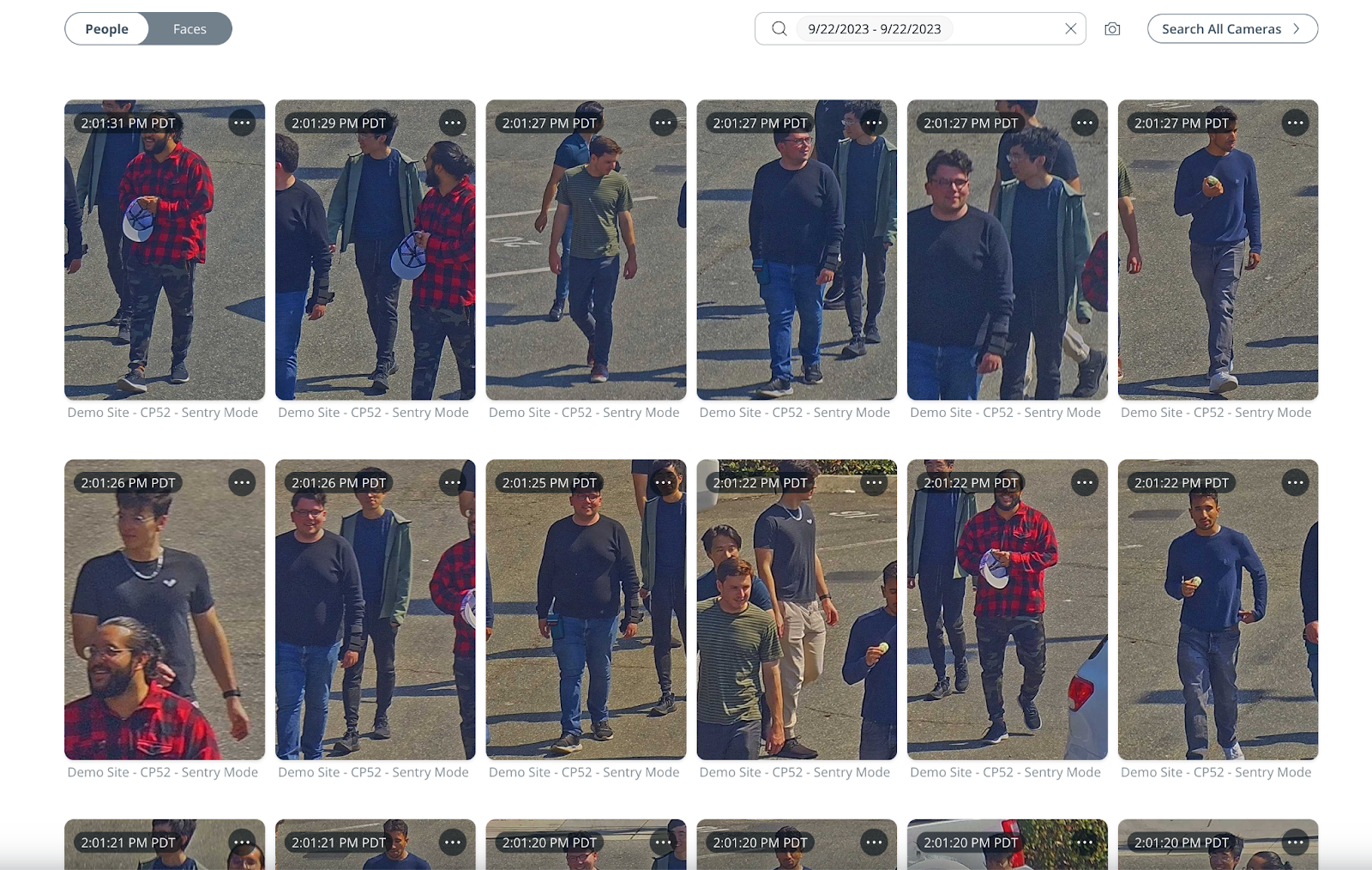
**Under the People and Faces tabs, you can then view high-quality, close-up images of people captured during Sentry Mode.**
{% endstep %}
{% endstepper %}
{% endtab %}
{% tab title="Contextual Triggers" %}
PTZ cameras can miss important events when they focus on a different area of the field of view. Contextual triggers solve this by using a trigger camera to guide PTZ focus. When the trigger camera detects a person in the overlapping field of view, it alerts the PTZ camera to follow that individual. This is most effective for monitoring restricted or low-traffic areas such as emergency exits or off-limit zones.
#### How it works
* The trigger camera detects a person within a user-defined trigger zone.
* The trigger camera alerts the PTZ camera to the detection.
* The PTZ camera automatically pans, tilts, and zooms to the associated preset view and follows the person for approximately 15 seconds.
* The PTZ camera then returns to its previous preset view.
* Contextual triggers override any active PTZ patrol.
***
### Configuration
{% hint style="info" %}
Users need [Site Admin](/verkada-cameras/getting-started/roles-and-permissions-for-cameras.md) permissions for both the context camera site and the PTZ camera site to create, edit, and delete contextual triggers.
{% endhint %}
{% stepper %}
{% step %}
**Select** **Contextual Triggers > Add Trigger.**
{% endstep %}
{% step %}
**Select a camera to add as a trigger, then click Next.**
{% endstep %}
{% step %}
**Click the camera feed to add up to a 6-point polyform area where people motion will activate the trigger, then click Next.**
{% endstep %}
{% step %}
**Use the controls on the PTZ feed to move the field of view to match the trigger camera's field of view or trigger region, then click Save.**
{% endstep %}
{% step %}
**Click Save to return to the camera view.**
{% hint style="warning" %}
You can add up to 6 contextual triggers.
{% endhint %}
{% endstep %}
{% endstepper %}
***
### Supported cameras
Only the following camera models can be set up as context cameras for contextual triggers: [CD22](https://www.verkada.com/au/security-cameras/dome/cd22/)/[CD22-E](https://www.verkada.com/au/security-cameras/dome/cd22-e/), [CD32](https://www.verkada.com/au/security-cameras/dome/cd32/)/[CD32-E](https://www.verkada.com/au/security-cameras/dome/cd32-e/), [CD42](https://www.verkada.com/security-cameras/dome/cd42/)/[CD42-E](https://www.verkada.com/security-cameras/dome/cd42-e/), [CD43](https://docs.verkada.com/docs/video-security-cd43-datasheet.pdf)/[CD43-E](https://docs.verkada.com/docs/video-security-cd43-e-datasheet.pdf), [CD52](https://www.verkada.com/security-cameras/dome/cd52/)/[CD52-E,](https://www.verkada.com/security-cameras/bullet/cb52-e/) [CD53](https://docs.verkada.com/docs/video-security-cd53-datasheet.pdf)/[CD53-E](https://docs.verkada.com/docs/video-security-cd53-e-datasheet.pdf), [CD62](https://www.verkada.com/security-cameras/dome/cd62/)/[CD62-E](https://www.verkada.com/security-cameras/bullet/cb62-e/), [CD63](https://docs.verkada.com/docs/video-security-cd63-datasheet.pdf)/[CD63-E](https://docs.verkada.com/docs/video-security-cd63-e-datasheet.pdf), [CM22](https://docs.verkada.com/docs/cm22-mini-dome-datasheet.pdf), [CM42](https://www.verkada.com/security-cameras/mini/cm42/), [CM42-S](https://www.verkada.com/security-cameras/mini/cm42-s/), [CB52-E/CB62-E](https://www.verkada.com/security-cameras/bullet#models), [CB52-TE/CB62-TE](https://www.verkada.com/security-cameras/bullet#overview), [CH52-E](https://www.verkada.com/security-cameras/multisensor/ch52-e/), [CH53-E](https://docs.verkada.com/docs/video-security-ch53-e-datasheet.pdf), [CF81-E/CF83-E](https://www.verkada.com/security-cameras/fisheye), [CY53-E](https://docs.verkada.com/docs/video-security-cy53-e-datasheet.pdf), [TD52](https://www.verkada.com/intercom/video-intercom), [TD33](https://www.verkada.com/intercom/video-intercom), [TD53](https://www.verkada.com/intercom/video-intercom), and the [TD62](https://www.verkada.com/intercom/video-intercom).
{% hint style="warning" %}
FIPS-validated SKUs for camera models listed above are supported as PTZ context cameras.
{% endhint %}
{% endtab %}
{% endtabs %}
***
## System behavior and considerations
{% tabs %}
{% tab title="Factors that may affect accuracy" %}
Sentry Mode relies on our people detection algorithm to accurately zoom in on people who enter the camera’s field of view. Environmental factors can affect this algorithm, causing Sentry Mode to occasionally miss individuals. These are the main variables that might affect Sentry Mode’s accuracy and general performance:
* **Obstructions.** As a person moves through the camera’s field of view, they may be temporarily or permanently hidden from the PTZ’s line of sight by another object. This can cause issues for our tracking algorithms when accurately following individuals throughout the scene.
{% hint style="info" %}
For optimal results, we recommend using Sentry Mode in areas with minimal obstructions.
{% endhint %}
* **Limited detection window.** When configuring Sentry Mode, *we recommend choosing a wide field of view that captures the entire scene you are looking to monitor*. Individuals need to be visible for roughly 5 seconds for Sentry Mode to accurately follow their path. People who are running across a narrow field of view and/or appear for less than 5 seconds may be missed by the camera’s tracking algorithm.
* **High foot traffic.** In high-density areas, such as airports, stadiums, and concert venues, Sentry Mode may miss individuals in the scene because the camera is already tracking another person or group. Although we have implemented camera movement constraints in scenes with large crowds (10+ people) and a zoom timeout mechanism, the camera may still miss certain people on the edge of the scene.
* **Distance to camera.** Sentry Mode’s accuracy may decrease when individuals are more than 150 ft (50m) away from the camera.
{% hint style="info" %}
For optimal coverage with Sentry Mode, we recommend pairing the PTZ with a fixed camera (e.g., Dome, Bullet, or Fisheye) that monitors the entire scene. This helps to maintain the general context of the overall area when a PTZ camera zooms in on specific individuals.
{% endhint %}
{% endtab %}
{% tab title="Expected behaviors" %}
* **Camera bootup.** Upon the initial boot of a PTZ camera, Sentry Mode may take 1–2 minutes to detect people.
* **Obstructions.** When objects obstruct the PTZ’s line of sight to a detected person who is being followed, the camera zooms out slightly and temporarily pauses to regain tracking of the subject. If the subject is not detected within 2 seconds, the camera reverts to Sentry Mode’s home position.
* **Large groups.** When following a group of people, the PTZ chooses the optimal zoom level to keep every person clearly visible inside the frame. If more than 10 people are detected within the camera’s field of view, the PTZ remains in Sentry Mode’s home position to retain full context of the scene.
{% endtab %}
{% tab title="Installation recommendations" %}
**Install the camera at a high vantage point**
For optimal results, the PTZ camera should be installed at least 25 ft (8m) above the ground. The higher vantage point allows the camera to have as wide a view as possible and fully utilize the 28x optical zoom.
**Position the camera within 150 ft (50m) of potential subjects**
The people detection algorithm is most accurate when individuals are within 150 ft (50m) away from the camera. While the camera may capture individuals at greater distances, Sentry Mode’s accuracy decreases.
**Minimize obstructions**
When setting up Sentry Mode, it is important to choose an unobstructed field of view in an area that minimizes interference from objects, such as trees or fencing. Obstructions may cause the camera to lose track of detected people in the scene.
{% endtab %}
{% endtabs %}
***
{% hint style="info" %}
**Prefer to see it in action?** Check out the [video tutorial](https://www.youtube.com/watch?v=w7bE6ud8fzo).
{% endhint %}
---
# Agent Instructions
This documentation is published with GitBook. GitBook is the documentation platform designed so that both humans and AI agents can read, navigate, and reason over technical content effectively. Learn more at gitbook.com.
## Querying This Documentation
If you need additional information that is not directly available in this page, you can query the documentation by asking a question.
Perform an HTTP GET request on the following URL with the `ask` and `goal` query parameters:
```
GET https://help.verkada.com/verkada-cameras/configuration/view-and-edit-camera-settings/set-up-sentry-mode-on-a-ptz-camera.md?ask=&goal=
```
`ask` is the immediate question: it should be specific, self-contained, and written in natural language.
`goal` is what the user is ultimately trying to achieve, the reason they need the answer. Sharing it helps GitBook give you a better, more relevant answer. A goal is most helpful when it describes the outcome the user wants rather than restating the question. For example, with `ask=how do I create an API token`, a goal like `automate deployments from our CI pipeline` lets GitBook tailor the answer to that use case.
The response will contain a direct answer to the question and relevant excerpts and sources from the documentation.
Use this mechanism when the answer is not explicitly present in the current page, you need clarification or additional context, or you want to retrieve related documentation sections.
on the camera toolbar. |
***
## Configuration
{% stepper %}
{% step %}
**In Verkada Command, go to All Products > Cameras.**
{% endstep %}
{% step %}
**Select a PTZ camera.**
{% endstep %}
{% step %}
**On the toolbar to the right of the video feed, click** **and toggle on Sentry Mode.**
{% hint style="danger" %}
Sentry Mode is inherently linked to the preset location that it is paired to. If you delete a preset location used by Sentry Mode, the Sentry Mode setup is also deleted.
{% endhint %}
{% endstep %}
{% step %}
**Click Settings to begin configuration.**
You can configure [**Patrol Areas**](#patrol-areas) and [**Contextual Triggers**](#contextual-triggers)**.**
{% endstep %}
{% endstepper %}
{% tabs %}
{% tab title="Patrol Areas" %}
Patrol Areas define the preset views a PTZ camera cycles through when running Sentry Mode. They help ensure consistent coverage across key areas of a scene when continuous tracking is not required. You can configure patrols using existing preset views or create new ones directly from Sentry Mode settings.
#### How it works
* The PTZ camera cycles through the configured preset views based on your settings.
* The default patrol view is the camera’s home position.
* You can assign up to 25 preset views to a single Sentry Mode patrol.
* For best results, use wide field-of-view presets that capture the full scene.
***
### Configuration
{% stepper %}
{% step %}
**Select** **Patrol Areas > Add Patrol Area.**
{% endstep %}
{% step %}
**Select or create a preset view to add to your patrol.**
{% endstep %}
{% step %}
**Next to the Patrol Area you added, click Add Active Region.**
1. Click on the feed to draw freeform polygons within the camera’s field of view to specify a focused monitoring area for each preset.
{% hint style="warning" %}
You can draw a maximum of 20 freeform polygons per Active Region.
{% endhint %}
2. Click **Save.**
{% hint style="warning" %}
Once activated, Sentry Mode is only triggered when people are detected within the defined active region. It does not zoom in on any individual detected outside of the region.
{% endhint %}
{% endstep %}
{% step %}
**When using multiple preset views with Sentry Mode, the system prompts you to set a dwell time. Dwell time defines how long the PTZ camera monitors each preset view before moving to the next location in the sequence.**
{% hint style="warning" %}
Dwell time values range between 30 seconds and 24 hours. The default value is 2 minutes.
{% endhint %}
{% endstep %}
{% step %}
**(Optional) Toggle off Follow People to configure a more traditional PTZ patrol.**
This results in the camera alternating between the configured preset locations, without zooming in on any detected individuals.
{% endstep %}
{% step %}
**(Optional) Configure a schedule for Sentry Mode.**
This is useful for monitoring areas during specific times, such as nights and weekends. If the scheduling feature is disabled, Sentry Mode is on 24/7 once activated.
1. Next to **Schedule,** click :greater-than:.
2. Click anywhere on the grid to open the configuration window.
1. Enter the schedule time.
2. Select the days of the week for the schedule to repeat.
3. Click **Done.**
3. Click **Save.**
{% endstep %}
{% step %}
**Click Save to return to the camera view.**
The PTZ will automatically capture high-resolution images of people within the camera’s field of view or active regions at the scheduled times.
{% endstep %}
{% step %}
**Under the People and Faces tabs, you can then view high-quality, close-up images of people captured during Sentry Mode.**
{% endstep %}
{% endstepper %}
{% endtab %}
{% tab title="Contextual Triggers" %}
PTZ cameras can miss important events when they focus on a different area of the field of view. Contextual triggers solve this by using a trigger camera to guide PTZ focus. When the trigger camera detects a person in the overlapping field of view, it alerts the PTZ camera to follow that individual. This is most effective for monitoring restricted or low-traffic areas such as emergency exits or off-limit zones.
#### How it works
* The trigger camera detects a person within a user-defined trigger zone.
* The trigger camera alerts the PTZ camera to the detection.
* The PTZ camera automatically pans, tilts, and zooms to the associated preset view and follows the person for approximately 15 seconds.
* The PTZ camera then returns to its previous preset view.
* Contextual triggers override any active PTZ patrol.
***
### Configuration
{% hint style="info" %}
Users need [Site Admin](/verkada-cameras/getting-started/roles-and-permissions-for-cameras.md) permissions for both the context camera site and the PTZ camera site to create, edit, and delete contextual triggers.
{% endhint %}
{% stepper %}
{% step %}
**Select** **Contextual Triggers > Add Trigger.**
{% endstep %}
{% step %}
**Select a camera to add as a trigger, then click Next.**
{% endstep %}
{% step %}
**Click the camera feed to add up to a 6-point polyform area where people motion will activate the trigger, then click Next.**
{% endstep %}
{% step %}
**Use the controls on the PTZ feed to move the field of view to match the trigger camera's field of view or trigger region, then click Save.**
{% endstep %}
{% step %}
**Click Save to return to the camera view.**
{% hint style="warning" %}
You can add up to 6 contextual triggers.
{% endhint %}
{% endstep %}
{% endstepper %}
***
### Supported cameras
Only the following camera models can be set up as context cameras for contextual triggers: [CD22](https://www.verkada.com/au/security-cameras/dome/cd22/)/[CD22-E](https://www.verkada.com/au/security-cameras/dome/cd22-e/), [CD32](https://www.verkada.com/au/security-cameras/dome/cd32/)/[CD32-E](https://www.verkada.com/au/security-cameras/dome/cd32-e/), [CD42](https://www.verkada.com/security-cameras/dome/cd42/)/[CD42-E](https://www.verkada.com/security-cameras/dome/cd42-e/), [CD43](https://docs.verkada.com/docs/video-security-cd43-datasheet.pdf)/[CD43-E](https://docs.verkada.com/docs/video-security-cd43-e-datasheet.pdf), [CD52](https://www.verkada.com/security-cameras/dome/cd52/)/[CD52-E,](https://www.verkada.com/security-cameras/bullet/cb52-e/) [CD53](https://docs.verkada.com/docs/video-security-cd53-datasheet.pdf)/[CD53-E](https://docs.verkada.com/docs/video-security-cd53-e-datasheet.pdf), [CD62](https://www.verkada.com/security-cameras/dome/cd62/)/[CD62-E](https://www.verkada.com/security-cameras/bullet/cb62-e/), [CD63](https://docs.verkada.com/docs/video-security-cd63-datasheet.pdf)/[CD63-E](https://docs.verkada.com/docs/video-security-cd63-e-datasheet.pdf), [CM22](https://docs.verkada.com/docs/cm22-mini-dome-datasheet.pdf), [CM42](https://www.verkada.com/security-cameras/mini/cm42/), [CM42-S](https://www.verkada.com/security-cameras/mini/cm42-s/), [CB52-E/CB62-E](https://www.verkada.com/security-cameras/bullet#models), [CB52-TE/CB62-TE](https://www.verkada.com/security-cameras/bullet#overview), [CH52-E](https://www.verkada.com/security-cameras/multisensor/ch52-e/), [CH53-E](https://docs.verkada.com/docs/video-security-ch53-e-datasheet.pdf), [CF81-E/CF83-E](https://www.verkada.com/security-cameras/fisheye), [CY53-E](https://docs.verkada.com/docs/video-security-cy53-e-datasheet.pdf), [TD52](https://www.verkada.com/intercom/video-intercom), [TD33](https://www.verkada.com/intercom/video-intercom), [TD53](https://www.verkada.com/intercom/video-intercom), and the [TD62](https://www.verkada.com/intercom/video-intercom).
{% hint style="warning" %}
FIPS-validated SKUs for camera models listed above are supported as PTZ context cameras.
{% endhint %}
{% endtab %}
{% endtabs %}
***
## System behavior and considerations
{% tabs %}
{% tab title="Factors that may affect accuracy" %}
Sentry Mode relies on our people detection algorithm to accurately zoom in on people who enter the camera’s field of view. Environmental factors can affect this algorithm, causing Sentry Mode to occasionally miss individuals. These are the main variables that might affect Sentry Mode’s accuracy and general performance:
* **Obstructions.** As a person moves through the camera’s field of view, they may be temporarily or permanently hidden from the PTZ’s line of sight by another object. This can cause issues for our tracking algorithms when accurately following individuals throughout the scene.
{% hint style="info" %}
For optimal results, we recommend using Sentry Mode in areas with minimal obstructions.
{% endhint %}
* **Limited detection window.** When configuring Sentry Mode, *we recommend choosing a wide field of view that captures the entire scene you are looking to monitor*. Individuals need to be visible for roughly 5 seconds for Sentry Mode to accurately follow their path. People who are running across a narrow field of view and/or appear for less than 5 seconds may be missed by the camera’s tracking algorithm.
* **High foot traffic.** In high-density areas, such as airports, stadiums, and concert venues, Sentry Mode may miss individuals in the scene because the camera is already tracking another person or group. Although we have implemented camera movement constraints in scenes with large crowds (10+ people) and a zoom timeout mechanism, the camera may still miss certain people on the edge of the scene.
* **Distance to camera.** Sentry Mode’s accuracy may decrease when individuals are more than 150 ft (50m) away from the camera.
{% hint style="info" %}
For optimal coverage with Sentry Mode, we recommend pairing the PTZ with a fixed camera (e.g., Dome, Bullet, or Fisheye) that monitors the entire scene. This helps to maintain the general context of the overall area when a PTZ camera zooms in on specific individuals.
{% endhint %}
{% endtab %}
{% tab title="Expected behaviors" %}
* **Camera bootup.** Upon the initial boot of a PTZ camera, Sentry Mode may take 1–2 minutes to detect people.
* **Obstructions.** When objects obstruct the PTZ’s line of sight to a detected person who is being followed, the camera zooms out slightly and temporarily pauses to regain tracking of the subject. If the subject is not detected within 2 seconds, the camera reverts to Sentry Mode’s home position.
* **Large groups.** When following a group of people, the PTZ chooses the optimal zoom level to keep every person clearly visible inside the frame. If more than 10 people are detected within the camera’s field of view, the PTZ remains in Sentry Mode’s home position to retain full context of the scene.
{% endtab %}
{% tab title="Installation recommendations" %}
**Install the camera at a high vantage point**
For optimal results, the PTZ camera should be installed at least 25 ft (8m) above the ground. The higher vantage point allows the camera to have as wide a view as possible and fully utilize the 28x optical zoom.
**Position the camera within 150 ft (50m) of potential subjects**
The people detection algorithm is most accurate when individuals are within 150 ft (50m) away from the camera. While the camera may capture individuals at greater distances, Sentry Mode’s accuracy decreases.
**Minimize obstructions**
When setting up Sentry Mode, it is important to choose an unobstructed field of view in an area that minimizes interference from objects, such as trees or fencing. Obstructions may cause the camera to lose track of detected people in the scene.
{% endtab %}
{% endtabs %}
***
{% hint style="info" %}
**Prefer to see it in action?** Check out the [video tutorial](https://www.youtube.com/watch?v=w7bE6ud8fzo).
{% endhint %}
---
# Agent Instructions
This documentation is published with GitBook. GitBook is the documentation platform designed so that both humans and AI agents can read, navigate, and reason over technical content effectively. Learn more at gitbook.com.
## Querying This Documentation
If you need additional information that is not directly available in this page, you can query the documentation by asking a question.
Perform an HTTP GET request on the following URL with the `ask` and `goal` query parameters:
```
GET https://help.verkada.com/verkada-cameras/configuration/view-and-edit-camera-settings/set-up-sentry-mode-on-a-ptz-camera.md?ask=&goal=
```
`ask` is the immediate question: it should be specific, self-contained, and written in natural language.
`goal` is what the user is ultimately trying to achieve, the reason they need the answer. Sharing it helps GitBook give you a better, more relevant answer. A goal is most helpful when it describes the outcome the user wants rather than restating the question. For example, with `ask=how do I create an API token`, a goal like `automate deployments from our CI pipeline` lets GitBook tailor the answer to that use case.
The response will contain a direct answer to the question and relevant excerpts and sources from the documentation.
Use this mechanism when the answer is not explicitly present in the current page, you need clarification or additional context, or you want to retrieve related documentation sections.