> For the complete documentation index, see [llms.txt](https://help.verkada.com/llms.txt). Markdown versions of documentation pages are available by appending `.md` to page URLs; this page is available as [Markdown](https://help.verkada.com/verkada-cameras/configuration/view-and-edit-camera-settings/ptz-user-priority.md).
# PTZ User Priority
Control how PTZ camera control conflicts are resolved between users
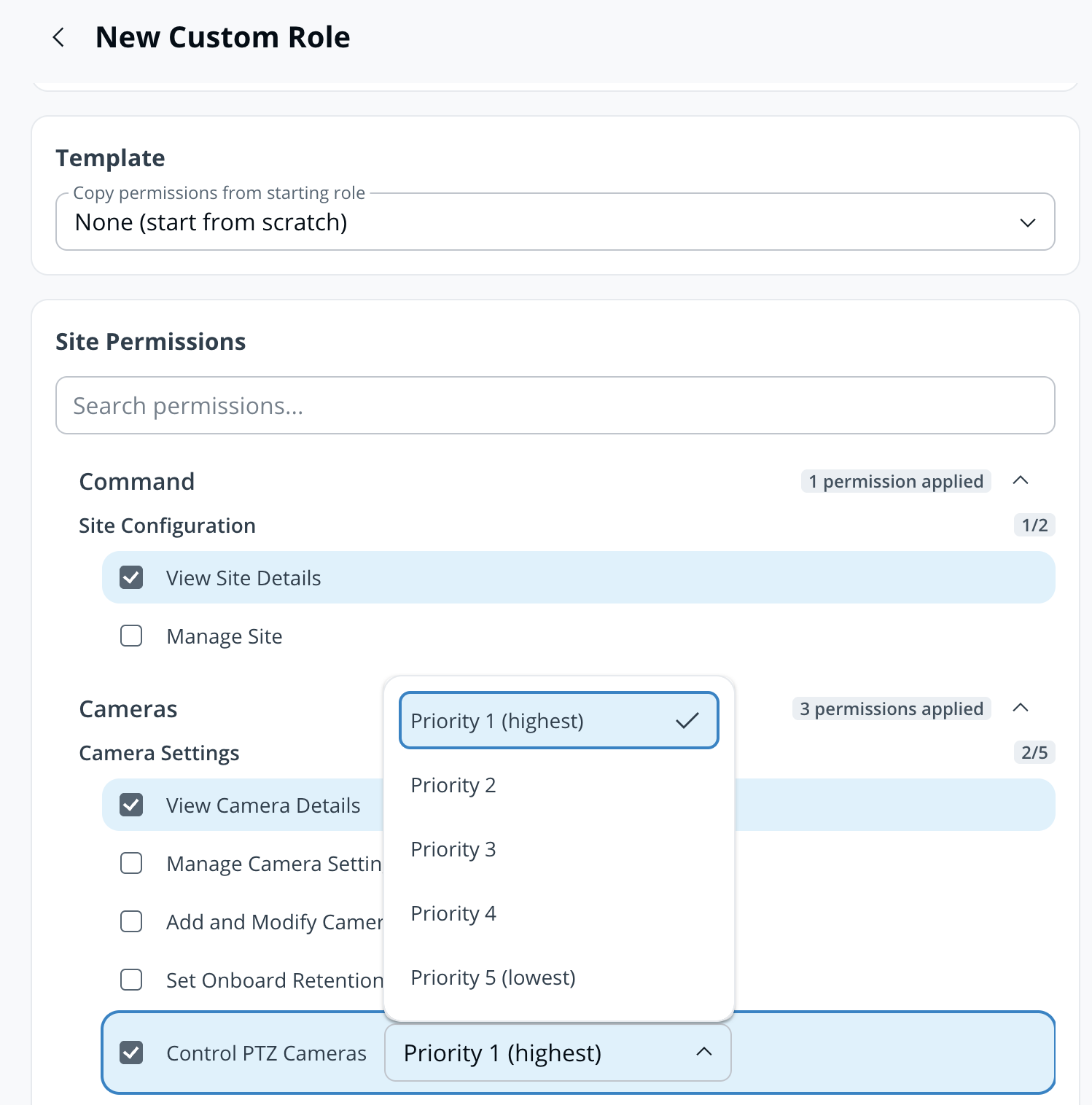
PTZ User Priority lets organizations control how conflicts over PTZ (pan-tilt-zoom) camera control are resolved. [Custom Roles](/command/users-and-permissions/roles-and-permissions-for-command/custom-roles.md) can be assigned a priority level from 1 (highest) to 5 (lowest) for PTZ controls. When multiple users try to control the same PTZ camera, the level determines who gets control. Use PTZ User Priority when several people may need to operate the same PTZ camera and your organization needs a clear, predictable rule for whose control takes precedence
{% hint style="warning" %}
Priority levels are only configured on Custom Roles. Standard Command roles are set to the default priority level of 5.
{% endhint %}
***
## How it works
By default, every role, including all standard Command roles, has a priority level of 5. When users share the same priority level, any of those users can take control from the other. When priority levels differ:
* The user with the higher (lower-numbered) priority always prevails.
* The lower-priority user must wait until the higher-priority user releases control before taking over.
For example, giving a security operations team priority over general staff.
***
## Configuration
{% hint style="danger" %}
You need Org Admin permissions to manage custom role access.
{% endhint %}
{% stepper %}
{% step %}
**In Verkada Command, go to All Products > Admin.**
{% endstep %}
{% step %}
**Under Admin > Users & Permissions, click Roles.**
{% endstep %}
{% step %}
**At the top right, click Create Custom Role.**
1. Enter a unique name for the role.
2. (Optional) Select a common template to copy permissions from.
3. Under **Site Permissions > Cameras > Camera Settings,** select **Control PTZ Cameras** and choose a priority level (1–5).
4. At the top right, click **Create Role**.
{% endstep %}
{% step %}
**Once created,** [**assign the custom role**](/command/users-and-permissions/roles-and-permissions-for-command/custom-roles.md#assign-a-custom-role) **to a user or group.**
{% endstep %}
{% endstepper %}
***
## Use Priority Controls
{% stepper %}
{% step %}
**In Verkada Command, go to All Products > Cameras.**
{% endstep %}
{% step %}
**Select a PTZ camera.**
{% endstep %}
{% step %}
**Hover over the center of the camera feed and use the controls to move the camera feed.**
While a user is in control, other viewers see a green badge on the stream indicating the camera is in use.
* A higher-priority user can take over at any time by attempting to move the camera. They see a confirmation prompt, and once confirmed, control transfers immediately and the previous user is notified on screen.
* A lower-priority user who attempts to take control is blocked, and an on-stream badge explains why.
If the user in control closes the camera page or is inactive for 45 seconds, the camera returns to idle and becomes available to other users. If Sentry Mode was active before control was taken, it resumes at that point.
{% endstep %}
{% endstepper %}
***
## FAQ
What priority level do standard Command roles have?
All standard roles default to priority level 5, the lowest level.
What happens if two users share the same priority level?
Users with the same priority level can take control from each other at any time.
Can a user lose control automatically?
Control returns to idle if the controlling user closes the camera page or is inactive for 45 seconds. Sentry Mode resumes at that point if it was active before control was taken.
---
# Agent Instructions
This documentation is published with GitBook. GitBook is the documentation platform designed so that both humans and AI agents can read, navigate, and reason over technical content effectively. Learn more at gitbook.com.
## Querying This Documentation
If you need additional information that is not directly available in this page, you can query the documentation by asking a question.
Perform an HTTP GET request on the following URL with the `ask` and `goal` query parameters:
```
GET https://help.verkada.com/verkada-cameras/configuration/view-and-edit-camera-settings/ptz-user-priority.md?ask=&goal=
```
`ask` is the immediate question: it should be specific, self-contained, and written in natural language.
`goal` is what the user is ultimately trying to achieve, the reason they need the answer. Sharing it helps GitBook give you a better, more relevant answer. A goal is most helpful when it describes the outcome the user wants rather than restating the question. For example, with `ask=how do I create an API token`, a goal like `automate deployments from our CI pipeline` lets GitBook tailor the answer to that use case.
The response will contain a direct answer to the question and relevant excerpts and sources from the documentation.
Use this mechanism when the answer is not explicitly present in the current page, you need clarification or additional context, or you want to retrieve related documentation sections.