> For the complete documentation index, see [llms.txt](https://help.verkada.com/llms.txt). Markdown versions of documentation pages are available by appending `.md` to page URLs; this page is available as [Markdown](https://help.verkada.com/verkada-cameras/configuration/view-and-edit-camera-settings/enterprise-bandwidth-manager.md).
# Enterprise Bandwidth Manager
Use the Enterprise Bandwidth Manager to manage your camera’s upload bandwidth
Enterprise Bandwidth Manager (EBM) sets a maximum upload bandwidth cap for all cameras at a site. The cap applies to cloud-bound camera traffic, so you can protect WAN performance while cameras stay online.
{% hint style="danger" %}
You need Org Admins or Site Admins permissions to manage the Enterprise Bandwidth Manager.
{% endhint %}
***
### Allowlist domains for EBM
The following hostnames must be allowlisted for EBM. Use port 443 on TCP and UDP. For broader camera connectivity, see [Camera Network Settings](/verkada-cameras/configuration/camera-network-settings.md).
{% hint style="info" %}
\*.vnetcap.control.verkada.com
\*.vstream.vnetcap.control.verkada.com
\*.vosprey.vnetcap.control.verkada.com
\*.vsubmit.vnetcap.control.verkada.com
\*.vproxy.vnetcap.control.verkada.com
\*.vprovision.vnetcap.control.verkada.com
{% endhint %}
***
## Overview
The Enterprise Bandwidth Management (EBM) service runs in the Verkada cloud and does not require any additional applications or on-site hardware. It monitors all upstream traffic at each site where it is enabled to ensure bandwidth usage stays within configured limits.
**For upstream bandwidth calculations, EBM accounts for two types of traffic:**
* Thumbnail and people/vehicle analytics traffic, which remain constant
* Cloud video streaming traffic, which occurs on demand
Archive creation and [cloud backup](/verkada-cameras/video-streaming-and-sharing/view-historical-footage/cloud-backup.md) uploads from the site are also included in upstream calculations and are limited when EBM is enabled.
{% hint style="warning" %}
EBM automatically accounts for bandwidth used by thumbnails and analytics and throttles this traffic as site upstream usage approaches the configured bandwidth limit.
{% endhint %}
#### Cloud video stream evaluation
**Once a new cloud video stream is initiated, EBM calculates:**
* Whether sufficient upstream bandwidth is available at the site
* If sufficient bandwidth is available, it initiates the stream and makes it playable
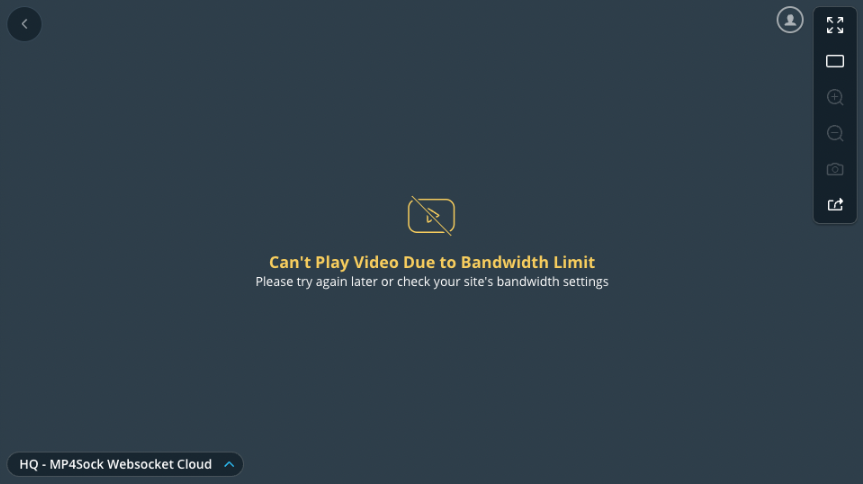
**If a new stream would exceed the configured site bandwidth limit, EBM:**
* Denies the stream request
* Displays an error message to the user
* Allows playback only after sufficient bandwidth becomes available
{% hint style="warning" %}
When a stream of recorded video is started, it’s expected to see a spike greater than the camera bitrate, because video is prefetched for an optimal viewing experience.
{% endhint %}
{% hint style="success" %}
Both live and historical local video streams are exempt from EBM because their traffic stays entirely on the LAN. See [Local streaming on Verkada cameras](/verkada-cameras/video-streaming-and-sharing/live-streaming/local-streaming-on-verkada-cameras.md) for more information.
{% endhint %}
***
## Set the bandwidth limit
{% hint style="warning" %}
When EBM is enabled, video playback is limited to 1× speed.
{% endhint %}
{% stepper %}
{% step %}
**In Verkada Command, go to All Products > Cameras.**
{% endstep %}
{% step %}
**Next to the site name, click**  **and select Set Bandwidth Limit.**
{% hint style="warning" %}
The first time you open EBM for a site, the bandwidth graph may take a few seconds to appear.
{% endhint %}
{% endstep %}
{% step %}
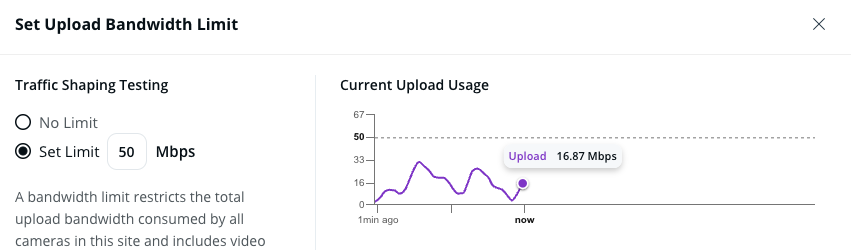
**Select Set Limit and enter the limit in Mbps.**
{% hint style="warning" %}
The limit can take up to 10 seconds to apply after you save. After you move a camera to the site, allow up to 10 minutes for behavior to fully align with the new site.
{% endhint %}
{% endstep %}
{% step %}
**At the top right, click X to close.**
{% endstep %}
{% endstepper %}
***
## Determine bandwidth consumption
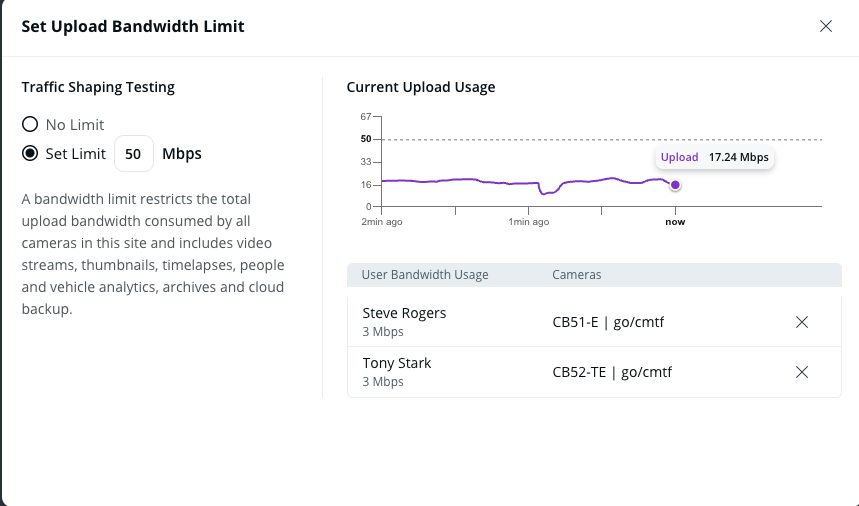
To monitor uplink usage, EBM graphs uplink usage in real time. You can access this graph while assessing bandwidth limits.
{% hint style="info" %}
For per-camera resting and streaming optimization (not a site-wide cap), see [Optimize Low Bandwidth Mode](/verkada-cameras/configuration/camera-network-settings/optimize-low-bandwidth-mode.md).
{% endhint %}
{% stepper %}
{% step %}
**In Verkada Command, go to All Products > Cameras.**
{% endstep %}
{% step %}
**Next to the site name, click**  **and select Set Bandwidth Limit.**
Use this graph to determine how much bandwidth users on the site use at a given time, gain insight into uplink usage statistics, and determine optimal bandwidth usage.
{% endstep %}
{% endstepper %}
By default, thumbnails are enabled, while analytics features can be toggled on or off in the camera settings. EBM considers a fixed bandwidth consumption for each feature.
| | |
| ----------- | ------------------------- |
| **Feature** | **Bandwidth consumption** |
| Thumbnails | 40 kbps |
| Analytics | 400 kbps |
For stream bandwidth consumption, use this table as a quick reference:
| | | |
| --------------------- | --------------------- | ------------------------- |
| **Camera resolution** | **Stream resolution** | **Bandwidth consumption** |
| 4K | HQ | Up to 5 Mbps |
| 4K | SQ | 0.6 Mbps |
| Non-4K | HQ | Up to 3 Mbps |
| Non-4K | SQ | 0.3 Mbps |
{% hint style="info" %}
See [Bandwidth Consumption & Uplink Requirements for Video](/verkada-cameras/installation/bandwidth-consumption-uplink-requirements-for-video.md) for more model-specific information.
{% endhint %}
***
## Terminate streams
You can manage active camera streams at a site, which is especially useful during investigations. If bandwidth approaches its limit or you need to prioritize network resources for critical operations, you can proactively terminate active video streams.
{% stepper %}
{% step %}
**In Verkada Command, go to All Products > Cameras.**
{% endstep %}
{% step %}
**Identify the site with active streams.**
{% endstep %}
{% step %}
**Click**  **and select Set Bandwidth Limit.**
{% endstep %}
{% step %}
**Configure a bandwidth limit if none exists.**
{% hint style="warning" %}
The first time you open EBM for a site, the bandwidth graph may take a few seconds to appear.
{% endhint %}
{% endstep %}
{% step %}
**Review the list of active streams and select the stream(s) you want to terminate.**
{% endstep %}
{% step %}
**At the top right, click X to close.**
{% endstep %}
{% endstepper %}
***
{% hint style="info" %}
Prefer to see it in action? Watch the [video tutorial](https://www.youtube.com/watch?v=OG7g5GIIlgI).
{% endhint %}
---
# Agent Instructions
This documentation is published with GitBook. GitBook is the documentation platform designed so that both humans and AI agents can read, navigate, and reason over technical content effectively. Learn more at gitbook.com.
## Querying This Documentation
If you need additional information that is not directly available in this page, you can query the documentation by asking a question.
Perform an HTTP GET request on the following URL with the `ask` and `goal` query parameters:
```
GET https://help.verkada.com/verkada-cameras/configuration/view-and-edit-camera-settings/enterprise-bandwidth-manager.md?ask=&goal=
```
`ask` is the immediate question: it should be specific, self-contained, and written in natural language.
`goal` is what the user is ultimately trying to achieve, the reason they need the answer. Sharing it helps GitBook give you a better, more relevant answer. A goal is most helpful when it describes the outcome the user wants rather than restating the question. For example, with `ask=how do I create an API token`, a goal like `automate deployments from our CI pipeline` lets GitBook tailor the answer to that use case.
The response will contain a direct answer to the question and relevant excerpts and sources from the documentation.
Use this mechanism when the answer is not explicitly present in the current page, you need clarification or additional context, or you want to retrieve related documentation sections.