> For the complete documentation index, see [llms.txt](https://help.verkada.com/llms.txt). Markdown versions of documentation pages are available by appending `.md` to page URLs; this page is available as [Markdown](https://help.verkada.com/verkada-cameras/configuration/view-and-edit-camera-settings/change-fisheye-view-modes.md).
# Change Fisheye View Modes
Change the view mode of a fisheye camera for the optimal viewing experience
Most fisheye cameras support three view modes: [panoramic](#panoramic-mode), [four-way split](#four-way-split-mode), and [pan-tilt-zoom](#pan-tilt-zoom-mode). You can change the view mode to best suit your installation location.
{% hint style="danger" %}
You need [Site Admin](/verkada-cameras/getting-started/roles-and-permissions-for-cameras.md) permissions to change the view mode of a fisheye camera.
{% endhint %}
***
### View modes and feature compatibility
| | | | |
| ------------------------ | ------------------------------------- | ------------------------------------------ | ---------------------------------------- |
| | [**180° Panoramic**](#panoramic-mode) | [**Four-Way Split**](#four-way-split-mode) | [**Pan-Tilt-Zoom**](#pan-tilt-zoom-mode) |
| **Privacy Zones\*** | ✅ | ✅ | ✅ |
| **People Analytics** | ✅ | ✅ | ✅ |
| **Vehicle Analytics** | ✅ | ✅ | ✅ |
| **People Counting**† | ✅ | ✅ | |
| **Vehicle Counting** | ✅ | ✅ | |
| **Audio** | ✅ | ✅ | ✅ |
| **Motion Search** | ✅ | ✅ | ✅ |
| **Motion Notifications** | ✅ | ✅ | ✅ |
| **Crowd Notifications** | ✅ | ✅ | ✅ |
{% hint style="success" %}
* \*Fisheyes must be in Pan-Tilt-Zoom (PTZ) mode to configure privacy regions. Once set, the configured privacy regions carry over to the panoramic and four-way split modes.
* †Fisheyes support people counting, but they **do not** support occupancy trends.
{% endhint %}
***
## Panoramic mode
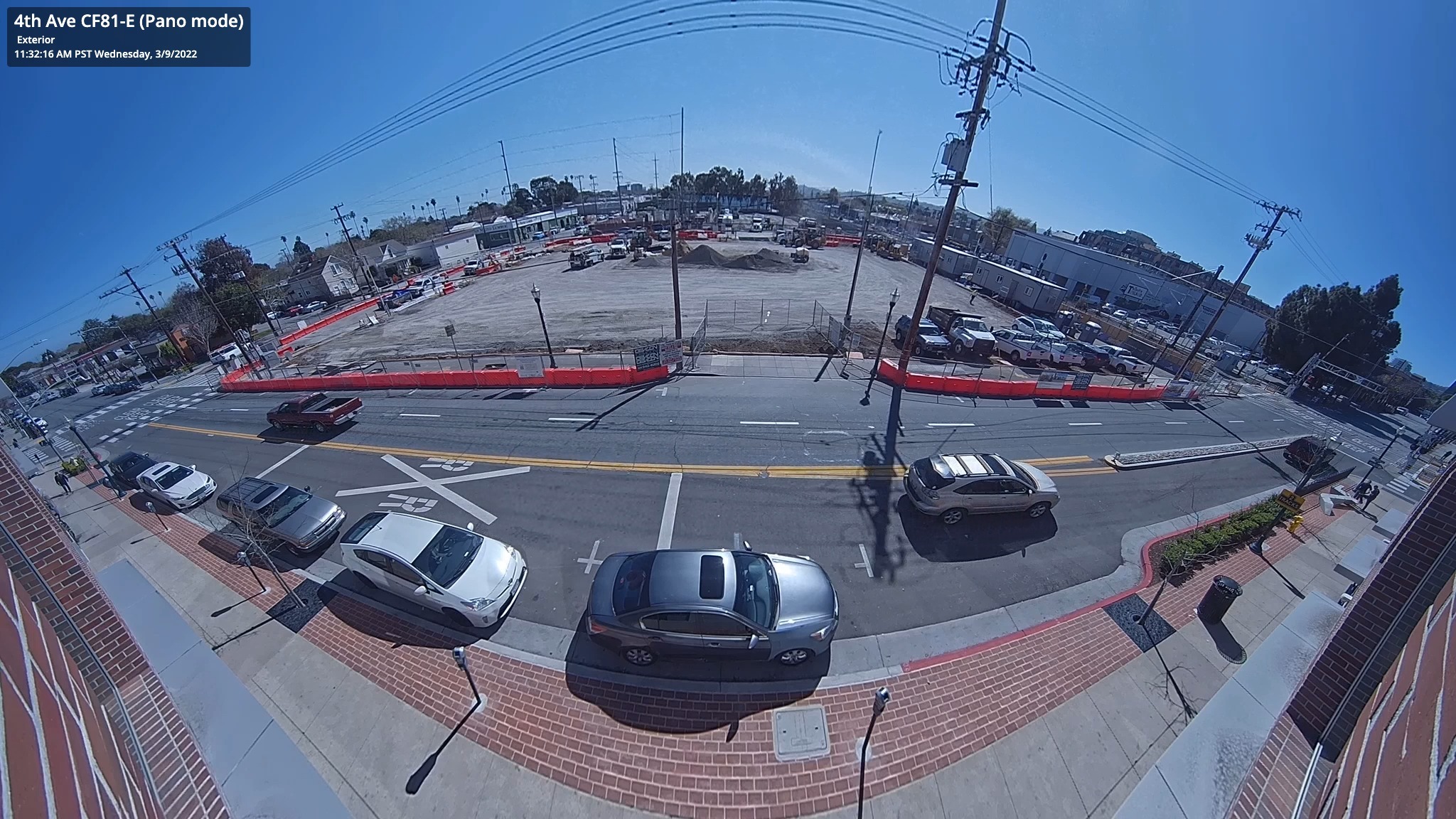
In panoramic mode, the camera provides a 180° horizontal view, which is best when mounted on a wall.
{% stepper %}
{% step %}
**In Verkada Command, go to All Products > Cameras.**
{% endstep %}
{% step %}
**Select the camera you want to update.**
{% endstep %}
{% step %}
**At the bottom right, click Settings.**
{% endstep %}
{% step %}
**Under General > Fisheye Mode, click** :pencil-line:**.**
{% endstep %}
{% step %}
**On Set View Mode, select Panoramic and click Save.**
{% endstep %}
{% endstepper %}
### Edit panoramic tilt
You can change the tilt of the panoramic view to optimize the field of view.
{% hint style="danger" %}
You **cannot** edit the panoramic tilt of the D80.
{% endhint %}
{% stepper %}
{% step %}
**In Verkada Command, go to All Products > Cameras.**
{% endstep %}
{% step %}
**Select the camera you want to update.**
{% endstep %}
{% step %}
**At the bottom left of the footage, click the SQ/HQ dropdown and select Edit Tilt.**
{% endstep %}
{% step %}
**You should see arrows on the tiles, confirming that you are in edit mode. Click the arrows to change the position of the tile.**
{% endstep %}
{% step %}
**To confirm or delete changes, click or at the bottom of the screen.**
{% endstep %}
{% endstepper %}
***
## Four-way split mode
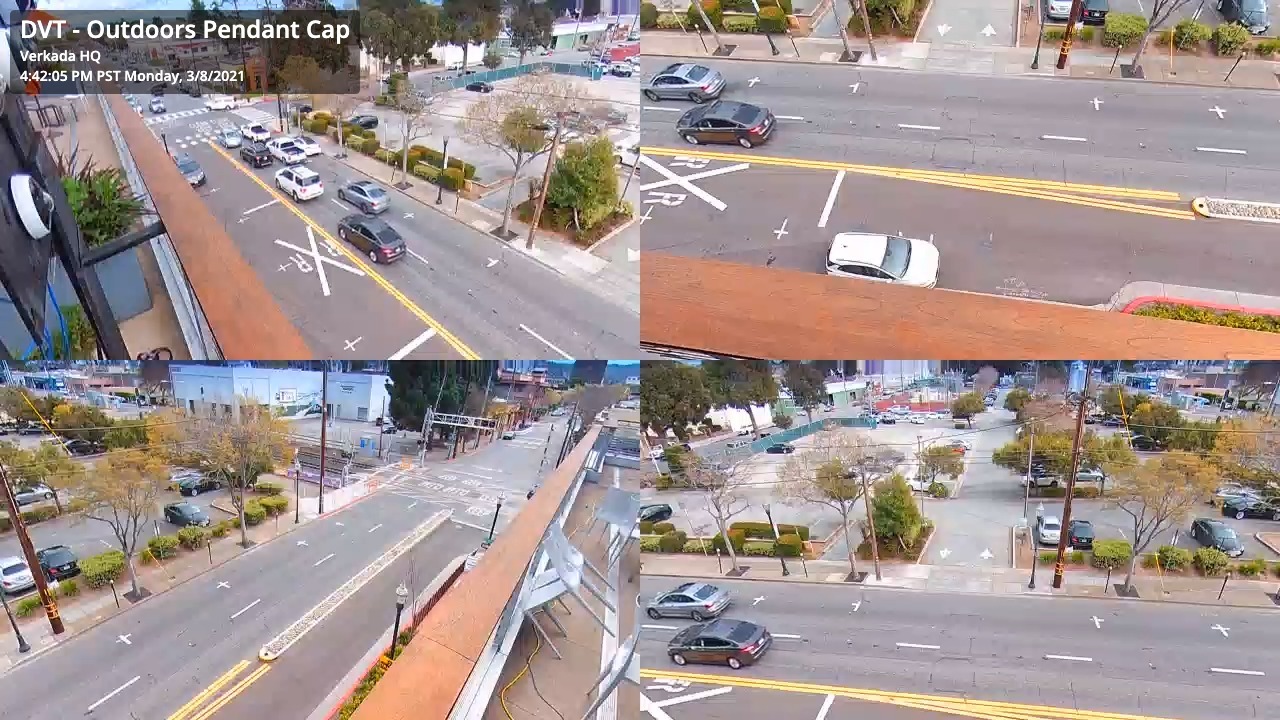
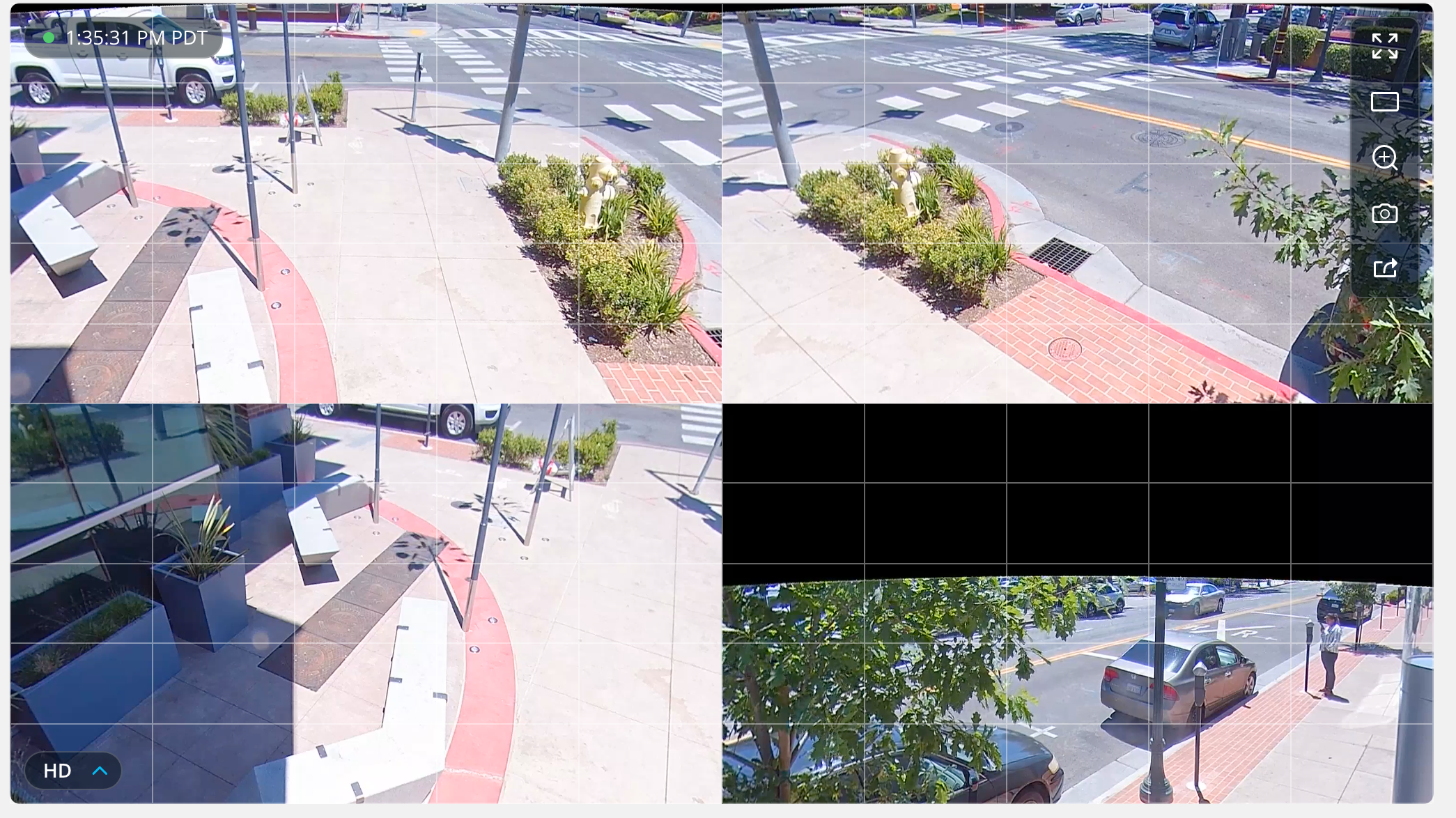
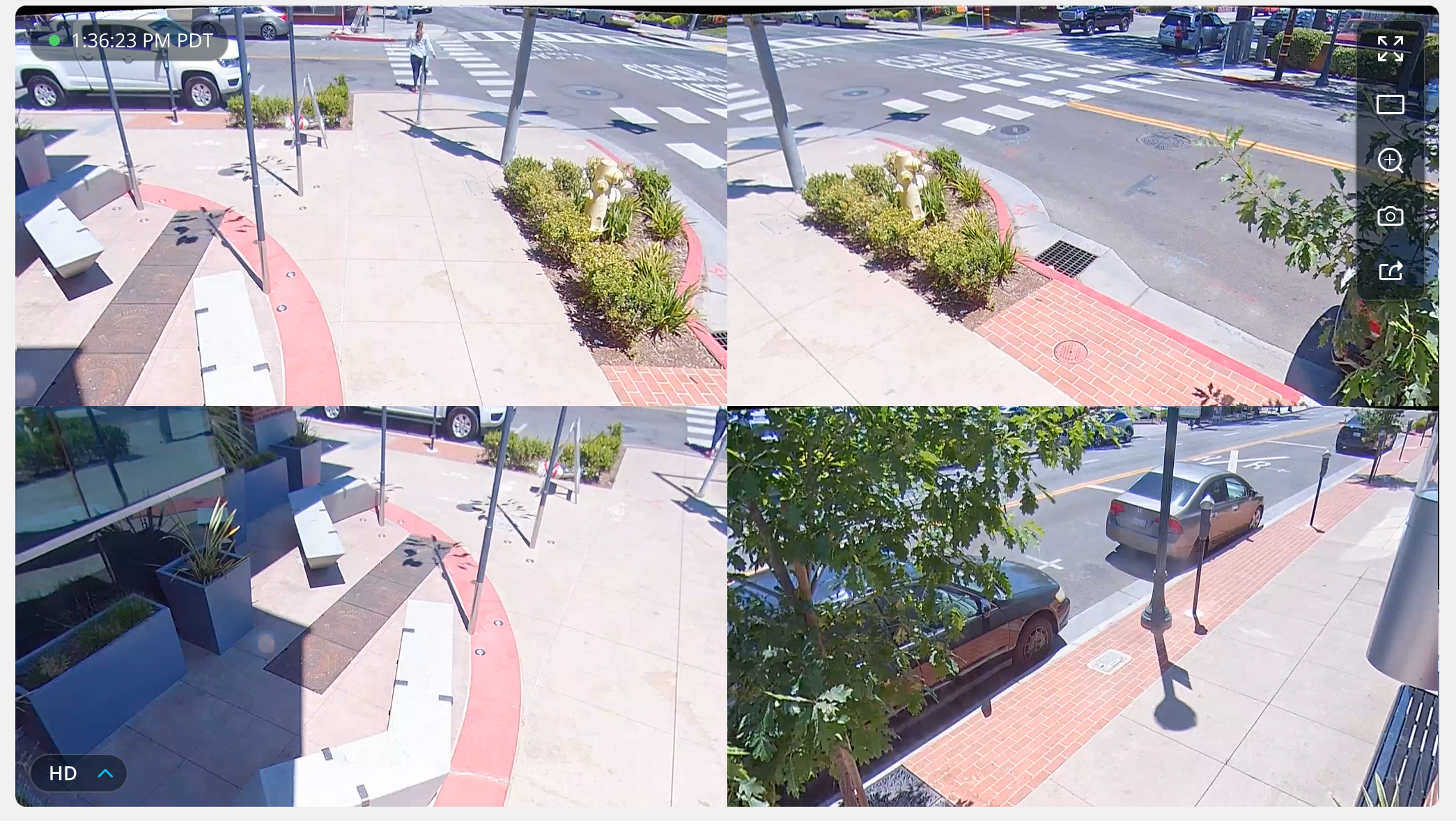
In four-way split mode, the panoramic view is split into four sections for a 360° view, mainly used when the camera is ceiling-mounted. This view mode is best suited to monitor an outdoor corner, hallway intersection, or to replace multiple cameras with a single one.
{% stepper %}
{% step %}
**In Verkada Command, go to All Products > Cameras.**
{% endstep %}
{% step %}
**Select the camera you want to update.**
{% endstep %}
{% step %}
**At the bottom right, click Settings.**
{% endstep %}
{% step %}
**Under General > Fisheye Mode, click** :pencil-line:**.**
{% endstep %}
{% step %}
**In Set View Mode, select Four-Way Split, then click Save.**
{% endstep %}
{% endstepper %}
### Edit four-way split panels
You can update the panels in the four-way split view to optimize the fields of view.
{% hint style="danger" %}
You **cannot** edit the four-way split panels of the D80.
{% endhint %}
{% stepper %}
{% step %}
**In Verkada Command, go to All Products > Cameras.**
{% endstep %}
{% step %}
**Select the camera you want to update.**
{% endstep %}
{% step %}
**At the bottom left of the footage, click the SQ/HQ dropdown and select Edit Panel View.**
{% endstep %}
{% step %}
**You should see arrows on the tiles to confirm that you are in edit mode. Click the arrows to change the tile's position.**
{% endstep %}
{% step %}
**If you point a tile outside the field of view of the physical camera lens, the image appears distorted.**
{% endstep %}
{% step %}
**Point the tile in the opposite direction to restore image quality.**
{% endstep %}
{% step %}
**To confirm or delete changes, click or at the bottom of the screen.**
{% endstep %}
{% endstepper %}
***
## Pan-Tilt-Zoom mode
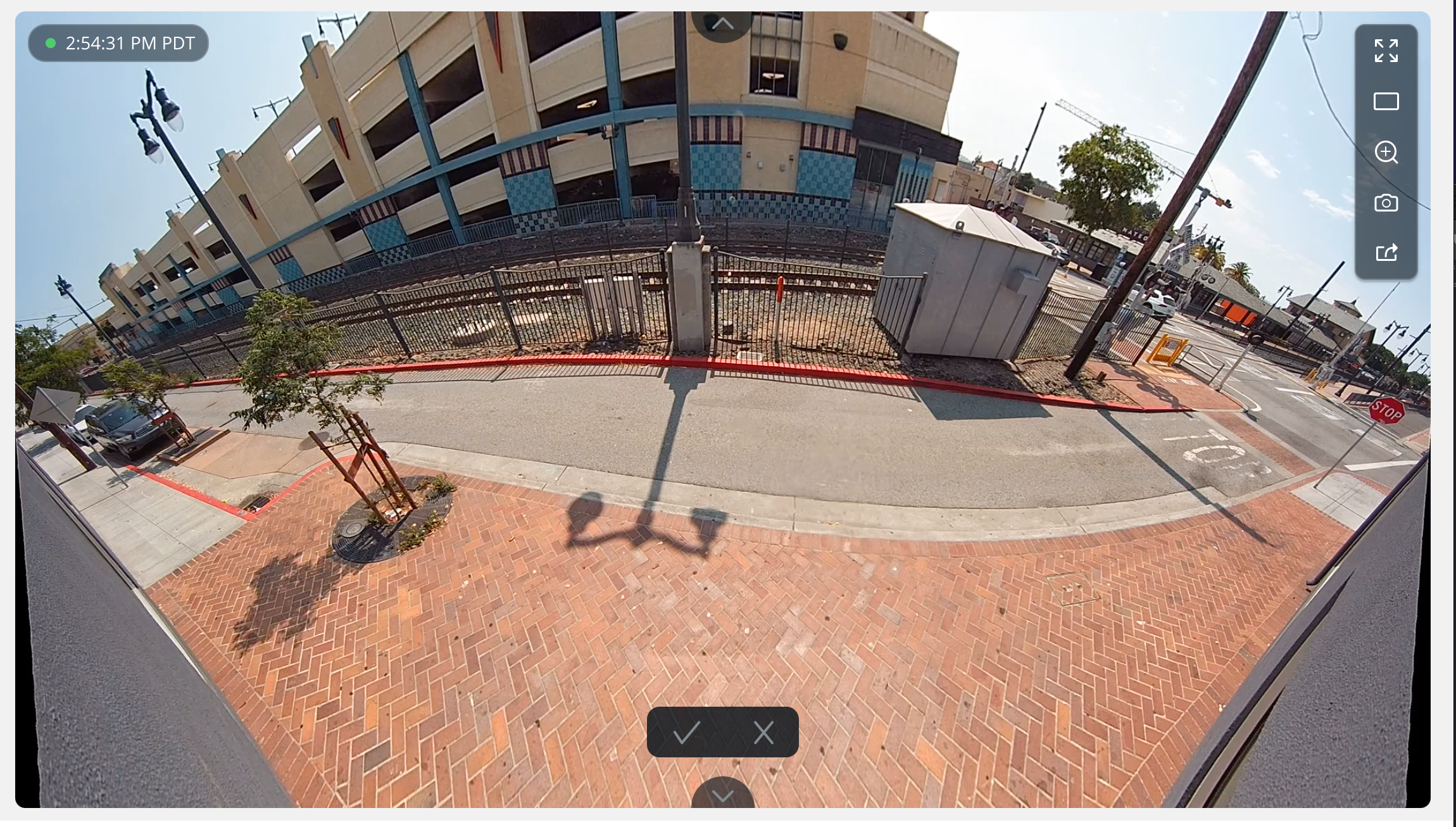
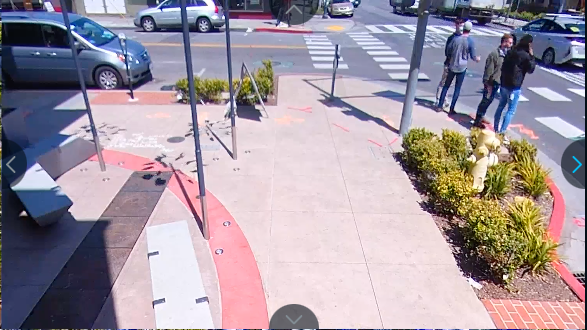
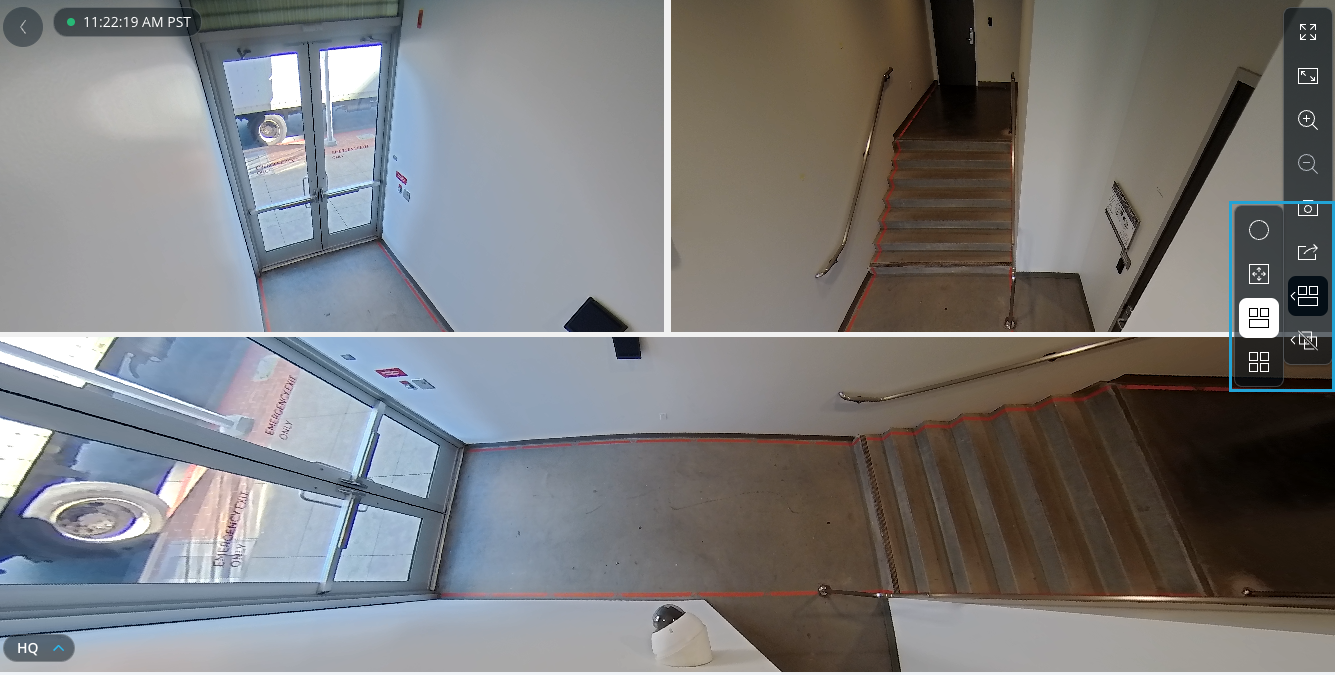
In Pan-Tilt-Zoom mode, the video feed can be displayed as a 360° view or a tile view with different angles to explore the video with digital PTZ functionality.
{% hint style="danger" %}
The D80 **does not** support pan-tilt-zoom mode.
{% endhint %}
{% stepper %}
{% step %}
**In Verkada Command, go to All Products > Cameras.**
{% endstep %}
{% step %}
**Select the camera you want to update.**
{% endstep %}
{% step %}
**At the bottom right, click Settings.**
{% endstep %}
{% step %}
**Under General > Fisheye Mode, click** :pencil-line:**.**
{% endstep %}
{% step %}
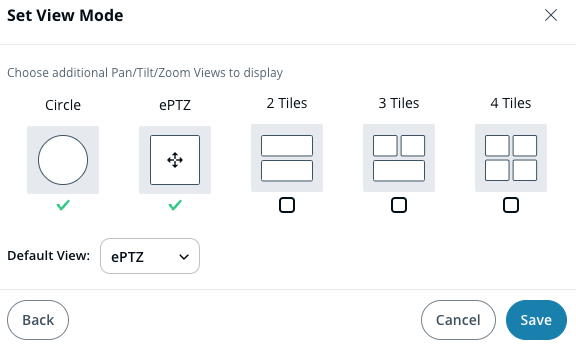
**On Set View Mode, select Pan/Tilt/Zoom and click Next.**
{% endstep %}
{% step %}
**Check the relevant boxes to use any of the tile views and Save.**
{% endstep %}
{% endstepper %}
### Set the mount location
Once you change the camera to PTZ mode, you must set the mount location to enable the correct controls for the digital PTZ.
{% stepper %}
{% step %}
**In Verkada Command, go to All Products > Cameras.**
{% endstep %}
{% step %}
**Select the camera you want to update.**
{% endstep %}
{% step %}
**At the bottom right, click Settings.**
{% endstep %}
{% step %}
**Under General > Mount Location, click** :pencil-line:**.**
a. Select **Mounted to Wall** or **Mounted on Ceiling**, depending on where the camera is mounted.\
b. Click **Save.**
{% endstep %}
{% endstepper %}
### Configure tile default home positions
You can edit the home positions of each tile to configure the default view of each tile.
{% hint style="danger" %}
The camera needs to be in a tile view to see this menu option.
{% endhint %}
{% stepper %}
{% step %}
**In Verkada Command, go to All Products > Cameras.**
{% endstep %}
{% step %}
**Select the camera you want to update.**
{% endstep %}
{% step %}
**At the bottom left of the footage, click the SQ/HQ dropdown and select Edit Home Positions.**
a. Click and drag a camera tile view to the needed view.\
b. Click **Save.**
{% endstep %}
{% endstepper %}
### Change the orientation of tile views
On any tile view, you can change the orientation of each tile.
{% hint style="danger" %}
You will only see tile options in this menu if you select them when [setting the camera to PTZ mode.](#h_66f2331ef2)
{% endhint %}
{% stepper %}
{% step %}
**In Verkada Command, go to All Products > Cameras.**
{% endstep %}
{% step %}
**Select the camera you want to view.**
{% endstep %}
{% step %}
**In the right navigation, select one of the tile views from the PTZ icon.**
{% endstep %}
{% step %}
**Click a tile to make it full-screen.**
{% endstep %}
{% step %}
**Click and drag to move the image to the needed view.**
{% endstep %}
{% step %}
**When you get the angle you want, click to return to the full tile view.**
{% endstep %}
{% endstepper %}
---
# Agent Instructions
This documentation is published with GitBook. GitBook is the documentation platform designed so that both humans and AI agents can read, navigate, and reason over technical content effectively. Learn more at gitbook.com.
## Querying This Documentation
If you need additional information that is not directly available in this page, you can query the documentation by asking a question.
Perform an HTTP GET request on the following URL with the `ask` and `goal` query parameters:
```
GET https://help.verkada.com/verkada-cameras/configuration/view-and-edit-camera-settings/change-fisheye-view-modes.md?ask=&goal=
```
`ask` is the immediate question: it should be specific, self-contained, and written in natural language.
`goal` is what the user is ultimately trying to achieve, the reason they need the answer. Sharing it helps GitBook give you a better, more relevant answer. A goal is most helpful when it describes the outcome the user wants rather than restating the question. For example, with `ask=how do I create an API token`, a goal like `automate deployments from our CI pipeline` lets GitBook tailor the answer to that use case.
The response will contain a direct answer to the question and relevant excerpts and sources from the documentation.
Use this mechanism when the answer is not explicitly present in the current page, you need clarification or additional context, or you want to retrieve related documentation sections.