> For the complete documentation index, see [llms.txt](https://help.verkada.com/llms.txt). Markdown versions of documentation pages are available by appending `.md` to page URLs; this page is available as [Markdown](https://help.verkada.com/verkada-cameras/configuration/view-and-edit-camera-settings/camera-replacement.md).
# Camera Replacement
Ensure critical footage remains accessible during camera replacement
Camera replacement helps you retain access to important footage when replacing cameras as part of regular upgrades or Return Merchandise Authorization (RMAs). This process will preserve all accessible footage on the camera so it is not lost during the transition.
{% hint style="warning" %}
This feature does not change how you order new devices or Contact Support to initiate RMAs.
{% endhint %}
***
### Before you replace a camera
Initiate the replacement process, then wait for the backup to complete **before unplugging the camera awaiting replacement**.
Successfully backed-up footage will be retained for the full duration of the device’s retention policy—either onboard or extended cloud retention, whichever is longer.
{% hint style="danger" %}
Regardless of this feature, deleting a device from Command will permanently remove all associated data, including onboard storage and any cloud backups.
{% endhint %}
***
## Configuration
{% stepper %}
{% step %}
**In Verkada Command, go to All Products > Cameras.**
{% endstep %}
{% step %}
**Select the camera you want to replace.**
{% endstep %}
{% step %}
**At the bottom right, Select Settings.**
{% endstep %}
{% step %}
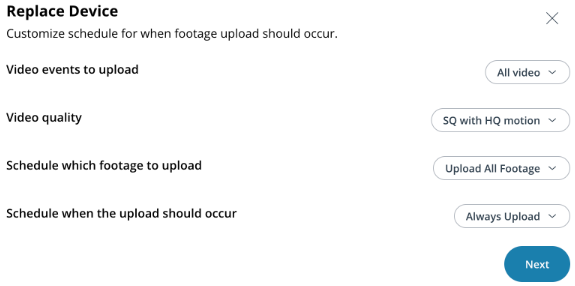
**Under Device > Replace Device, click Start Replacement.**
1. Choose which footage to upload.
2. Select the video quality.
3. Set the upload schedule.
{% hint style="info" %}
We **recommend** selecting **Always Upload** to ensure all footage is backed up promptly.
{% endhint %}
4. Click **Next.**
{% endstep %}
{% step %}
**Enter the verification code and click Done.**
{% endstep %}
{% endstepper %}
{% hint style="danger" %}
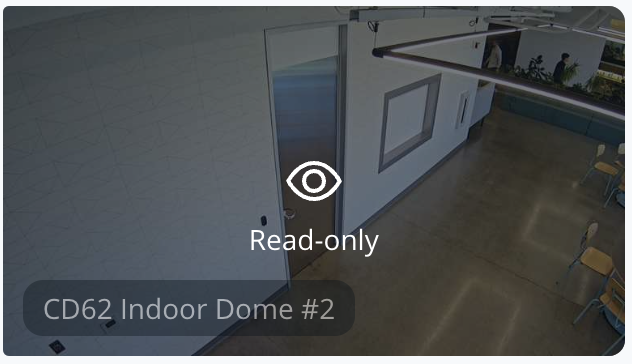
The camera will enter read-only mode, and no new footage will be recorded from that point onward.
{% endhint %}
***
## Manage devices after backup
{% stepper %}
{% step %}
**A banner will appear at the top of the camera’s page when it is safe to disconnect the camera.**
{% endstep %}
{% step %}
**Footage is retained and can be accessed according to the camera’s retention policy, either onboard or extended cloud retention, whichever is longer.**
{% endstep %}
{% endstepper %}
{% hint style="danger" %}
You can return RMA cameras to Verkada, but do not delete the device from Command, as this will erase all backed-up data.
{% endhint %}
***
## What happens in read-only mode
* In **Read-only mode**, no new footage will be recorded. Existing footage remains accessible, and camera settings can be viewed but not changed.
* All existing footage (videos and images) is backed up to the cloud.
* Footage is retained and can be accessed according to the camera’s retention policy, either onboard or extended cloud retention, whichever is longer.
* **Footage is not transferred to the new device**. It remains tied to the original device for viewing.
* **Read-only mode cannot be reversed. Contact Verkada Support for assistance.**
* A new camera can be added without affecting license compliance.
---
# Agent Instructions
This documentation is published with GitBook. GitBook is the documentation platform designed so that both humans and AI agents can read, navigate, and reason over technical content effectively. Learn more at gitbook.com.
## Querying This Documentation
If you need additional information that is not directly available in this page, you can query the documentation by asking a question.
Perform an HTTP GET request on the following URL with the `ask` and `goal` query parameters:
```
GET https://help.verkada.com/verkada-cameras/configuration/view-and-edit-camera-settings/camera-replacement.md?ask=&goal=
```
`ask` is the immediate question: it should be specific, self-contained, and written in natural language.
`goal` is what the user is ultimately trying to achieve, the reason they need the answer. Sharing it helps GitBook give you a better, more relevant answer. A goal is most helpful when it describes the outcome the user wants rather than restating the question. For example, with `ask=how do I create an API token`, a goal like `automate deployments from our CI pipeline` lets GitBook tailor the answer to that use case.
The response will contain a direct answer to the question and relevant excerpts and sources from the documentation.
Use this mechanism when the answer is not explicitly present in the current page, you need clarification or additional context, or you want to retrieve related documentation sections.