> For the complete documentation index, see [llms.txt](https://help.verkada.com/llms.txt). Markdown versions of documentation pages are available by appending `.md` to page URLs; this page is available as [Markdown](https://help.verkada.com/verkada-cameras/analytics/people-analytics/occupancy-trends.md).
# Occupancy Trends
Enable occupancy trends to track people and vehicles around your organization
Occupancy trends provide organizations with an estimate of the foot traffic at critical locations within their facilities. These estimates can provide valuable insights for optimizing staffing, adjusting hours of operation, and or tracking the performance of marketing and promotional activities.
{% hint style="warning" %}
This feature is only available on the CB53\*, CB63\*, \*CB52, \*CB62, CD32, CD42, CD43, CD52, CD53, CD62, CD63, CF81, CF83, CH52-E, CH53-E, CH63-E, CM42, CM42-S, CR63-E/TE, CY53-E, and CY63-E models.
{% endhint %}
{% hint style="danger" %}
\* LPR mode must be disabled on bullet cameras and the CR63-E/TE to enable occupancy trends.
{% endhint %}
***
### Installation guidelines
For best performance, we recommend these installation guidelines during the installation of a camera where Occupancy Trends will be enabled:
* Choose a one-directional path. Occupancy Trends works best in locations such as doors and hallways.
* Install the camera 8–12 ft (2.4–3.7m) away from the digital line.
* Position cameras no more than 40–60˚ vertically from the location of the digital line.
* Minimize occlusions and constructions between the camera and the line.
* Ensure good illumination and visibility on both sides of the line. Individuals must be visible on both sides of the line for at least one second.
***
## Enable occupancy trends
{% stepper %}
{% step %}
**In Verkada Command, go to All Products > Cameras.**
{% endstep %}
{% step %}
**Select a camera.**
{% endstep %}
{% step %}
**Under the camera’s live feed, select Analytics.**
{% endstep %}
{% step %}
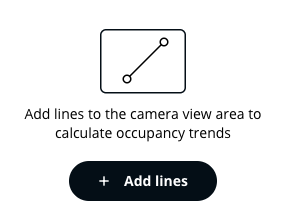
**Select Occupancy Trends > Add lines.**
{% endstep %}
{% step %}
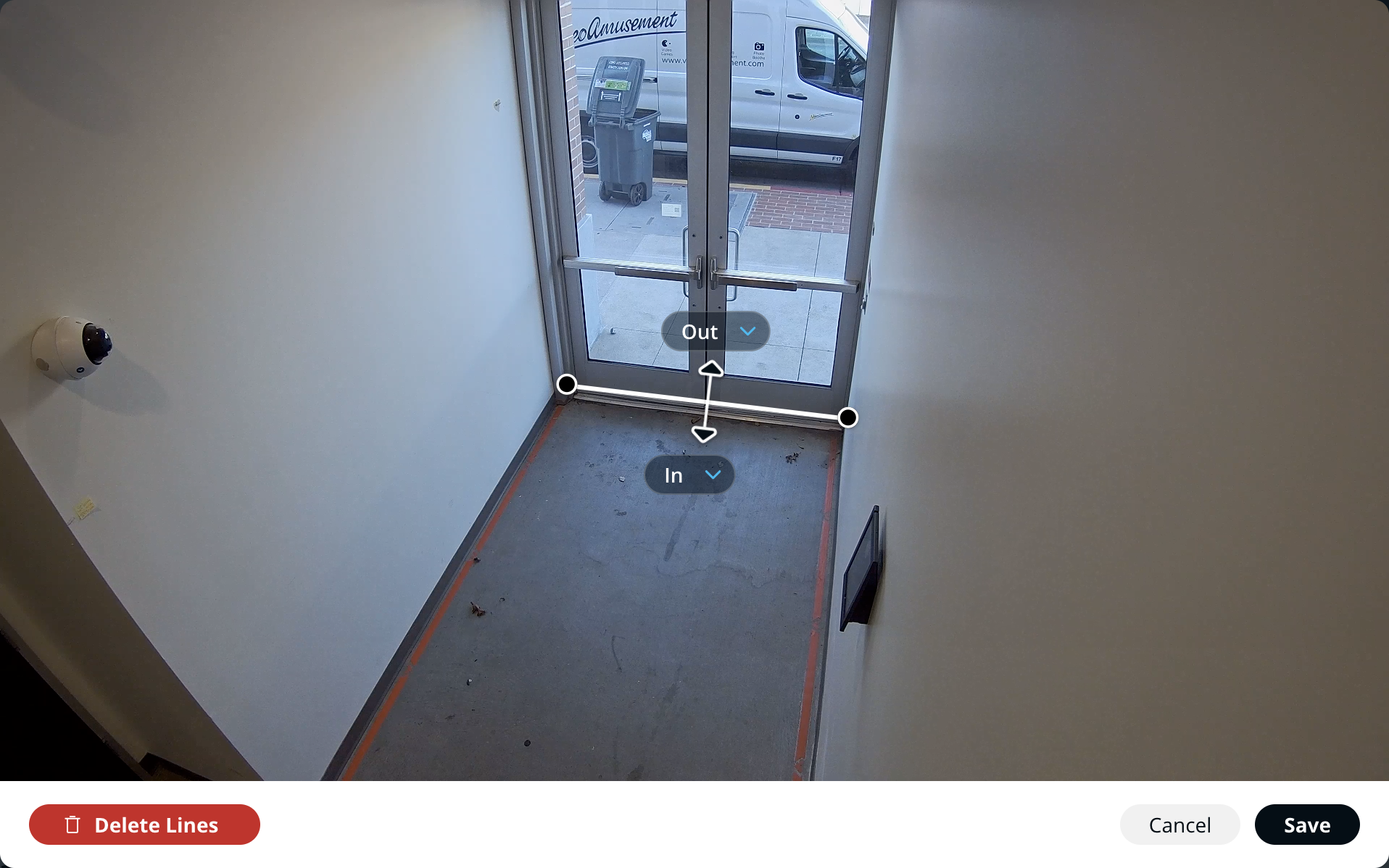
**Click and drag on the camera view to draw a line across the screen.**
{% hint style="info" %}
You can draw multiple lines, but data from all lines is aggregated.
{% endhint %}
{% endstep %}
{% step %}
**(Optional) Click Add Custom Line to add additional presets.**
{% hint style="info" %}
The data from these presets will be separate.
{% endhint %}
{% endstep %}
{% step %}
**Click Save.**
{% endstep %}
{% endstepper %}
***
## View occupancy trends
{% stepper %}
{% step %}
**In Verkada Command, go to All Products > Cameras.**
{% endstep %}
{% step %}
**Select a camera.**
{% endstep %}
{% step %}
**Under the camera’s live feed, select Analytics**  **> Occupancy Trends.**
{% endstep %}
{% step %}
**(Optional) On the left of the camera feed, select your custom line preset.**
{% endstep %}
{% step %}
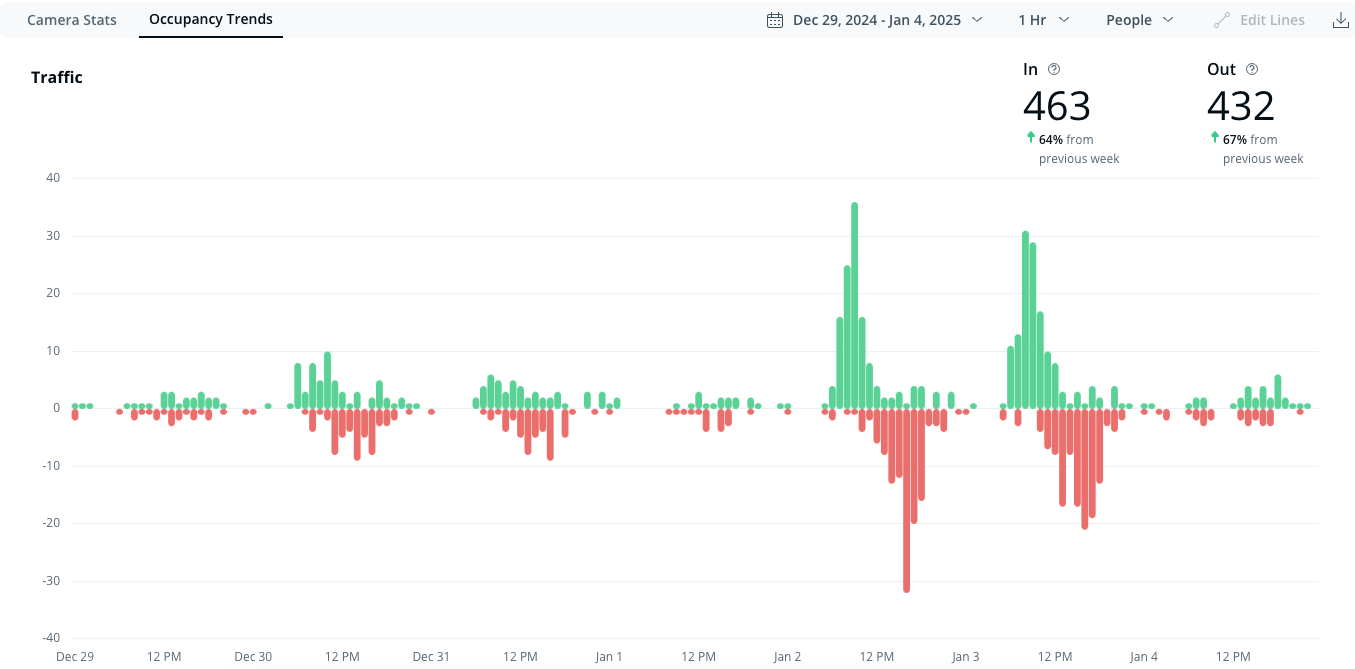
**This tab presents all the estimated In and Out counts for your selected period of time. You can hover your mouse over individual bars to see the numeric count for that period.**
{% endstep %}
{% step %}
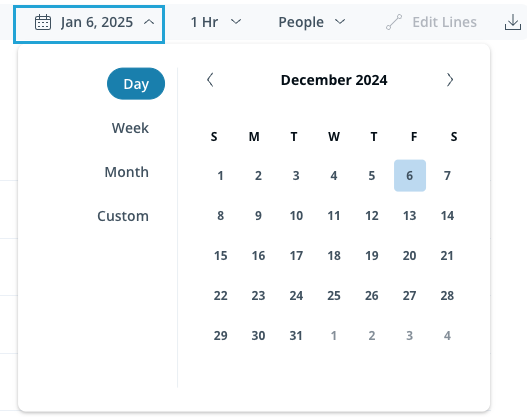
**Select the date range to choose a preset or set a custom range.**
{% endstep %}
{% step %}
**Select the period of time dropdown to choose the period of time that each column in the graph represents.**
{% endstep %}
{% endstepper %}
***
## Export occupancy trends
You can export occupancy trends results as a .csv file.
{% stepper %}
{% step %}
**In Verkada Command, go to All Products > Cameras.**
{% endstep %}
{% step %}
**Select a camera.**
{% endstep %}
{% step %}
**Under the camera’s live feed, select Analytics.**
{% endstep %}
{% step %}
**At the top right, click Download.**
{% endstep %}
{% endstepper %}
***
{% hint style="info" %}
**Prefer to see it in action?** Check out the [video tutorial](https://www.youtube.com/watch?v=9ZyWLqvp0nY).
{% endhint %}
---
# Agent Instructions
This documentation is published with GitBook. GitBook is the documentation platform designed so that both humans and AI agents can read, navigate, and reason over technical content effectively. Learn more at gitbook.com.
## Querying This Documentation
If you need additional information that is not directly available in this page, you can query the documentation by asking a question.
Perform an HTTP GET request on the following URL with the `ask` and `goal` query parameters:
```
GET https://help.verkada.com/verkada-cameras/analytics/people-analytics/occupancy-trends.md?ask=&goal=
```
`ask` is the immediate question: it should be specific, self-contained, and written in natural language.
`goal` is what the user is ultimately trying to achieve, the reason they need the answer. Sharing it helps GitBook give you a better, more relevant answer. A goal is most helpful when it describes the outcome the user wants rather than restating the question. For example, with `ask=how do I create an API token`, a goal like `automate deployments from our CI pipeline` lets GitBook tailor the answer to that use case.
The response will contain a direct answer to the question and relevant excerpts and sources from the documentation.
Use this mechanism when the answer is not explicitly present in the current page, you need clarification or additional context, or you want to retrieve related documentation sections.
**> Occupancy Trends.**
{% endstep %}
{% step %}
**(Optional) On the left of the camera feed, select your custom line preset.**
{% endstep %}
{% step %}
**This tab presents all the estimated In and Out counts for your selected period of time. You can hover your mouse over individual bars to see the numeric count for that period.**
{% endstep %}
{% step %}
**Select the date range to choose a preset or set a custom range.**
{% endstep %}
{% step %}
**Select the period of time dropdown to choose the period of time that each column in the graph represents.**
{% endstep %}
{% endstepper %}
***
## Export occupancy trends
You can export occupancy trends results as a .csv file.
{% stepper %}
{% step %}
**In Verkada Command, go to All Products > Cameras.**
{% endstep %}
{% step %}
**Select a camera.**
{% endstep %}
{% step %}
**Under the camera’s live feed, select Analytics.**
{% endstep %}
{% step %}
**At the top right, click Download.**
{% endstep %}
{% endstepper %}
***
{% hint style="info" %}
**Prefer to see it in action?** Check out the [video tutorial](https://www.youtube.com/watch?v=9ZyWLqvp0nY).
{% endhint %}
---
# Agent Instructions
This documentation is published with GitBook. GitBook is the documentation platform designed so that both humans and AI agents can read, navigate, and reason over technical content effectively. Learn more at gitbook.com.
## Querying This Documentation
If you need additional information that is not directly available in this page, you can query the documentation by asking a question.
Perform an HTTP GET request on the following URL with the `ask` and `goal` query parameters:
```
GET https://help.verkada.com/verkada-cameras/analytics/people-analytics/occupancy-trends.md?ask=&goal=
```
`ask` is the immediate question: it should be specific, self-contained, and written in natural language.
`goal` is what the user is ultimately trying to achieve, the reason they need the answer. Sharing it helps GitBook give you a better, more relevant answer. A goal is most helpful when it describes the outcome the user wants rather than restating the question. For example, with `ask=how do I create an API token`, a goal like `automate deployments from our CI pipeline` lets GitBook tailor the answer to that use case.
The response will contain a direct answer to the question and relevant excerpts and sources from the documentation.
Use this mechanism when the answer is not explicitly present in the current page, you need clarification or additional context, or you want to retrieve related documentation sections.