> For the complete documentation index, see [llms.txt](https://help.verkada.com/llms.txt). Markdown versions of documentation pages are available by appending `.md` to page URLs; this page is available as [Markdown](https://help.verkada.com/verkada-cameras/analytics/camera-stats/device-stats-dashboard.md).
# Device Stats Dashboard
Learn how to view device analytics and understand your fleet’s performance
The camera stats dashboard allows you to monitor camera health, performance, and data usage across your organization.
***
## View device analytics
{% stepper %}
{% step %}
**In Verkada Command, go to All Products > Cameras.**
{% endstep %}
{% step %}
**In the left navigation, select Analytics > Device Stats.**
{% endstep %}
{% step %}
**In the left navigation, select a site to view analytics.**
{% endstep %}
{% endstepper %}
{% hint style="info" %}
You can view device analytics for a single camera by opening its camera page and selecting  **Stats**.
{% endhint %}
***
## Dashboard overview
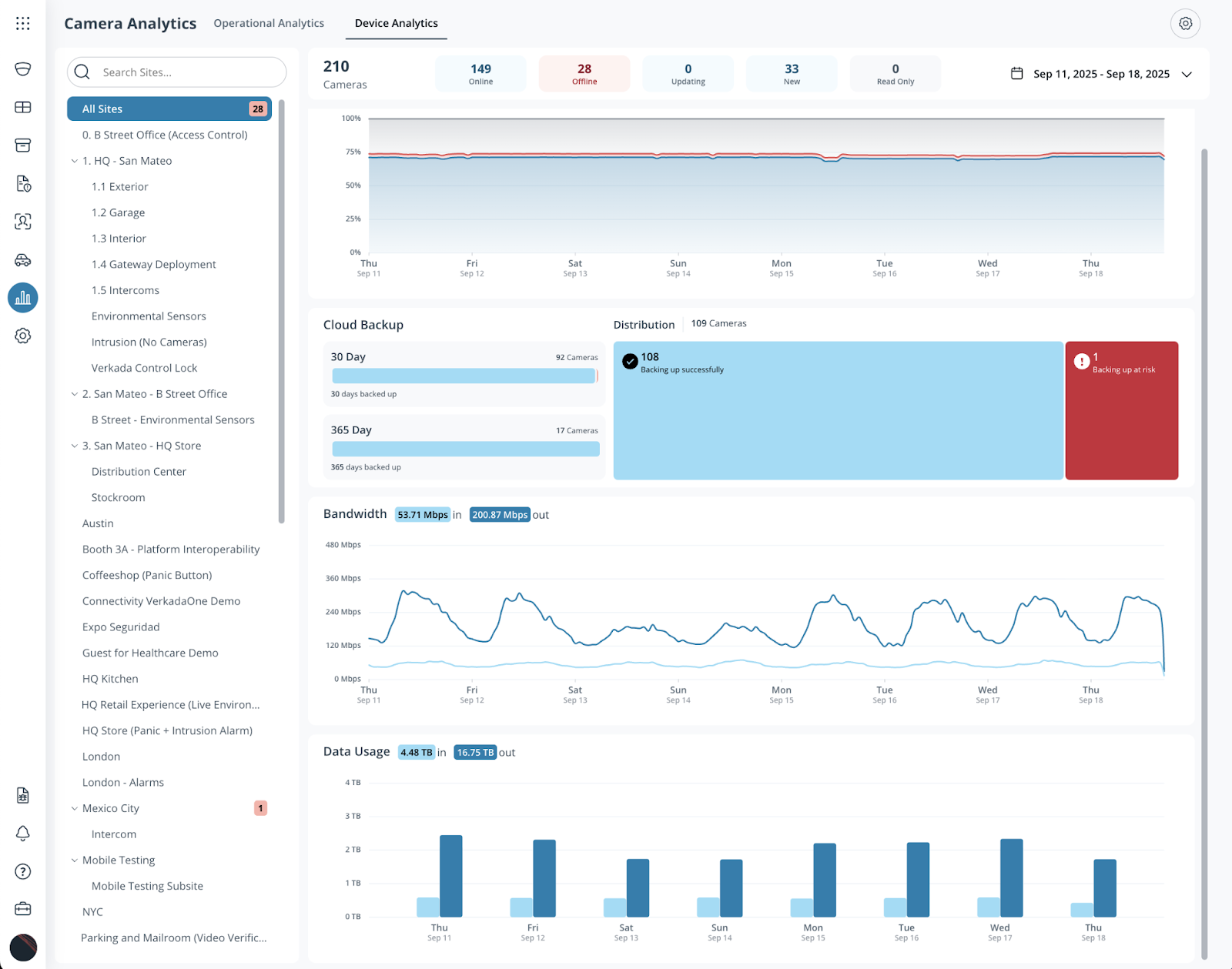
The main dashboard provides a high-level summary of your camera system.
### Summary metrics bar
At the top of the dashboard, the summary metrics bar shows the current status of all cameras within the selected sites:
* **Online** – Cameras currently connected and online
* **Offline** – Cameras not connected to the network
* **Updating** – Cameras updating firmware
* **New** – Cameras that have been commissioned but are not yet online
* **Read-only** – Cameras in read-only mode
* **Excluded** – Cameras removed from analytics
Click any metric box to view a detailed list of cameras in that category.
### Site and date filters
* **Site selector** – Use the left sidebar to select a site. Organization Admins can view aggregated data across all sites by default. Click a specific site (to filter analytics for that location.
* **Date range selector** – Click the calendar icon in the top right to select a custom time range for all dashboard data.
### Analytics charts
Analytics charts display camera performance and usage over the selected date range. Hover over any point to view detailed data.
* **Uptime** – Shows the percentage of cameras online, offline, or down over time
* **Cloud backup** – Displays the number of cameras with cloud backup enabled and their retention distribution (for example, 30-day or 365-day). Cameras highlighted in yellow are marked "At risk" if bandwidth limits affect the backup process.
* **Bandwidth** – Shows total network bandwidth (in Mbps) used by cameras
* **Data usage** – Displays total bandwidth usage per day
### View details for individual cameras
{% stepper %}
{% step %}
**In Verkada Command, go to All Products > Cameras.**
{% endstep %}
{% step %}
**In the left navigation, select Analytics > Device Stats.**
{% endstep %}
{% step %}
**At the top, select a metric box to open the list of cameras in that category.**
a. Select a camera from the list.\
b. On the right, view the camera’s uptime, bandwidth, data usage, and motion analytics.\
c. In the top left, use the **Time Range** dropdown to filter by period (for example, *Last 7 days* or *Last 30 days*).
{% endstep %}
{% endstepper %}
### Exclude cameras from analytics
Exclude cameras from analytics if they are under maintenance, temporarily staged, or not relevant to current monitoring.
{% stepper %}
{% step %}
**In Verkada Command, go to All Products > Cameras.**
{% endstep %}
{% step %}
**In the left navigation, select Analytics > Device Stats.**
{% endstep %}
{% step %}
**In the top left, click** :gear:**.**
a. Next to **Excluded Cameras**, click **Select**.\
b. Select the cameras to exclude. A checkmark appears on selected cameras.\
c. Click **Save**.
{% endstep %}
{% endstepper %}
Excluded cameras appear under the **Excluded** category on the main dashboard and are not included in analytics. To view their data, click the **Excluded** metric box.
---
# Agent Instructions
This documentation is published with GitBook. GitBook is the documentation platform designed so that both humans and AI agents can read, navigate, and reason over technical content effectively. Learn more at gitbook.com.
## Querying This Documentation
If you need additional information that is not directly available in this page, you can query the documentation dynamically by asking a question.
Perform an HTTP GET request on the current page URL with the `ask` query parameter, and the optional `goal` query parameter:
```
GET https://help.verkada.com/verkada-cameras/analytics/camera-stats/device-stats-dashboard.md?ask=&goal=
```
`ask` is the immediate question: it should be specific, self-contained, and written in natural language.
`goal` is optional and describes the broader end goal you are ultimately trying to accomplish on behalf of the user. GitBook uses it to tailor the answer towards what is most useful for that goal.
The response will contain a direct answer to the question and relevant excerpts and sources from the documentation.
Use this mechanism when the answer is not explicitly present in the current page, you need clarification or additional context, or you want to retrieve related documentation sections.