> For the complete documentation index, see [llms.txt](https://help.verkada.com/llms.txt). Markdown versions of documentation pages are available by appending `.md` to page URLs; this page is available as [Markdown](https://help.verkada.com/transportation/ja/ibentotoarto/gateway-monthly-data-usage-alerts.md).
# ゲートウェイの月間データ使用量アラート
ゲートウェイの月間データ使用量アラートを設定する方法を学ぶ
各 Verkada Transportation ゲートウェイでは、ゲートウェイおよび接続されたデバイスで使用されたデータ量を追跡できます。月間データ使用量が設定済みのしきい値を超えたときにアラートを発生するよう、ゲートウェイを設定できます。
{% hint style="danger" %}
ゲートウェイのアラートを作成するには、Site Admin 権限が必要です。Site Admin は Site Viewer をアラートの受信者として指定できます。
{% endhint %}
***
### **アラートを作成 > イベント**
{% stepper %}
{% step %}
**Verkada Command にログインします。**
{% endstep %}
{% step %}
**Commandのホームページの左側ナビゲーションで、アラートをクリックします。**
{% endstep %}
{% step %}
**上部の[新しいアラート]をクリックします。**
{% endstep %}
{% step %}
**[イベントを選択]で、ゲートウェイ > 月間データ使用量 を選択します。**
{% endstep %}
{% step %}
**[Gateways]で:**
a. 次の対象からアラートを受信するように選択します。 **すべてのゲートウェイ、サイト、** または **個別のゲートウェイ。**\
b. クリックします **完了** して、アラートの設定を続けます。 [データ使用量のしきい値](#create-alert-greater-than-data-usage-threshold).
{% endstep %}
{% endstepper %}
### **アラートを作成 > データ使用量のしきい値**
{% stepper %}
{% step %}
**ドロップダウン メニューを選択して、月次使用サイクルの開始日を選択します。**
{% endstep %}
{% step %}
**アラートを発生させるデータしきい値を設定します。**
{% hint style="warning" %}
このデータしきい値はデバイス レベルのアラートです。しきい値を超えた各デバイスについてユーザーに通知されます。
{% endhint %}
{% endstep %}
{% step %}
**[完了]をクリックして、アラートの設定を続けます** [**通知スケジュール**](#create-alert-greater-than-data-usage-threshold)**.**
{% endstep %}
{% endstepper %}
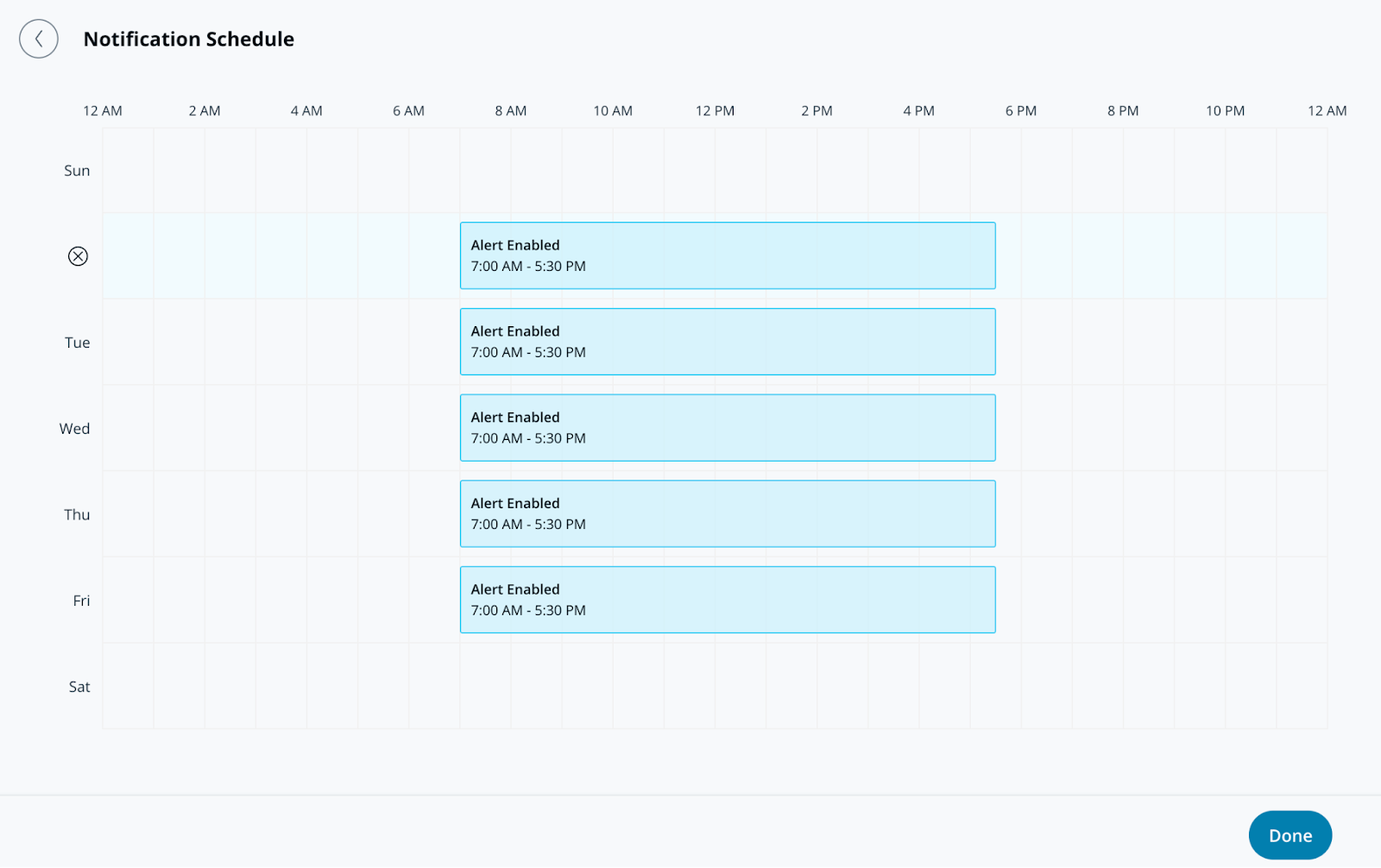
### アラートを作成 > 通知スケジュール
{% stepper %}
{% step %}
**通知スケジュールでは、アラートが通知を送信する曜日と時刻を指定します。アラートは既定で24時間365日送信されます。**
{% endstep %}
{% step %}
**[完了]をクリックして、アラートの設定を続けます** [**通知**](#create-alert-greater-than-notification)**.**
{% endstep %}
{% endstepper %}
### アラートを作成 > 通知
{% stepper %}
{% step %}
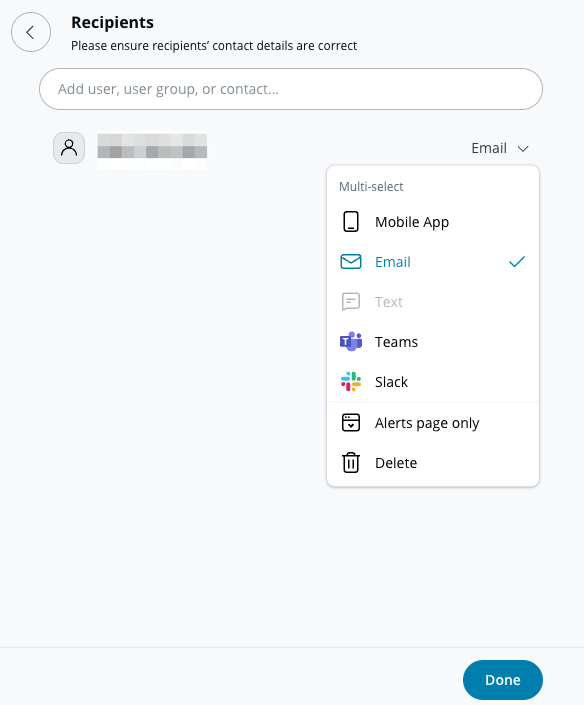
**通知では、ユーザーを個別に追加するか、アラートをグループに割り当てます。**
{% endstep %}
{% step %}
**ユーザーまたはグループの横にあるドロップダウンメニューを選択して、通知方法を選びます。受信者には、プッシュ、SMS、メッセージングプラットフォームのアラート、またはメール通知で通知できます。**
{% hint style="info" %}
このアラートに追加された受信者は、次の下に表示されます **共有アラート** のセクション **アラート** ページ。
{% endhint %}
{% endstep %}
{% step %}
**(任意) 既定では、あなたもアラートの受信者になります。ドロップダウンメニューを選択し、\[削除]をクリックして自分を削除します。**
{% endstep %}
{% step %}
**\[完了]をクリックして、アラートの** [**オプション設定**](#optional-settings)**、または** [**アラートを完了します**](#finish-the-alert)**.**
{% endstep %}
{% endstepper %}
### オプション設定
#### アラートを作成 > オペレーション
{% stepper %}
{% step %}
**Route to Operations をオンにして、アラートからチケットを作成します。**
{% endstep %}
{% step %}
**(任意) \[チケットの手順]を選択してチケットに情報を追加し、\[完了]をクリックします。**
{% endstep %}
{% step %}
**\[完了]をクリックして、次へ進みます** [**アラートを完了します**](#finish-the-alert)**.**
{% endstep %}
{% endstepper %}
#### アラートを作成 > デバイスアクション
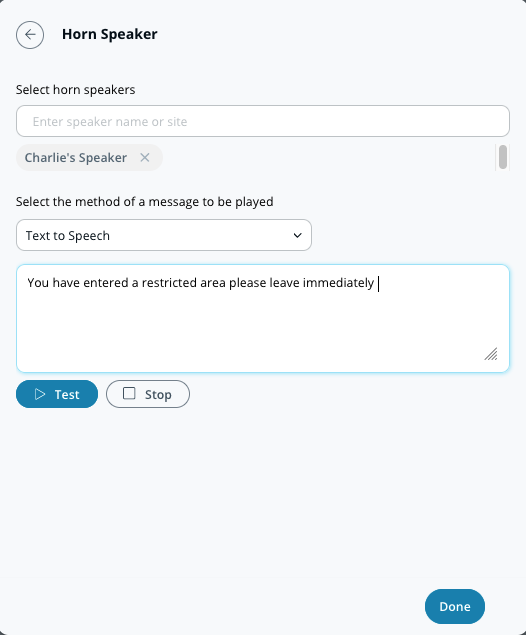
個人への通知に加えて、アラートがトリガーされたときにホーンスピーカーを鳴らすように設定できます。これらのアラートはテキスト読み上げまたはアップロードしたMP3ファイルにできます。
{% stepper %}
{% step %}
**デバイスアクションでは、メッセージを再生するホーンスピーカーを選択します。**
{% endstep %}
{% step %}
**通知の方法を選択します(テキスト読み上げまたは音声ファイル)。**
a. の **テキスト読み上げ、** 200文字までのメッセージを入力します。\
b. の **音声ファイル、** ファイルをドラッグ&ドロップするか、クリックして **ファイルを選択** して音声クリップをアップロードします。
{% endstep %}
{% step %}
**\[完了]をクリックして、次へ進みます** [**アラートを完了します**](#finish-the-alert)**.**
{% endstep %}
{% endstepper %}
### アラートを完了
{% stepper %}
{% step %}
**設定ウィンドウの右下で、\[次へ]をクリックします。**
{% endstep %}
{% step %}
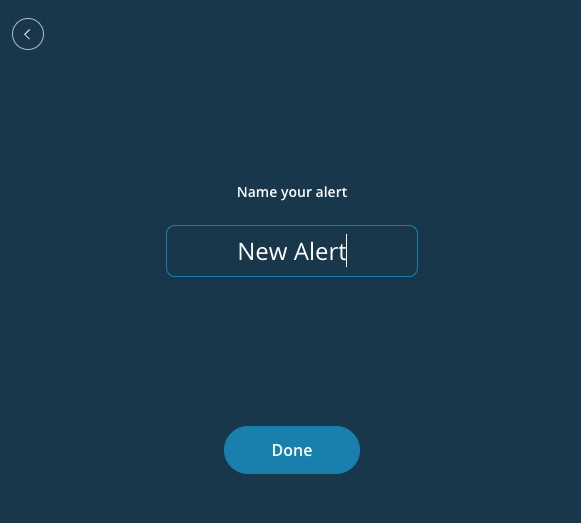
**アラートにわかりやすい名前を入力します。**
{% endstep %}
{% step %}
**\[完了]をクリックして設定を完了します。**
{% endstep %}
{% endstepper %}
---
# Agent Instructions
This documentation is published with GitBook. GitBook is the documentation platform designed so that both humans and AI agents can read, navigate, and reason over technical content effectively. Learn more at gitbook.com.
## Querying This Documentation
If you need additional information that is not directly available in this page, you can query the documentation dynamically by asking a question.
Perform an HTTP GET request on the following URL with the `ask` and `goal` query parameters:
```
GET https://help.verkada.com/transportation/ja/ibentotoarto/gateway-monthly-data-usage-alerts.md?ask=&goal=
```
`ask` is the immediate question: it should be specific, self-contained, and written in natural language.
`goal` is what the user is ultimately trying to achieve, the reason they need the answer. Sharing it helps GitBook give you a better, more relevant answer. A goal is most helpful when it describes the outcome the user wants rather than restating the question. For example, with `ask=how do I create an API token`, a goal like `build a script that syncs our docs to a CMS` lets GitBook tailor the answer to that use case.
The response will contain a direct answer to the question and relevant excerpts and sources from the documentation.
Use this mechanism when the answer is not explicitly present in the current page, you need clarification or additional context, or you want to retrieve related documentation sections.