> For the complete documentation index, see [llms.txt](https://help.verkada.com/llms.txt). Markdown versions of documentation pages are available by appending `.md` to page URLs; this page is available as [Markdown](https://help.verkada.com/transportation/es/eventos-y-alertas/gateway-monthly-data-usage-alerts.md).
# Alertas mensuales de uso de datos de la pasarela
Aprende a configurar alertas mensuales de uso de datos para tu pasarela
Cada gateway de Verkada Transportation permite a los usuarios hacer seguimiento de la cantidad de datos utilizados por el gateway y cualquier dispositivo conectado. Puede configurar un gateway para activar una alerta cuando el uso mensual de datos supere un umbral preestablecido.
{% hint style="danger" %}
Necesita permisos de administrador del sitio para crear alertas de gateway. Los administradores del sitio pueden designar a los visualizadores del sitio como destinatarios de las alertas.
{% endhint %}
***
### **Crear alerta > Eventos**
{% stepper %}
{% step %}
**Inicie sesión en Verkada Command.**
{% endstep %}
{% step %}
**En la página de inicio de Command, en la navegación izquierda, haga clic en Alertas.**
{% endstep %}
{% step %}
**En la parte superior, haga clic en Nueva alerta.**
{% endstep %}
{% step %}
**En Seleccionar evento, elija Gateway > Uso mensual de datos.**
{% endstep %}
{% step %}
**En Gateways:**
a. Elija recibir alertas de **Todos los gateways, sitios,** o **Gateways individuales.**\
b. Haga clic en **Listo** y continúe con la alerta [umbral de uso de datos](#create-alert-greater-than-data-usage-threshold).
{% endstep %}
{% endstepper %}
### **Crear alerta > Umbral de uso de datos**
{% stepper %}
{% step %}
**Seleccione el menú desplegable para elegir la fecha de inicio del ciclo mensual de uso.**
{% endstep %}
{% step %}
**Establezca el umbral de datos que activará la alerta.**
{% hint style="warning" %}
El umbral de datos es una alerta a nivel de dispositivo. Se notificará a los usuarios por cada dispositivo que supere el umbral.
{% endhint %}
{% endstep %}
{% step %}
**Haga clic en Hecho y continúe con la alerta** [**programación de notificaciones**](#create-alert-greater-than-data-usage-threshold)**.**
{% endstep %}
{% endstepper %}
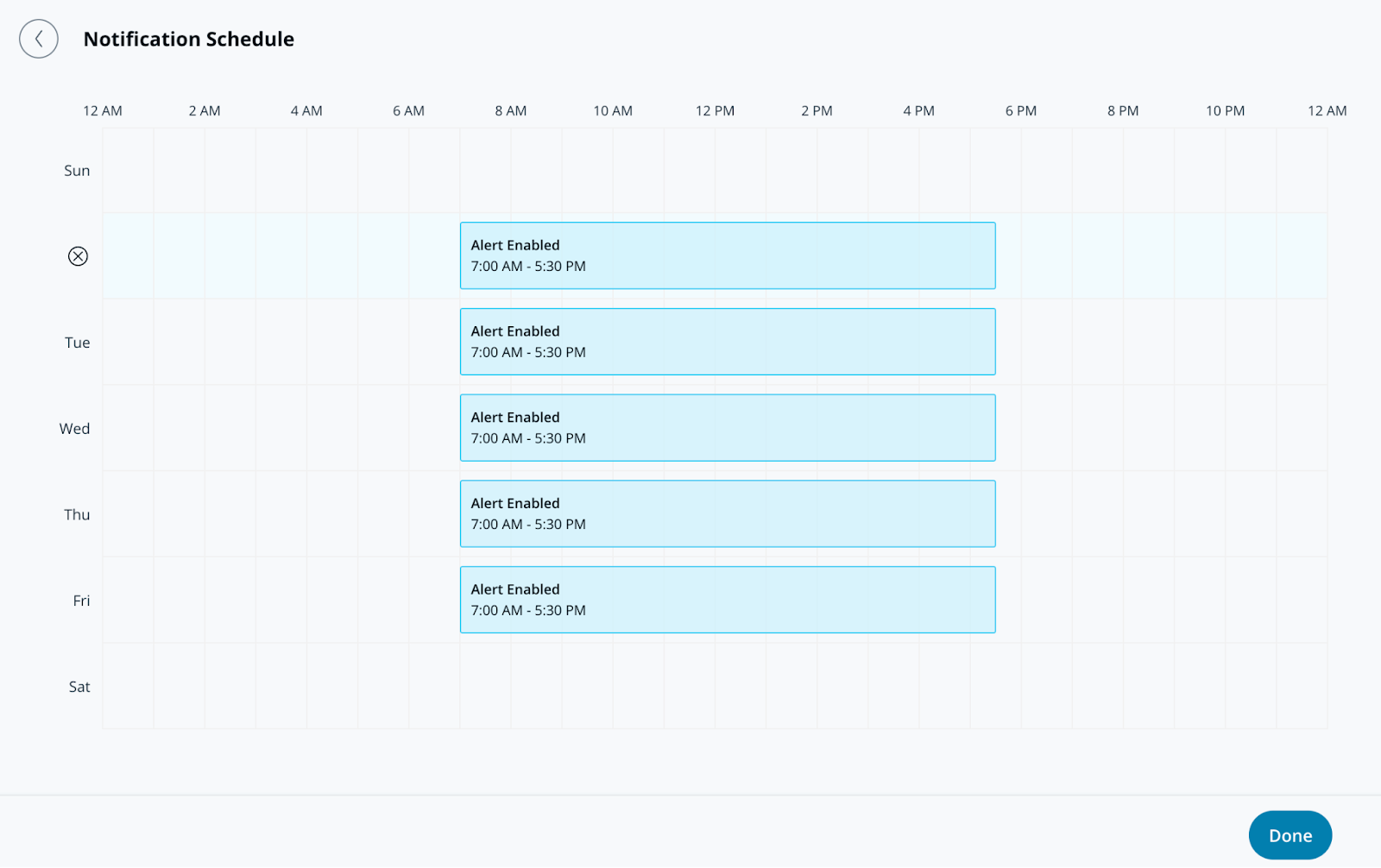
### Crear alerta > Programación de notificaciones
{% stepper %}
{% step %}
**En Programación de notificaciones, especifique los días y las horas en que las alertas envíen notificaciones. Las alertas se generan las 24 horas del día, los 7 días de la semana de forma predeterminada.**
{% endstep %}
{% step %}
**Haga clic en Hecho y continúe con la alerta** [**notificación**](#create-alert-greater-than-notification)**.**
{% endstep %}
{% endstepper %}
### Crear alerta > Notificación
{% stepper %}
{% step %}
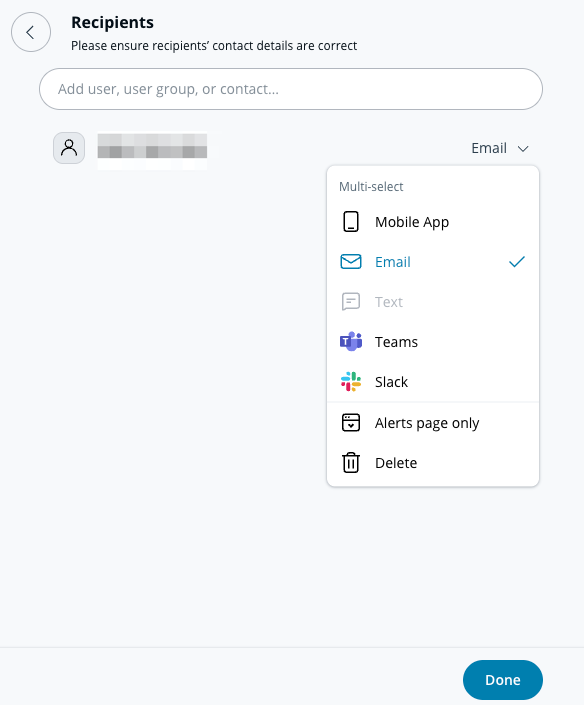
**En Notificación, agregue usuarios individualmente o asigne la alerta a un grupo.**
{% endstep %}
{% step %}
**Seleccione el menú desplegable junto a un usuario o grupo para elegir su(s) método(s) de notificación. Los destinatarios pueden recibir notificaciones mediante push, SMS, alertas de la plataforma de mensajería o notificaciones por correo electrónico.**
{% hint style="info" %}
Cualquier destinatario agregado a esta alerta la verá aparecer en la **Alertas compartidas** sección de su **Alertas** página.
{% endhint %}
{% endstep %}
{% step %}
**(Opcional) De forma predeterminada, usted será un destinatario de la alerta. Seleccione el menú desplegable y haga clic en Eliminar para quitarse.**
{% endstep %}
{% step %}
**Haga clic en Listo y continúe con la configuración de la alerta** [**configuración opcional**](#optional-settings)**, o** [**finalice la alerta**](#finish-the-alert)**.**
{% endstep %}
{% endstepper %}
### Configuración opcional
#### Crear alerta > Operaciones
{% stepper %}
{% step %}
**Active Route to Operations para crear un ticket a partir de la alerta.**
{% endstep %}
{% step %}
**(Opcional) Seleccione Instrucciones del ticket para agregar información al ticket y haga clic en Listo.**
{% endstep %}
{% step %}
**Haga clic en Listo y continúe con** [**finalice la alerta**](#finish-the-alert)**.**
{% endstep %}
{% endstepper %}
#### Crear alerta > Acción del dispositivo
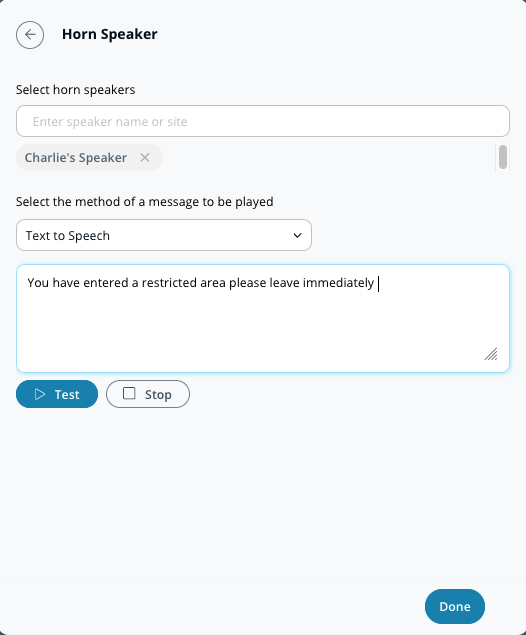
Además de notificar a personas, puede configurar su altavoz de bocina para que suene cuando se active una alerta. Estas alertas pueden ser de texto a voz o un archivo MP3 cargado.
{% stepper %}
{% step %}
**En Acción del dispositivo, seleccione el/los altavoz(es) de bocina en los que desea reproducir su mensaje.**
{% endstep %}
{% step %}
**Seleccione su preferencia de notificación (Texto a voz o archivo de audio).**
a. Para **Texto a voz,** ingrese un mensaje de hasta 200 caracteres.\
b. Para **Archivo de audio,** arrastre y suelte el archivo o haga clic en **elegir un archivo** para cargar su clip de audio.
{% endstep %}
{% step %}
**Haga clic en Listo y continúe con** [**finalice la alerta**](#finish-the-alert)**.**
{% endstep %}
{% endstepper %}
### Finalice la alerta
{% stepper %}
{% step %}
**En la parte inferior derecha de la ventana de configuración, haga clic en Siguiente.**
{% endstep %}
{% step %}
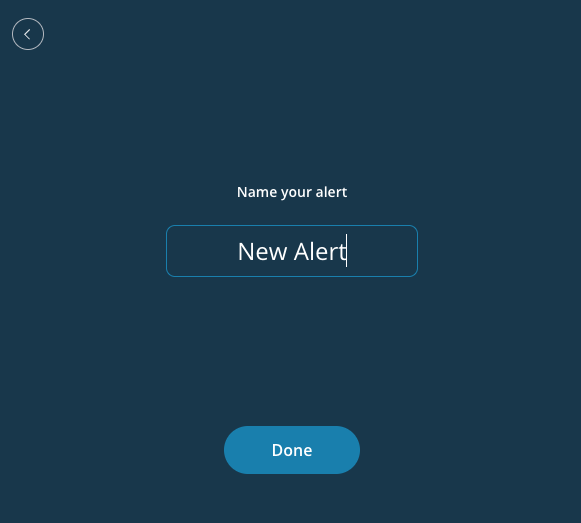
**Introduzca un nombre descriptivo para la alerta.**
{% endstep %}
{% step %}
**Haga clic en Listo para completar la configuración.**
{% endstep %}
{% endstepper %}
---
# Agent Instructions
This documentation is published with GitBook. GitBook is the documentation platform designed so that both humans and AI agents can read, navigate, and reason over technical content effectively. Learn more at gitbook.com.
## Querying This Documentation
If you need additional information that is not directly available in this page, you can query the documentation dynamically by asking a question.
Perform an HTTP GET request on the following URL with the `ask` and `goal` query parameters:
```
GET https://help.verkada.com/transportation/es/eventos-y-alertas/gateway-monthly-data-usage-alerts.md?ask=&goal=
```
`ask` is the immediate question: it should be specific, self-contained, and written in natural language.
`goal` is what the user is ultimately trying to achieve, the reason they need the answer. Sharing it helps GitBook give you a better, more relevant answer. A goal is most helpful when it describes the outcome the user wants rather than restating the question. For example, with `ask=how do I create an API token`, a goal like `build a script that syncs our docs to a CMS` lets GitBook tailor the answer to that use case.
The response will contain a direct answer to the question and relevant excerpts and sources from the documentation.
Use this mechanism when the answer is not explicitly present in the current page, you need clarification or additional context, or you want to retrieve related documentation sections.