> For the complete documentation index, see [llms.txt](https://help.verkada.com/llms.txt). Markdown versions of documentation pages are available by appending `.md` to page URLs; this page is available as [Markdown](https://help.verkada.com/new-alarms/configuration/alarm-sites/configure-partitions/walk-test-for-sensor-partitions.md).
# Walk Test for Sensor Partitions
Walk Test allows installers and customers to verify that their alarm system is functioning correctly without raising actual alarms.
Walk Tests verify that all sensors within a partition are functioning correctly. It is typically used:
* After system installation to confirm proper setup.
* For maintenance or insurance compliance.
{% hint style="danger" %}
During a Walk Test, sensor partitions do not trigger alarms, including those configured as *Always Armed.* Camera partitions **should remain disarmed**, and are not supported by Walk Tests.
{% endhint %}
***
## Perform a Walk Test
{% hint style="danger" %}
You need Site Admin permissions to conduct a walk test.
{% endhint %}
{% stepper %}
{% step %}
**In Verkada Command, go to All Products > Alarms.**
{% endstep %}
{% step %}
**Select the alarm site where you want to perform the test.**
{% endstep %}
{% step %}
**On the left, click System Status.**
a. In the top right, select **Walk Tests**. From here, you can view or download previous test reports.\
b. In the top right, click **Start Test**.
{% endstep %}
{% step %}
**Walk through the site and activate all sensors, including access controller doors if they are configured as alarm triggers.**
a. Each sensor starts in the **Waiting for a Trigger** state. Once triggered, its status updates in real time.\
b. When all sensors have been triggered, click **End Test**.
{% endstep %}
{% step %}
**To download results, select Generate Report to create a PDF summary.**
{% endstep %}
{% endstepper %}
{% hint style="warning" %}
Walk Test sessions automatically end after 4 hours, unless manually stopped.
{% endhint %}
***
## Success criteria for device events
### Wired and wireless sensors
* A successful event is logged when the sensor is triggered.
* For wireless sensors, the system records both RSSI signal strength and battery level.
* A low battery or a weak signal does not affect success if the sensor triggers correctly.
### Access control (AC) doors
Only a Door Open event is counted as a successful test, even if the door is configured for Door Held Open or Door Forced Open.
### Overall success criteria
* The test is successful when all devices are triggered at least once.
* Any warnings, such as low battery or poor signal, are displayed but do not affect overall success.
***
## Device issues
### Warnings
* Each sensor displays its current status. When a warning is active, it reflects the sensor’s current live state.
* If the warning clears during the Walk Test, it will not appear in the final report.
* If it persists until the end, it is recorded in the report.
This allows users to address issues in real time and prevents temporary warnings from affecting the final result.
**Warnings may appear for:**
{% stepper %}
{% step %}
**Low battery**
{% endstep %}
{% step %}
**Poor RSSI**
{% endstep %}
{% step %}
**Device offline**
{% endstep %}
{% endstepper %}
### Debugging issues
You can click on a device to open the device details page without leaving the Walk Test. From here you can:
* Diagnose issues live using camera context, RSSI trends, hub seen during pairing, and battery status.
* Resolve issues immediately by adjusting sensitivity, re-pairing, muting sensors, adding context cameras, or enabling video verification.
### Overriding sensor states
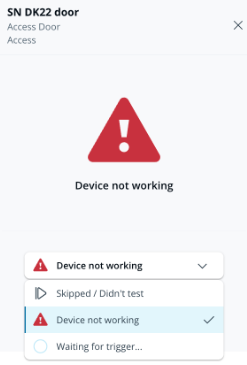
If a sensor isn’t functioning during the Walk Test, you can manually set its result directly from the Walk Test page:
* Select **Device not working** to mark it for follow-up later.
* Select **Skipped / Didn’t test** if the sensor wasn’t tested.
---
# Agent Instructions
This documentation is published with GitBook. GitBook is the documentation platform designed so that both humans and AI agents can read, navigate, and reason over technical content effectively. Learn more at gitbook.com.
## Querying This Documentation
If you need additional information that is not directly available in this page, you can query the documentation by asking a question.
Perform an HTTP GET request on the following URL with the `ask` and `goal` query parameters:
```
GET https://help.verkada.com/new-alarms/configuration/alarm-sites/configure-partitions/walk-test-for-sensor-partitions.md?ask=&goal=
```
`ask` is the immediate question: it should be specific, self-contained, and written in natural language.
`goal` is what the user is ultimately trying to achieve, the reason they need the answer. Sharing it helps GitBook give you a better, more relevant answer. A goal is most helpful when it describes the outcome the user wants rather than restating the question. For example, with `ask=how do I create an API token`, a goal like `automate deployments from our CI pipeline` lets GitBook tailor the answer to that use case.
The response will contain a direct answer to the question and relevant excerpts and sources from the documentation.
Use this mechanism when the answer is not explicitly present in the current page, you need clarification or additional context, or you want to retrieve related documentation sections.