> For the complete documentation index, see [llms.txt](https://help.verkada.com/llms.txt). Markdown versions of documentation pages are available by appending `.md` to page URLs; this page is available as [Markdown](https://help.verkada.com/mailroom/ja/gou-cheng/customize-your-mailroom-dashboard.md).
# Mailroom ダッシュボードをカスタマイズする
Verkada Mailroom のダッシュボードをカスタマイズする方法を学びます
Verkada Mailroomは、すべての施設にわたる配送管理を効率化し、在庫、備品、荷物が適切な人に時間どおり届くようにします。各Mailroomサイトには、配送の追跡と管理のためのカスタマイズ可能なダッシュボードが含まれています。
***
## Mailroomサイトを切り替える
異なるMailroomサイトを切り替えるには、左上隅のドロップダウンをクリックしてサイトを選択します。
***
## 荷物を検索する
{% stepper %}
{% step %}
**Verkada Commandで、All Products > Workplace > Mailroomに移動します。**
{% endstep %}
{% step %}
**左側のナビゲーションで、Mailroom Homeを選択します。**
{% endstep %}
{% step %}
**右側では、Mailroom管理者は次のことができます。**
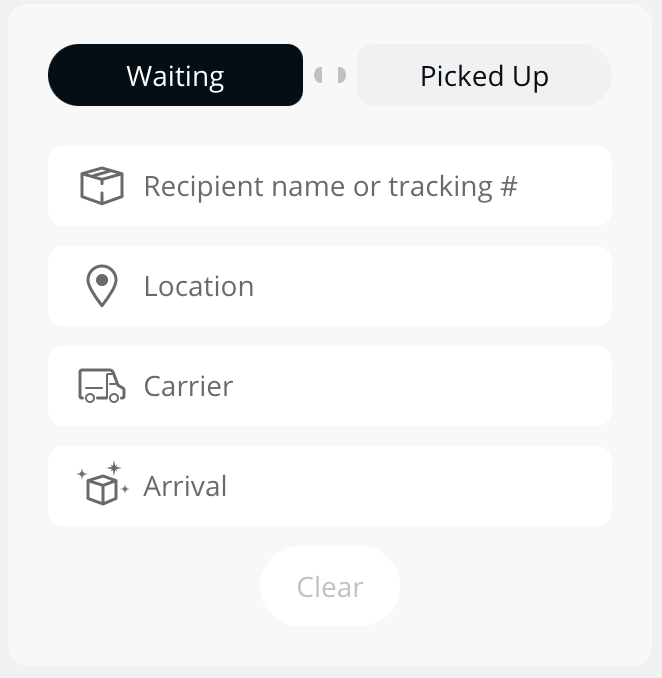
* 次の条件で荷物を検索する **受取人名**, **場所**, **配送業者**、または **到着/受け取り日**.
* 次の荷物を切り替える **待機中** または **受け取り済み**.
{% endstep %}
{% endstepper %}
***
## コンテキストカメラを追加する
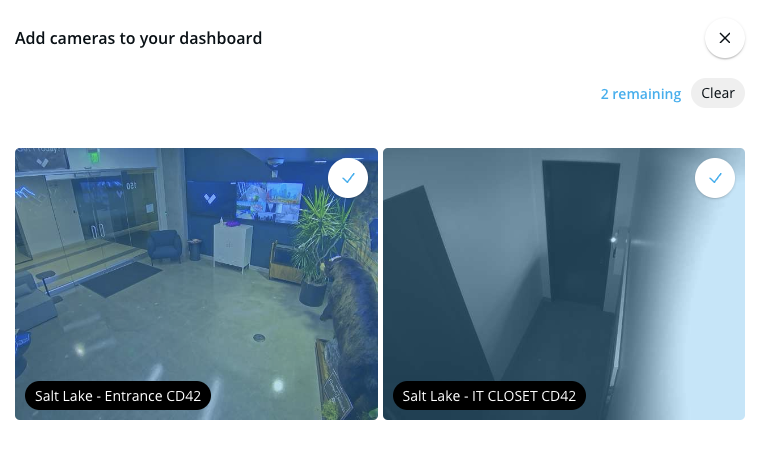
1つのMailroomサイトに最大4台のコンテキストカメラを追加できます。荷捌き場、ロビー、荷物室などのエリアをカバーするカメラをリンクすると便利です。
{% stepper %}
{% step %}
**Verkada Commandで、All Products > Workplace > Mailroomに移動します。**
{% endstep %}
{% step %}
**左側のナビゲーションで、Mailroom Settingsを選択します。**
{% endstep %}
{% step %}
**上部で、Sites > あなたのサイトをクリックします。**
{% endstep %}
{% step %}
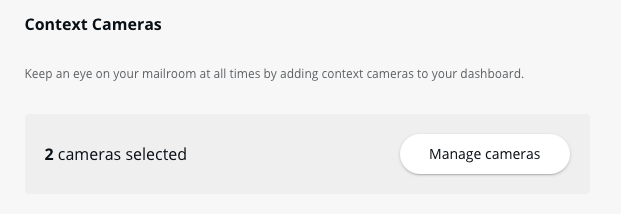
**Context Camerasの下で、Manage camerasをクリックします。**
{% endstep %}
{% step %}
**Mailroomサイトページの上部に表示されるカメラを最大4台まで選択します。選択したカメラ(または既存のカメラ)をクリアするには、Clearをクリックします。**
{% endstep %}
{% endstepper %}
---
# Agent Instructions
This documentation is published with GitBook. GitBook is the documentation platform designed so that both humans and AI agents can read, navigate, and reason over technical content effectively. Learn more at gitbook.com.
## Querying This Documentation
If you need additional information that is not directly available in this page, you can query the documentation by asking a question.
Perform an HTTP GET request on the following URL with the `ask` and `goal` query parameters:
```
GET https://help.verkada.com/mailroom/ja/gou-cheng/customize-your-mailroom-dashboard.md?ask=&goal=
```
`ask` is the immediate question: it should be specific, self-contained, and written in natural language.
`goal` is what the user is ultimately trying to achieve, the reason they need the answer. Sharing it helps GitBook give you a better, more relevant answer. A goal is most helpful when it describes the outcome the user wants rather than restating the question. For example, with `ask=how do I create an API token`, a goal like `automate deployments from our CI pipeline` lets GitBook tailor the answer to that use case.
The response will contain a direct answer to the question and relevant excerpts and sources from the documentation.
Use this mechanism when the answer is not explicitly present in the current page, you need clarification or additional context, or you want to retrieve related documentation sections.