> For the complete documentation index, see [llms.txt](https://help.verkada.com/llms.txt). Markdown versions of documentation pages are available by appending `.md` to page URLs; this page is available as [Markdown](https://help.verkada.com/intercom/ja/she-ding/wire-a-video-intercom/configure-second-generation-video-intercoms.md).
# 第2世代ビデオインターコムを設定する
第2世代ビデオインターコムを設定する
インターホンは、鮮明な映像、クリアな音声、6種類のスマートな受信方法、直感的な管理・セキュリティツールを備えた Verkada Command で、組織がセキュリティを強化し、どこからでも通話に応答できるようにします。
{% hint style="warning" %}
[インターホンのシリアル番号を追加する](/command/ja/ganaizshon/add-a-device-to-your-command-organization.md) Command に追加してセットアップを開始します。
{% endhint %}
***
## 設定
### シリアル番号を Command に追加する
{% stepper %}
{% step %}
[**インターホンのシリアル番号を Command に追加する**](/intercom/ja/she-ding/add-an-intercom-to-your-site.md)**.**
{% endstep %}
{% step %}
**シリアル番号を追加してインターホンを有効化すると、新しいタブが開き、インターホンのビデオフィードが表示されます。Webページの左上には、セットアップチェックリストを表示するメニューがあります。以下に従うことを推奨します。** [**セットアップチェックリスト**](/intercom/ja/she-ding/configure-a-td52.md)**.**
{% endstep %}
{% endstepper %}
#### 全般
**デバイス名を変更**
{% stepper %}
{% step %}
**セットアップチェックリストから[デバイス名を変更]をクリックして、設定ページを開きます。**
{% endstep %}
{% step %}
**設定ページが開いたら、現在の名前を選択して既定の名前を変更します。**
{% endstep %}
{% endstepper %}
#### ドア
**ドアを構成する**
{% stepper %}
{% step %}
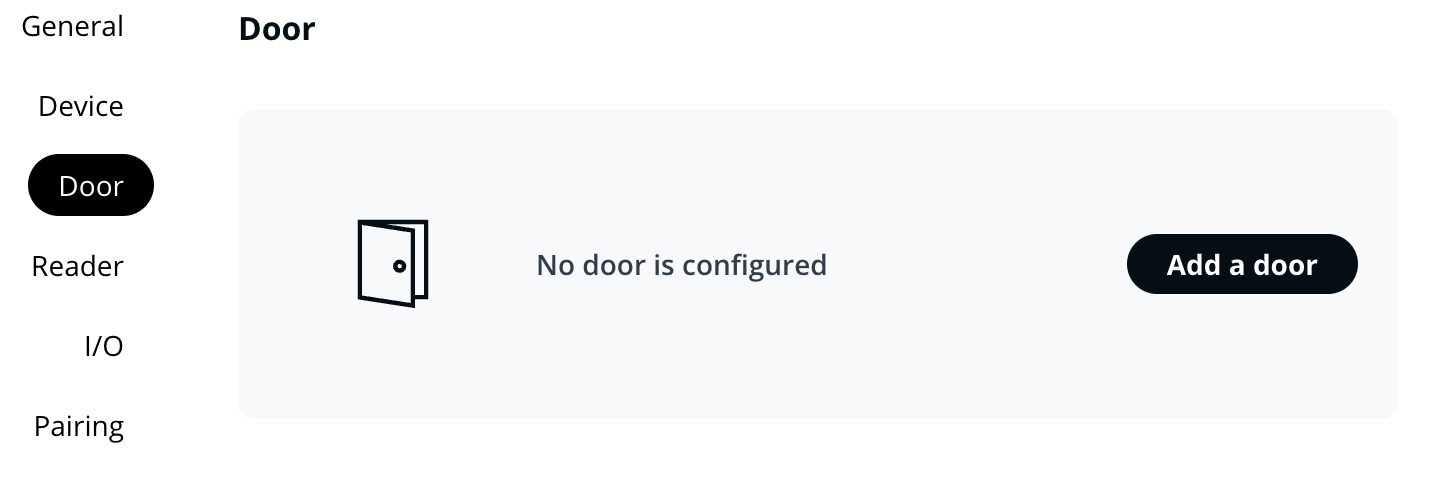
**インターホン設定 > ドア に移動します**
{% endstep %}
{% step %}
**[ドアを追加]をクリックします**
{% endstep %}
{% step %}
**適切なドアモードを選択します**
{% endstep %}
{% endstepper %}
{% hint style="danger" %}
TD63 は、以下の 2 つの構成でのみキーパッド解錠をサポートします。
{% stepper %}
{% step %}
**ドアモードが[インターホンに直接]に設定されている場合。**
{% endstep %}
{% step %}
**ドアモードが[Verkada のドアにペアリング済み]に設定されている場合。**
{% endstep %}
{% endstepper %}
また、インターホンの RS485 出力は、ペアリングされた Verkada アクセスコントローラに有線接続されている必要があります。
{% endhint %}
{% hint style="info" %}
TD63 のキーパッドで入室コードを使ってドアを解錠するには、コードの後に **#** (#)キーを入力します。たとえば、コードが 1234 の場合は、 **1234#**入力します。 [Visit Keys を使用して一時的な Intercom アクセスを付与する](/intercom/ja/she-ding/grant-temporary-access-with-visit-keys.md) 詳細については、
{% endhint %}
{% hint style="warning" %}
を参照してください。 [**インターホンリーダー設定**](/intercom/ja/she-ding/intercom-reader-settings.md) リーダー構成の詳細については、
{% endhint %}
**I/O**
{% stepper %}
{% step %}
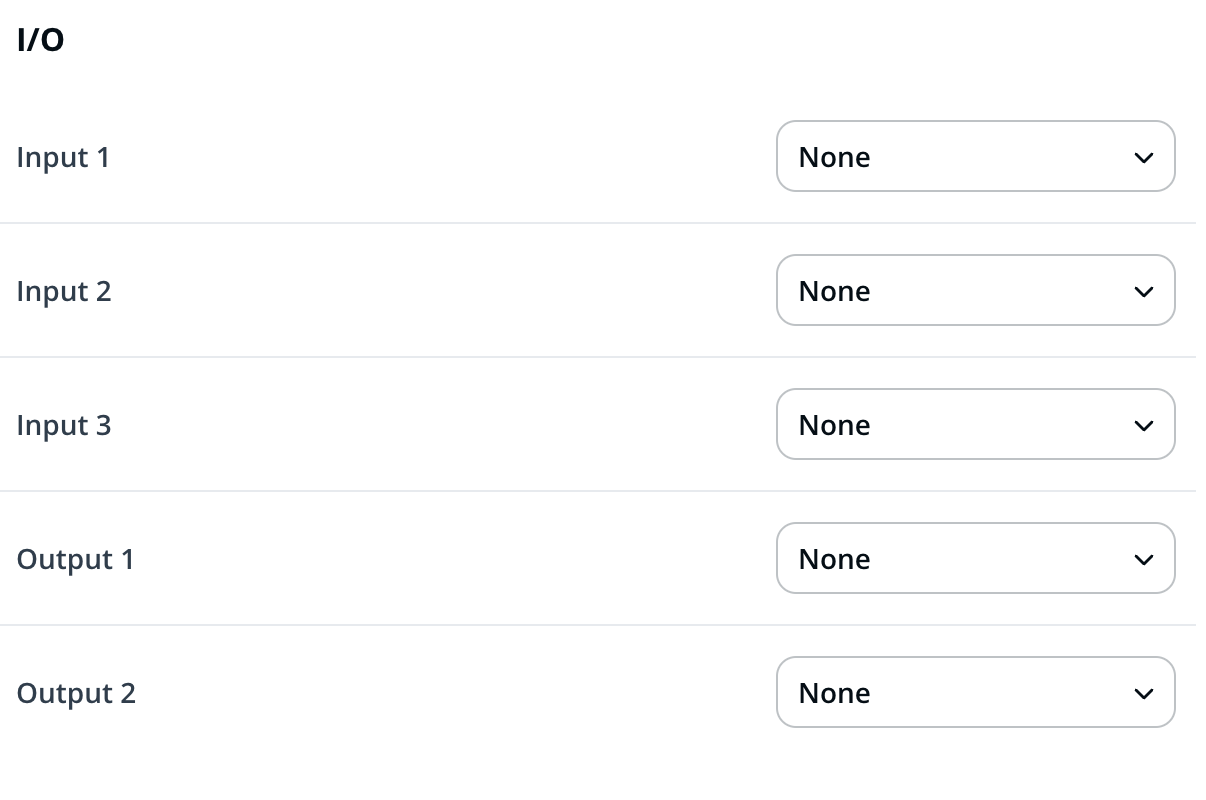
**インターホン設定 > I/O に移動します**
{% endstep %}
{% step %}
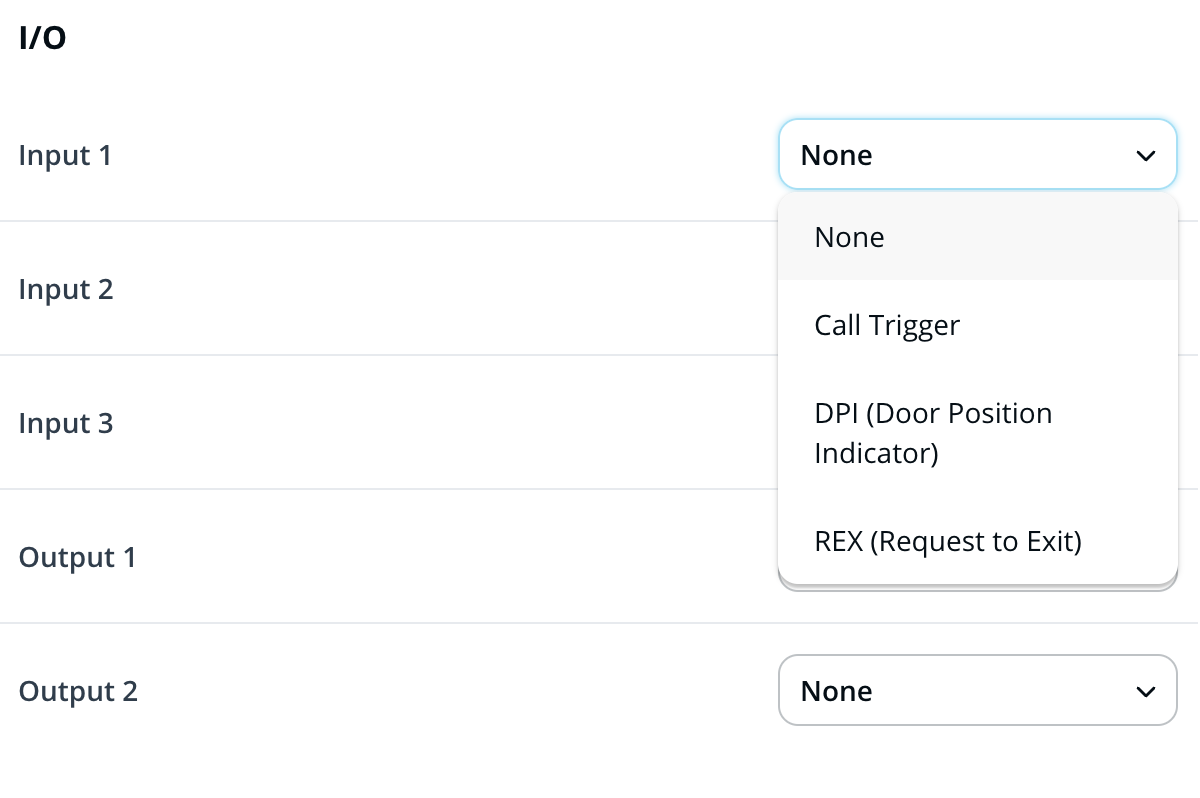
**各入力と出力について、ドロップダウンをクリックして適切なオプションを選択します。**
{% endstep %}
{% endstepper %}
| | | |
| ----------- | --------- | ----------------------------------------------------------------------- |
| **I/O タイプ** | **オプション** | **動作** |
| **入力** | 通話トリガー | 回路が閉じると通話を開始します |
| **入力** | DPI | ドアの状態(開/閉)を監視します |
| **入力** | REX | 認証情報を提示せずにドアを解錠します |
| **出力** | 解錠 | フェイルセーフまたはフェイルセキュアのドア設定に応じて、リレー接点は、受信側からの要求または受け入れられた認証情報により閉じたり開いたりします |
| **出力** | チャイム | ボタンを押すとリレー接点が閉じ、通話に応答すると開きます |
| **出力** | 通話中 | リレー接点は通話中ずっと閉じたままになります |
{% hint style="danger" %}
TD33 には、入力が 2 つと出力が 1 つしかありません。
{% endhint %}
**解錠**
{% hint style="warning" %}
[解錠]構成メニューは、ドアモードが次のいずれかに設定されている場合にのみ表示されます。 **インターホンに直接** または **サードパーティのアクセスコントローラに。** インターホンが Verkada Access Controller とペアリングされている場合は、これらのオプションをアクセスコントローラ設定で構成します。
{% endhint %}
{% stepper %}
{% step %}
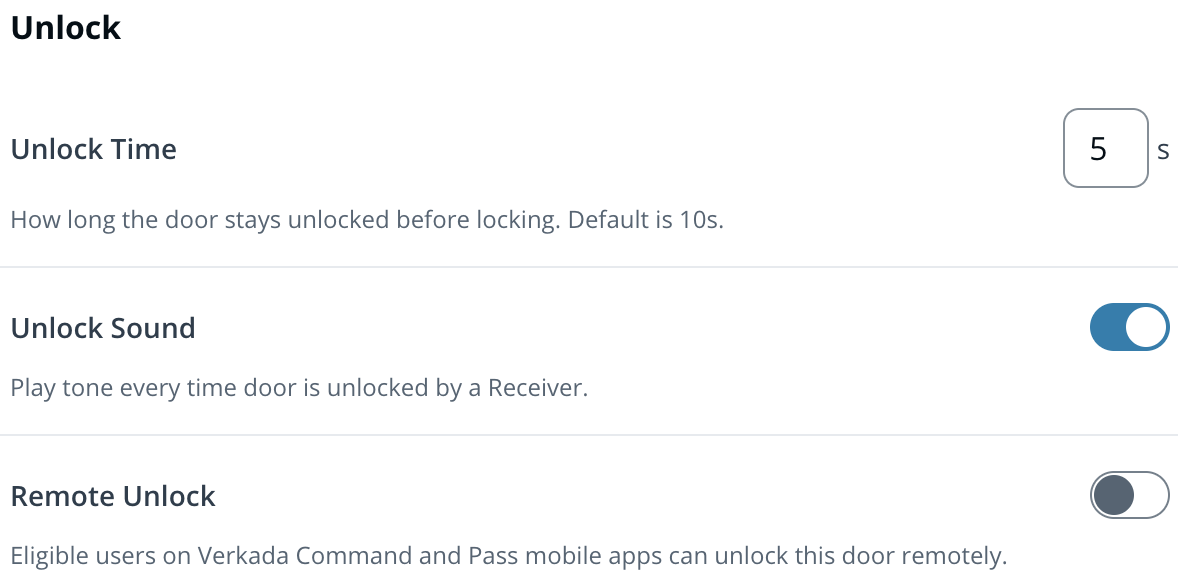
**インターホン設定 > I/O > 解錠 に移動します。**
{% endstep %}
{% endstepper %}
| | |
| ---------- | ----------------------------------------------- |
| **オプション** | **定義** |
| **解錠時間** | 解錠の継続時間。バッジ認証と受信側の解錠に適用されます |
| **解錠音** | インターホンスピーカーから再生される解錠トーンを切り替えます |
| **リモート解錠** | 適切なアクセス権限を持つユーザーは、Command と Pass アプリからドアを解錠できます |
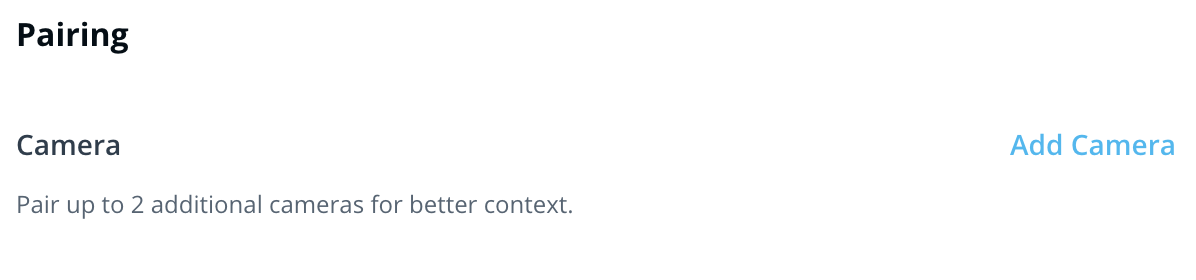
#### カメラをペアリングする
{% stepper %}
{% step %}
**インターホン設定 > ペアリング に移動します**
{% endstep %}
{% step %}
**[カメラを追加]を選択します**
カメラが追加されると、インターホンの **ライブ** ページに表示されます。
{% endstep %}
{% endstepper %}
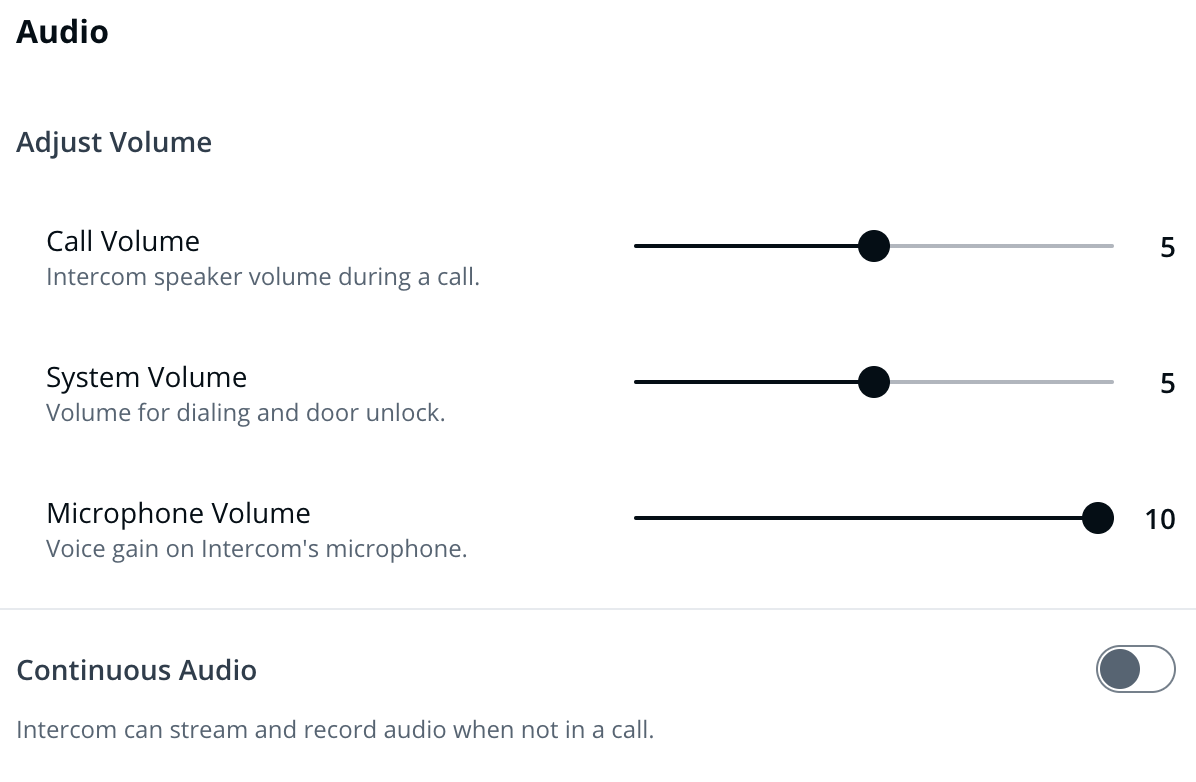
#### 音声
{% stepper %}
{% step %}
**インターホン設定 > 音声 に移動します。**
{% endstep %}
{% step %}
**スライダーを使用して、通話音量、システム音量、マイク音量を調整します。**
{% endstep %}
{% step %}
**[連続音声]トグルを使用して、通話以外での音声録音を有効/無効にします。**
{% endstep %}
{% endstepper %}
#### 通話
**受信側を構成する**
{% stepper %}
{% step %}
**インターホン > [受信側]タブに移動します。**
{% endstep %}
{% step %}
**を参照してください。** [**Intercom で受信機を追加・設定する**](/intercom/ja/she-ding/add-and-configure-receivers-in-intercom.md) **各インターホンごとに受信側を構成するには**
{% endstep %}
{% step %}
**を参照してください。** [**共有通話フローの作成と使用**](/intercom/ja/she-ding/add-and-configure-receivers-in-intercom/create-and-use-shared-call-flows.md) **受信側を一括で構成するには**
{% endstep %}
{% endstepper %}
{% hint style="warning" %}
**その他の通話設定については、次の表を参照してください。**
{% endhint %}
**その他の通話設定**
| | |
| ----------------------------- | ------------------------------------------------------------------------------------------------ |
| **オプション** | **定義** |
| 通話を終了するにはインターホンボタンをもう一度押す | ボタン押下でアクティブな通話をキャンセルするかどうかを切り替えます |
| Talkdown がアクティブな通話を中断できるようにする | Talkdown(受信側から開始される通話)によって別のアクティブな通話を終了および中断できるかどうかを切り替えます |
| 最大通話時間 | **(変更不可)** 通話時間は 5 分を超えられません |
| 通話を受けるダイヤルキー | **(変更不可)** POTS および SIP 受信側では、# キーと \* キーを使って着信したインターホン通話を受けられます |
| ドアを解錠するダイヤルキー | **(変更不可)** POTS および SIP 受信側では、0~9 の任意の数字でドアを解錠できます |
| インターホンの電話番号 | **(変更不可)** POTS 受信側では、Verkada Intercoms からの着信は (661) 902-0560 から発信されます。この番号を連絡先に保存することを検討してください。 |
**SIP アカウント**
{% stepper %}
{% step %}
**インターホン設定 > 通話 > SIP アカウント に移動します。**
{% endstep %}
{% step %}
**次の手順に従ってください** [**このドキュメント**](/intercom/ja/she-ding/integrate-verkada-intercoms-with-sip.md) **SIP アカウントを構成します。**
{% endstep %}
{% endstepper %}
#### ビデオ
{% stepper %}
{% step %}
**インターホン設定 > ビデオ に移動します。**
{% endstep %}
{% step %}
**ビデオ設定を構成する際は、次の表を参考にしてください。**
| | |
| ---------------- | -------------------------------------------------------------------------------------------------------------------------------------------------------------------------------------- |
| **オプション** | **定義** |
| 向き | Command でカメラフィードを 90 度単位で回転します。 |
| 低帯域幅モード | 帯域幅の消費を抑えるため、HQ 動画、タイムラプス、クラウドバックアップを無効にします。 |
| タイムラプス | 履歴映像用のタイムラプスを有効にします。 |
| RTSP | RTSP を使用すると、ユーザーは Verkada のカメラフィードをサードパーティの VMS にストリーミングすることができます。 [低遅延 RTSP ストリーミング機能](/verkada-cameras/ja/bideosutorminguto/live-streaming/low-latency-rtsp-streaming.md) 構成手順については、 |
| {% endstep %} | |
| {% endstepper %} | |
#### バックアップ
クラウドバックアップにより、インターホンの映像をクラウドに継続的に保存できます(ローカルストレージに加えて)。
{% stepper %}
{% step %}
**インターホン設定 > バックアップ に移動します。**
{% endstep %}
{% step %}
**を参照してください。** [**クラウドバックアップ**](/verkada-cameras/ja/bideosutorminguto/view-historical-footage/cloud-backup.md) **構成の詳細については、**
{% endstep %}
{% endstepper %}
#### メッセージ
自動メッセージは、デバイスがオフラインのとき、アクティブなロックダウン中のとき、または受信側リストが使い切られたときに再生されます。 [オーディオメッセージをインターホンにアップロードする](/intercom/ja/she-ding/configure-live-translation-for-intercom-calls/upload-audio-messages-to-intercom.md) 詳細については、
#### トラブルシューティング
ユーザーは、インターホン機能を確認するためにテスト通話を開始できます。
{% stepper %}
{% step %}
**インターホン設定 > トラブルシューティング に移動します。**
{% endstep %}
{% step %}
**[受信側を選択]をクリックして、テスト通話で使用する受信側を選びます。**
{% endstep %}
{% step %}
**[テスト通話を開始]をクリックします。**
{% endstep %}
{% endstepper %}
---
# Agent Instructions
This documentation is published with GitBook. GitBook is the documentation platform designed so that both humans and AI agents can read, navigate, and reason over technical content effectively. Learn more at gitbook.com.
## Querying This Documentation
If you need additional information that is not directly available in this page, you can query the documentation by asking a question.
Perform an HTTP GET request on the following URL with the `ask` and `goal` query parameters:
```
GET https://help.verkada.com/intercom/ja/she-ding/wire-a-video-intercom/configure-second-generation-video-intercoms.md?ask=&goal=
```
`ask` is the immediate question: it should be specific, self-contained, and written in natural language.
`goal` is what the user is ultimately trying to achieve, the reason they need the answer. Sharing it helps GitBook give you a better, more relevant answer. A goal is most helpful when it describes the outcome the user wants rather than restating the question. For example, with `ask=how do I create an API token`, a goal like `automate deployments from our CI pipeline` lets GitBook tailor the answer to that use case.
The response will contain a direct answer to the question and relevant excerpts and sources from the documentation.
Use this mechanism when the answer is not explicitly present in the current page, you need clarification or additional context, or you want to retrieve related documentation sections.