> For the complete documentation index, see [llms.txt](https://help.verkada.com/llms.txt). Markdown versions of documentation pages are available by appending `.md` to page URLs; this page is available as [Markdown](https://help.verkada.com/intercom/ja/she-ding/intercom-deployment-best-practices-guide/pair-intercoms-with-viewing-station.md).
# Intercom を Viewing Station とペアリングする
Intercom 通話の映像を Viewing Station に表示する
インターホンは、Viewing Stationと2つの方法でペアリングできます:
{% stepper %}
{% step %}
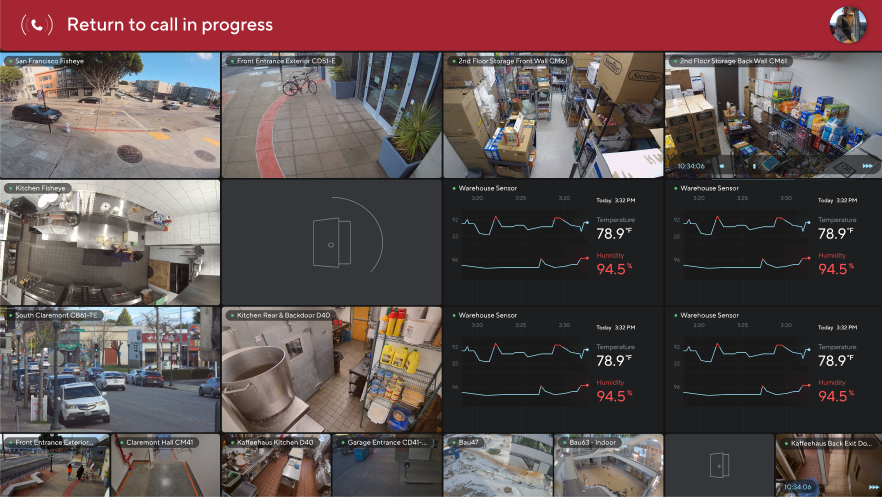
[**セキュリティカメラとして**](/viewing-station/ja/gou-cheng/set-up-your-viewing-station.md) **– インターホンのビデオストリームをViewing Station上のタイルとして追加します。**
{% endstep %}
{% step %}
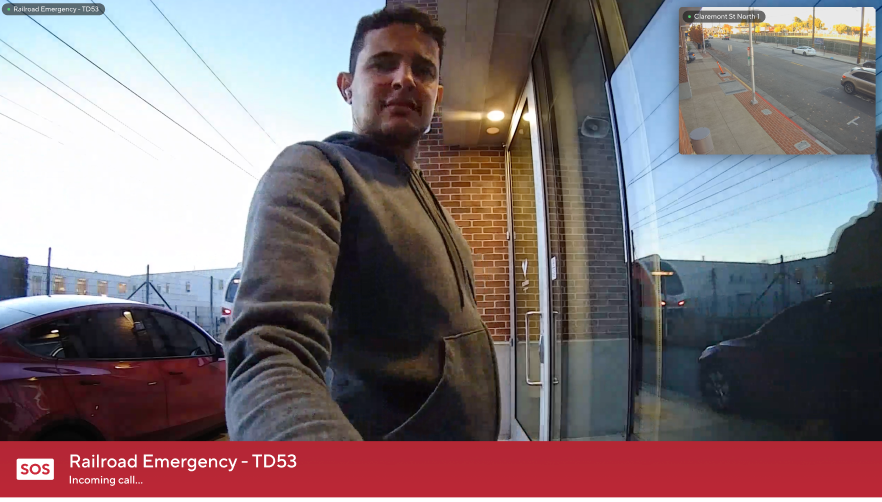
[**通話ビデオ**](#h_1a8194f198) **– インターホンの通話が発信されると、選択した映像がViewing Station上で自動的に全画面表示され、オペレーターに即座に視覚的な状況を提供します。**
{% endstep %}
{% endstepper %}
{% hint style="warning" %}
通話音声は含まれません。通話は引き続き別の受信端末で応答する必要があります。
{% endhint %}
***
## **設定**
{% stepper %}
{% step %}
**Verkada Commandで、[All Products]>[Devices]に移動します。**
{% endstep %}
{% step %}
**Viewing Stationを選択します。**
{% endstep %}
{% step %}
**右上で、次を選択します** :gear:**.**
{% endstep %}
{% step %}
**[Intercoms]の下で、Viewing Stationとペアリングするインターホンを選択します。**
これらのインターホンのいずれかから通話が発信されると、その映像がViewing Station上で自動的に全画面で開きます。
{% endstep %}
{% endstepper %}
***
## 通話を操作する
### 緊急インターホン通話
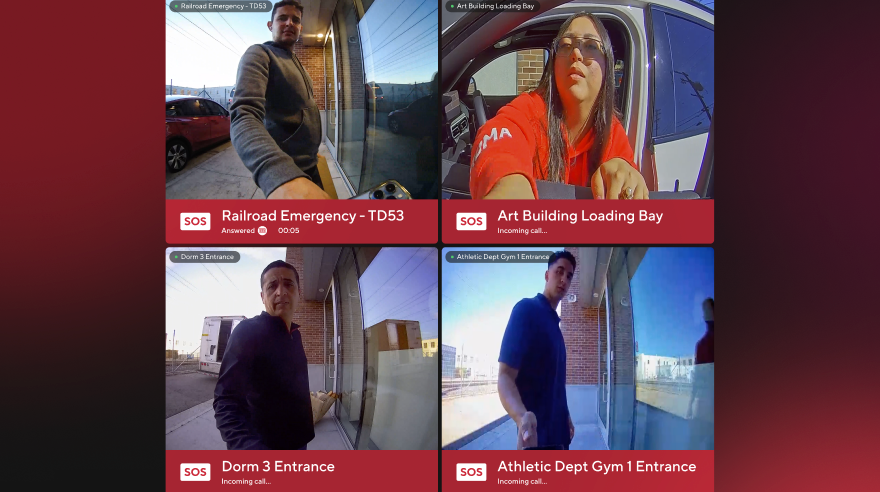
[緊急インターホン](/intercom/ja/she-ding/add-and-configure-receivers-in-intercom/configure-an-intercom-as-an-emergency-phone.md) は、Viewing Station上で通常のインターホンとは異なる表示になります。
* 緊急通話の映像は、視認しやすいように赤枠で囲まれます。
* 同時通話中は、緊急インターホンの映像が優先され、画面の左側に配置されます。
### 同時通話の処理
複数のインターホン通話が同時に受信されると、画面上でタイルとして表示されます。
### 通話ビデオを最小化する
Apple TVリモコンを使って通話ビデオを終了します。戻るには、画面上部のバナーをクリックします。
---
# Agent Instructions
This documentation is published with GitBook. GitBook is the documentation platform designed so that both humans and AI agents can read, navigate, and reason over technical content effectively. Learn more at gitbook.com.
## Querying This Documentation
If you need additional information that is not directly available in this page, you can query the documentation by asking a question.
Perform an HTTP GET request on the following URL with the `ask` and `goal` query parameters:
```
GET https://help.verkada.com/intercom/ja/she-ding/intercom-deployment-best-practices-guide/pair-intercoms-with-viewing-station.md?ask=&goal=
```
`ask` is the immediate question: it should be specific, self-contained, and written in natural language.
`goal` is what the user is ultimately trying to achieve, the reason they need the answer. Sharing it helps GitBook give you a better, more relevant answer. A goal is most helpful when it describes the outcome the user wants rather than restating the question. For example, with `ask=how do I create an API token`, a goal like `automate deployments from our CI pipeline` lets GitBook tailor the answer to that use case.
The response will contain a direct answer to the question and relevant excerpts and sources from the documentation.
Use this mechanism when the answer is not explicitly present in the current page, you need clarification or additional context, or you want to retrieve related documentation sections.