> For the complete documentation index, see [llms.txt](https://help.verkada.com/llms.txt). Markdown versions of documentation pages are available by appending `.md` to page URLs; this page is available as [Markdown](https://help.verkada.com/intercom/configuration/wire-a-video-intercom/set-up-td63-keypad-directory.md).
# Set up TD63 Keypad Directory
Use the keypad on your TD63 to dial different Call Flows
The keypad directory on the TD63 allows tenants to be reached by dialing extensions. Each extension can be assigned to a call flow, making it easy to route calls to the correct destination.
{% hint style="info" %}
**Before you begin:** Review how to [configure intercom receivers](/intercom/configuration/add-and-configure-receivers-in-intercom.md).
{% endhint %}
***
## Enable Keypad Directory
{% stepper %}
{% step %}
**In Verkada Command, go to All Products > Intercom.**
{% endstep %}
{% step %}
**Select your intercom and click Settings.**
{% endstep %}
{% step %}
**Under Device, toggle on Multitenant Directory.**
{% endstep %}
{% endstepper %}
### Enable long call codes
By default, extensions are limited to three digits or fewer to prevent conflicts with access PIN codes (four digits or more). You can disable access PIN codes to allow for longer extensions.
{% stepper %}
{% step %}
**In Verkada Command, go to All Products > Intercom.**
{% endstep %}
{% step %}
**Select your intercom and click Settings.**
{% endstep %}
{% step %}
**Under Device, toggle on Enable Long Call Codes.**
{% endstep %}
{% endstepper %}
***
## Configure your Directory
{% stepper %}
{% step %}
**In Verkada Command, go to All Products > Intercom.**
{% endstep %}
{% step %}
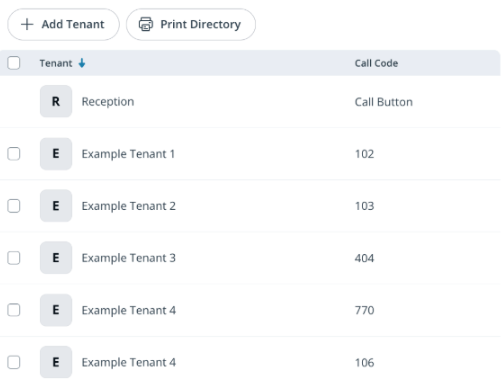
**Select your intercom and click Receivers.**
**Note:** The directory always includes one default entry tied to the call button. Pressing the button triggers that call flow.
{% endstep %}
{% step %}
**At the top, click Add Tenant.**
a. Enter a tenant name.\
b. Enter the call code (extension).\
c. (Optional) Upload a tenant logo. This will appear in the directory.\
d. Click **Continue**.
{% endstep %}
{% step %}
**Configure the receivers tied to the call code.**
**Note:** See [Add and Configure Receivers in Intercom](/intercom/configuration/add-and-configure-receivers-in-intercom.md) for more information.
{% endstep %}
{% step %}
**Repeat these steps until all directory entries have been added.**
{% endstep %}
{% endstepper %}
***
## Dial a tenant
To call a tenant from the Keypad Directory:
{% stepper %}
{% step %}
**Enter the tenant’s extension code (e.g., 123).**
{% endstep %}
{% step %}
**Press # to start the call.**
{% endstep %}
{% endstepper %}
You’ll be connected to the call flow linked to that extension.
{% hint style="info" %}
The **#** key serves different purposes on the TD63 keypad:
* **Directory calls:** Enter the tenant extension, then press **#** to start the call (for example, **123#**).
* **Entry codes:** Enter the entry code, then press **#** to unlock the door (for example, **1234#**). See [Grant Temporary Intercom Access with Visit Keys](/intercom/configuration/grant-temporary-access-with-visit-keys.md) for more information.
{% endhint %}
***
## Print your Directory
{% stepper %}
{% step %}
**In Verkada Command, go to All Products > Intercom.**
{% endstep %}
{% step %}
**Select your intercom and click Receivers.**
{% endstep %}
{% step %}
**Select Print Directory.**
a. (Optional) **Upload a logo** to display in the directory header.\
b. Enter a unique name.\
c. Add visitor instructions to explain how to use the directory (for example, dial the extension and press **#** to call). If visitors also use entry codes on the same device, include instructions to enter the code followed by **#** to unlock (for example, **1234#**).\
d. Select the directory entries to display.\
e. (Optional) Toggle on **Tenant Logos** to display logos.\
f. Click **Download PDF** to generate the directory.
{% endstep %}
{% endstepper %}
{% hint style="info" %}
**Prefer to see it in action?** Check out the [video tutorial](https://youtu.be/PN-Ef4sv2NI).
{% endhint %}
---
# Agent Instructions
This documentation is published with GitBook. GitBook is the documentation platform designed so that both humans and AI agents can read, navigate, and reason over technical content effectively. Learn more at gitbook.com.
## Querying This Documentation
If you need additional information that is not directly available in this page, you can query the documentation dynamically by asking a question.
Perform an HTTP GET request on the current page URL with the `ask` query parameter, and the optional `goal` query parameter:
```
GET https://help.verkada.com/intercom/configuration/wire-a-video-intercom/set-up-td63-keypad-directory.md?ask=&goal=
```
`ask` is the immediate question: it should be specific, self-contained, and written in natural language.
`goal` is optional and describes the broader end goal you are ultimately trying to accomplish on behalf of the user. GitBook uses it to tailor the answer towards what is most useful for that goal.
The response will contain a direct answer to the question and relevant excerpts and sources from the documentation.
Use this mechanism when the answer is not explicitly present in the current page, you need clarification or additional context, or you want to retrieve related documentation sections.