> For the complete documentation index, see [llms.txt](https://help.verkada.com/llms.txt). Markdown versions of documentation pages are available by appending `.md` to page URLs; this page is available as [Markdown](https://help.verkada.com/intercom/configuration/wire-a-video-intercom/configure-second-generation-video-intercoms.md).
# Configure Second-Generation Video Intercoms
Configure second-generation video intercoms
Intercoms allow organizations to enhance security and answer calls from anywhere with sharp video, clear audio, 6 smart receiver methods and intuitive management and security tools in Verkada Command.
{% hint style="warning" %}
[Add the intercom serial number](/command/organization-settings/add-a-device-to-your-command-organization.md) to Command to begin setup.
{% endhint %}
***
## Configuration
### Add the serial number to Command
{% stepper %}
{% step %}
[**Add the intercom serial number to Command**](/intercom/configuration/add-an-intercom-to-your-site.md)**.**
{% endstep %}
{% step %}
**Once you add the serial number and activate the intercom, a new tab opens, showing the intercom video feed. At the top left of your webpage, a menu displays the setup checklist. We recommend to follow the** [**setup checklist**](/intercom/configuration/configure-a-td52.md)**.**
{% endstep %}
{% endstepper %}
#### General
**Change device name**
{% stepper %}
{% step %}
**From the setup checklist, click Change device name to open the Settings page.**
{% endstep %}
{% step %}
**With the Settings page open, select the current name to change the default name.**
{% endstep %}
{% endstepper %}
#### Door
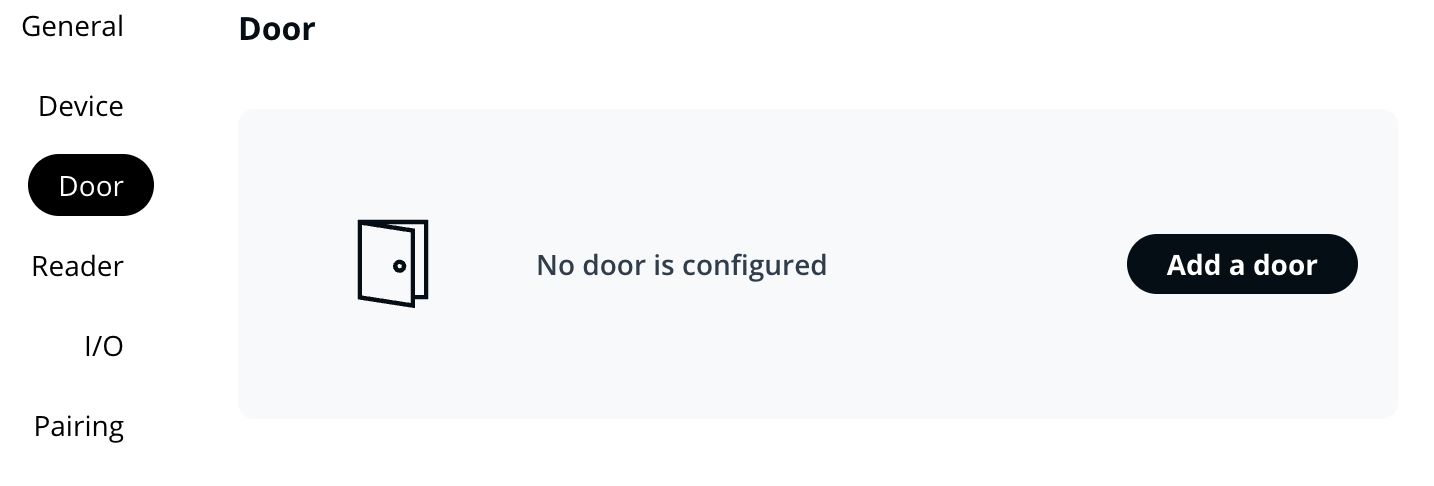
**Configure a Door**
{% stepper %}
{% step %}
**Navigate to Intercom Settings > Door**
{% endstep %}
{% step %}
**Click Add a door**
{% endstep %}
{% step %}
**Select the appropriate door mode**
{% endstep %}
{% endstepper %}
{% hint style="danger" %}
The TD63 only supports keypad unlocks in two configurations:
{% stepper %}
{% step %}
**When the door mode is set to Directly to the intercom.**
{% endstep %}
{% step %}
**When the door mode is set to Paired to a Verkada door.**
{% endstep %}
{% endstepper %}
The intercom's RS485 output must also be hardwired to the paired Verkada access controller.
{% endhint %}
{% hint style="info" %}
To unlock a door with an entry code on the TD63 keypad, enter the code followed by the **#** (pound) key. For example, if the code is 1234, enter **1234#**. See [Grant Temporary Intercom Access with Visit Keys](/intercom/configuration/grant-temporary-access-with-visit-keys.md) for more information.
{% endhint %}
{% hint style="warning" %}
See [**Intercom Reader Settings**](/intercom/configuration/intercom-reader-settings.md) for more information on reader configuration.
{% endhint %}
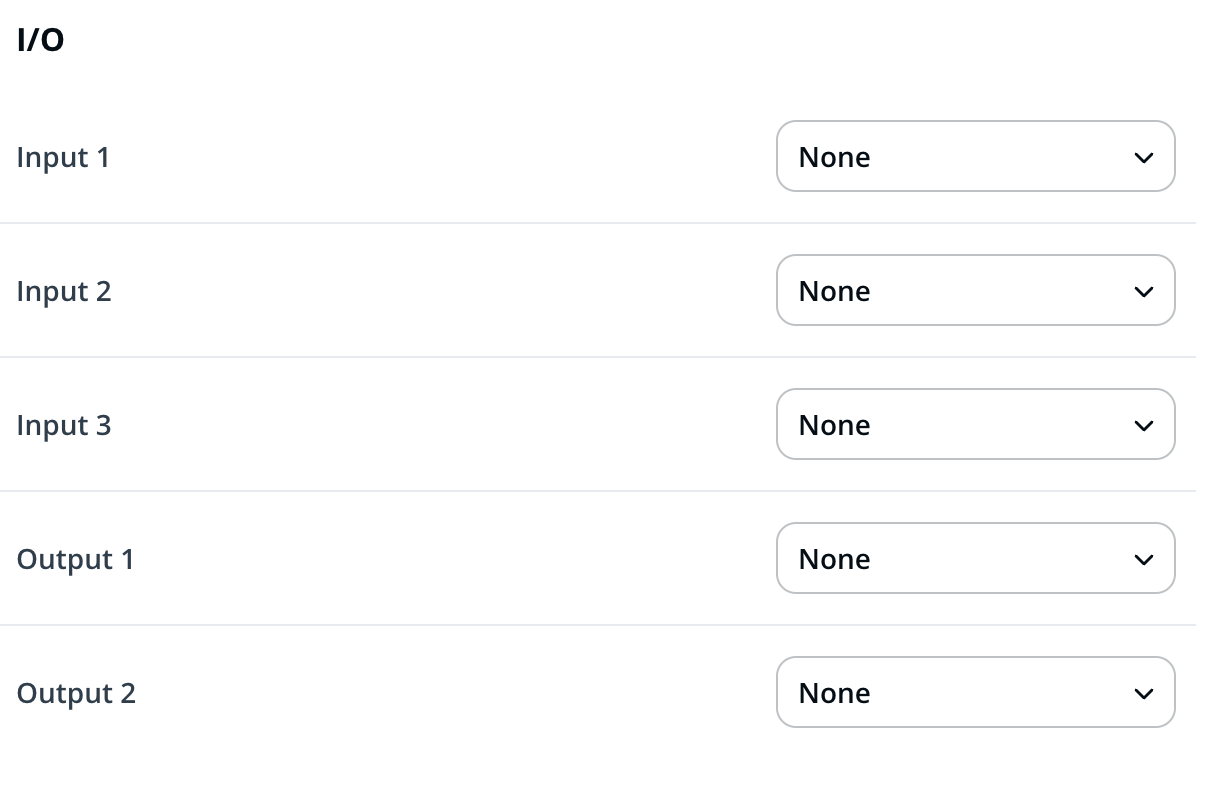
**I/O**
{% stepper %}
{% step %}
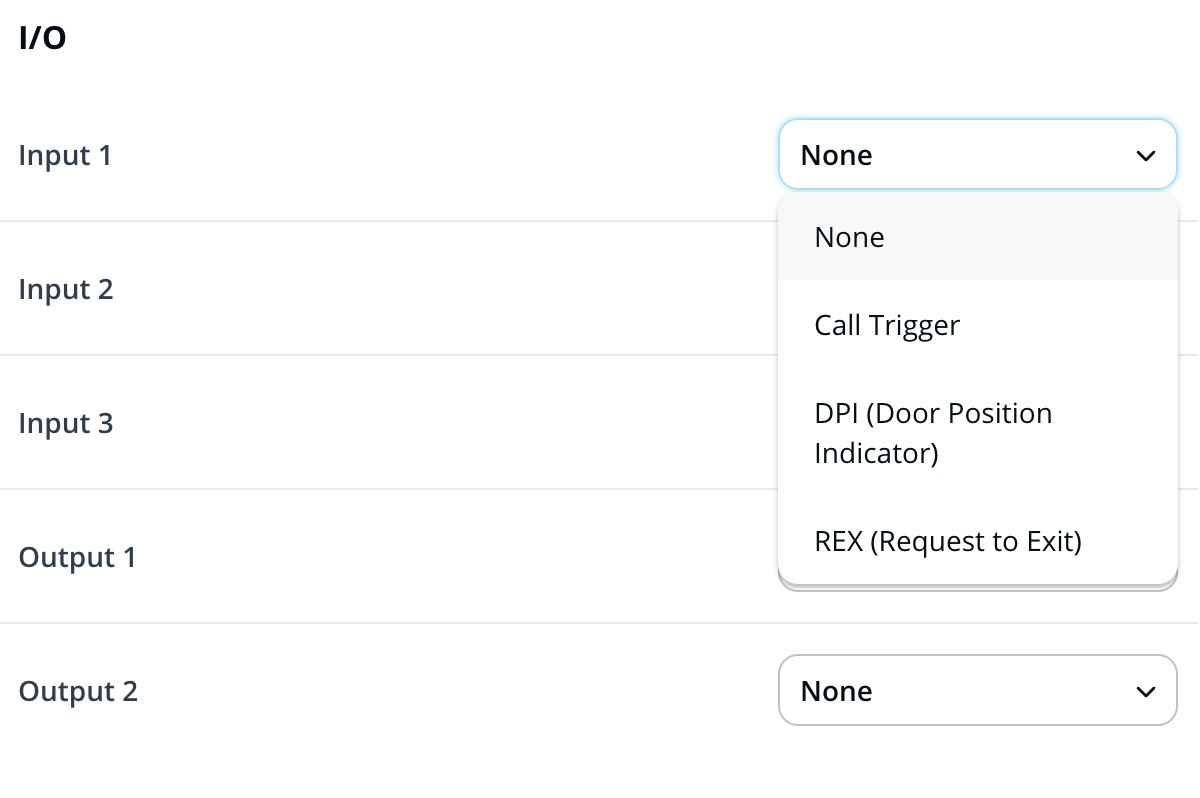
**Navigate to Intercom Settings > I/O**
{% endstep %}
{% step %}
**For each input and output, click the drop-down and select the appropriate option.**
{% endstep %}
{% endstepper %}
| | | |
| ------------ | ---------------- | -------------------------------------------------------------------------------------------------------------------------- |
| **I/O Type** | **Option** | **Behavior** |
| **Input** | Call Trigger | Triggers a call when circuit is closed |
| **Input** | DPI | Monitors state of the door (open or closed) |
| **Input** | REX | Unlock door without presenting credential |
| **Output** | Unlock | Relay contacts close or open (depending on fail safe or fail secure door) when prompted by receiver or accepted credential |
| **Output** | Chime | Relay contacts close upon button press and open when call is answered |
| **Output** | Call in Progress | Relay contacts remain closed for duration of call |
{% hint style="danger" %}
The TD33 only has 2 inputs and 1 output.
{% endhint %}
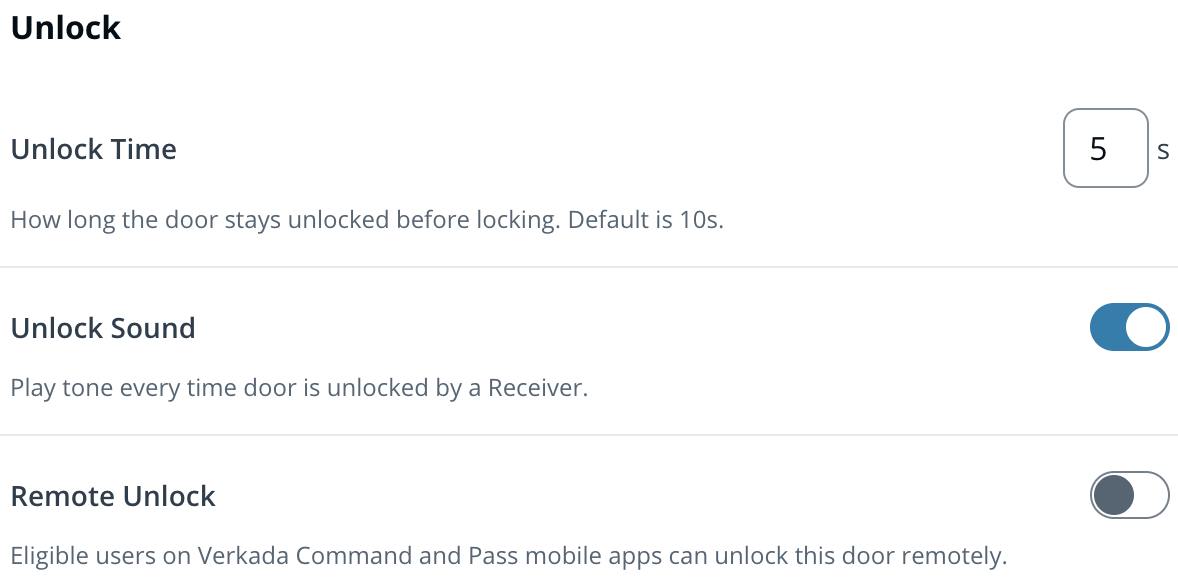
**Unlock**
{% hint style="warning" %}
The Unlock configuration menu only appears if the door mode is set to **Directly to the Intercom** or **To a Third-Party Access Controller.** If the intercom is paired to a Verkada Access Controller, configure these options in the Access controller settings.
{% endhint %}
{% stepper %}
{% step %}
**Navigate to Intercom Settings > I/O > Unlock.**
{% endstep %}
{% endstepper %}
| | |
| ----------------- | --------------------------------------------------------------------------------- |
| **Option** | **Definition** |
| **Unlock Time** | The duration of an unlock, this applies to badging and receiver unlocks |
| **Unlock Sound** | Toggle the unlock tone that is played from the intercom speaker |
| **Remote Unlock** | Users with appropriate access level can unlock the door from Command and Pass app |
#### Pair a camera
{% stepper %}
{% step %}
**Navigate to Intercom Settings > Pairing**
{% endstep %}
{% step %}
**Select Add Camera**
Once cameras have been added, they will appear on the **Live** page of your intercom.
{% endstep %}
{% endstepper %}
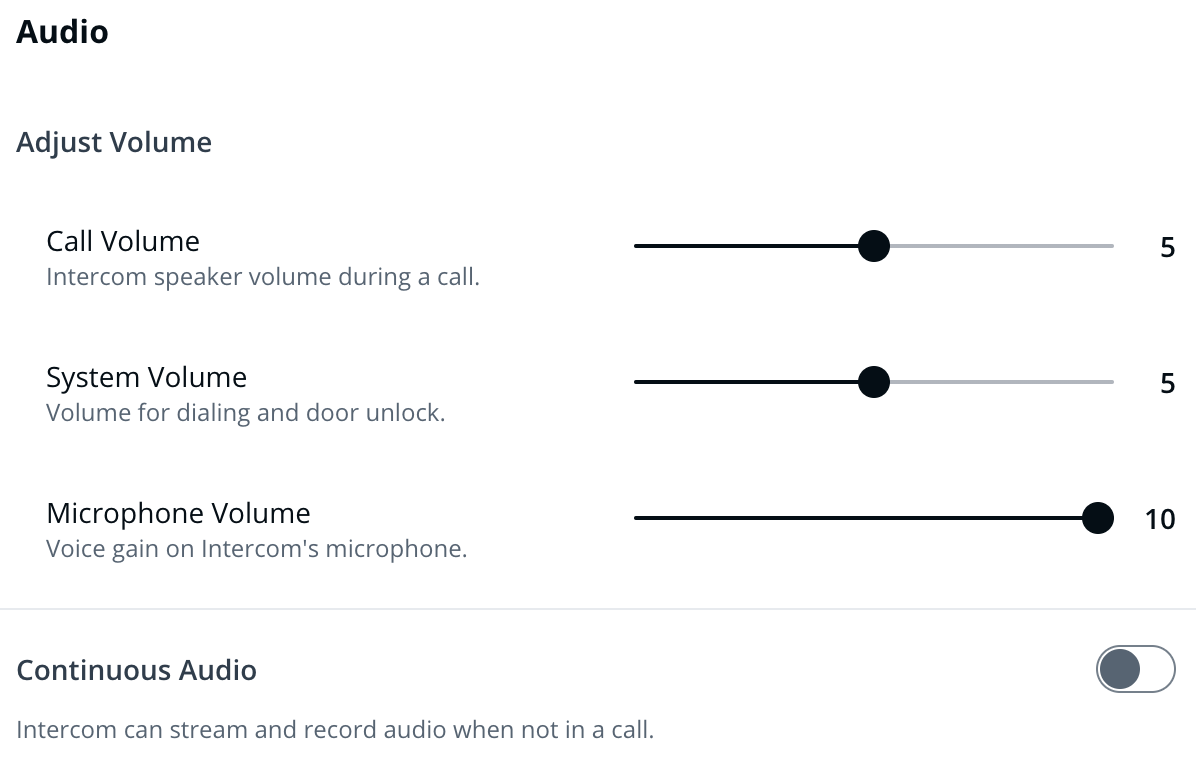
#### Audio
{% stepper %}
{% step %}
**Navigate to Intercom Settings > Audio.**
{% endstep %}
{% step %}
**Use the sliders to adjust Call Volume, System Volume, and Microphone Volume.**
{% endstep %}
{% step %}
**Use the Continuous Audio toggle to enable/disable audio recording outside of calls.**
{% endstep %}
{% endstepper %}
#### Call
**Configure receivers**
{% stepper %}
{% step %}
**Navigate to your Intercom > Receivers tab.**
{% endstep %}
{% step %}
**See** [**Add and Configure Receivers in Intercom**](/intercom/configuration/add-and-configure-receivers-in-intercom.md) **to configure receivers per intercom.**
{% endstep %}
{% step %}
**See** [**Create and Use Shared Call Flows**](/intercom/configuration/add-and-configure-receivers-in-intercom/create-and-use-shared-call-flows.md) **to configure receivers in bulk.**
{% endstep %}
{% endstepper %}
{% hint style="warning" %}
**For other Call Settings, reference the following table:**
{% endhint %}
**Other Call Settings**
| | |
| --------------------------------------- | -------------------------------------------------------------------------------------------------------------------------------------------------------- |
| **Option** | **Definition** |
| Press Intercom button again to end call | Toggle whether a button press cancels an active call |
| Allow Talkdown to interrupt active call | Toggle whether a talkdown (receiver initiated call) can end and interrupt another active call |
| Maximum call duration | **(non-mutable)** call duration cannot exceed 5 minutes |
| Dial key to accept call | **(non-mutable)** for POTS and SIP receivers, # and \* keys are used to accept incoming intercom calls |
| Dial key to unlock door | **(non-mutable)** for POTS and SIP receivers, any number 0-9 will unlock the door |
| Intercom phone number | **(non-mutable)** for POTS receivers, incoming calls from Verkada Intercoms will come from (661) 902-0560, consider saving this number in your contacts. |
**SIP Account**
{% stepper %}
{% step %}
**Navigate to Intercom Settings > Call > SIP Account.**
{% endstep %}
{% step %}
**Follow the instructions in** [**this document**](/intercom/configuration/integrate-verkada-intercoms-with-sip.md) **to configure your SIP account.**
{% endstep %}
{% endstepper %}
#### Video
{% stepper %}
{% step %}
**Navigate to Intercom Settings > Video.**
{% endstep %}
{% step %}
**Use the following table as a reference when configuring video settings:**
| | |
| ------------------ | ------------------------------------------------------------------------------------------------------------------------------------------------------------------------------------------------------------------------------------- |
| **Option** | **Definition** |
| Orientation | Rotate camera feed in Command in increments of 90 degrees. |
| Low Bandwidth Mode | Disable HQ video, Timelapse, and Cloud Backup to reduce bandwidth consumption. |
| Timelapse | Enable time lapses for historical video. |
| RTSP | RTSP enables users to stream Verkada camera feeds into a third-party VMS. See [Low-Latency RTSP Streaming](/verkada-cameras/video-streaming-and-sharing/live-streaming/low-latency-rtsp-streaming.md) for configuration instructions. |
| {% endstep %} | |
| {% endstepper %} | |
#### Backup
Cloud backup enables the continuous saving of intercom footage in the cloud (in addition to local storage).
{% stepper %}
{% step %}
**Navigate to Intercom Settings > Backup.**
{% endstep %}
{% step %}
**See** [**Cloud Backup**](/verkada-cameras/video-streaming-and-sharing/view-historical-footage/cloud-backup.md) **for configuration details.**
{% endstep %}
{% endstepper %}
#### Messages
Automated Messages play when the device is offline, when there is an active lockdown, or when the receiver list is exhausted. See [Upload Audio Messages to Intercom](/intercom/configuration/configure-live-translation-for-intercom-calls/upload-audio-messages-to-intercom.md) for more information.
#### Troubleshooting
Users can initiate a test call to verify intercom functionality.
{% stepper %}
{% step %}
**Navigate to Intercom Settings > Troubleshooting.**
{% endstep %}
{% step %}
**Click Select a Receiver to pick which receiver you will use for the test call.**
{% endstep %}
{% step %}
**Click Initiate Test Call.**
{% endstep %}
{% endstepper %}
---
# Agent Instructions
This documentation is published with GitBook. GitBook is the documentation platform designed so that both humans and AI agents can read, navigate, and reason over technical content effectively. Learn more at gitbook.com.
## Querying This Documentation
If you need additional information that is not directly available in this page, you can query the documentation by asking a question.
Perform an HTTP GET request on the following URL with the `ask` and `goal` query parameters:
```
GET https://help.verkada.com/intercom/configuration/wire-a-video-intercom/configure-second-generation-video-intercoms.md?ask=&goal=
```
`ask` is the immediate question: it should be specific, self-contained, and written in natural language.
`goal` is what the user is ultimately trying to achieve, the reason they need the answer. Sharing it helps GitBook give you a better, more relevant answer. A goal is most helpful when it describes the outcome the user wants rather than restating the question. For example, with `ask=how do I create an API token`, a goal like `automate deployments from our CI pipeline` lets GitBook tailor the answer to that use case.
The response will contain a direct answer to the question and relevant excerpts and sources from the documentation.
Use this mechanism when the answer is not explicitly present in the current page, you need clarification or additional context, or you want to retrieve related documentation sections.