> For the complete documentation index, see [llms.txt](https://help.verkada.com/llms.txt). Markdown versions of documentation pages are available by appending `.md` to page URLs; this page is available as [Markdown](https://help.verkada.com/intercom/configuration/integrate-verkada-intercoms-with-sip/sip-integration-cisco-unified-cm.md).
# SIP Integration: Cisco Unified CM
Configure Cisco Unified CM SIP integration
You can easily add a Verkada intercom to Cisco Unified Communications Manager (Unified CM) just as you can add any other third-party advanced SIP device.
Once completed, you can receive calls from your intercom on your SIP devices and initiate talk-down calls to your intercom.
***
## Integrate your intercom to Cisco Unified CM
{% stepper %}
{% step %}
**Add your intercom as an end user.**
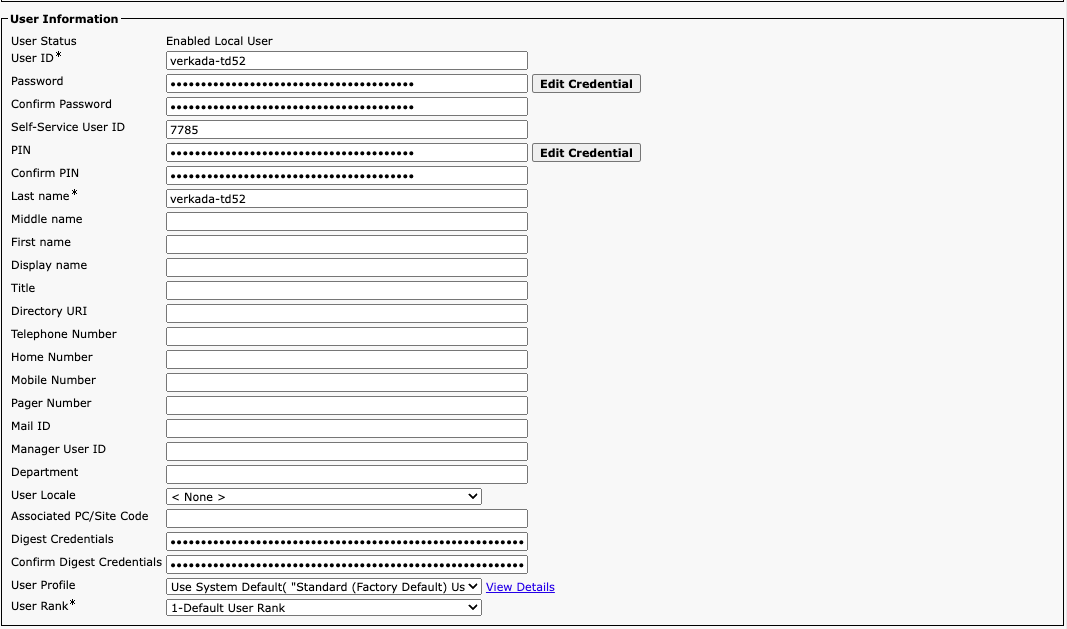
a. In the Cisco Unified CM portal, navigate to **User** **Management** > **End User** > **Add New**.\
b. Create a **User ID**, **Password**, and **Self-Service User ID** (This will be the intercom’s extension you will use in step 3.) *We recommend setting the Last Name as the User ID*.\
c. Ensure that your **Digest Credentials** are the same as the password you defined.\
d. The PIN is irrelevant for the integration to work, but must be set to *something.* As long as the field is non-empty we’re ready to move to the next step.
{% endstep %}
{% step %}
**Add your intercom as a device.**
a. In the Cisco Unified CM portal, navigate to **Device > Phone > Add New.**\
b. For phone type, select **Third Party SIP Device (Advanced)**.
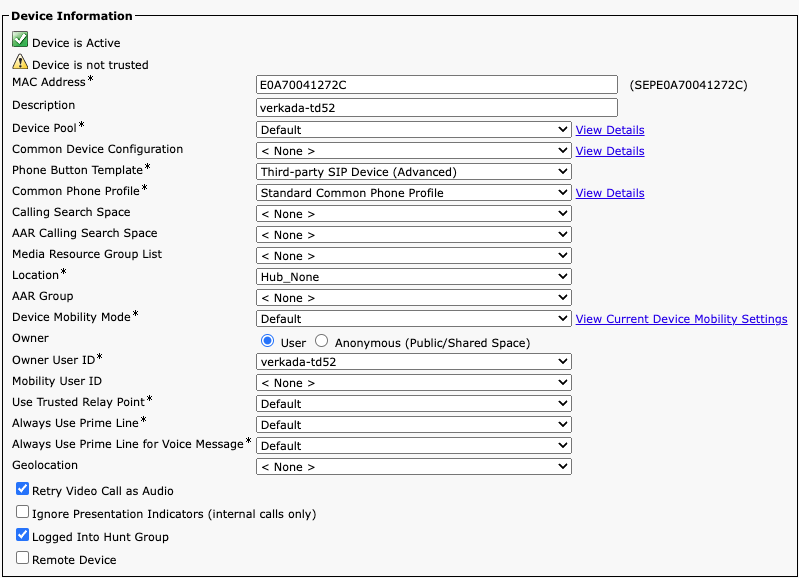
c. After saving, you’ll be directed to the device’s configuration page. Navigate to the **Device Information** section.
d. Enter the media access control (MAC) address of your intercom. Find the MAC address on the back of the device or, in the device’s settings. Copy the rest of the settings shown above, making sure you select the **Owner User ID** that corresponds to the end user you created in step 1.\
\
e. Scroll down to **Protocol Specific Information** and copy the settings (as shown below). Be sure to select the **Digest User** that matches the end user you created in step 1 and the **Owner User ID** you created in step 2.
{% endstep %}
{% step %}
**Click Save. The Association window should appear on the left side of the screen.**
a. In the **Association** window, click **Add a New DN** and navigate to the **Directory Number Information** section.
b. Copy the extension (defined in step 1) and paste it in to the **Directory Number** field.
{% endstep %}
{% step %}
**Enable SIP functionality in Command.**
a. Navigate to your intercom’s **Settings** **>** **Call** section.
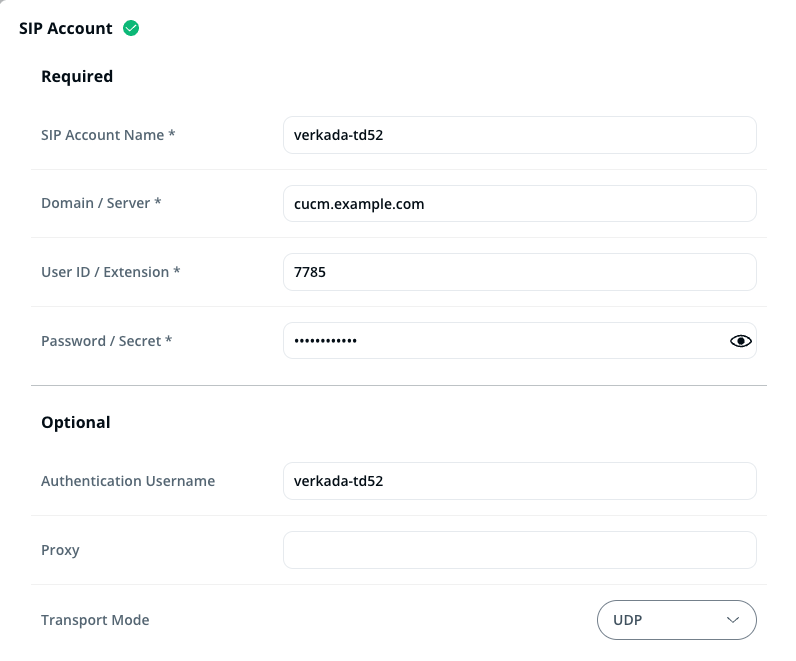
b. Click **Add Account**. You should be redirected to the SIP Account configuration menu.
c. Verify that your **Authentication Username** exactly matches the **End User ID/Owner User ID/Digest User** that you configured in steps 1, 2, and 3.\
d. In the **Domain/Server** field, type your SIP domain. **Note**: The default port is 5060, but you can change it by appending a custom port number; for example, cucm.example.com:5061.\
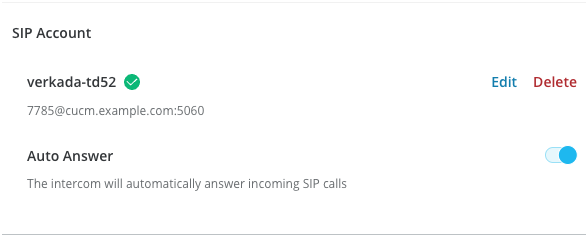
e. Fill in the **User ID** and **Password** fields with the values created in step 1 and click **Save**. If provisioning was successful, you’ll see a green check mark under **SIP Account** in the **Device** settings.
{% endstep %}
{% step %}
**Add SIP extensions as receivers.**
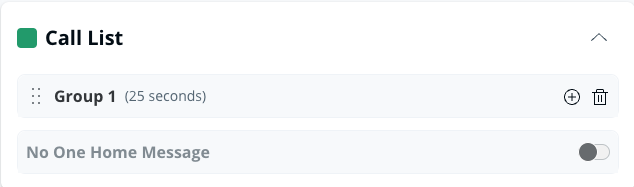
a. Navigate to your intercom’s **Receivers** tab.
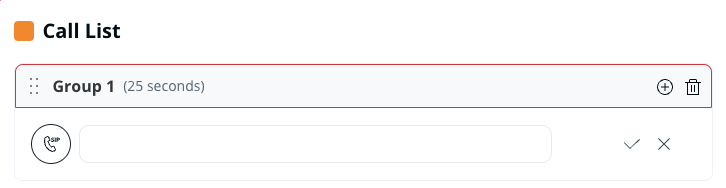
b. Click the plus (**+**) icon and select **SIP Phone**.\
c. Enter the extension of the recipient you want to add to the call list. When someone presses the call button, the call will be routed to the specified SIP extension. Alternatively, to call the intercom from your SIP device, simply dial its extension.
{% endstep %}
{% endstepper %}
***
## Troubleshooting
#### Unlock Not Working (DTMF Mismatch)
There is a common issue where video and audio work well, but unlocking by pressing 0-9 does not. Customers often try to fix this by turning on MTP (Media Termination Point), which then causes the video to break.\
\
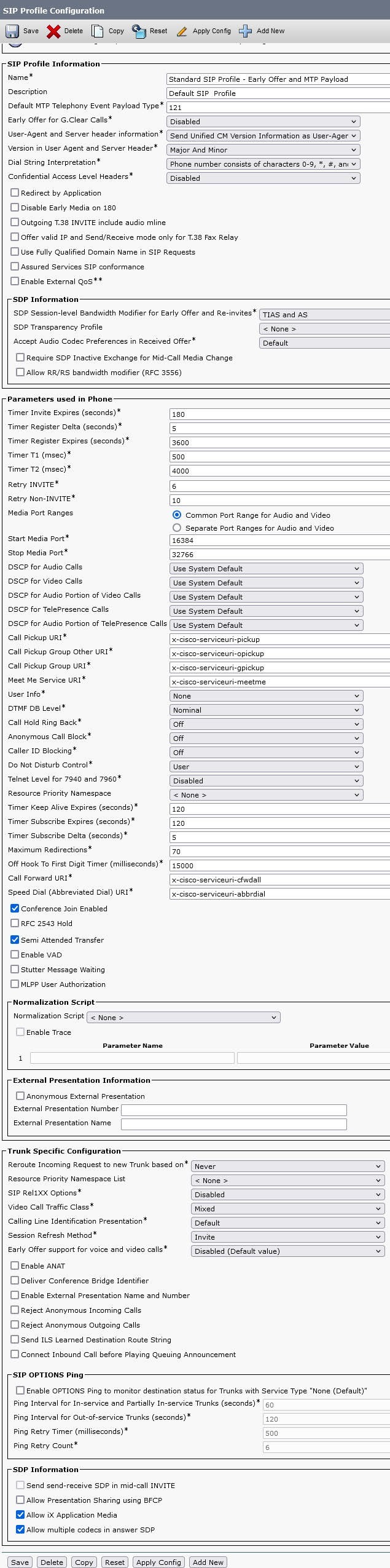
This happens because Cisco phones are often configured to use DTMF payload 101, while the Verkada intercom negotiates for DTMF payload 121. Turning on Media Termination Point fixes this DTMF mismatch but breaks video.
Instead, make sure MTP is off for both devices. Apply the following SIP profile to both the phone and the Verkada intercom in CUCM:
***
{% hint style="info" %}
**Prefer to see it in action?** Check out the [video tutorial](https://www.youtube.com/watch?v=pgUM7Jwglng).
{% endhint %}
---
# Agent Instructions
This documentation is published with GitBook. GitBook is the documentation platform designed so that both humans and AI agents can read, navigate, and reason over technical content effectively. Learn more at gitbook.com.
## Querying This Documentation
If you need additional information that is not directly available in this page, you can query the documentation by asking a question.
Perform an HTTP GET request on the following URL with the `ask` and `goal` query parameters:
```
GET https://help.verkada.com/intercom/configuration/integrate-verkada-intercoms-with-sip/sip-integration-cisco-unified-cm.md?ask=&goal=
```
`ask` is the immediate question: it should be specific, self-contained, and written in natural language.
`goal` is what the user is ultimately trying to achieve, the reason they need the answer. Sharing it helps GitBook give you a better, more relevant answer. A goal is most helpful when it describes the outcome the user wants rather than restating the question. For example, with `ask=how do I create an API token`, a goal like `automate deployments from our CI pipeline` lets GitBook tailor the answer to that use case.
The response will contain a direct answer to the question and relevant excerpts and sources from the documentation.
Use this mechanism when the answer is not explicitly present in the current page, you need clarification or additional context, or you want to retrieve related documentation sections.