> For the complete documentation index, see [llms.txt](https://help.verkada.com/llms.txt). Markdown versions of documentation pages are available by appending `.md` to page URLs; this page is available as [Markdown](https://help.verkada.com/intercom/configuration/configure-live-translation-for-intercom-calls/upload-audio-messages-to-intercom.md).
# Upload Audio Messages to Intercom
Learn how to upload the audio messages to your Verkada Intercom
Audio messages provide a convenient way to inform individuals attempting to enter your building.
***
## Configure audio messages
You can upload these types of automated audio messages to your [Verkada Intercom](/intercom/getting-started/get-started-with-verkada-intercom.md), where they can play when certain conditions are met:
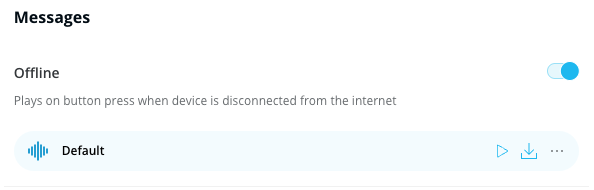
* An [**Offline**](#h_5bcfd8cbc0) message plays when the device has no internet connection and the call button is pressed.
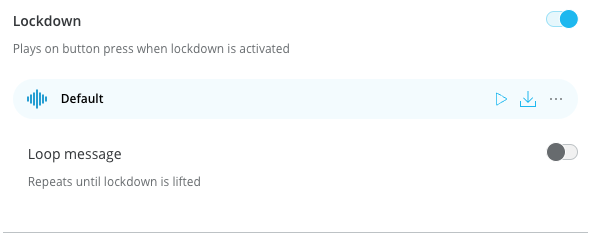
* A [**Lockdown**](#h_097f0cb45e) message plays when there is an active lockdown and the call button is pressed.
* A [**No One Home**](#h_fa69507d6b) message plays when the call list has been exhausted
You can enable these automated messages in Verkada Command and use the default messages, record your own message, or upload your own .wav, mp3, or text-to-speech AI-generated messages.
{% hint style="info" %}
For **Text-to-Speech AI-generated messages:** Type a message in English, French, Japanese, Spanish, Korean, or German. You can then automatically translate it into any of these languages and choose from a selection of AI voices for playback.
{% endhint %}
You can configure all automated message types [individually](#h_ae032bd4f9) or [globally](#h_e4d6af3a5e) (applies to all intercoms in your organization).
***
## Configuration
### Individual audio messages
{% tabs %}
{% tab title="Offline" %}
{% stepper %}
{% step %}
**In Verkada Command, go to All Products > Intercom.**
{% endstep %}
{% step %}
**Go to your Intercom's Settings page > Messages.**
{% endstep %}
{% step %}
**Toggle on Offline.**
{% endstep %}
{% step %}
**On the right, click the kebab (three dots) icon.**
{% endstep %}
{% step %}
**When prompted, click Record or Upload (for a message).**
{% endstep %}
{% endstepper %}
{% endtab %}
{% tab title="Lockdown" %}
{% stepper %}
{% step %}
**In Verkada Command, go to All Products > Intercom.**
{% endstep %}
{% step %}
**Go to your Intercom's Settings page > Messages.**
{% endstep %}
{% step %}
**Toggle on Lockdown.**
{% endstep %}
{% step %}
**To the right of the Default message, click the kebab (three dots) icon.**
{% endstep %}
{% step %}
**When prompted, click Record or Upload.**
{% endstep %}
{% step %}
**You can also toggle on Loop Message.**
{% endstep %}
{% endstepper %}
{% endtab %}
{% tab title="No One Home" %}
{% stepper %}
{% step %}
**In Verkada Command, go to All Products > Intercom.**
{% endstep %}
{% step %}
**Go to your Intercom's Receivers Tab > Call List.**
{% endstep %}
{% step %}
**Toggle on No One Home Message.**
{% endstep %}
{% step %}
**To the right of the Default message, click the ellipsis (three dots) button. You are then prompted to select Record or Upload.**
{% endstep %}
{% endstepper %}
{% endtab %}
{% endtabs %}
### Global audio messages
An intercom plays the default global message if no local message is set. To enable the global message on an intercom, configure it globally and then activate it for each intercom. The system will then automatically populate it with the global message.
{% tabs %}
{% tab title="Globally enable" %}
{% stepper %}
{% step %}
**In Verkada Command, go to All Products > Intercom.**
{% endstep %}
{% step %}
**Select Settings > Automatic Messages.**
{% endstep %}
{% step %}
**Toggle on Offline.**
{% endstep %}
{% step %}
**Next to Default click** .
{% endstep %}
{% step %}
**When prompted, click Record or Upload (for a message).**
{% endstep %}
{% endstepper %}
{% endtab %}
{% tab title="Intercom" %}
{% stepper %}
{% step %}
**In Verkada Command, go to All Products > Intercom.**
{% endstep %}
{% step %}
**Select your intercom from the list.**
{% endstep %}
{% step %}
**Toggle on Lockdown.**
{% endstep %}
{% step %}
**To the right of the Default message, click** .
{% endstep %}
{% step %}
**When prompted, click Record or Upload.**
{% endstep %}
{% step %}
**(Optional) toggle on Loop Message.**
{% endstep %}
{% endstepper %}
{% endtab %}
{% endtabs %}
---
# Agent Instructions
This documentation is published with GitBook. GitBook is the documentation platform designed so that both humans and AI agents can read, navigate, and reason over technical content effectively. Learn more at gitbook.com.
## Querying This Documentation
If you need additional information that is not directly available in this page, you can query the documentation by asking a question.
Perform an HTTP GET request on the following URL with the `ask` and `goal` query parameters:
```
GET https://help.verkada.com/intercom/configuration/configure-live-translation-for-intercom-calls/upload-audio-messages-to-intercom.md?ask=&goal=
```
`ask` is the immediate question: it should be specific, self-contained, and written in natural language.
`goal` is what the user is ultimately trying to achieve, the reason they need the answer. Sharing it helps GitBook give you a better, more relevant answer. A goal is most helpful when it describes the outcome the user wants rather than restating the question. For example, with `ask=how do I create an API token`, a goal like `automate deployments from our CI pipeline` lets GitBook tailor the answer to that use case.
The response will contain a direct answer to the question and relevant excerpts and sources from the documentation.
Use this mechanism when the answer is not explicitly present in the current page, you need clarification or additional context, or you want to retrieve related documentation sections.