# Create Guest Events with Calendar Shortcuts
Guest events streamline check-in by collecting attendee information in advance. They can be created via a calendar application or the Employee Portal at [my.verkada.com](https://my.verkada.com).
{% hint style="danger" %}
An organizer’s email **must** be tied to a host to invite guests. Hosts who don’t have access to [Verkada Command](https://app.gitbook.com/s/NRq5qDDjsYNxwNzF1bcB/getting-started/get-started-with-verkada-command) can still invite guests at [my.verkada.com](https://my.verkada.com).
{% endhint %}
***
## Retrieve invite address
{% hint style="danger" %}
You need to create a [Guest type](https://help.verkada.com/guest/~/revisions/I1ptDZOwuKDgR6roKONt/configuration-and-setup/configure-guest-types) before you can create a Guest event.
{% endhint %}
You need to add an invite address as an invitee to create a Guest event from a calendar application. Each invite address is unique to a guest type and site and can be found in Command or the Employee Portal.
### Command
{% stepper %}
{% step %}
**In Verkada Command, go to All Products > Workplace >**  **Guest.**
{% endstep %}
{% step %}
**On the left navigation, select Events .**
{% endstep %}
{% step %}
**At the top right, click Invite via Calendar.**
{% endstep %}
{% step %}
**Click the Choose a guest type to invite dropdown and select the Guest type for the event.**
{% endstep %}
{% step %}
**Click Copy invite address and paste the address as one of the invitees in the calendar event.**
{% endstep %}
{% endstepper %}
### Employee portal
{% stepper %}
{% step %}
**Log in to your** [**my.verkada.com**](https://my.verkada.com) **account.**
{% endstep %}
{% step %}
**In the top right, click > Invite Guests.**
{% endstep %}
{% step %}
**On the left, click Invite Guests.**
{% endstep %}
{% step %}
**Click Calendar Shortcut.**
{% endstep %}
{% step %}
**On the left, select your Guest site.**
{% endstep %}
{% step %}
**On the right, click Change to select your guest type.**
{% endstep %}
{% endstepper %}
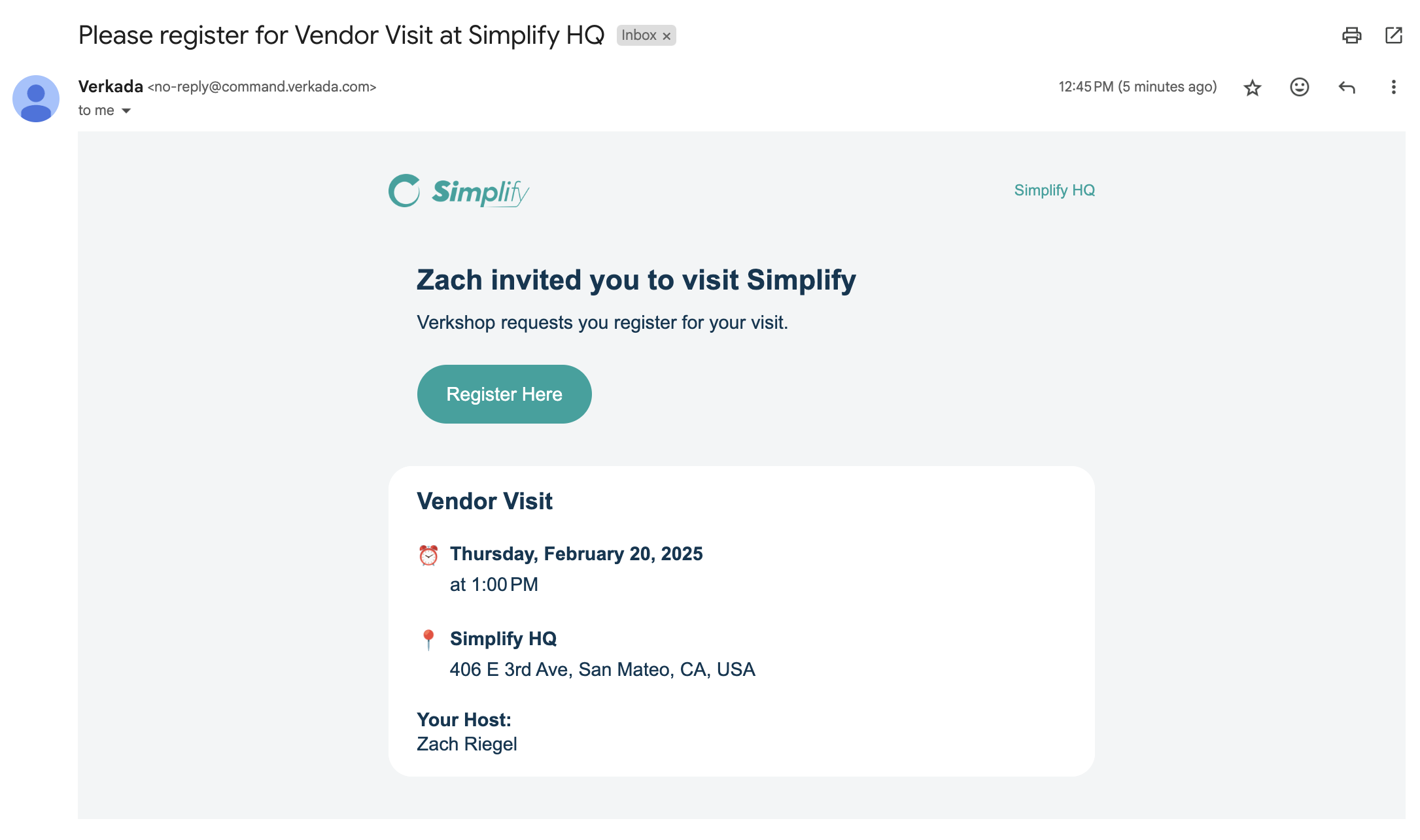
Verkada Guest immediately sends invitees a registration link after a Guest event is created.
{% hint style="warning" %}
Invite email addresses remain the same and can be shared among employees to invite additional guests.
{% endhint %}
***
## Manage Guest Events
Hosts can view all their events from the [employee portal](https://my.verkada.com/#login), including those created from a calendar app.
Event hosts can modify the event settings, including the list of invited emails, directly in the calendar app.
{% hint style="danger" %}
* Verkada Guest will only detect an update to the invite list if another change is made to the meeting invite, such as updating the meeting notes.
* Rescheduling an event voids all registrations. A new registration email is immediately sent to all invitees.
{% endhint %}
***
## FAQ
**Guest.**
{% endstep %}
{% step %}
**On the left navigation, select Events .**
{% endstep %}
{% step %}
**At the top right, click Invite via Calendar.**
{% endstep %}
{% step %}
**Click the Choose a guest type to invite dropdown and select the Guest type for the event.**
{% endstep %}
{% step %}
**Click Copy invite address and paste the address as one of the invitees in the calendar event.**
{% endstep %}
{% endstepper %}
### Employee portal
{% stepper %}
{% step %}
**Log in to your** [**my.verkada.com**](https://my.verkada.com) **account.**
{% endstep %}
{% step %}
**In the top right, click > Invite Guests.**
{% endstep %}
{% step %}
**On the left, click Invite Guests.**
{% endstep %}
{% step %}
**Click Calendar Shortcut.**
{% endstep %}
{% step %}
**On the left, select your Guest site.**
{% endstep %}
{% step %}
**On the right, click Change to select your guest type.**
{% endstep %}
{% endstepper %}
Verkada Guest immediately sends invitees a registration link after a Guest event is created.
{% hint style="warning" %}
Invite email addresses remain the same and can be shared among employees to invite additional guests.
{% endhint %}
***
## Manage Guest Events
Hosts can view all their events from the [employee portal](https://my.verkada.com/#login), including those created from a calendar app.
Event hosts can modify the event settings, including the list of invited emails, directly in the calendar app.
{% hint style="danger" %}
* Verkada Guest will only detect an update to the invite list if another change is made to the meeting invite, such as updating the meeting notes.
* Rescheduling an event voids all registrations. A new registration email is immediately sent to all invitees.
{% endhint %}
***
## FAQ
Can I add or remove guests after the invite has been sent?
Yes, but Verkada Guest will only detect the update if another change is made to the meeting invite, such as updating the meeting notes.
Can I send my guests welcome information and instructions?
Yes, you can customize a welcome message for each guest type in your site settings. Invited guests receive it after registering, allowing you to include parking directions, Wi-Fi credentials, or other helpful links.
How do invited guests sign in?
* On the event day, registered attendees receive an email with a link to sign in.
* Both registered and unregistered attendees can sign in on the tablet or scan the tablet’s QR code with their mobile device to sign in via their browser.