> For the complete documentation index, see [llms.txt](https://help.verkada.com/llms.txt). Markdown versions of documentation pages are available by appending `.md` to page URLs; this page is available as [Markdown](https://help.verkada.com/guest/~/revisions/EoCxP3hpfoyJZDsFs6y8/configuration/door-access-for-guests/manage-visitor-access-control-privileges.md).
# Manage Visitor Door Access from Guest
Control which doors visitors can access when on your property
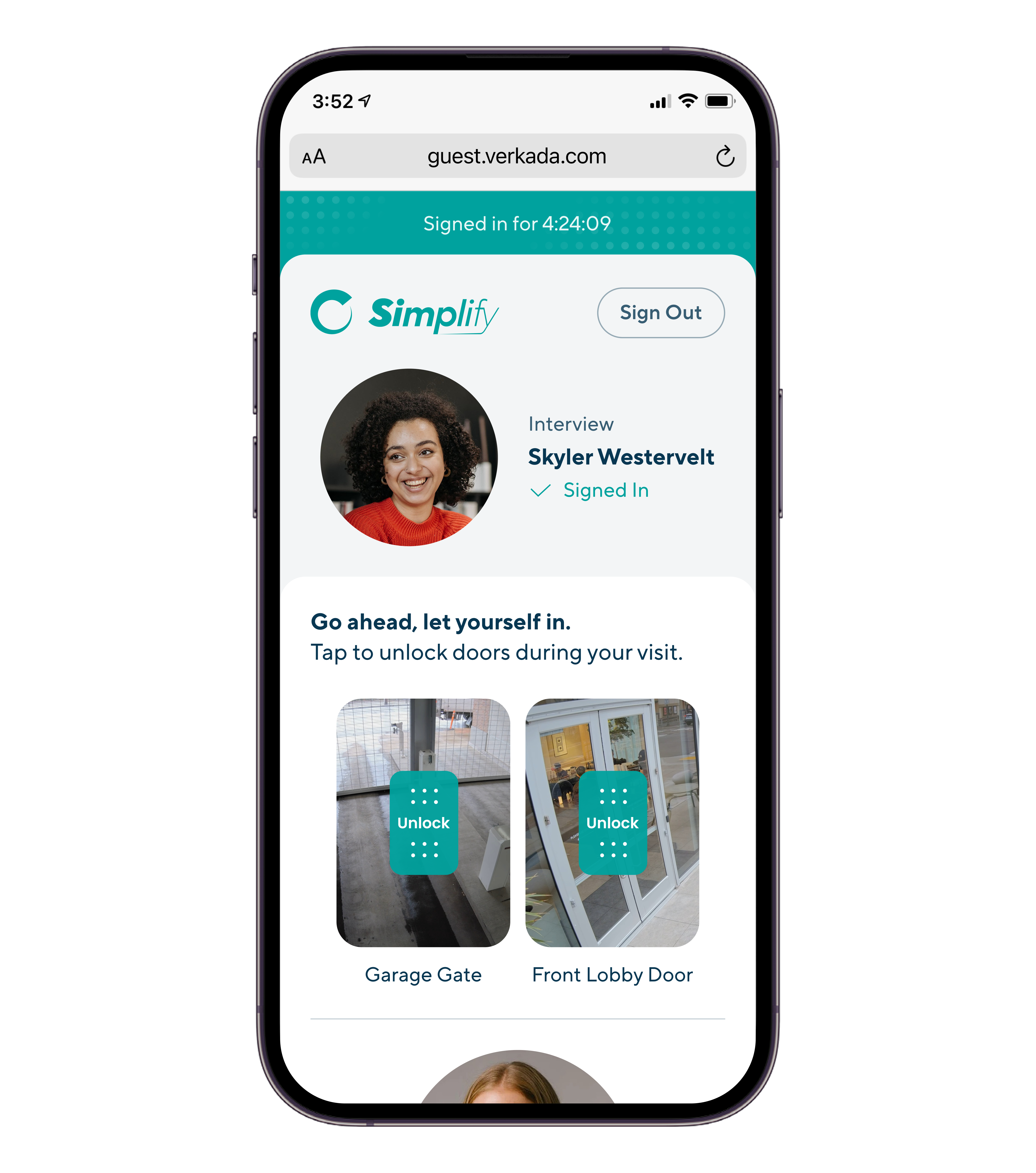
The integration between Verkada Access Control and Guest enables organizations to grant limited door access to visitors. Organizations can issue access credentials to select visitors directly from Guest.
***
## How door access is issued to visitors
[Visit Access Types](https://help.verkada.com/access-control/users-and-credentials/add-a-user-to-the-verkada-access-system/visitor-access-visit-access-type) define which credentials a visitor can use to unlock doors. Verkada Guest supports issuing visitors the following credentials:
1. Keycards
2. Unlock Links
3. Entry code
4. QR code
5. Face Unlock\*
{% hint style="warning" %}
in Guest, visitors can only be issued Face Unlock credentials if they sign-in at a **kiosk**.
{% endhint %}
[Keycards must be assigned to visitors each visit](https://help.verkada.com/guest/~/revisions/avcvElEczOvEAbbh9Wap/configuration/door-access-for-guests/assigning-a-keycard-in-guest) by a Workplace user. After signing in, visitors will automatically be sent a URL where they can access Unlock Links, entry codes, and QR codes.
***
## Review visitor access privileges
Guest users can review information about a visitor's door access privileges directly from Guest.
{% stepper %}
{% step %}
**In Verkada Command, go to All Products > Workplace >**  **Guest.**
{% endstep %}
{% step %}
**Select a visitor. In the details panel, you can review the following:**
* Which credentials have been issued to the visitor (ex: keycards, Face Unlock, entry code)
* which doors a visitor has access to
* how long a visitor has door access
* Whether a visitor will be included in roll call reports
{% endstep %}
{% endstepper %}
***
## Deactivate visitor door access
### Automatic controls for door access
A visitor will automatically lose access to doors:
1. When the door is outside its access controlled [door schedule](https://help.verkada.com/access-control/access/door-schedules-and-exceptions.md).
2. When the visitor attempts to unlock doors outside the access schedule defined by their [visit access type](https://help.verkada.com/access-control/users-and-credentials/add-a-user-to-the-verkada-access-system/visitor-access-visit-access-type.md).
3. When the visitor has been signed in longer than the maximum access duration defined by their visit access type.
4. When a Guest Event ends (applies to invited visitors only).
5. If the visitor is signed out.
A keycard will be dissociated from a visitor and available to be re-assigned to other visitors:
1. If a visitor is signed out.
2. If a visitor’s access is revoked.
3. When the visitor has been signed in longer than the maximum access duration defined by their visit access type.
4. When a Guest Event ends (applies to invited visitors only).
### Explicitly revoke visitor door access
Guest users are able to revoke door access from a visitor directly from Guest.
{% stepper %}
{% step %}
**In Verkada Command, go to All Products > Workplace >** **Guest.**
{% endstep %}
{% step %}
**On Guest Home, Guest users have 2 options for revoking door access:**
a. Select a signed-in user and click **Revoke Access**. When this option is selected, visitors will still be treated as signed in.\
b. Select a signed-in user and click **Sign out.**
{% endstep %}
{% endstepper %}
---
# Agent Instructions
This documentation is published with GitBook. GitBook is the documentation platform designed so that both humans and AI agents can read, navigate, and reason over technical content effectively. Learn more at gitbook.com.
## Querying This Documentation
If you need additional information that is not directly available in this page, you can query the documentation by asking a question.
Perform an HTTP GET request on the following URL with the `ask` and `goal` query parameters:
```
GET https://help.verkada.com/guest/~/revisions/EoCxP3hpfoyJZDsFs6y8/configuration/door-access-for-guests/manage-visitor-access-control-privileges.md?ask=&goal=
```
`ask` is the immediate question: it should be specific, self-contained, and written in natural language.
`goal` is what the user is ultimately trying to achieve, the reason they need the answer. Sharing it helps GitBook give you a better, more relevant answer. A goal is most helpful when it describes the outcome the user wants rather than restating the question. For example, with `ask=how do I create an API token`, a goal like `automate deployments from our CI pipeline` lets GitBook tailor the answer to that use case.
The response will contain a direct answer to the question and relevant excerpts and sources from the documentation.
Use this mechanism when the answer is not explicitly present in the current page, you need clarification or additional context, or you want to retrieve related documentation sections.