> For the complete documentation index, see [llms.txt](https://help.verkada.com/llms.txt). Markdown versions of documentation pages are available by appending `.md` to page URLs; this page is available as [Markdown](https://help.verkada.com/guest/schools/school-guest-types.md).
# School Guest Types
Tailor guest types that use up-to-date student & guardian information
Guest provides multiple methods for districts to securely share student and guardian data. By sharing this data districts can build smart check-in workflows for students and guardians.
### Before you begin
To use school guest types, school data must be shared with a Guest site. This helps Guest keep track of students and their guardians by school. School data can be assigned in 3 ways:
* Integration with [Clever](/guest/schools/integrate-clever-with-verkada-guest.md)
* Integration with [ClassLink](/guest/schools/integrate-classlink-with-verkada-guest.md)
* CSV upload
***
## Configure a School Guest Type
{% stepper %}
{% step %}
**In Verkada Command, go to All Products > Workplace > Guest.**
{% endstep %}
{% step %}
**On the left navigation, click Guest Settings.**
{% endstep %}
{% step %}
**At the top, select Sites > your site.**
{% endstep %}
{% step %}
**Under Guest Types, click Manage Guest Types.**
{% endstep %}
{% step %}
**In the top right, click Add Guest Type.**
a. Enter a unique name.\
b. Select a site.\
c. Click **Next.**
{% endstep %}
{% step %}
**Select Schools and choose a template.**
a. Click **Create.**\
b. Next to **Check In Steps**, click :plus-large:.
1. Under **Schools,** select a search option:
* **Student Name:** Requires visitors to search for a student by name. Only students in the school associated to the Guest site will appear in this search. Visitors may search by name or student ID.
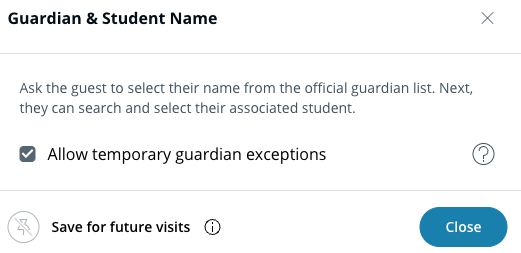
* **Guardian & Student Name:** Requires a visitor to search for a guardian name and then for a student name. By default, only guardians and students associated with the school assigned to the Guest site appear in the search. A guardian selected from this search may only search for students they are linked to.
2. (Optional) For the **Guardian & Student Name** step, check **Allow temporary guardian exceptions** (more info [here](#h_e06f879513)).
c. Configure other settings as needed.\
d. Click **Save Changes.**
{% endstep %}
{% endstepper %}
### Using Pins with School Guest Types
Steps as part of School Guest Types can be [pinned](/guest/configuration/configure-guest-types/pin-guest-check-in-steps-and-configure-guest-passes.md) to make them skippable on future sign-ins. Pinning the Student Name step will save a previously selected student selection. Pinning the Guardian & Student Name step will save both the previously selected guardian name and student names(s). A visitor can change the guardian and student name selections even if the step is pinned.
***
## Using Temporary Guardian Exceptions
Temporary guardian exceptions let visitors choose any student from the school’s student list. A guardian from the school’s guardian list can select the students they are authorized to release or a different student. A person that is not on the school’s guardian list can also select any student. After sign-in, these visits require approval from staff.
### Manage temporary guardian exceptions
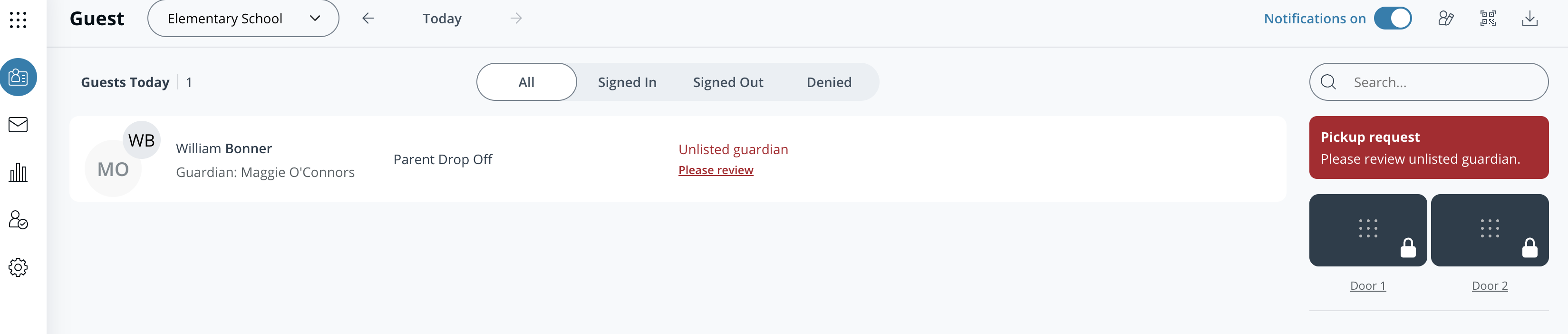
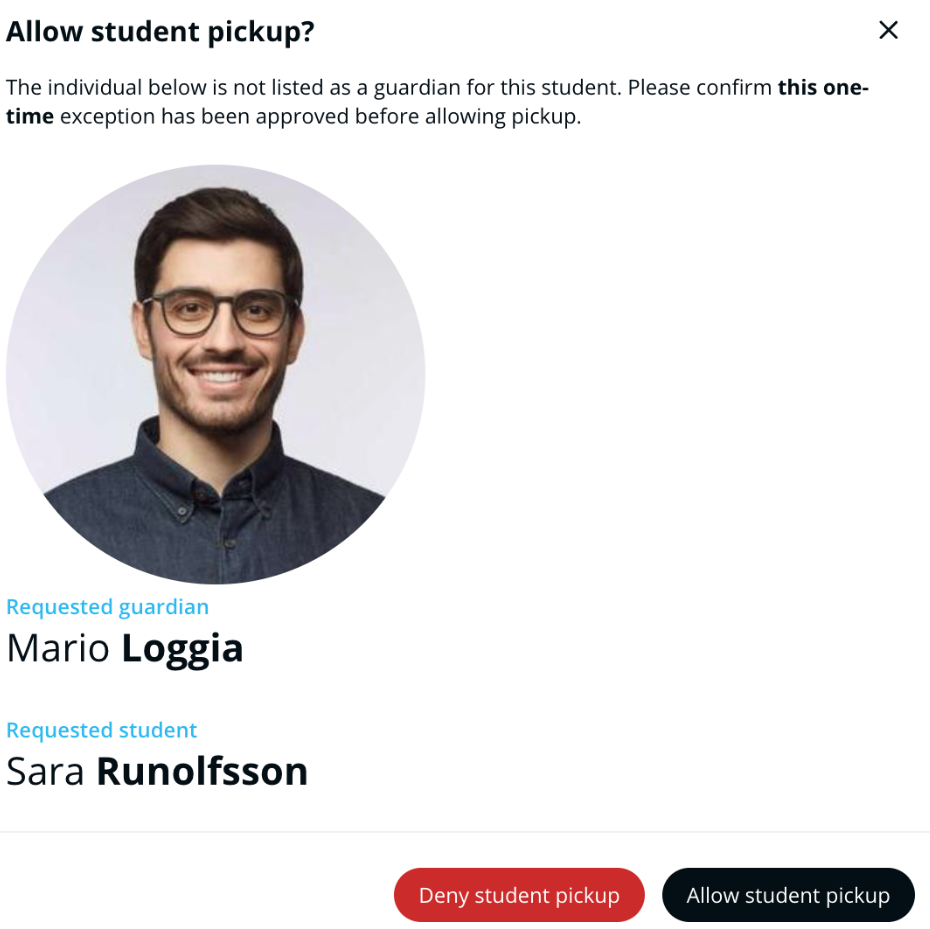
If a visitor selects a student they’re not linked to in the school data, staff will be prompted to review the visit. Staff can reject or approve the visit.
{% stepper %}
{% step %}
**In Verkada Command, go to All Products > Workplace > Guest.**
{% endstep %}
{% step %}
**At the top, select your site.**
{% endstep %}
{% step %}
**On a visit log, click Please Review.**
{% endstep %}
{% step %}
**In the menu, choose to allow or deny the temporary guardian exception.**
{% endstep %}
{% endstepper %}
Visit details indicate whether the visitor was approved as a temporary guardian. If a guardian exception was denied, staff can still allow entry by opening the visit log and selecting **Allow entry**.
---
# Agent Instructions
This documentation is published with GitBook. GitBook is the documentation platform designed so that both humans and AI agents can read, navigate, and reason over technical content effectively. Learn more at gitbook.com.
## Querying This Documentation
If you need additional information that is not directly available in this page, you can query the documentation by asking a question.
Perform an HTTP GET request on the following URL with the `ask` and `goal` query parameters:
```
GET https://help.verkada.com/guest/schools/school-guest-types.md?ask=&goal=
```
`ask` is the immediate question: it should be specific, self-contained, and written in natural language.
`goal` is what the user is ultimately trying to achieve, the reason they need the answer. Sharing it helps GitBook give you a better, more relevant answer. A goal is most helpful when it describes the outcome the user wants rather than restating the question. For example, with `ask=how do I create an API token`, a goal like `automate deployments from our CI pipeline` lets GitBook tailor the answer to that use case.
The response will contain a direct answer to the question and relevant excerpts and sources from the documentation.
Use this mechanism when the answer is not explicitly present in the current page, you need clarification or additional context, or you want to retrieve related documentation sections.