> For the complete documentation index, see [llms.txt](https://help.verkada.com/llms.txt). Markdown versions of documentation pages are available by appending `.md` to page URLs; this page is available as [Markdown](https://help.verkada.com/guest/schools/integrate-classlink-with-verkada-guest.md).
# Integrate ClassLink with Verkada Guest
Connect ClassLink Roster Server with Verkada Guest for student management
ClassLink is a popular Identity Provider (IdP) used by school admins, teachers, and students. Verkada Guest allows you to sync your student roster information from ClassLink. This allows the use of Student Guest types, which include the following:
* Late arrival (track students who arrive late to school)
* Student pick-up (track when a student is picked up by their parent/guardian)
* Self sign-out (track when a student leaves school early)
***
## ClassLink configuration
### Integration requirements
{% stepper %}
{% step %}
**The Command user setting up the integration must be an Org Admin**
{% endstep %}
{% step %}
**The Command user’s email must match an email of a ClassLink Roster Server user in the target ClassLink tenant.**
{% endstep %}
{% step %}
**The corresponding ClassLink Roster Server user must have the role: administrator**
{% endstep %}
{% step %}
**The corresponding ClassLink Roster Server user must be associated with a ClassLink org type: district**
{% endstep %}
{% endstepper %}
If there does not exist a corresponding ClassLink Roster Server user that satisfies requirements 2-4, a ClassLink Tenant Admin can add manual records to the Roster Server.
### Add Verkada Guest to ClassLink
{% stepper %}
{% step %}
**In the ClassLink Roster Server, navigate to Apps and click ADD.**
{% endstep %}
{% step %}
**Search for "Verkada Guest" and click + Add.**
{% endstep %}
{% step %}
**In the Apps menu, toggle on Enabled for Verkada Guest.**
{% endstep %}
{% step %}
**Configure permissions for the Verkada Guest app so that the following fields are shared:**
* Collection: **Users**
* sourcedid
* dateLastModified
* orgSourcedids
* username
* familyName
* status
* enabledUser
* role
* givenName
* identifier
* agentSourcedIds
* middleName
* email
* phone
* Collection: **Orgs**
* sourcedId
* dateLastModified
* type
* status
* name
{% endstep %}
{% endstepper %}
### Connect ClassLink in Command
{% stepper %}
{% step %}
**In Verkada Command, go to All Products > Workplace > Guest.**
{% endstep %}
{% step %}
**In the left navigation, click Guest Settings.**
{% endstep %}
{% step %}
**Under Organization, select Schools.**
{% endstep %}
{% step %}
**Click Sync students with ClassLink.**
a. Enter your Tenant ID.\
b. Select **Sync**.
{% endstep %}
{% step %}
**A confirmation email will be sent to the Command user setting up the integration. Click the link in this email to confirm the integration.**
{% endstep %}
{% endstepper %}
{% hint style="danger" %}
The [integration requirements](#h_d9bc5d61fa) must be met to complete the ClassLink integration.
{% endhint %}
***
## Command configuration
{% stepper %}
{% step %}
**In Verkada Command, go to All Products > Workplace > Guest.**
{% endstep %}
{% step %}
**In the left navigation, click Guest Settings.**
{% endstep %}
{% step %}
**Under Organization, select Schools.**
{% endstep %}
{% step %}
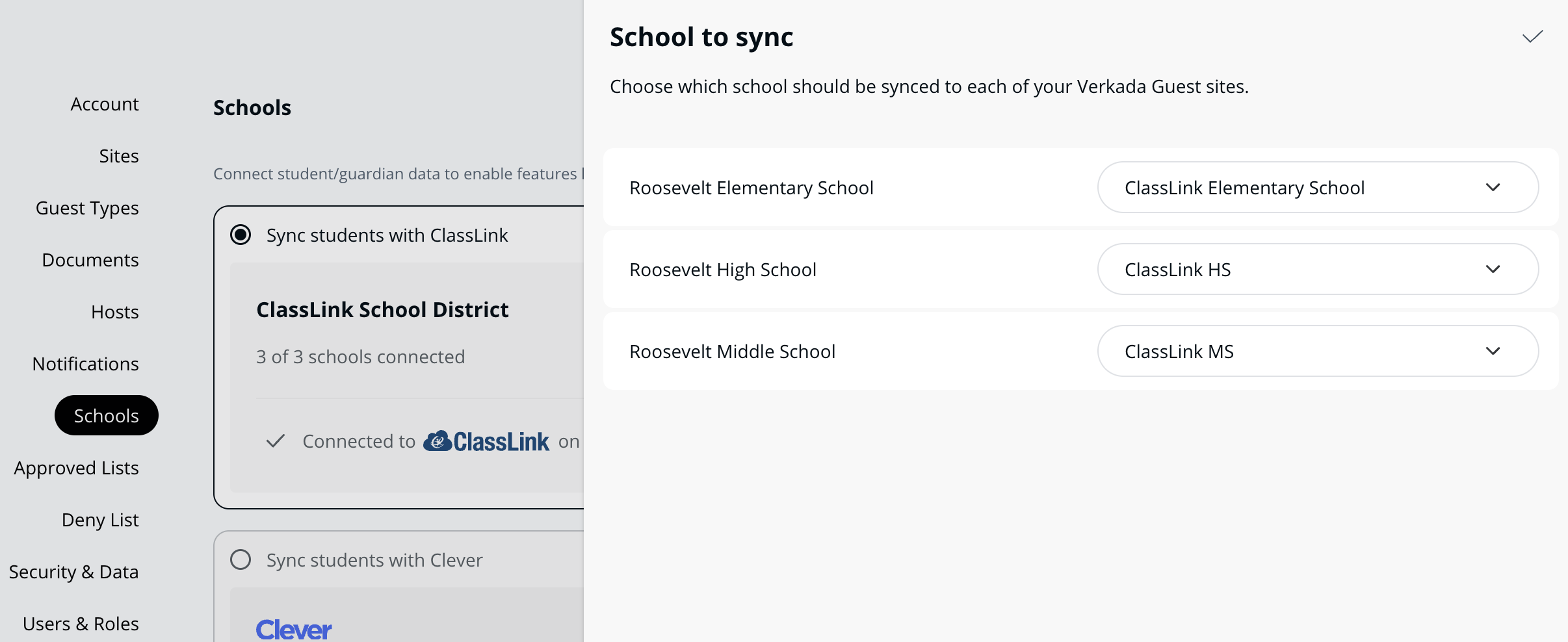
**Assign schools from ClassLink to Guest sites.**
{% endstep %}
{% endstepper %}
A school may be assigned to one or multiple Guest sites. A Guest site can only have one school assigned to it. Only one ClassLink tenant can be paired with a Command Org. A ClassLink tenant cannot be paired with multiple Command Orgs.
***
## FAQ
How can I check which ClassLink Roster Server users are being shared with Verkada Guest?
To check which users are being shared with Verkada Guest:
From ClassLink Launchpad, navigate to Roster ServerSelect ApplicationsSelect Verkada GuestSelect Users
To review which users satisfy [requirements](/guest/schools/integrate-classlink-with-verkada-guest.md) 3 and 4 for the integration with Guest:
Filter the Role column by administratorFilter School by the name of the district name in ClassLink. This name can be confirmed by navigating to the Orgs tab and finding the entry with org type: district.
What is required to associate a guardian with a student?
To associate guardians with students in ClassLink, each guardian user must have the following fields configured:
* **sourcedId** – Must be present for all guardian users
* **enabledUser** – Must be set to `true`
* **orgSourcedIds** – At least one value must be set for all guardian users
* **role** – Must be set to `guardian`
* **username** – Must be present for all guardian users
* **agentSourcedIds** – Must include the sourcedIds of the students the guardian is authorized to access. For multiple students, separate each ID with a comma (e.g., `id1,id2,id3`).
***
{% hint style="info" %}
**Prefer to see it in action?** Check out the [video tutorial](https://www.youtube.com/watch?v=WFUluswVNJ0).
{% endhint %}
---
# Agent Instructions
This documentation is published with GitBook. GitBook is the documentation platform designed so that both humans and AI agents can read, navigate, and reason over technical content effectively. Learn more at gitbook.com.
## Querying This Documentation
If you need additional information that is not directly available in this page, you can query the documentation by asking a question.
Perform an HTTP GET request on the following URL with the `ask` and `goal` query parameters:
```
GET https://help.verkada.com/guest/schools/integrate-classlink-with-verkada-guest.md?ask=&goal=
```
`ask` is the immediate question: it should be specific, self-contained, and written in natural language.
`goal` is what the user is ultimately trying to achieve, the reason they need the answer. Sharing it helps GitBook give you a better, more relevant answer. A goal is most helpful when it describes the outcome the user wants rather than restating the question. For example, with `ask=how do I create an API token`, a goal like `automate deployments from our CI pipeline` lets GitBook tailor the answer to that use case.
The response will contain a direct answer to the question and relevant excerpts and sources from the documentation.
Use this mechanism when the answer is not explicitly present in the current page, you need clarification or additional context, or you want to retrieve related documentation sections.